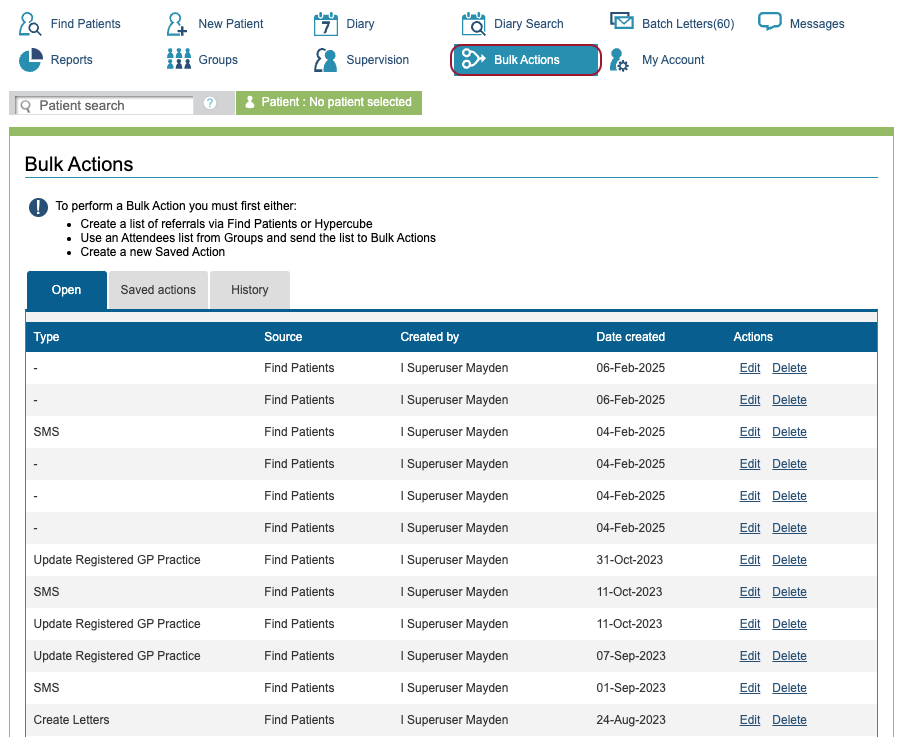
You can Access Bulk Actions via the blue Bulk Actions button at the top of the page.
The first tab is Open. These are the Bulk Actions that have been started, but not performed.
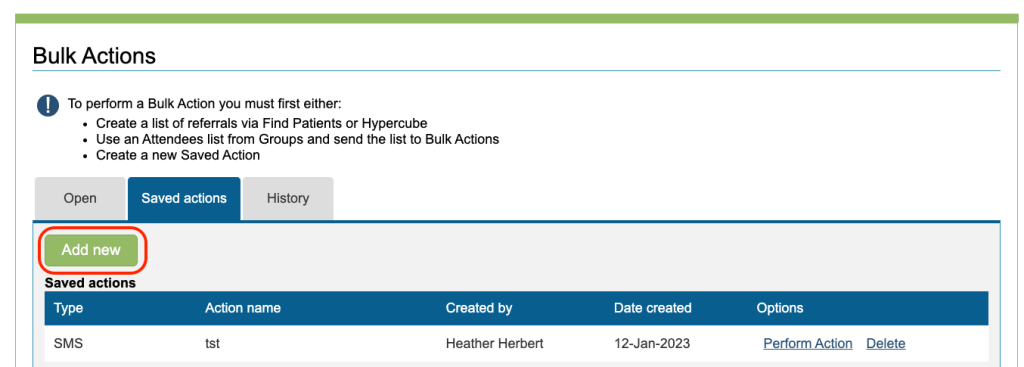
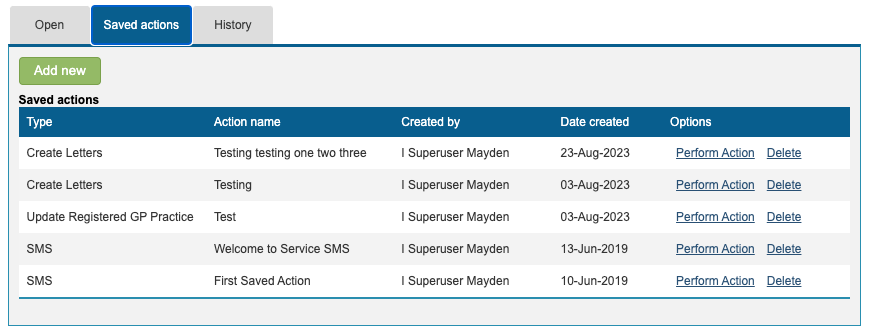
Saved Bulk Actions will show all saved bulk actions which can be used again. To create an action and save it, click Add new in this section. Give your action a name and select the type of action. The following steps will change according to the type of action you have selected. You won’t have a group of patients selected when you click save so it will be added to the Saved actions tab.
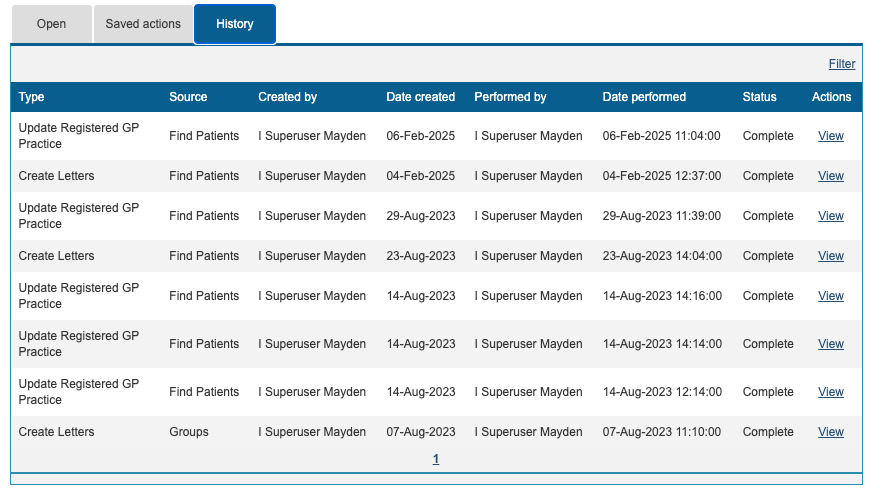
The History tab will display all Bulk Actions ever performed. You can filter within the table to refine the results. Click the Filter button and refine your search parameters.
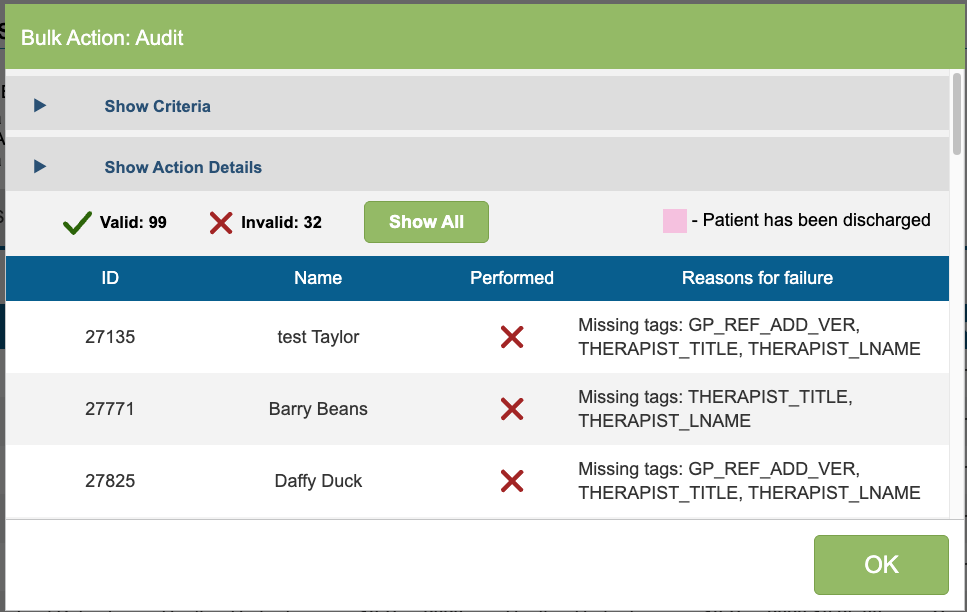
The results of a Bulk Action will include records classed as invalid. This will be due to details missing from their record which prevent the selected action being completed.
To perform a Bulk Action you must first either:
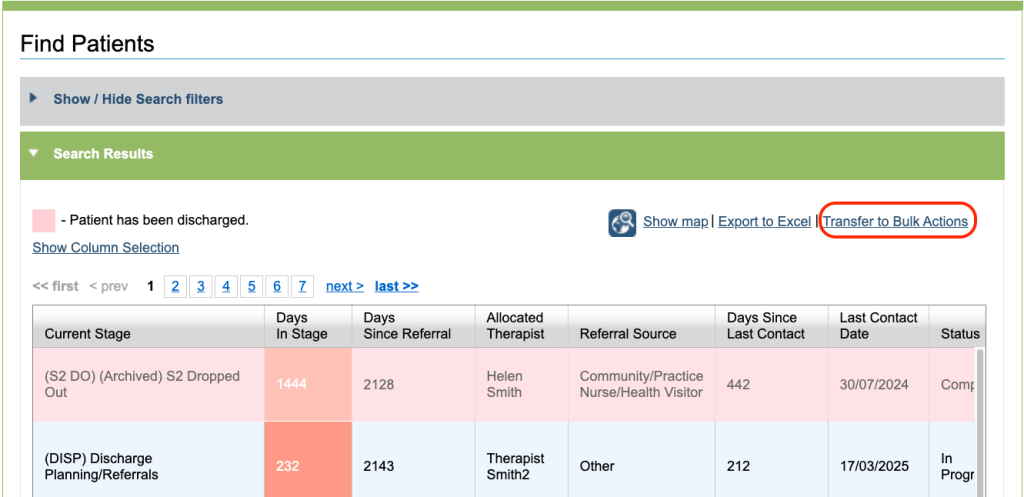
1. Create a list of referrals via Find Patients or Hypercube
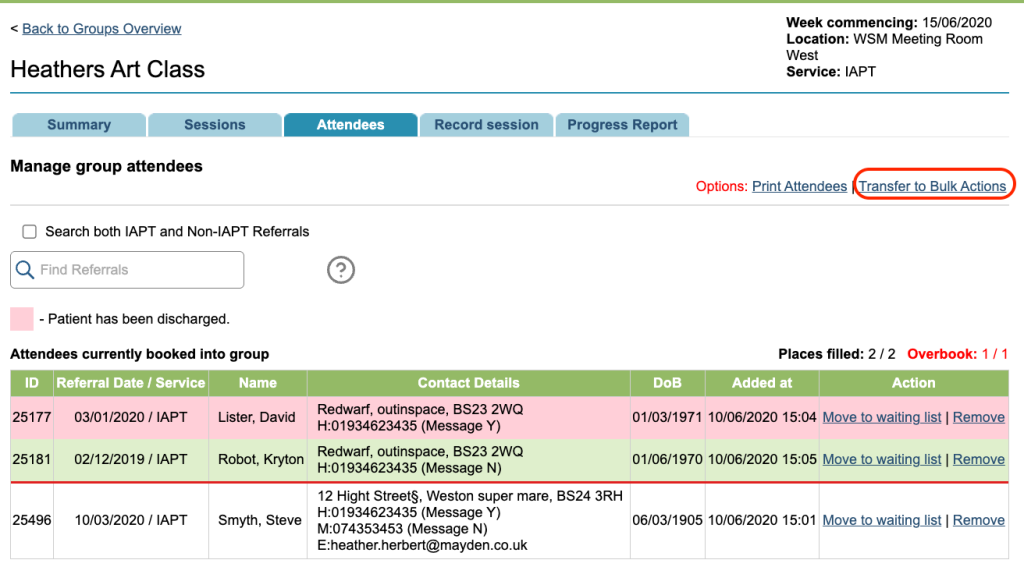
2. Use an Attendees list from Groups and send the list to Bulk Actions
3. Create a new Saved Action found under the Saved actions tab of Bulk Actions