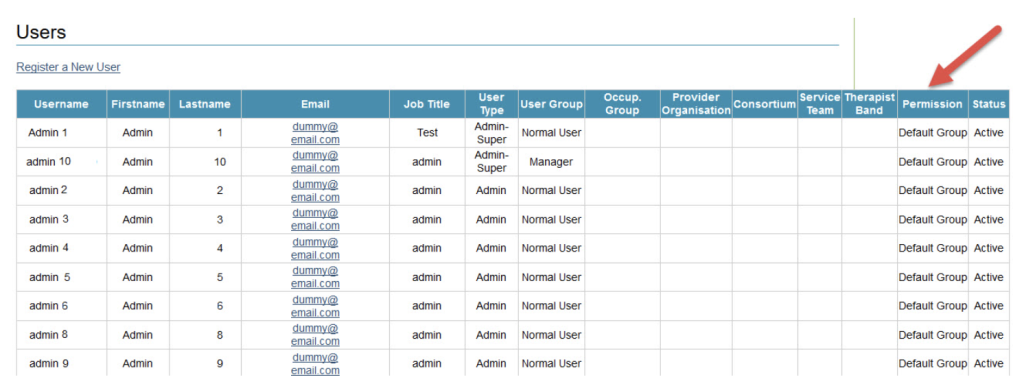
Users allows a Superuser to manage existing and create new users.
A Superuser can perform a variety of useful day-to-day activities that can be critical to your Service’s access to iaptus, including:
- Creating new user accounts
- Resetting forgotten passwords
- Amending access rights, including granting Superuser access
- Setting Keys and Permissions
- Deactivating (‘deleting’) users who are no longer require access, to iaptus.
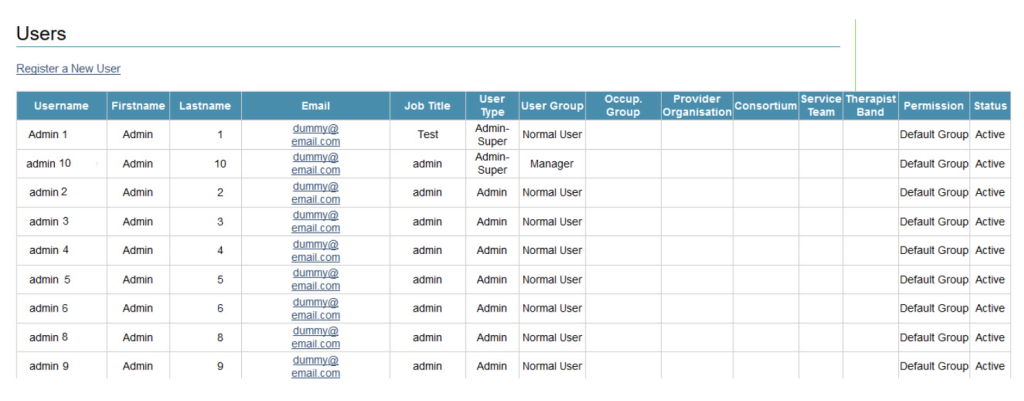
When you open Users, you will see a list of all users who have ever had access to iaptus:
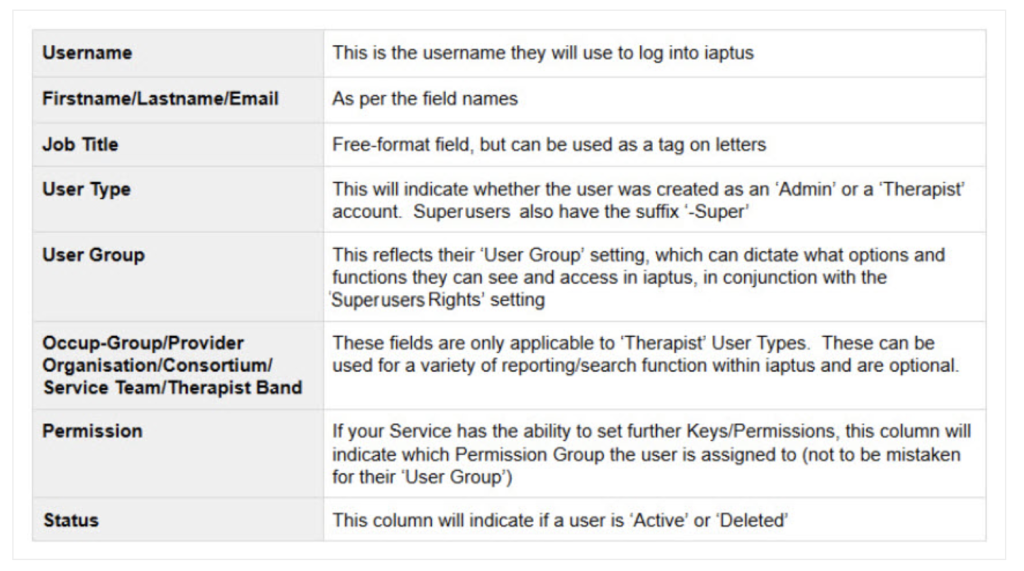
You can see an overview of the users on the system under the following headings:
Each of the columns can also be sorted alphabetically in ascending order (from A-Z) or descending order (from Z-A) by clicking the text of the column name.
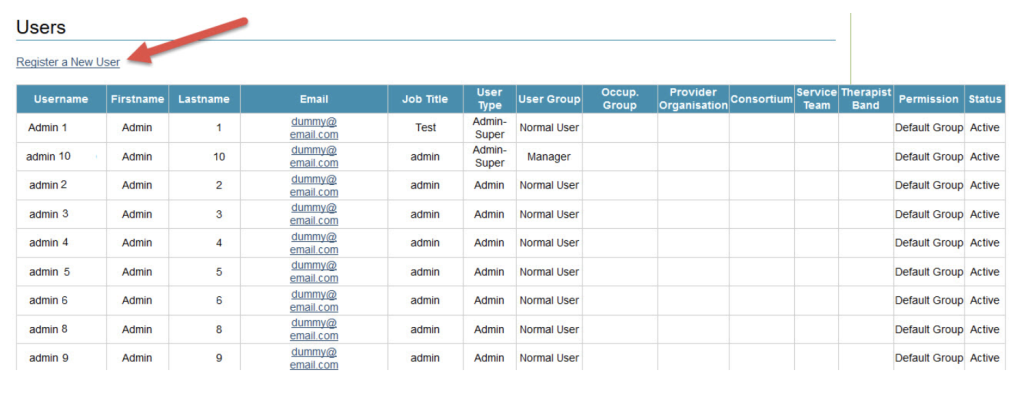
Register a New User
Click Register a New User at the top of the page.
Complete the registration form.
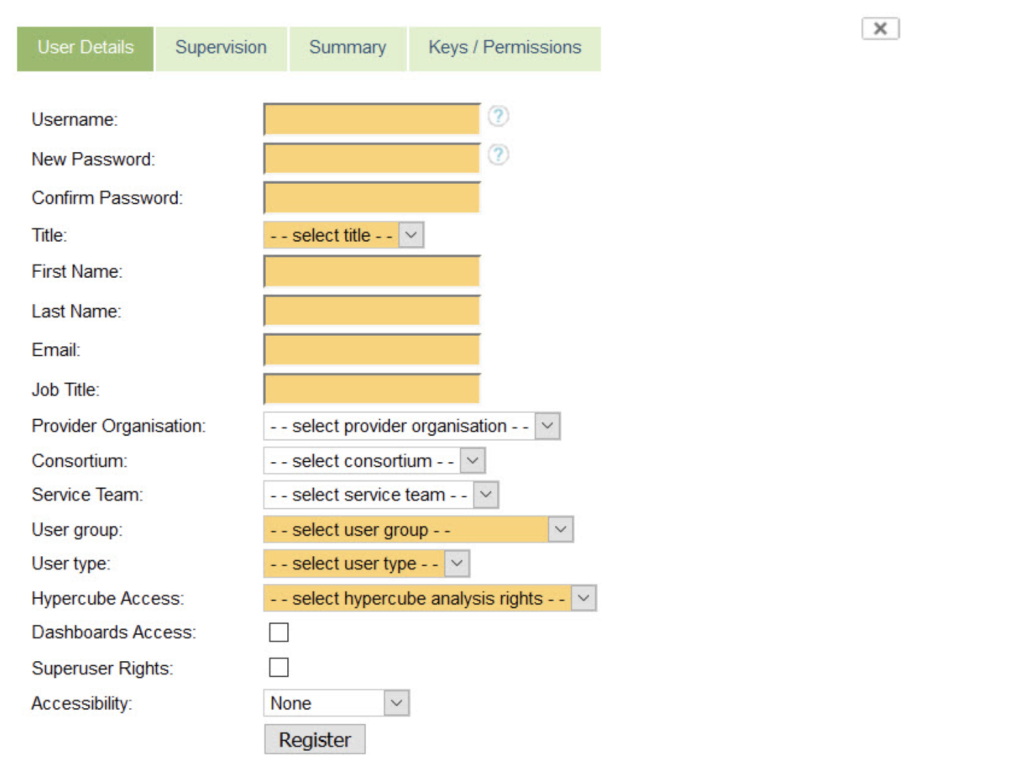
As per other areas of iaptus, the mandatory fields are indicated by the yellow coloured fields.
Editing a User Account
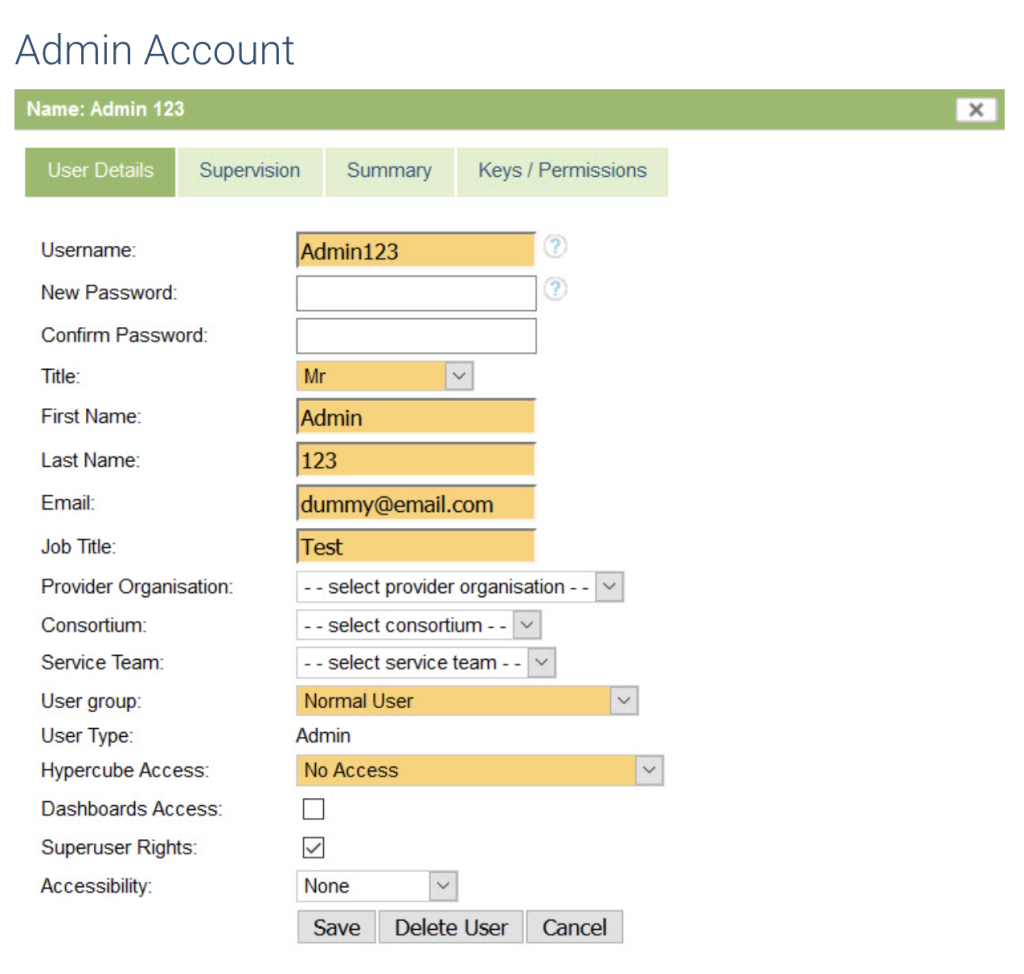
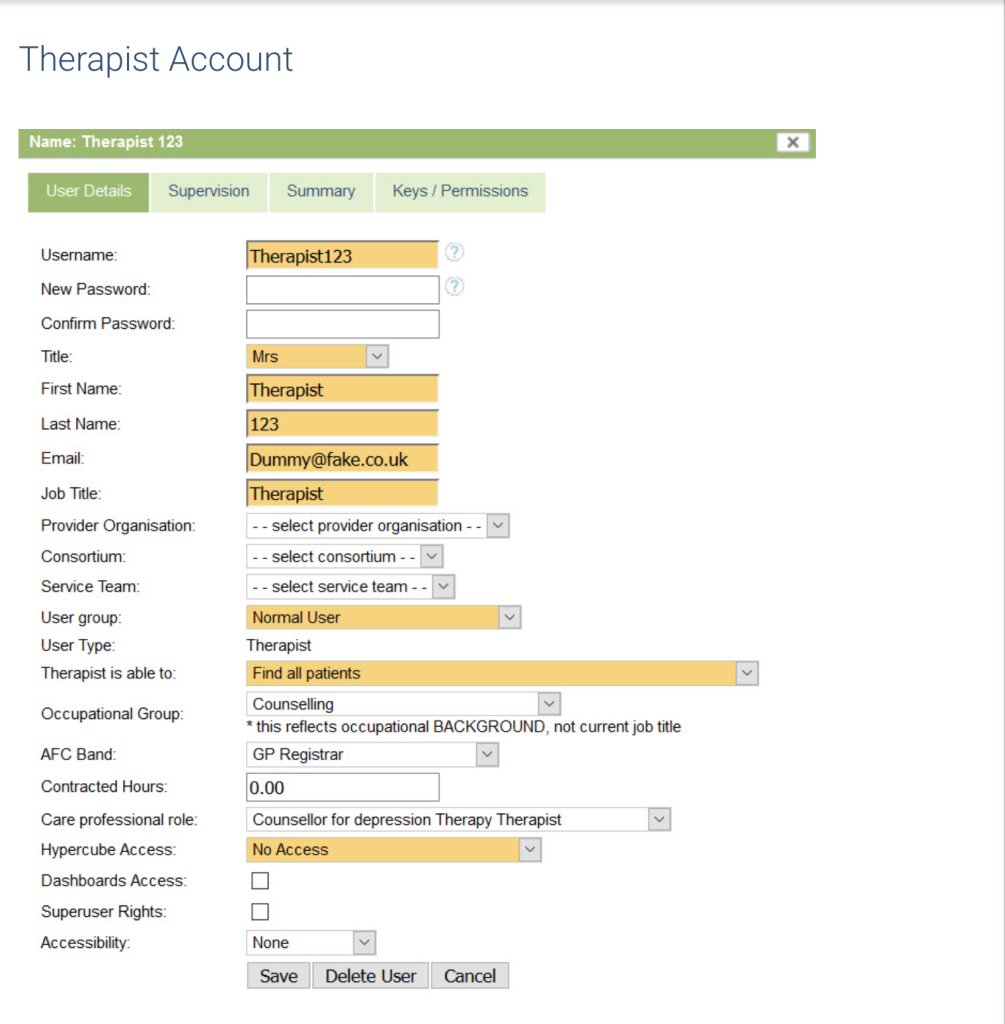
You can edit any existing user by click on their row in the user table. The options available will differ depending on the ‘User Type’ selected when the account was created, as below:
Users have control of key account details under My Account which enables them to update their information without contacting a Superuser.
Email address is used for the iaptus support log so it is important to keep this up to date.
User Type
User Type is the only setting which cannot be changed after the initial set up. Therapist should be used for anyone who be treating patients; all clinical work will be recorded against a therapist account. This may include therapists, counsellors, employment support workers.
Admin should be used for anyone who will not be working directly with patients. This may include administrators, reporting staff, service managers.
Resetting Passwords
Passwords can be reset within Users. Mayden are unable to reset user passwords because we are unable to verify who someone is or whether they should have access to the system. If a user contacts Mayden to get their password reset, we will refer them to their service Superuser.
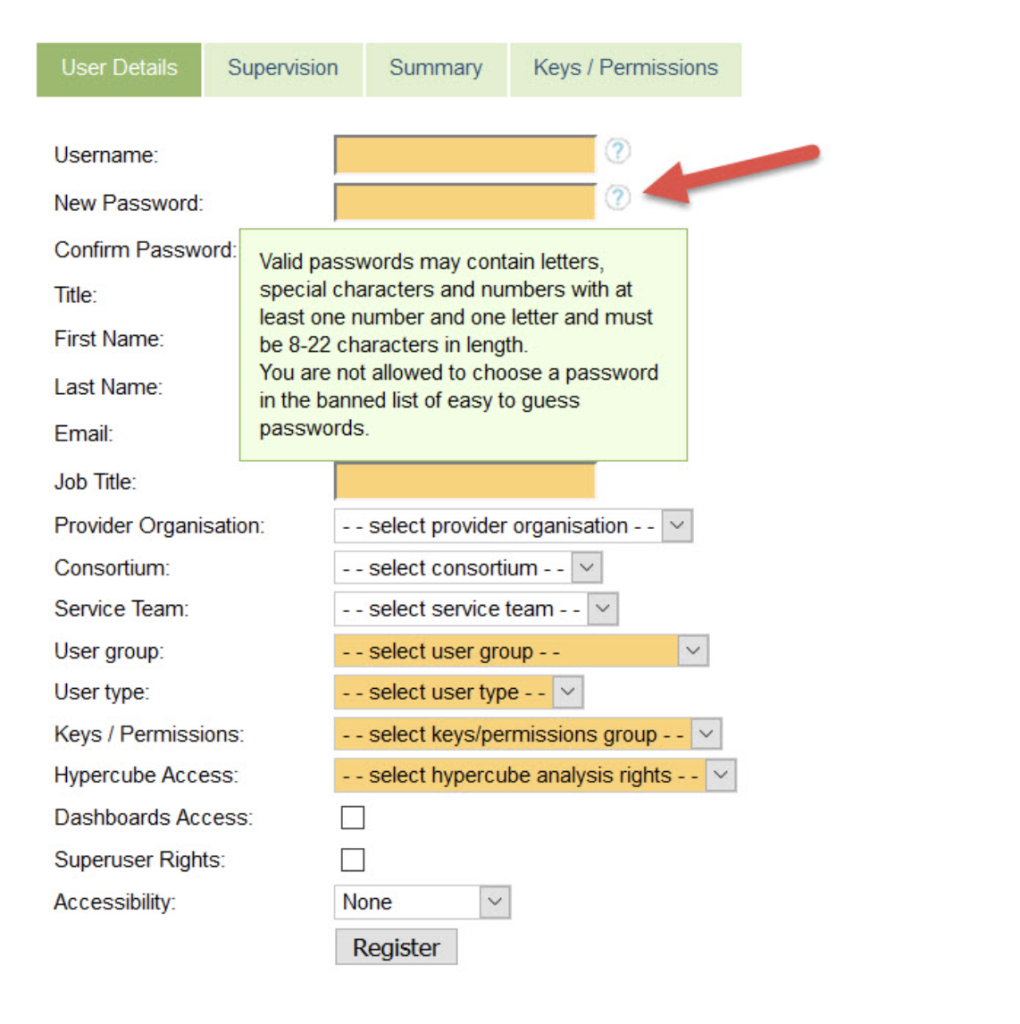
To reset a password, click on the user from the User table and complete the ‘New Password’ and ‘Confirm Password’ sections. Use a generic password you can pass on to the user. (When they next log in the user will then be asked to choose a new password only they know.)
Click save to confirm the new temporary password. For further information on what is required for the password, please hover over the question mark next to the password field.
User Group
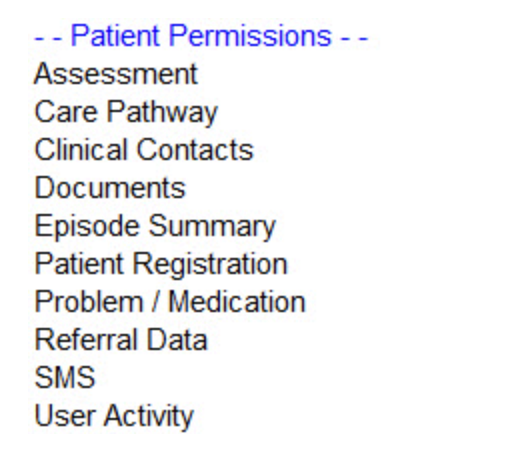
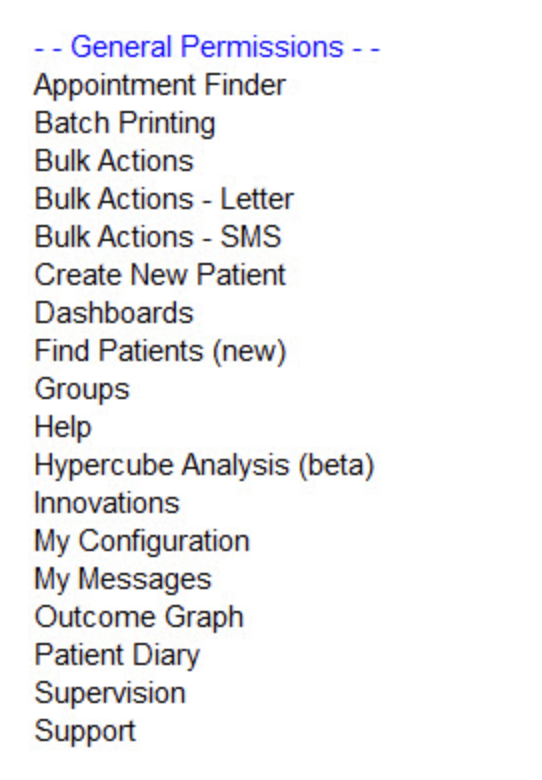
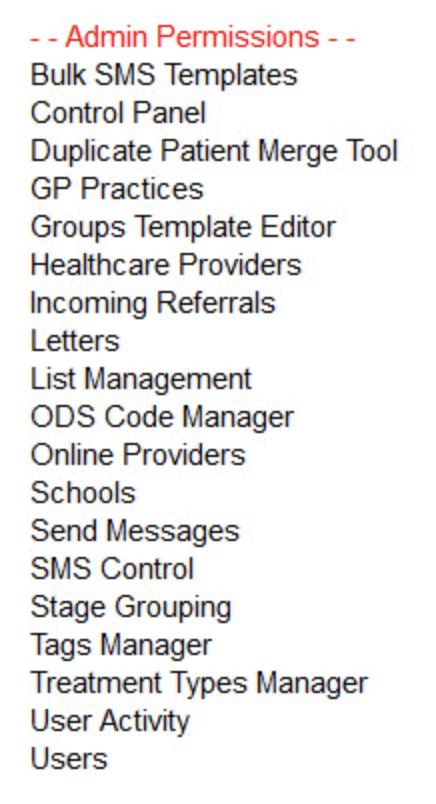
User Groups are created by Mayden and control the areas of the system users have access to. The default user groups on iaptus are Normal User, Manager, Report Only and Read Only. Each service can choose extra or new user groups which reflect the user types needed for their service.
These user groups include the tabs, icons and left hand navigation menu.
Tabs are represented by ‘Patient Permissions’.
Icons are represented by ‘General Permissions’.
The Superuser menu is represented by ‘Admin Permissions’.
Supervison
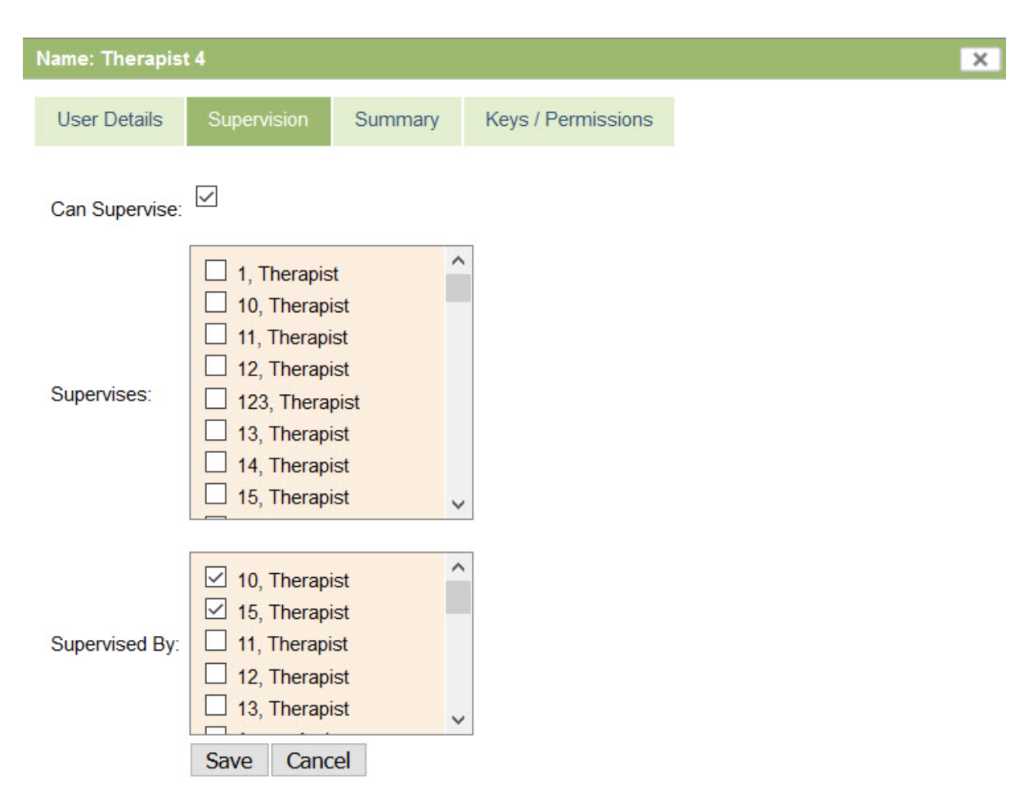
In Users, you can assign supervisors to supervisees and vice versa.
Under the Supervision tab, click on ‘Can Supervise’ to the Therapist is a Supervisor. This will open up all the therapists/ supervisees to be selected for supervision. The bottom box ‘Supervised By’ will show the list of supervisors; tick to assign the current user to a specific supervisor. This section is not eligible for Admin users.
Summary
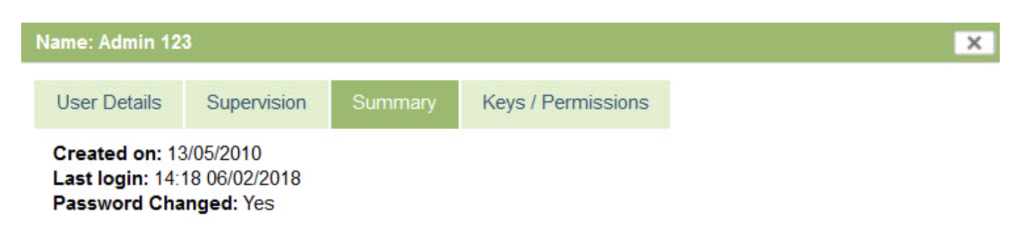
The Summary tab shows you when the user was created on iaptus, when they last logged in and also whether or not their password has been changed.
Password Changed indicates whether they have logged in and changed their initial password. This may be when the account is first created, or if their password has been reset.
Keys/ Permissions
Keys/Permissions allows you to set extra user permissions for access to locked patients and creating referrals (by default, all users can create referrals, but this can be limited). Please raise a Support Log to activate these two extra permissions.
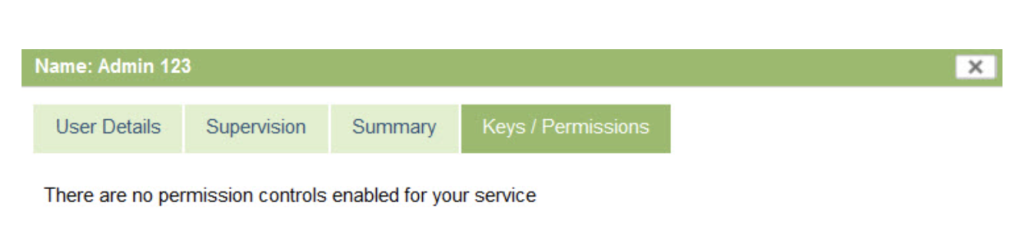
Please note that if you don’t have any Keys/ Permissions enabled, you will see the following message:
If you do have permissions enabled, there two groups are automatically set up for your service, as shown below:
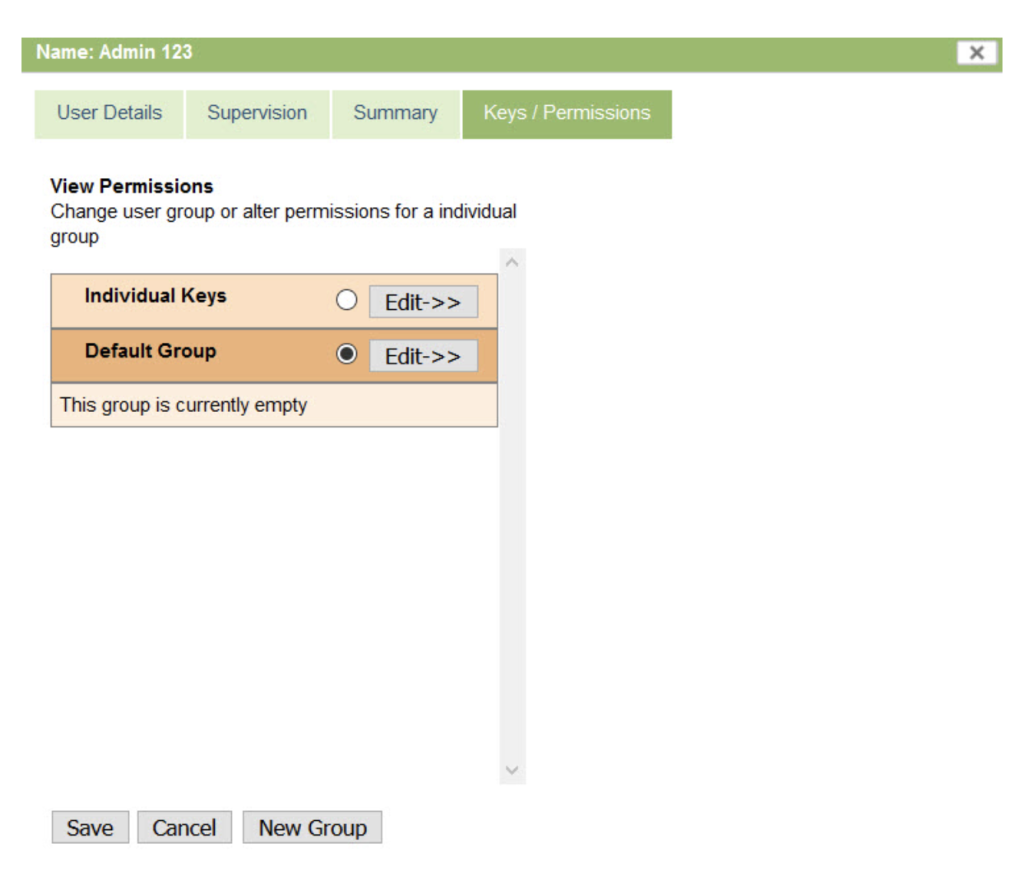
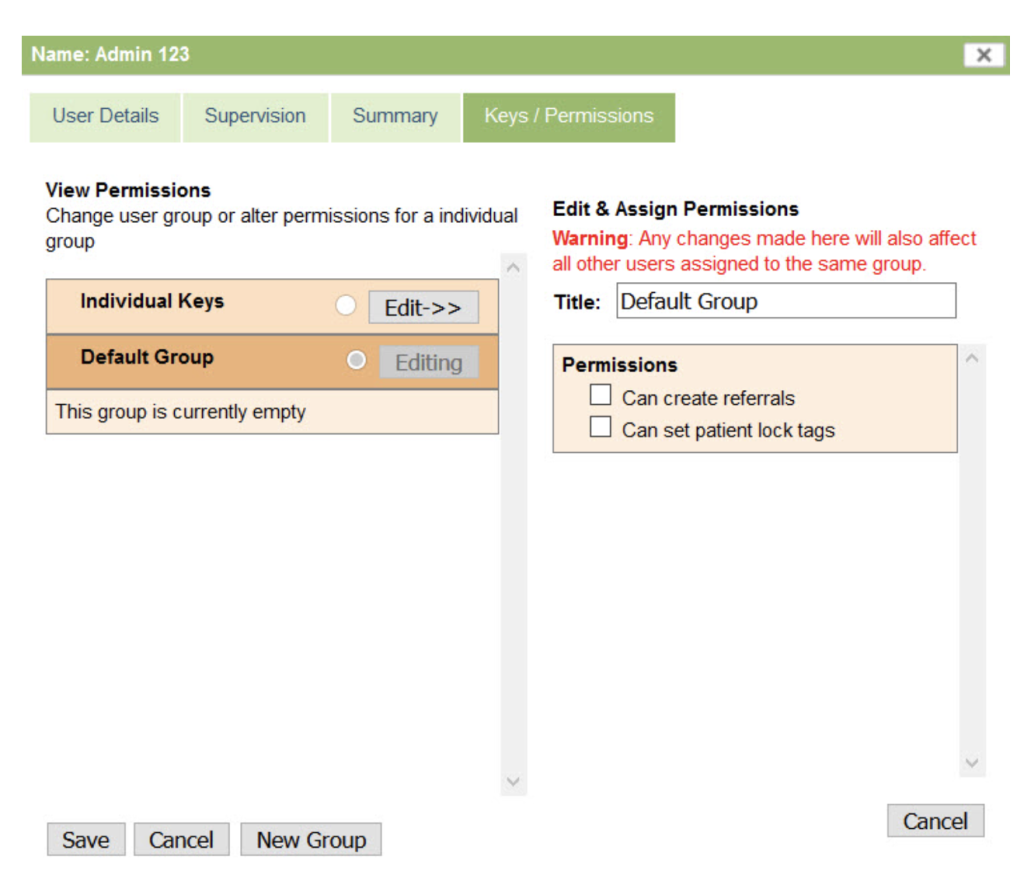
You can create a new group by selecting ‘New group’ or make changes to existing groups by selecting ‘Edit’ which opens up with the options that you have enabled.
Can create referrals
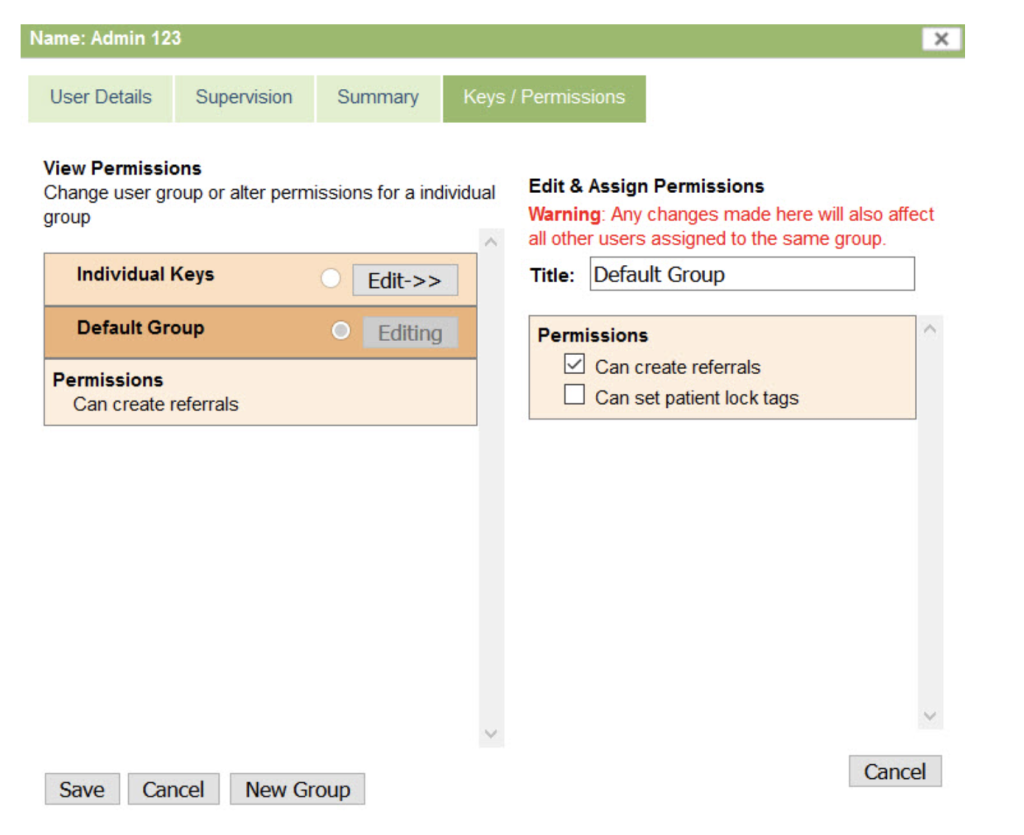
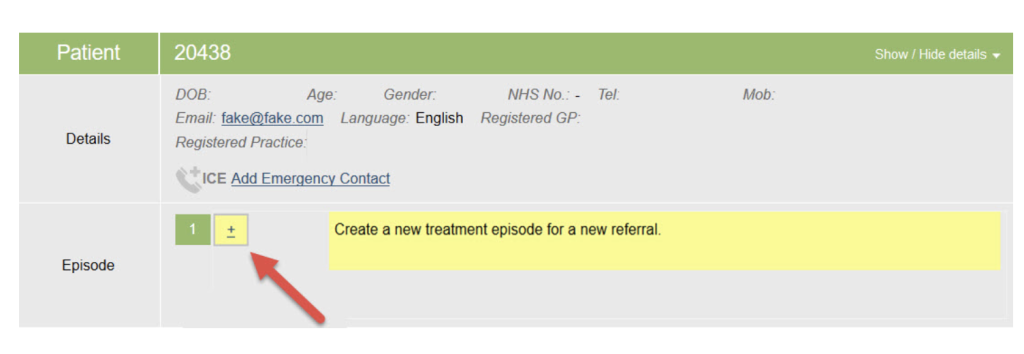
If you have the ‘Can create referrals’ option enabled for your service, the group or individual permission must have this option ticked in order for those in that permission group to be able to create referrals.
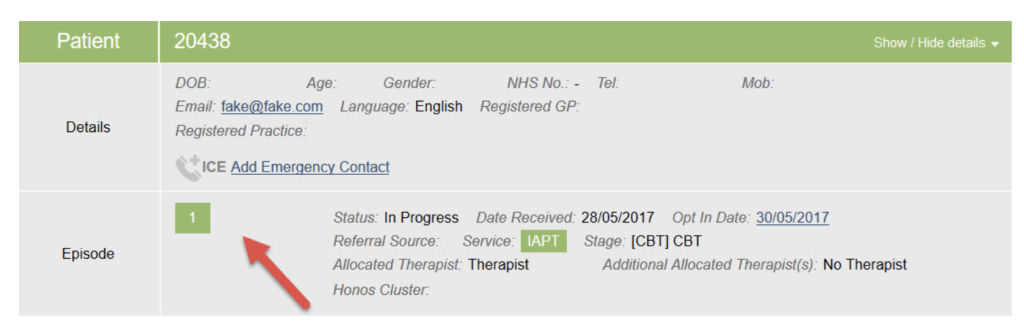
If they don’t have this option ticked, then they will not have the + sign next to the episode number on the Boarding Card and will view it as follows:
If they do have this option ticked as below:
Then they will view the Boarding Card as usual:
Can set patient lock tags
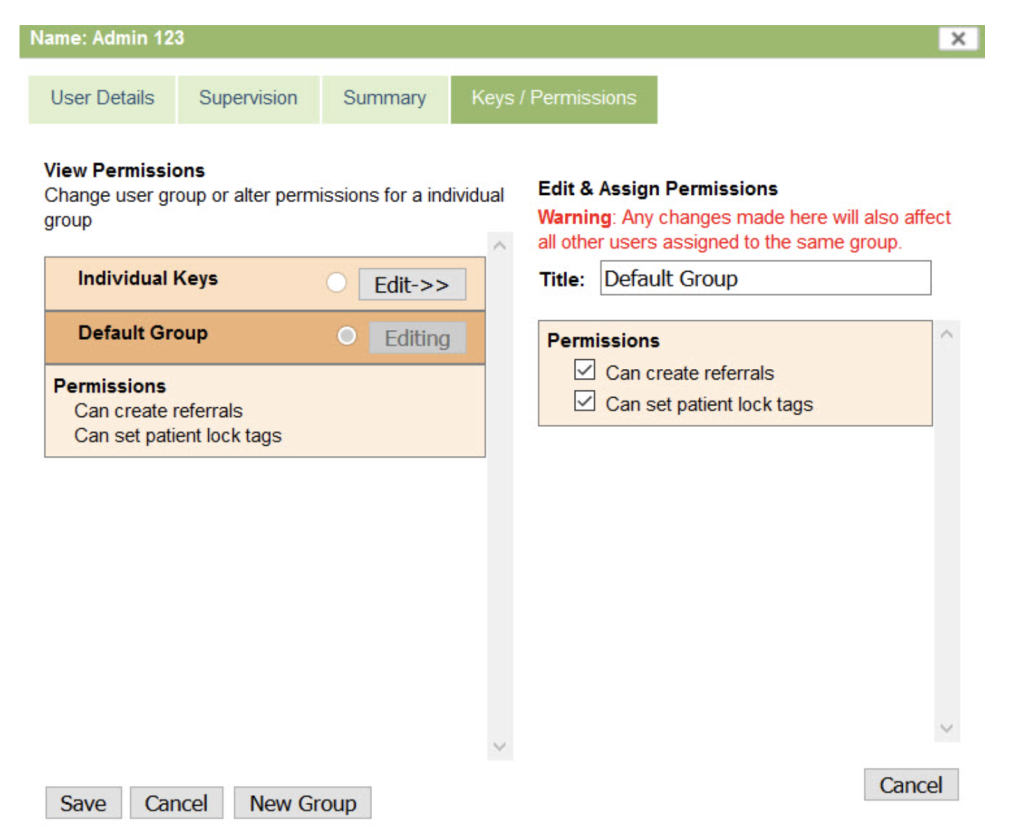
If you have Locked Patients enabled and selected for a group, they will be able to view and lock any patient in iaptus.
Users will be able to lock patients via the registration form on the Patient Registration tab or the New Patient icon, and it will show above the ‘Save’ button and below Registered GP Details section:
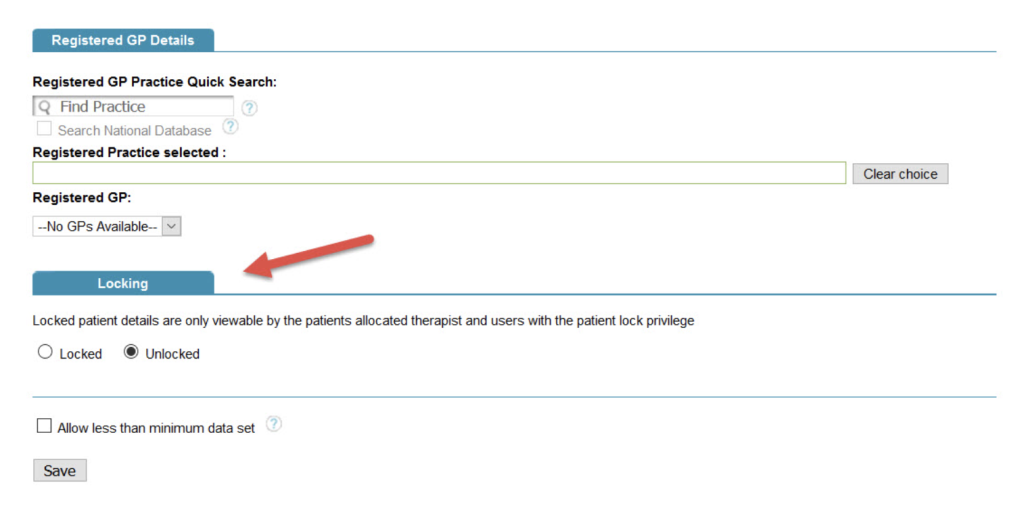
If you lock a patient, they will not be searchable or viewable for anyone who has not got the permission of ‘Can set patient lock tags.’
If a user does not have permission of ‘Can set patient lock tags’, they will view the patient registration form without the above section.
You can view who has got which Keys/ Permissions group as an overview, on the table of users as seen below: