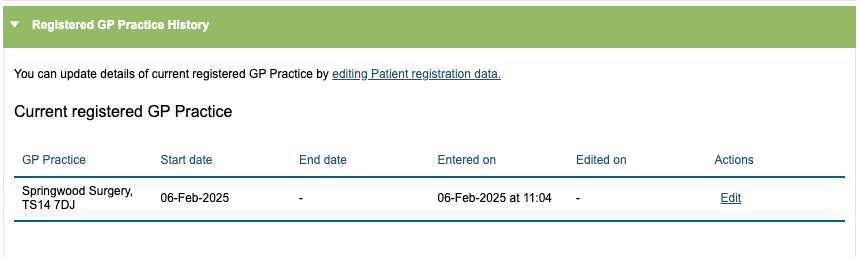
Using Bulk Actions to update Registered GP Practice is helpful when GP Practices merge or change. This will update the GP Practice as entered on the Patient Registration tab for all selected patients in one go. First, identify all the patients registered to the current GP Practice using a search in iaptus and transfer to Bulk Actions.
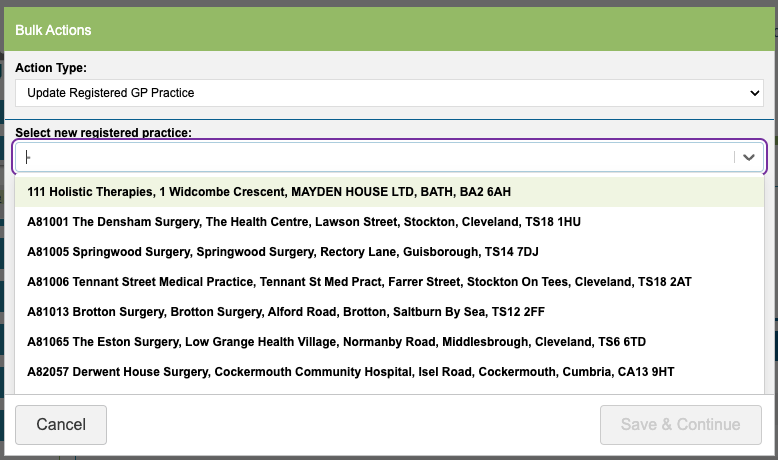
Select the ‘Update Registered GP Practice’ action type then search for the new GP Practice you wish to move the patients to.
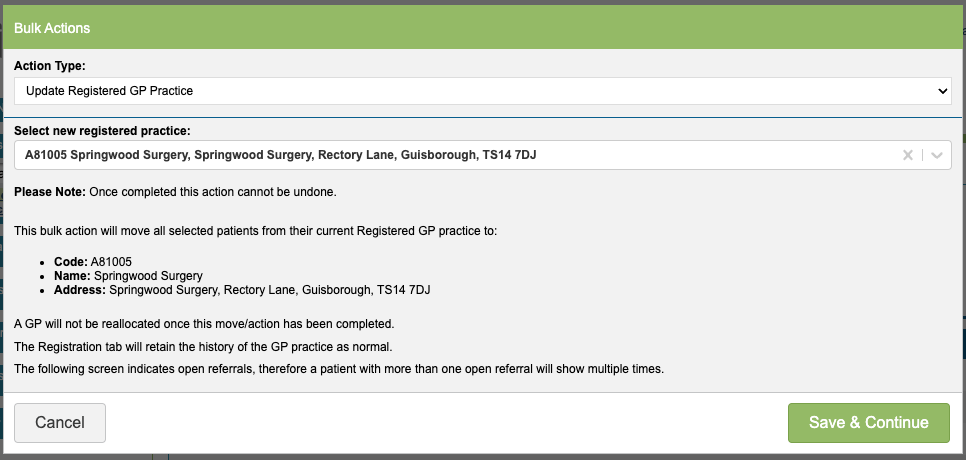
When you are happy with the action, click ‘Save & Continue’. The list of referrals will show if they are valid or invalid. For any invalid referrals where this action cannot be performed, the reason will be displayed in the ‘Notes’ column. There is also a link to go to the patient record if you wish to make any changes to the referral.
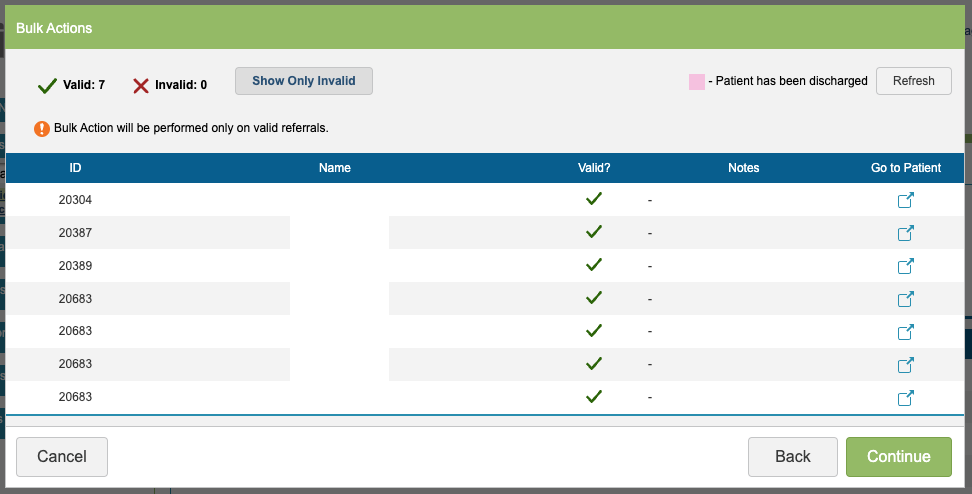
Clicking ‘Continue’ will then show a summary of the action that is about to be performed on the referrals. Please note, once this has been completed this action cannot be undone.
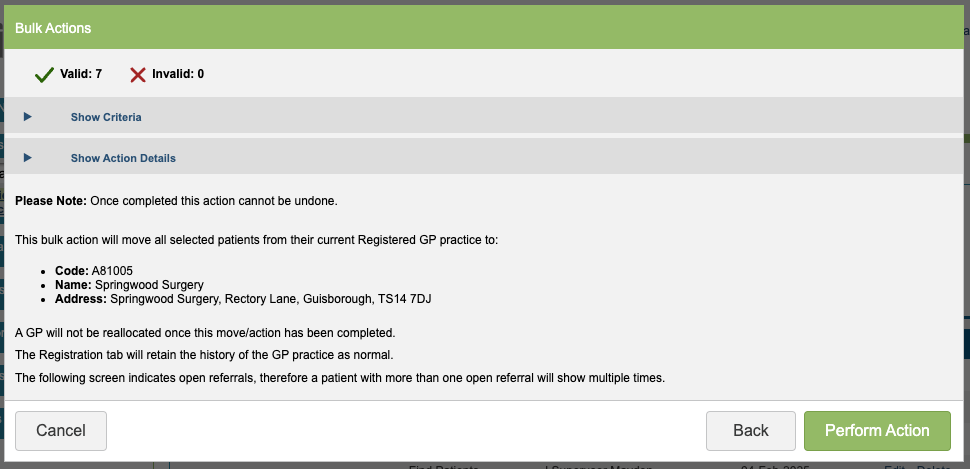
To complete the action, click ‘Perform Action’. The updated details will appear in the Registered GP Practice history table in the Patient Registration tab.