
In the comms tab, you can send ad-hoc SMS messages, view a history of all SMS sent to a patient in a specific episode of care, and view all webforms sent to the patient in a specific episode of care.

Sending an adhoc SMS message
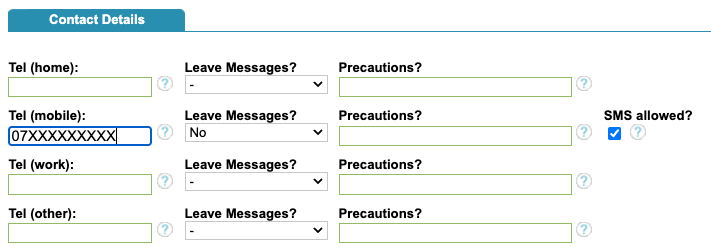
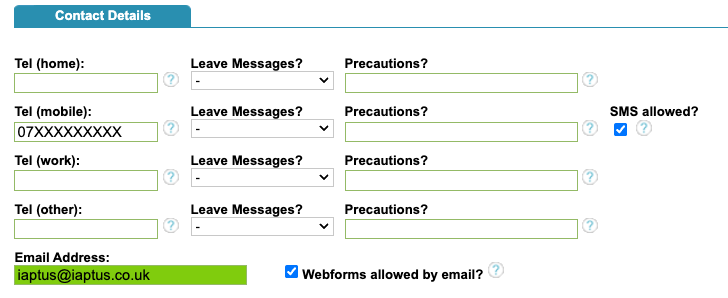
To send an SMS that isn’t an automated appointment SMS to the patient, you will need to ensure the patient has a valid mobile number and that the ‘SMS allowed’ button is ticked in the Patient Registration page.
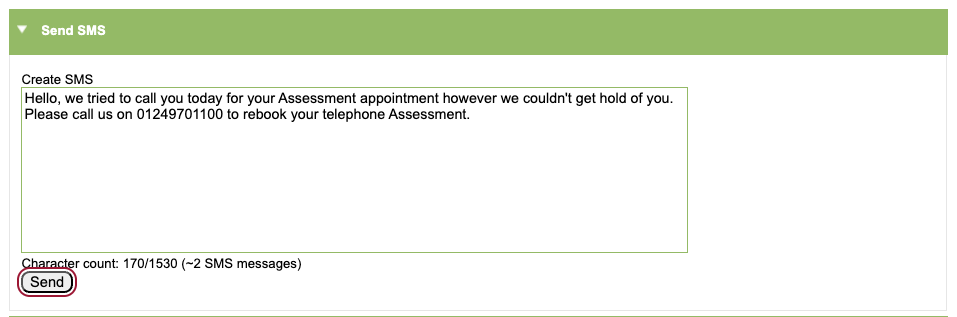
To send the SMS, simply type your message in this box. You will see that a character count will show at the bottom so you can see how many pages your SMS will be. Once you have finished composing your message, simply press ‘Send’.
Comms history
SMS history
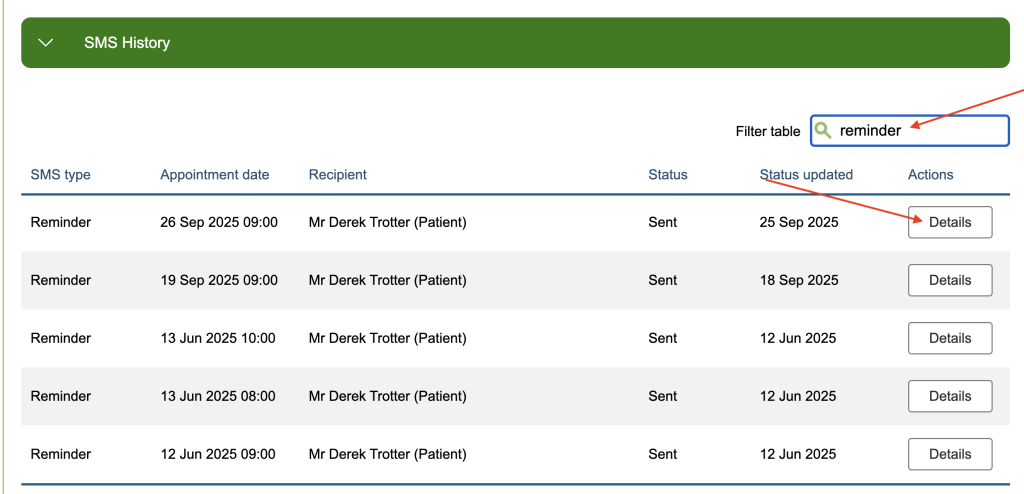
In the SMS History section, you will be presented with the SMS Table. You can search for specific SMS messages by user the filter table option.
You can view the details of the message by clicking on the Details button
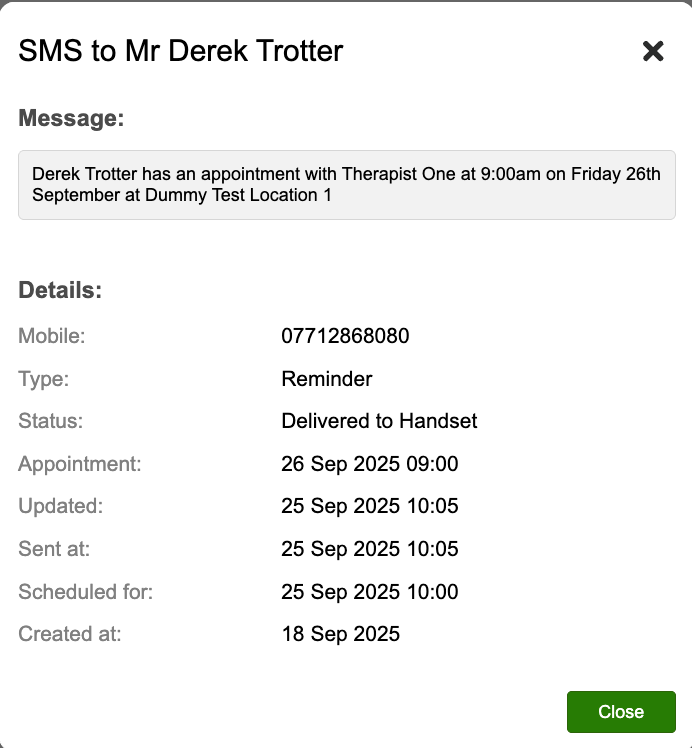
The Details will give you the following:
- Heaer
- The content of the message
- Mobile number
- The SMS Status
- Appointment Date and time
- Updated Date
- Date Sent
- Scheduled date
- Created at date
SMS statuses
Pending
Any SMS messages that are scheduled to send at a later date will sit at pending until their scheduled send date/ time. For example, appointment reminders are generated when the appointment is booked but will remain at a status of ‘pending’ until X days prior to the appointment.
Queued
This status indicates that we have passed the message from iaptus to our SMS provider for sending. Once messages reach a queued status they cannot be cancelled or deleted.
Sent
This status is returned by our SMS provider to confirm a message has been delivered to the specified mobile.
Failed to Send – This means a message hasn’t been able to be sent from iaptus, usually due to a missing or invalid mobile number, or if SMS permission has been removed from the patient record prior to the message being sent.
Failed to Deliver
The message was sent, but couldn’t be delivered to the mobile number (it may help to think of this a bit like the post – you’ve put the letter in the post box, but the postman couldn’t deliver it). There are a number of reasons this can happen, for example the mobile phone is unavailable/ has no signal or a full inbox.
Webform history
Depending on your iaptus Webform sending method, please ensure the patient has either a valid email address, and that the ‘Webforms allowed by email’ has been ticked, or a valid mobile number with the ‘SMS allowed’ button ticked in the Patient Registration tab.
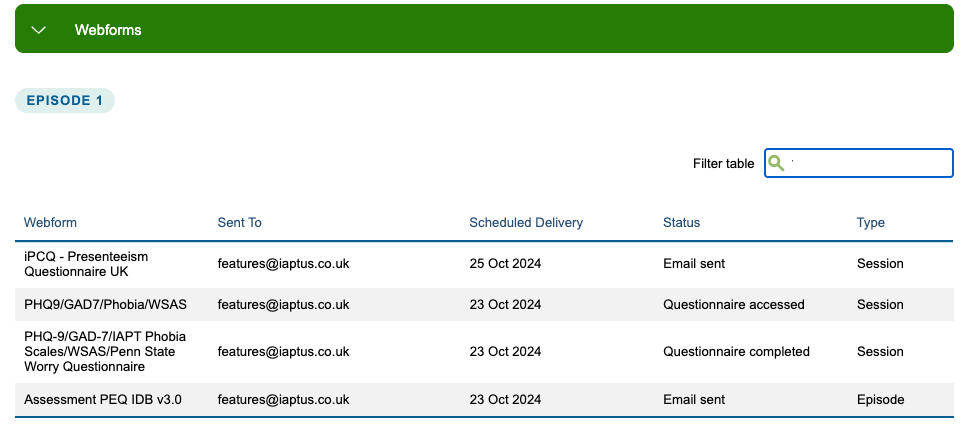
In the Webforms section in the Comms tab, you will be able to see what webform or webform combination has been sent, the email address it has been sent to, the date it is due to be sent, the status, and the type (session or episode level).
Webform statuses
Pending
This indicates that the request to send the form was successful and it is waiting to be sent. Email or SMS sent. This indicates that the form has been sent via the specified method.
Questionnaire accessed
This indicates that the patient has opened the link to the online questionnaire(s) but has not yet submitted their response(s).
Questionnaire completed
This indicates that the patient has submitted their response(s) to the online questionnaire(s) and the clinical contact should automatically be populated with their scores.
Failed to send
This will be accompanied by a failure reason such as ‘Cancelled as webforms disabled’ or ‘Rejected from handset’.