
You’ll find the Tasks Manager in the Superuser menu. If you are configuring Tasks for the first time, it is likely that you will see the following message: “The Tasks function is not enabled. This can be switched on within the Control Panel to begin creating Tasks.”

Once you have completed configuration within the Tasks Manager, please contact your Account Manager to get the feature turned on for the service.
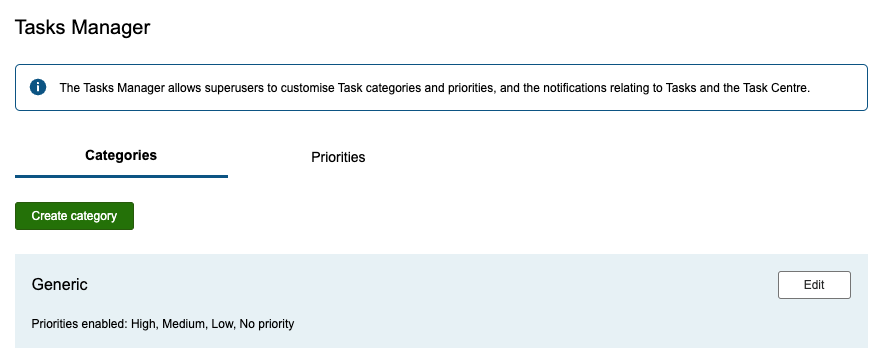
Here you will have the option to both create and edit Task categories and priorities.
Priorities
Whilst it is possible to create categories without priorities, we would recommend creating priorities first.
You must enter a title for your priority as well as assign a level. The priority levels are:
- Level 1 – red
- Level 2 – orange
- Level 3 – green
- Level 4 – white
Red is the highest priority and white is the lowest and you can choose to have multiple priorities with the same flag.
It is important to know that Task priorities cannot be deleted once created, however the title and level can be edited.
Priorities can be edited at any time by clicking the edit button.
Categories
Creating a category is similar to creating a priority. Select “create category” and add a title. You must then assign a priority to the category. If a Category could have more than one priority, you can assign multiple.
As with priorities, categories cannot be deleted once created, however the title and priority can be edited.