What is a Task?
Tasks allow you to add an action against a patient record for a therapist or an admin user to carry out.
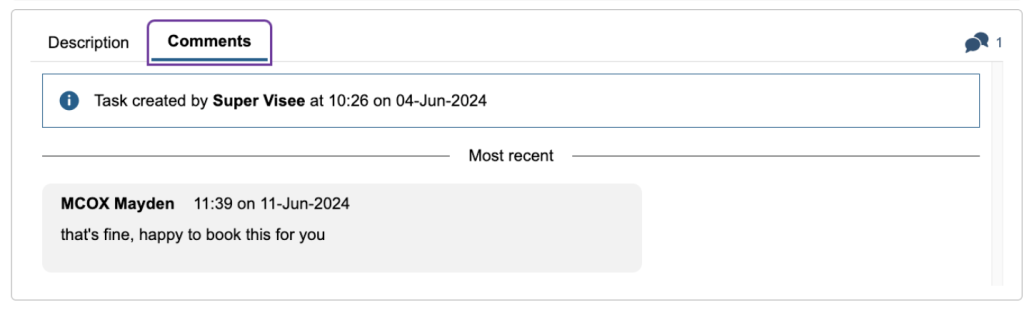
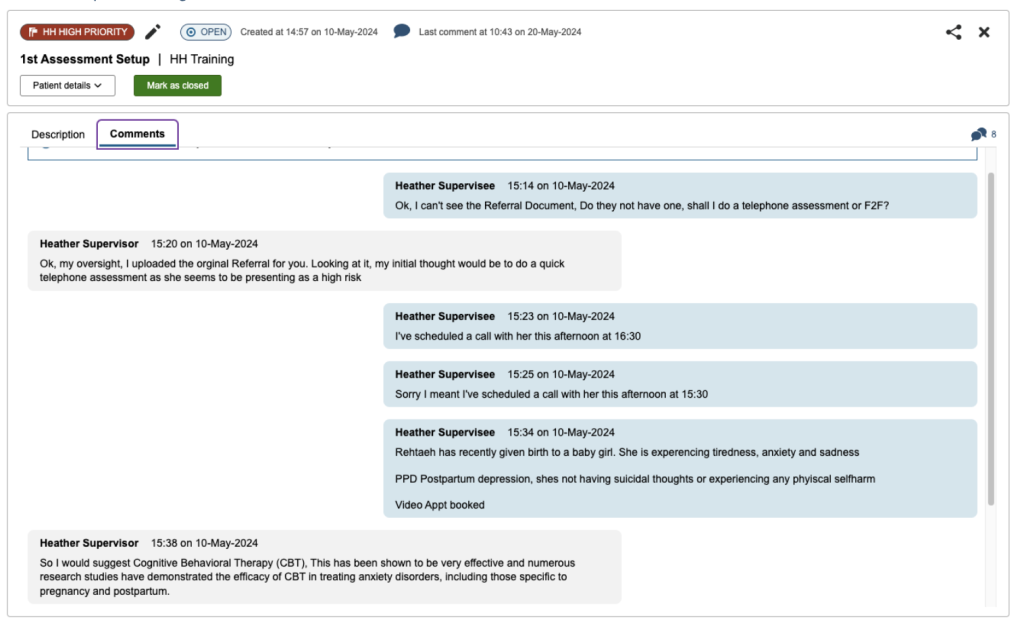
Tasks can be updated with comments, which triggers a notification to update all involved with the tasks progress.
Notifications are sent when a task is created, closed or any comments added. These are received by the associated therapists and (if different) the user that created the task.
Creating a Task
Any user with access to a patient, can create a task. Tasks cannot be created standalone, they must be linked to a patient.
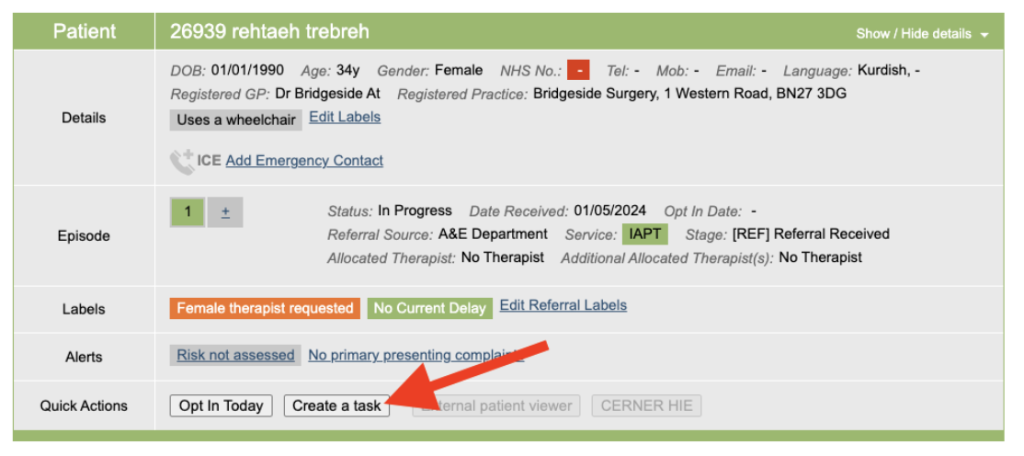
Clicking on the Create a task button under quick actions section of the boarding card will take you to the Tasks Summary section of the Care Pathway tab, where you can create a task.
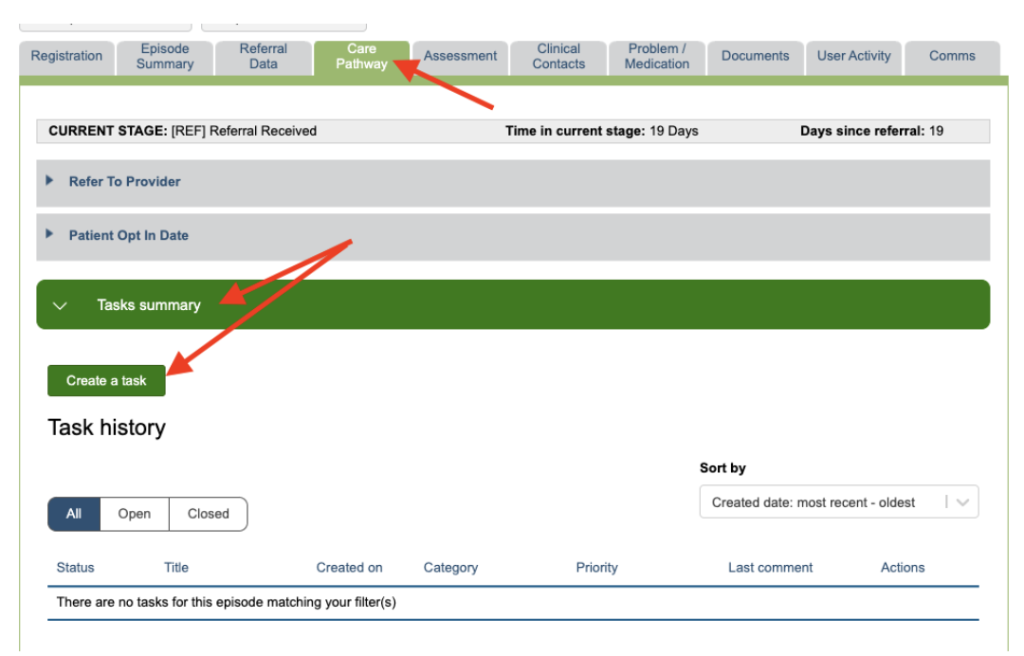
Or you can Select Create a task option under the Tasks summary section under the Care pathway tab
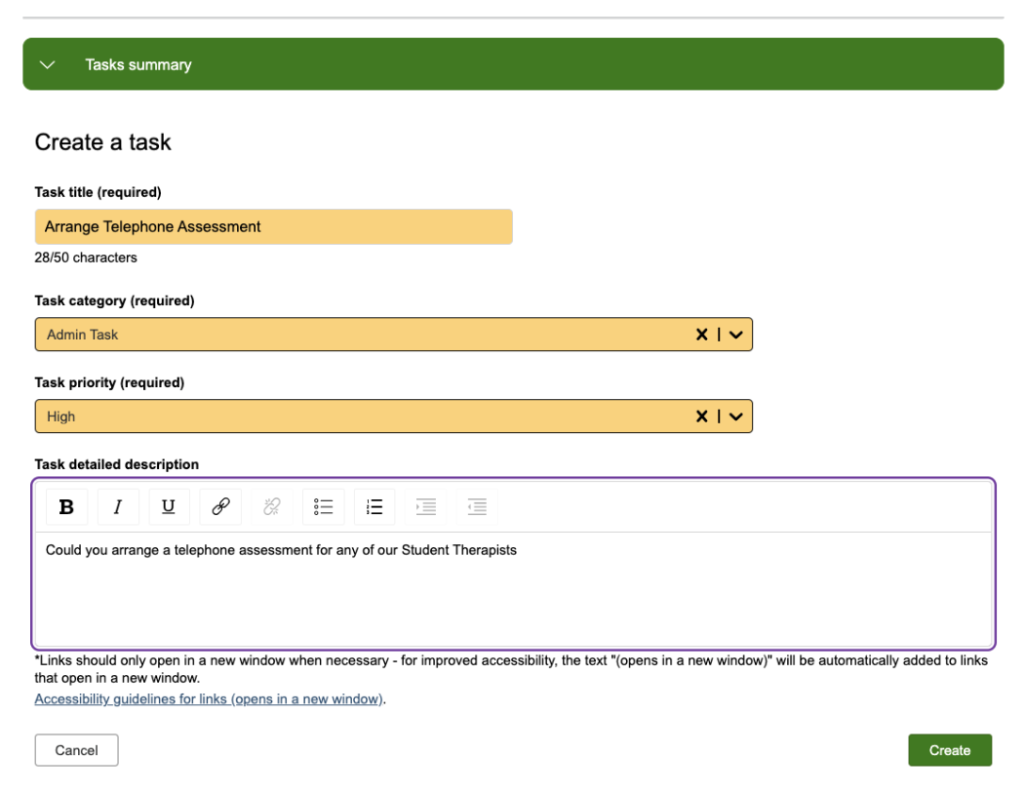
You will be presented with the Create a task window. Enter the Task title and select a Category, once a category is select the priority options will appear, shown below.
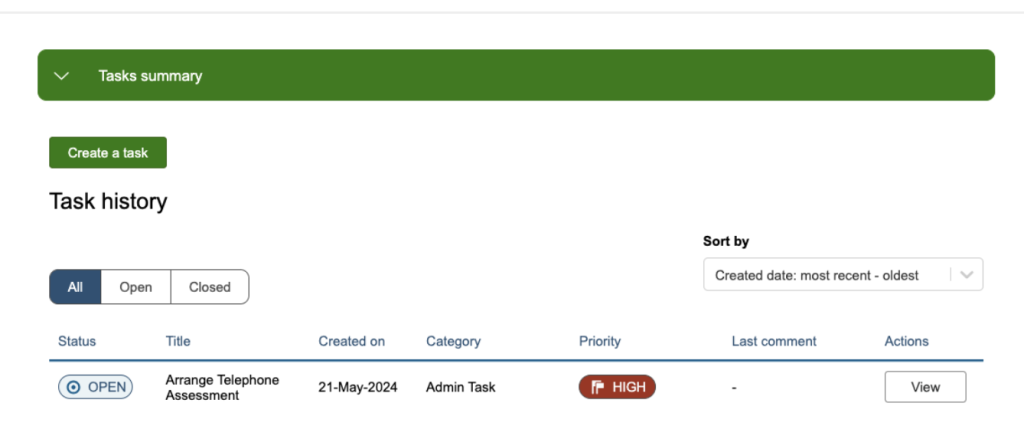
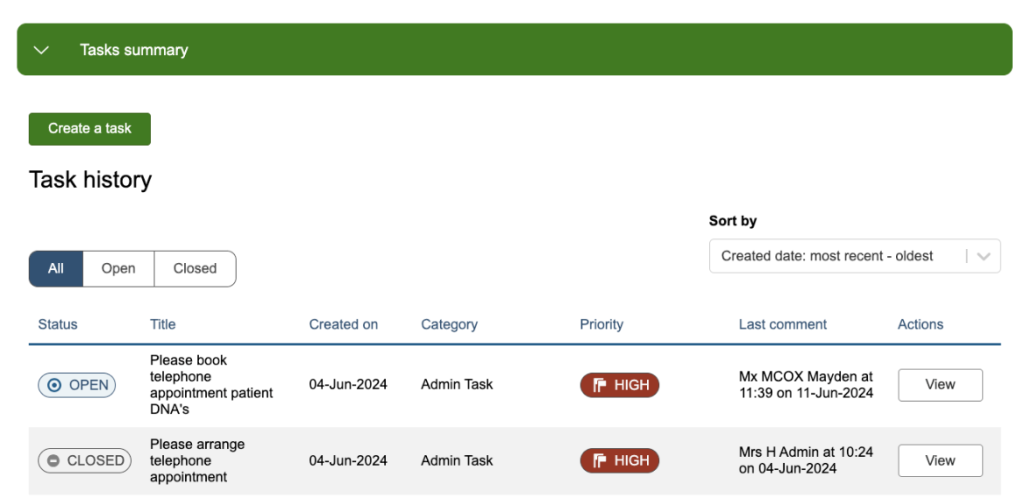
The task will then be listed in the task summary.
In this section there are filter options, which will allow you to show All, Open or Closed tasks.
There is the ability to sort by Created date or Last comment.
To view the task click on View and the task will open up within the Task Centre
The Task Centre
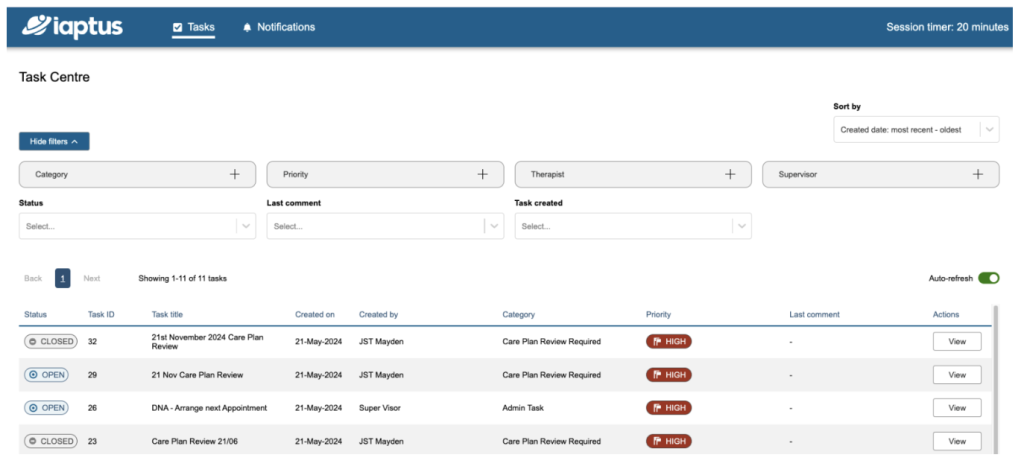
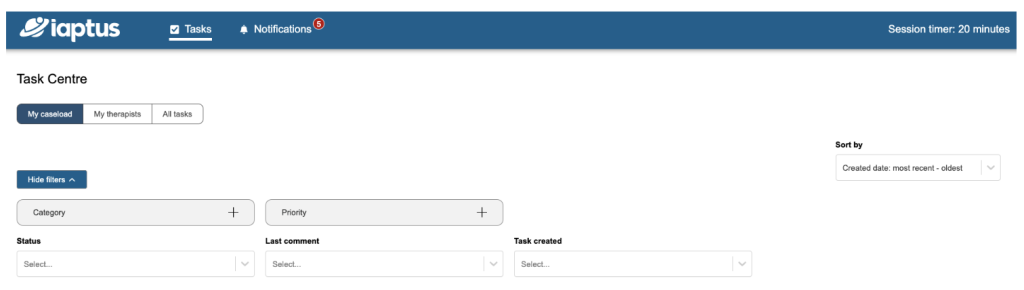
The Task Centre allows you to centrally view all tasks for your service and can be accessed from the Task Centre icon at the top of iaptus.

Admin View
Admin users have the options to filter the list by Category, Priority, Therapist and Supervisor on the top row and on the bottom row you can filter by Status, Last comment and Task created.
Therapist View
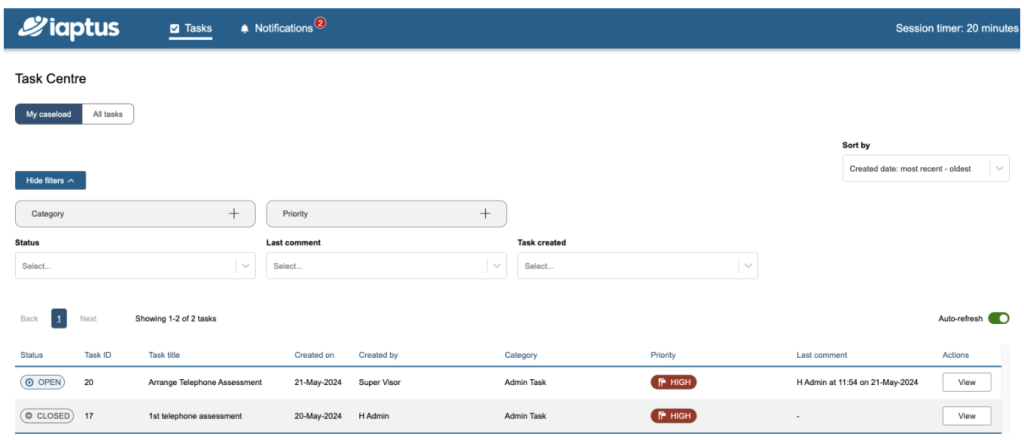
A therapist user, that is not a supervisor, will have 2 additional buttons at the top, My caseload that will show all tasks for their caseload and All tasks, which will show all tasks.
They will be presented with different filters depend on which button is selected My caseload or All Tasks.
At the bottom row you can filter by Status, Last comment and Task created.
Supervisor Therapist View
A therapist user, that is also a supervisor, will have 3 additional buttons at the top,
My caseload that will show all tasks for their caseload, My therapists that will show all tasks for the therapists they are supervising and All tasks, which will show all tasks.
They will be presented with different filters depend on which button is selected My Caseload, My therapists or All tasks.
At the bottom row they can filter by status, Last comment and Task created.
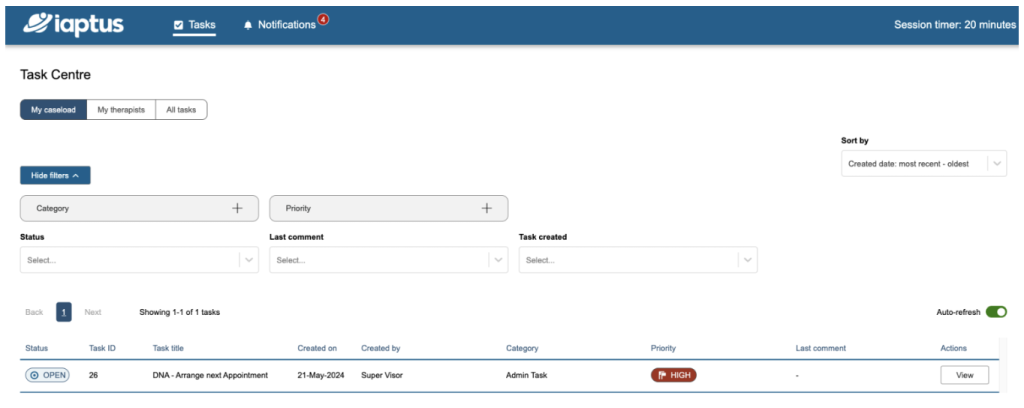
Top Row Filters
The top row, allows you to select more than one item in each of the filter list. To add a filter, click on the plus sign to the right.
The image below shows all the top row filters (admin view) expanded. Tick the box for the values you wish to apply.
For each filter you also have the options to Clear all or Select all. Once you have your required filters, select the Done button.
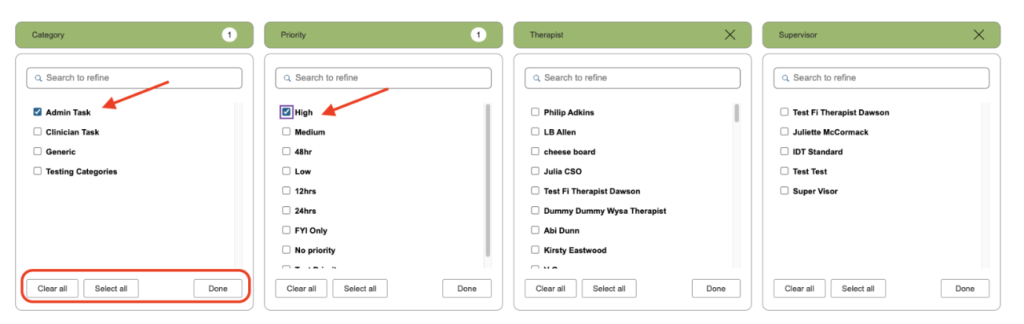
The active filters will be displayed in green with a number indicated in a circle to represent the number of selected values.

Second Row filters
The second row of filters, are down drop fields and must be selected individually.
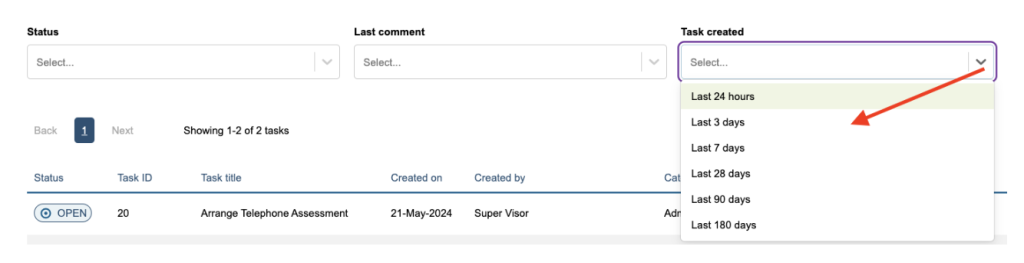
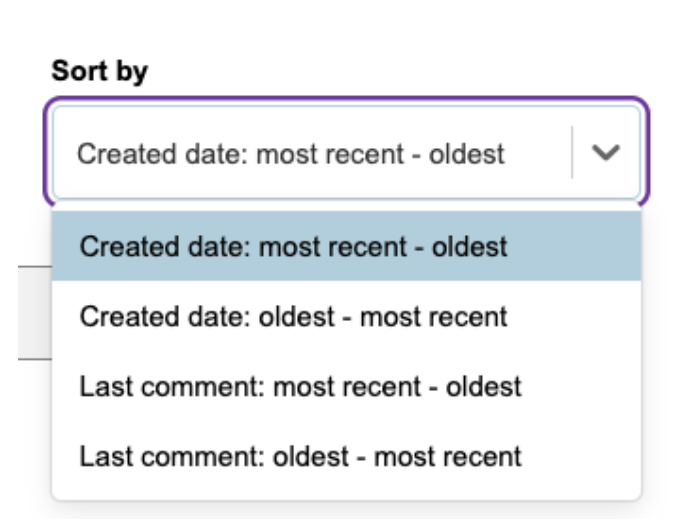
Top right of the screen, there is a Sort by field, which allows you sort by Created date or Last comment.
Auto-Refresh
There is also a Auto-refresh toggle button that will refresh the list in real time giving you the most up-to-date list based on your filters.
Viewing the Task
To view a task, select the View button under the Actions column.

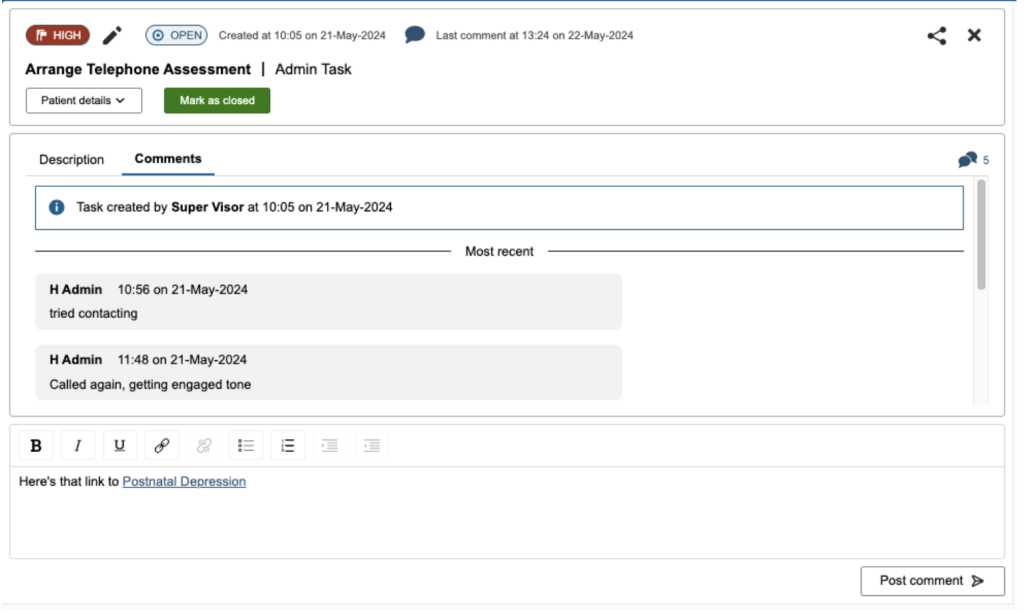
You will be presented with the task.
The top row shows you:

- The priority, which can be edited using the pencil
- Its current status, Open or Closed, along with the Created date/time and Last comment date/time
- Top right had side you have the ability to copy (to the clipboard) the task link and to close the task.
The bottom row shows:
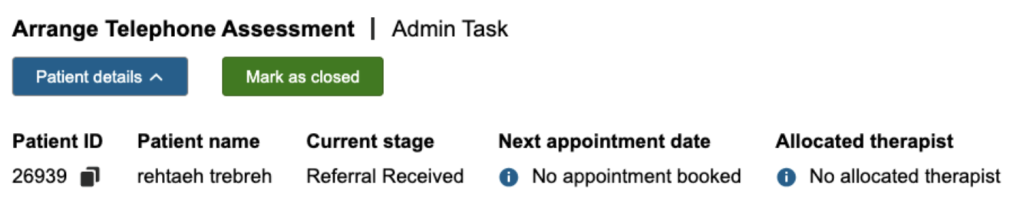
- The name of the task and category.
- The Patient details button, which will expand/close the patient details, showing Patient Id (which can be copied, Patient name, Current stage, Next appointment date and Allocated therapist.
- The Mark as closed button, which will close the task down.
The bottom area shows you the description of the task

and a tab to view/create any comments.

Posting a New Comment
There is a text box at the bottom that allows you to post a new comment. It comes with a basic formatting toolbar that also allows you to include a link.

Closing a Task
Please note: The option to close a task is automatically switched on for all users, however, if you want just certain users to be able to close tasks, please raise a support log and your account manager can change the permissions.
Within task view you will see the Mark as closed option, click on it to carry this out.
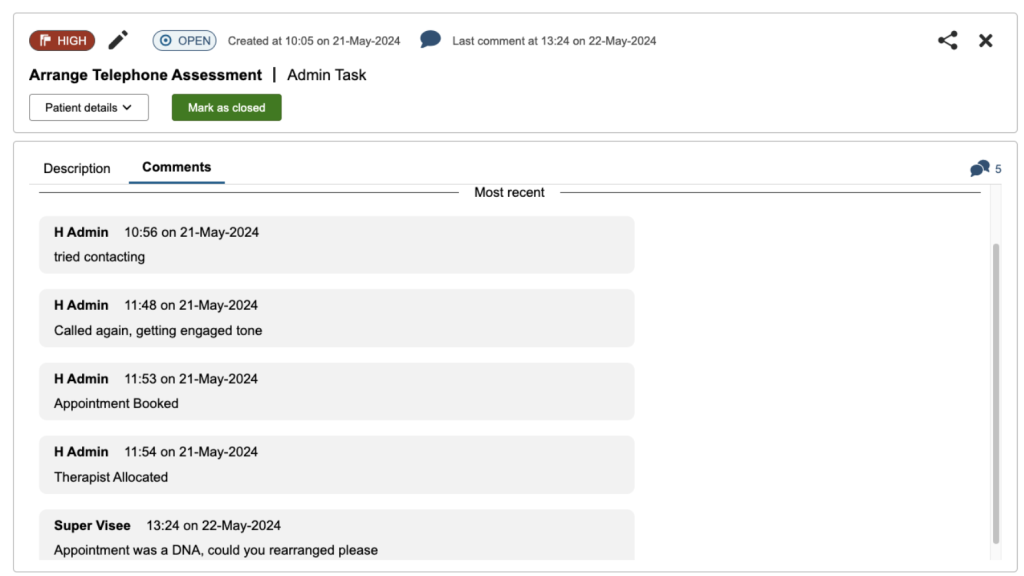
You will be presented with a confirmation message. Please be aware that when you close a task, this action cannot be undone.
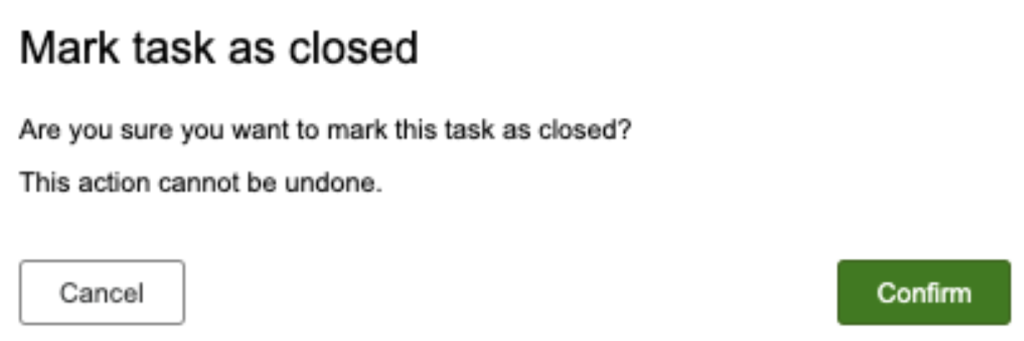
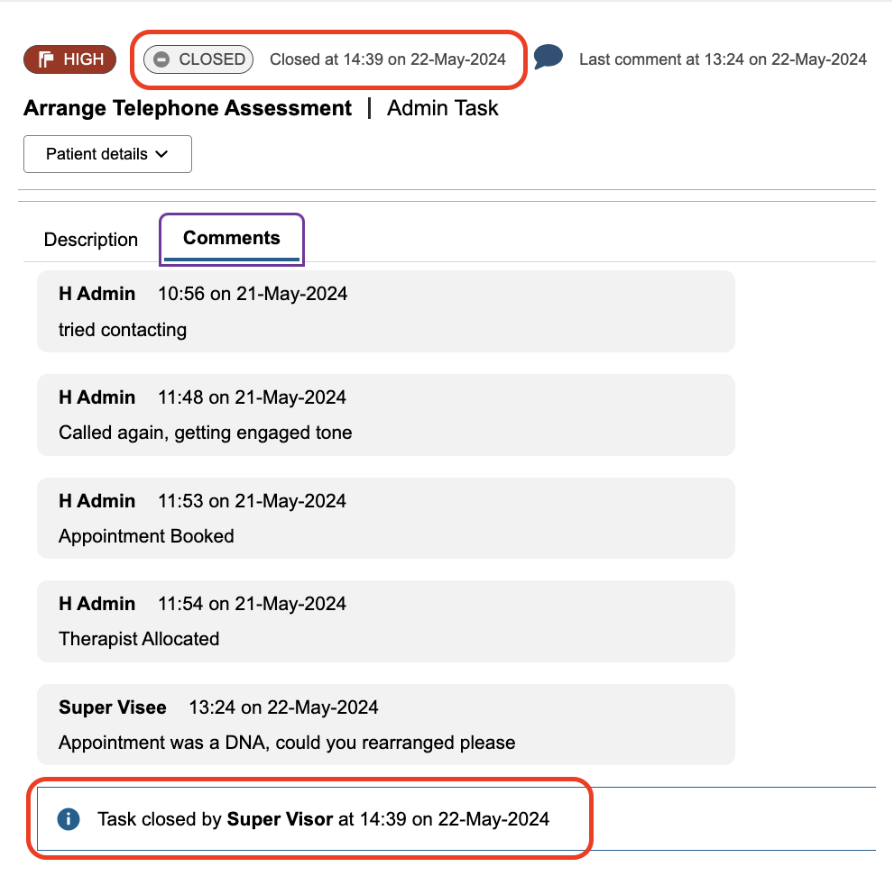
The status of the task will be marked as closed along with the closed time and date at the top. The last comment will also display user, time and date closed.
Notifications
If a new notification has been received that the user is associated with, a red dot will appear on the task centre icon.
In the Task Centre title bar, you will see the option for Notifications, it may have a red circle with a number, which indicates the number of unread Notifications.
Notification Behaviour
Any therapists associated with the patient will receive notifications for task creation, comments and task closure (primary AND additional therapists) any task creator will receive notifications for task creation, comments and task closure.
Notification Centre
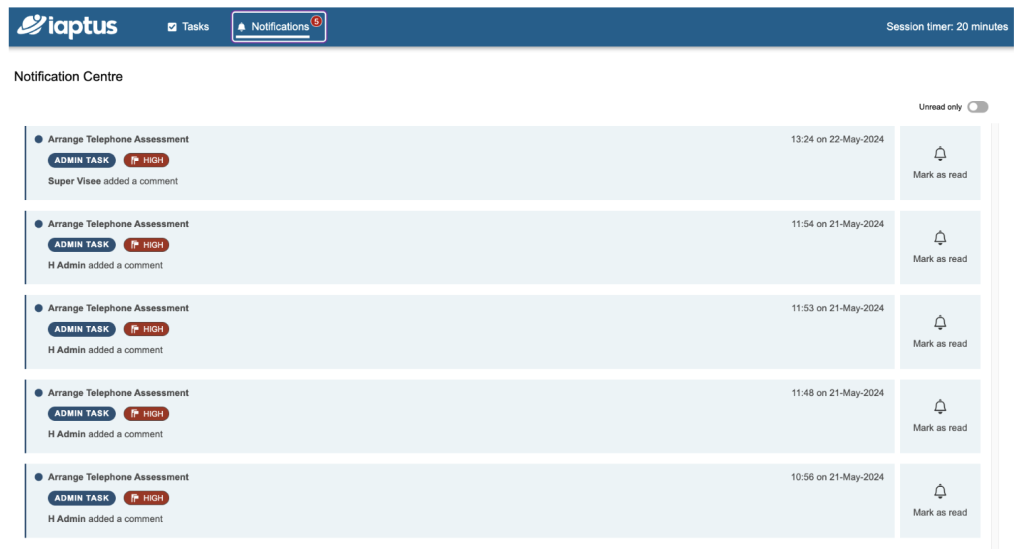
The notification centre will list all notifications you are associated with, listing the most recent one first.
If you have more than one notification for the same task, when you read the first notification, it will mark all associated ones as read.
There is also a toggle at the top which will allow you to view unread notifications only
Opening a Notification
Click on the required notification. It will jump you to the Comments area of the task.
Viewing Notifications from the Patient
Click on View to the right of the task
If there is a new notification, new comment or task closing alert, There will be a red blob next to the Comments heading, which will clear once the comment has been opened.
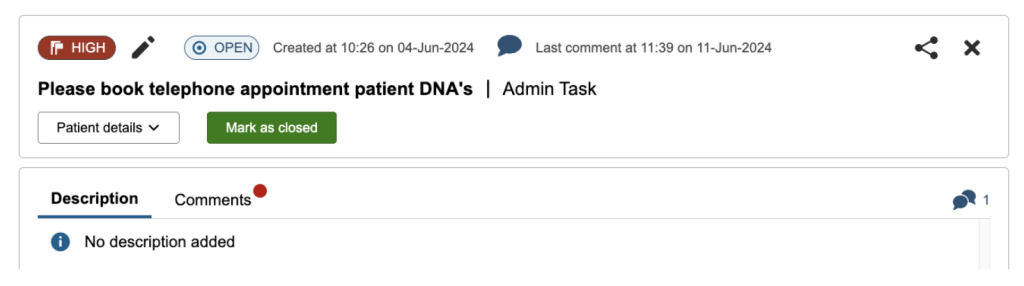
The Comment will be displayed with the user name, time and date the comment was added