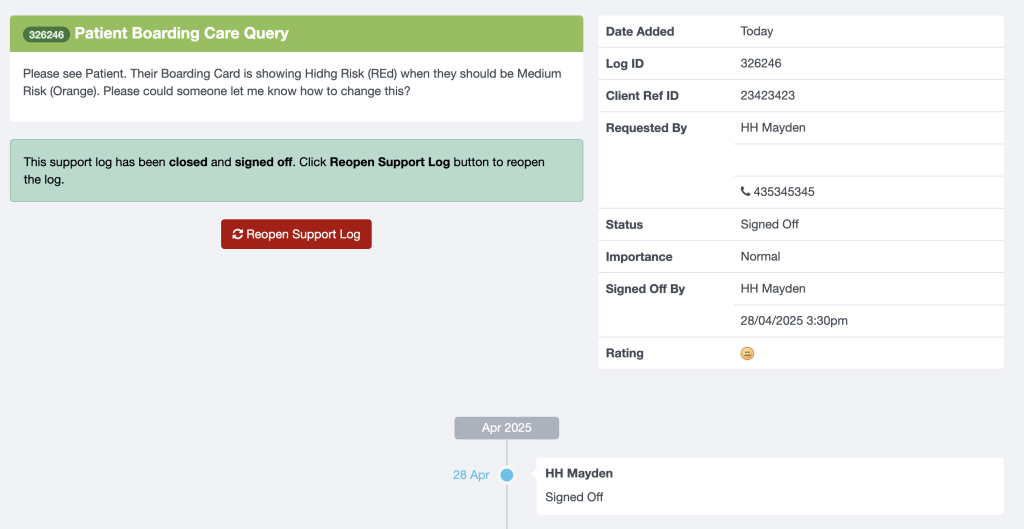
The Support Log can be used to contact Mayden with any questions or to report a problem with iaptus. The support log is the fastest and most efficient way of contacting your account manager and the team at Mayden.
Please note: that the support portal is hosted on an external website, and does not offer same security protection as iaptus. Do not add any patient identifiable information to the support log, including screenshots. Only the iaptus ID should be used to refer to patients.
Accessing the Support log System
To access the Support Log system, click Support in the grey menu bar at the top of the screen. Some services may have a designated team that manage and raise support logs, so you may not have access.

This will open in a new tab and display the current requests list.
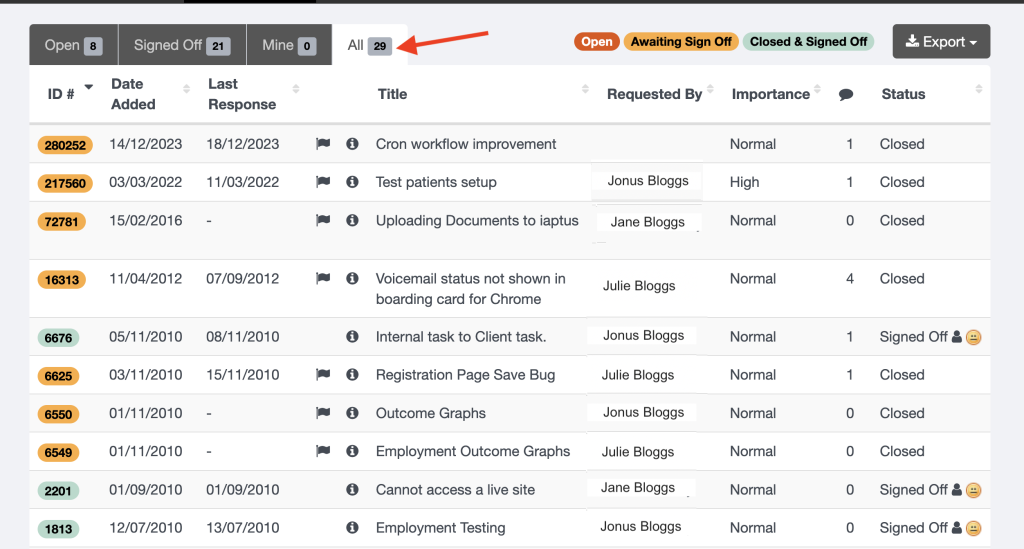
This list has 4 tabs, Open, Signed Off, Mine and All
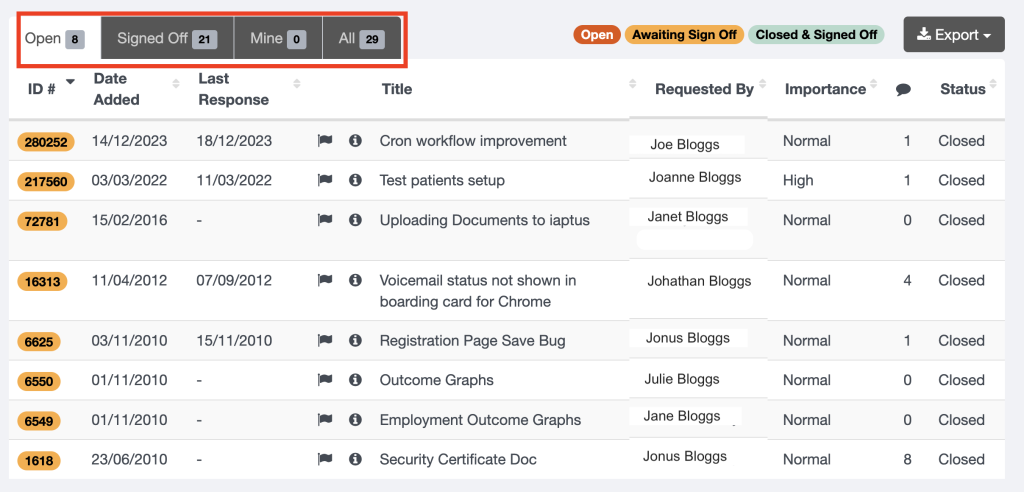
Open
Logs when they are first added to the system, will appear as dark orange, Once they have been responded to, they will appear as Yellow – Awaiting Sign off, at this point you can either close the log or respond back.
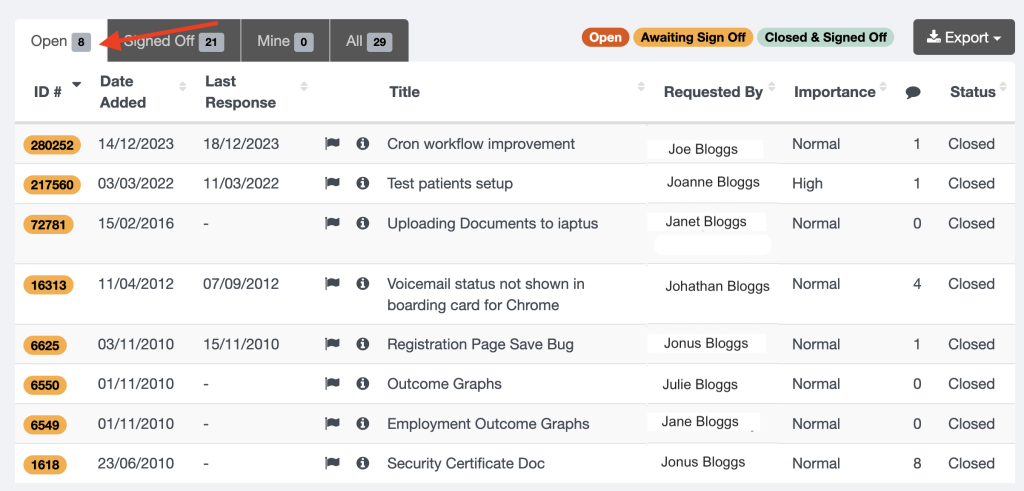
Signed Off
These are all logs that have been signed of by your service, appear in green.
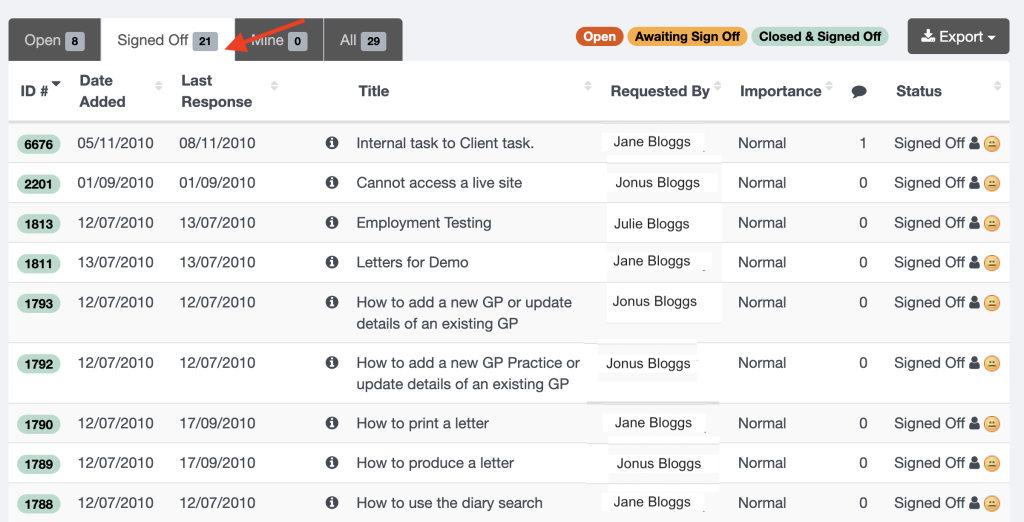
Mine
These are the logs that you have added.

All
Lists all logs for every status (excluding Private)
Viewing a Support Log
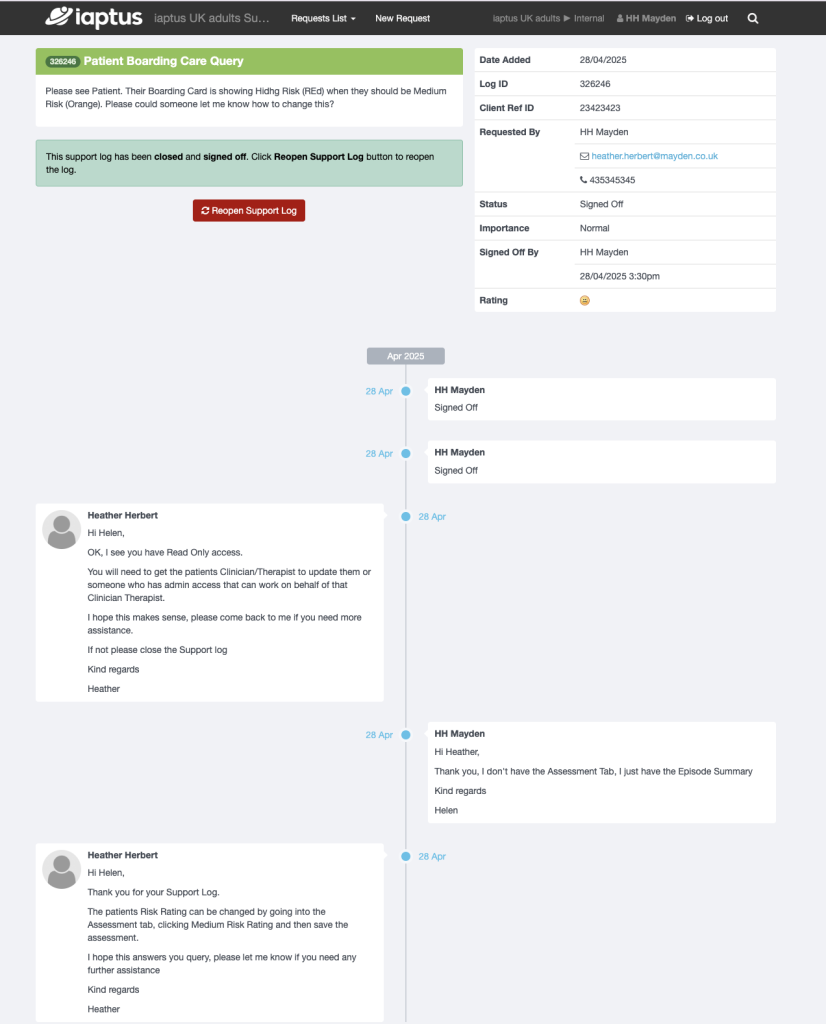
Click an entry to reveal information about that support log. The colour code will indicate whether the log is new (red), in progress (orange), or completed (green).
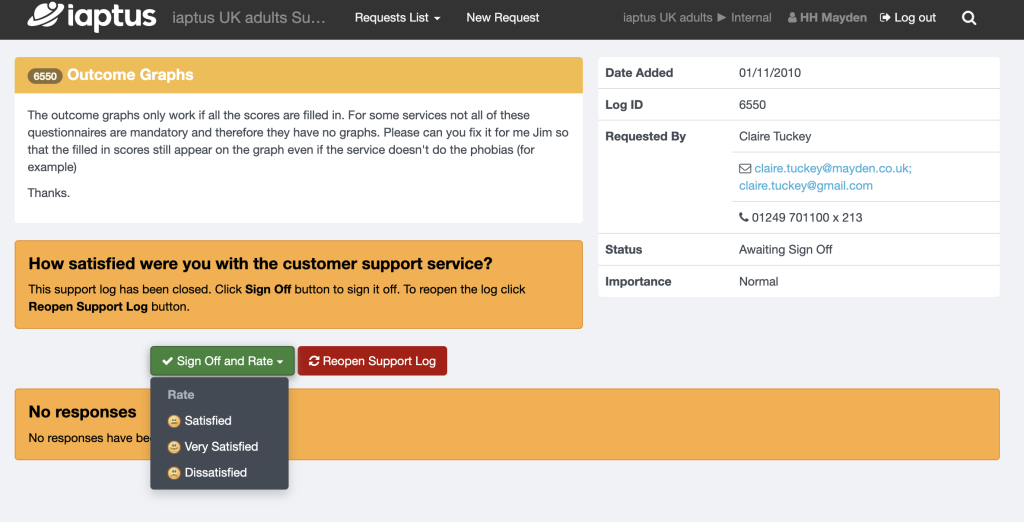
If the log is still open, you will have the option to add a response or to close the log and rate your satisfaction level.
You can search through your service’s support logs using the magnifying icon search tool.

Adding a Support Log
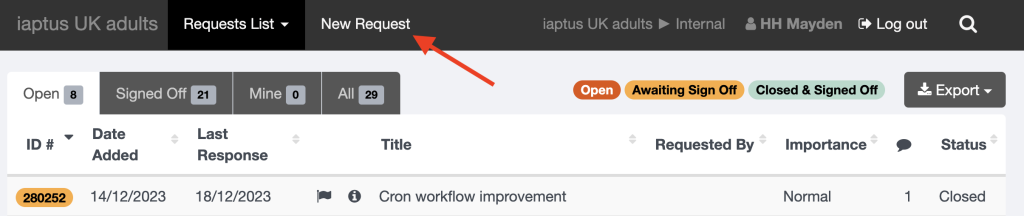
To raise a new support log, select ‘new request’.
Warning: For information governance purposes please DO NOT enter patient identifiable information in your request. Specifically, no patient names, address, telephone number, NHS number or photos / screengrabs that include any to these details.
Title, first name, last name and email are pulled through from your user details within iaptus. It is important to make sure that your email address is correct and up to date, otherwise you will not receive email notifications from us. You can also raise a support log on someone else’s behalf, add a phone number and a client reference ID.
If your support log is concerning a patient record, their iaptus id can be safely added here under the Client Ref ID, as we ask users not to send us patient identifiable information. You can give your support log a request description or title, and then add your request notes.
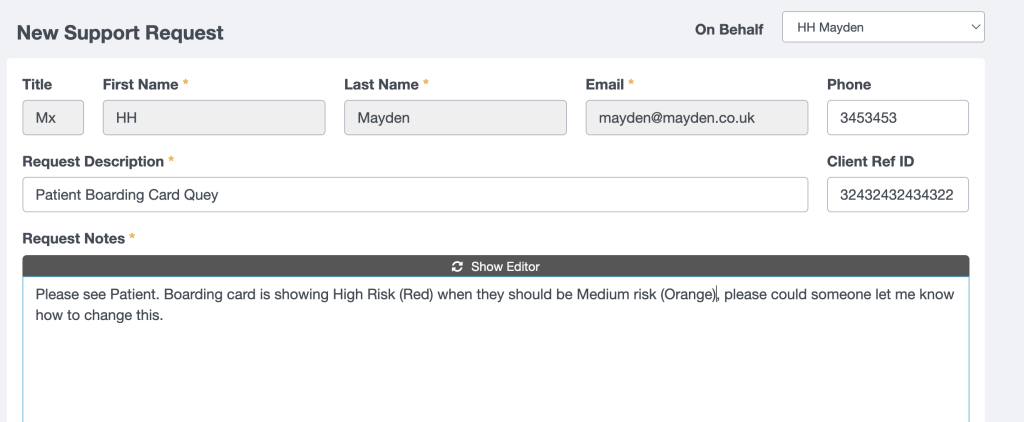
You can add other users within your service to the email loop. The Importance field allows you to rate your support log with a level of importance (Low, Normal or High), This lets your Account Manager know, that if several support logs have been received from your service at once, to work on the High ones first. The SLA for a response is 2 working days.

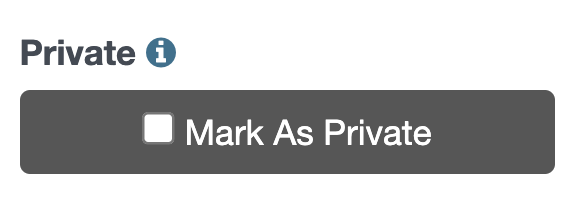
You also have the ability to mark your support log as private if the content is sensitive and you do not wish other users to be able to view the information. Marking a support log as private means that it can only be viewed by the person the log is ‘On Behalf’ of. However, email notifications will still be sent to others associated with the log such as the project manager, support staff, people you specified in the log’s ‘Email Loop’ and anyone else who has responded to the log.
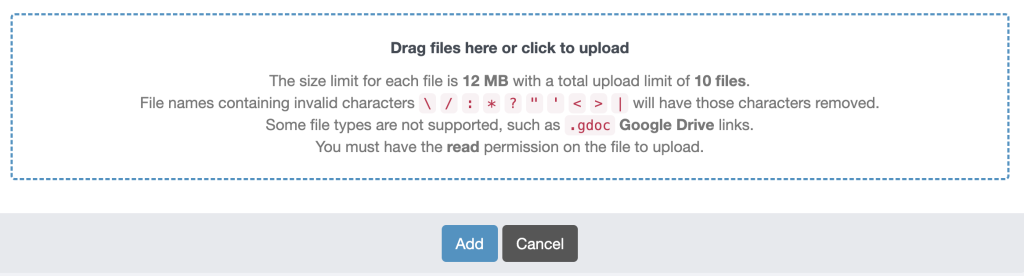
If you wish, you can also attach a document to your support log by clicking on the upload documents area. The size limit for each filed is 12 MB with a total upload limit of 10 files.
Warning: For information governance purposes please DO NOT add any documents that contain patient identifiable information. Specifically, no patient names, address, telephone number, NHS number or photos / screen grabs that include any to these details.
Once you have entered all the required information, click on the Add button
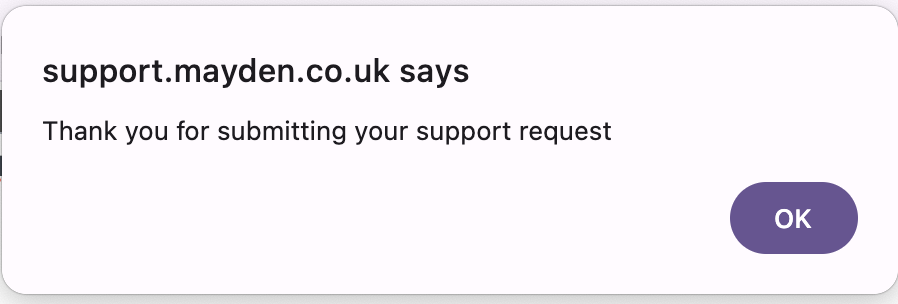
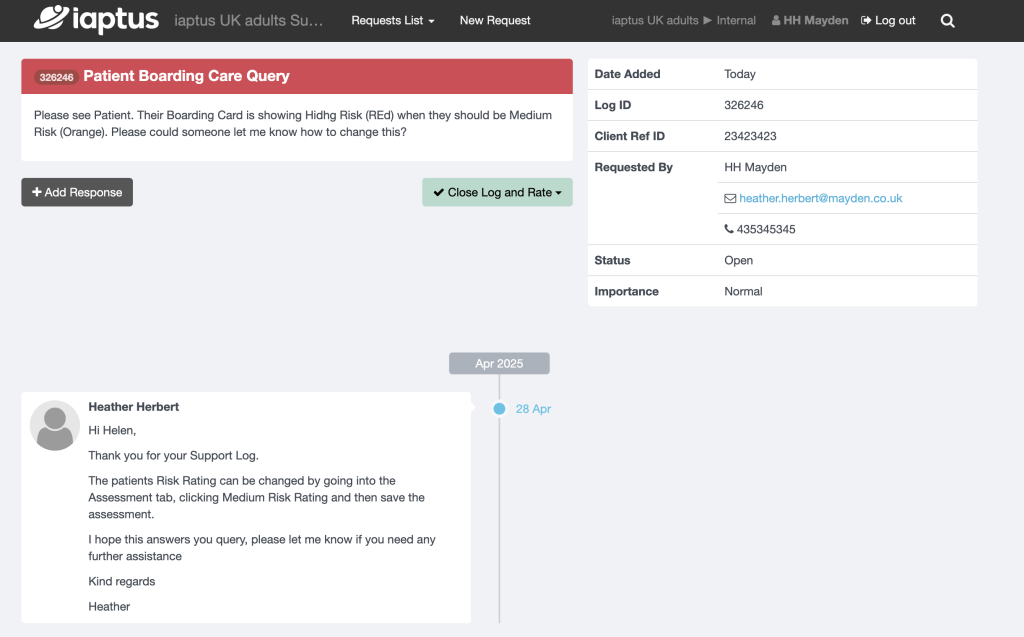
You will be presented with a confirmation screen along with a preview of your Log.
Confirmation Email
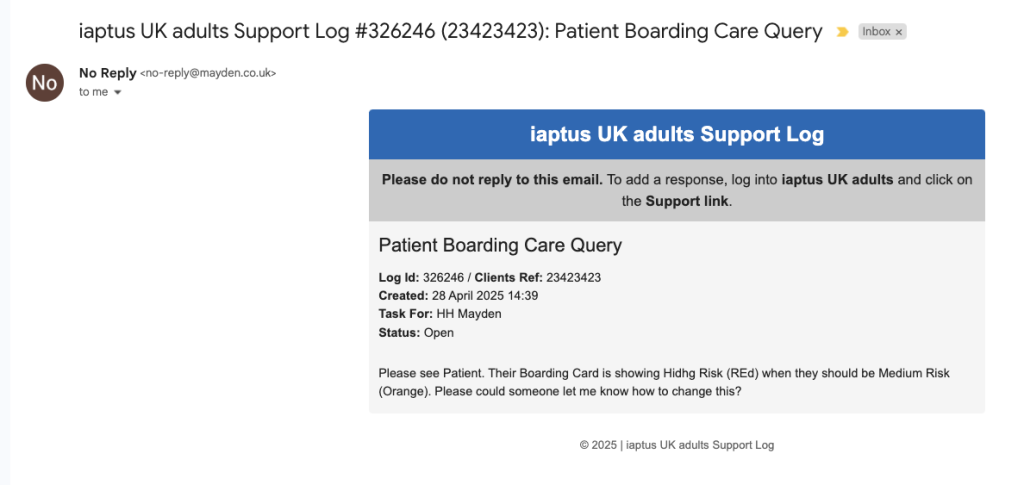
You will receive a confirmation email containing the Support log Information.
Reading, Responding and Closing a Support Log
If your Support Log has been responded to by Mayden, the person stated in the On behalf of field and anyone associated with the log, will receive a confirmation email, as shown above.
Reading
From within iaptus, in Support, Click on the log to open up the detail
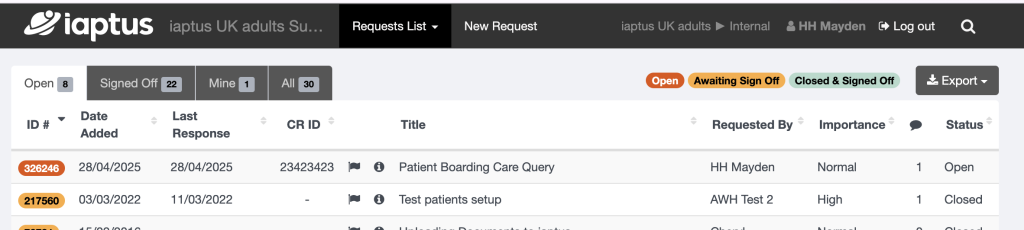
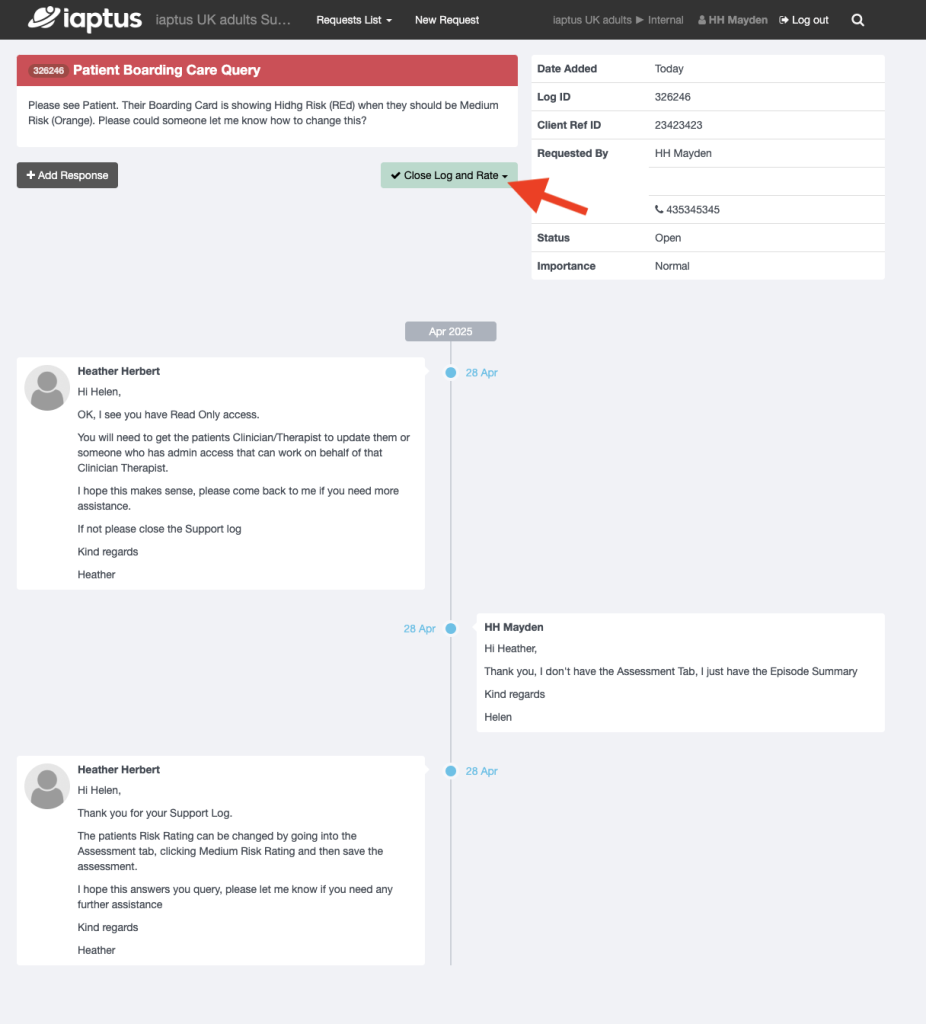
You will be presented with the detail of the Support Log. The conversation of responses can be seen at the bottom.
Responding
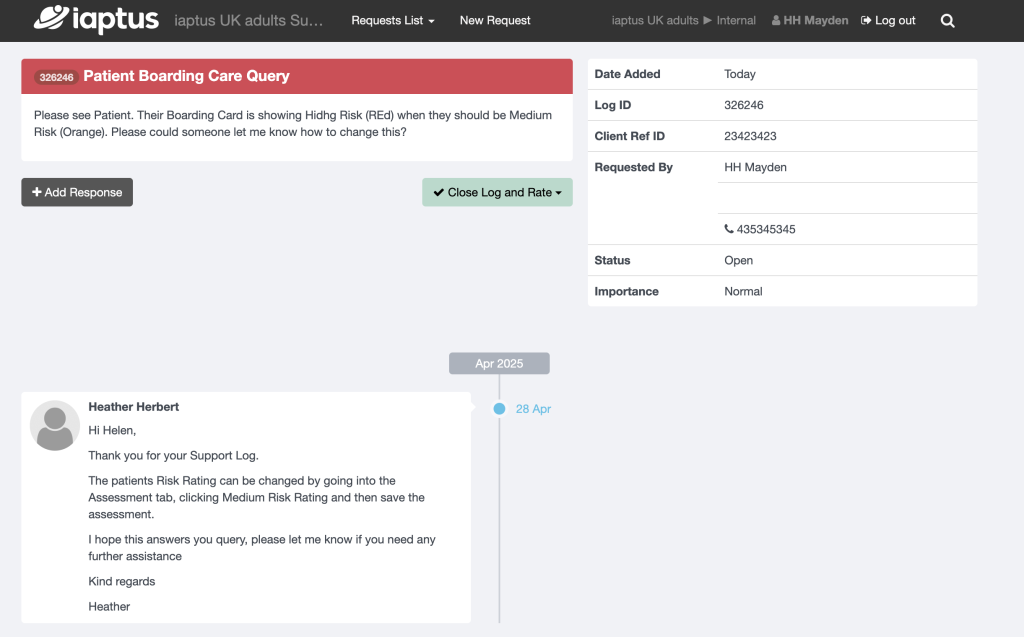
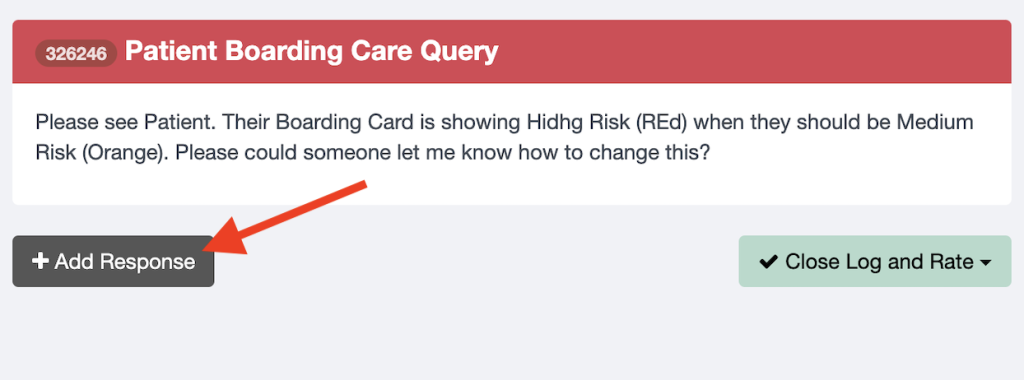
To add a response, Click Add Response.
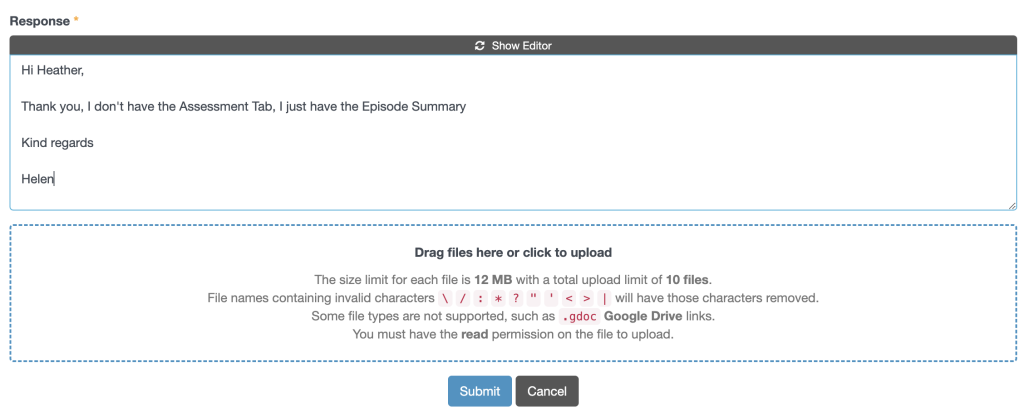
Type you response and click on Submit
Closing
Once you are happy with the response, you can close the support log down by click Close log and Rate
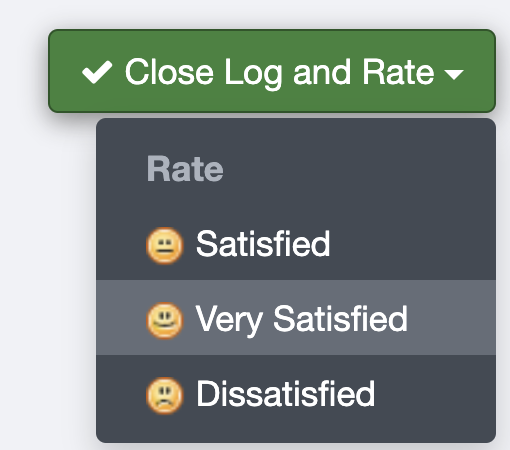
You can rate you satisfaction against the log to rate the service received from Mayden.
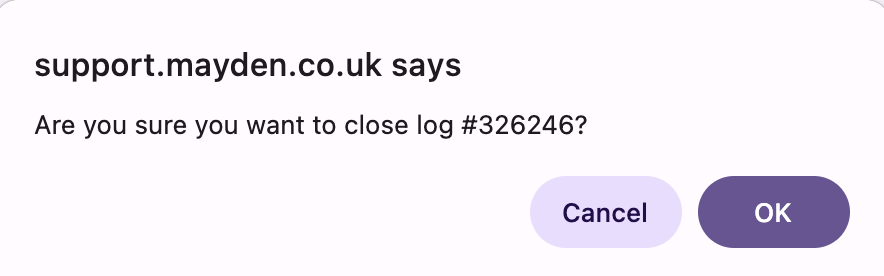
You will receive a confirmation messaged, Click OK to close. or Cancel
Reopen
The Support log will now be closed, however, if at anytime you wish to reopen, this can be done by clicking on the Reopen Support Log option.