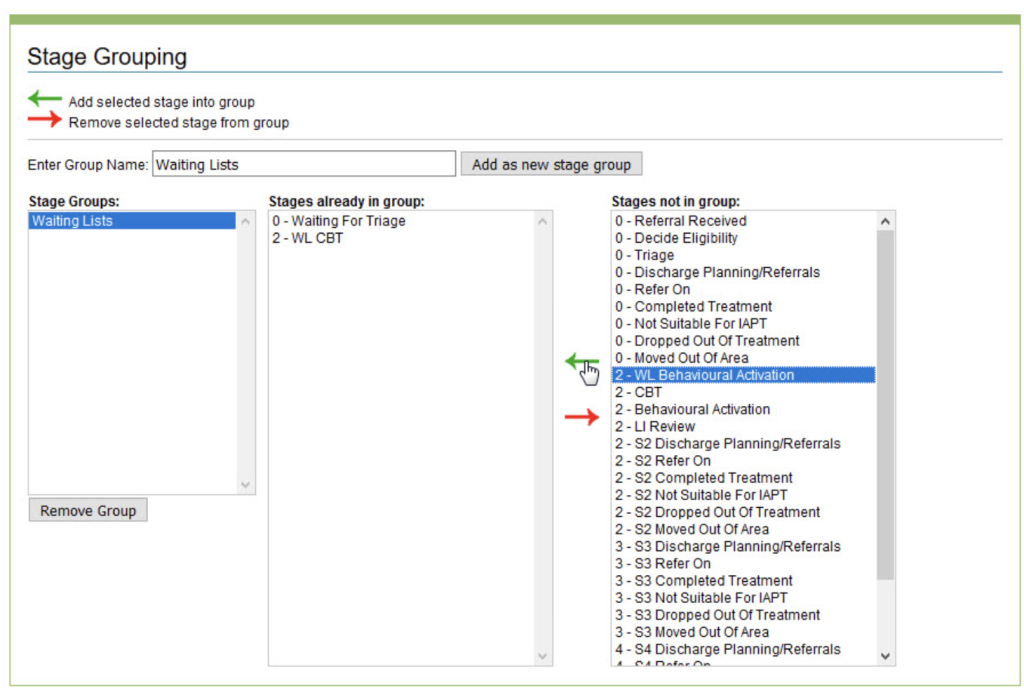
The Stage Grouping section of the Superuser menu, allows you to group stages of the care pathway together for reporting purposes.
An example would be, if you wanted to run a search or a report on patients in waiting lists. Instead of having to click and choose every waiting list step in your care pathway each time, you can create a group called Waiting Lists and with one click select all of the stages in one go.
After click Stage Grouping you will be see options to add, edit and remove Stage Groups.
To add a new stage group, type a group name into the box shown below and click Add as new stage group.
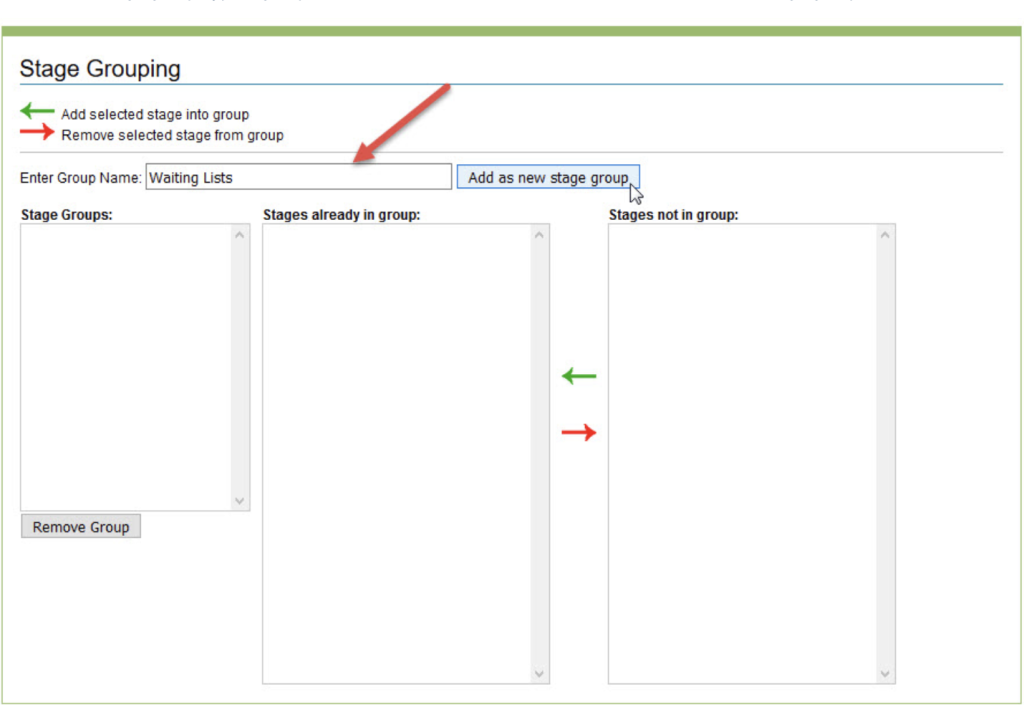
All created groups will appear in the left hand column. When you click on a group, the stages within the group are shown in the middle column. The right hand column contains a list of all of the available stages to select from. When you first create a group, it will be empty and you need to add stages.
To add stages into a stage group, select the group you wish to edit which will highlight in blue. Next, select the required stage from the right hand column and click the green arrow.
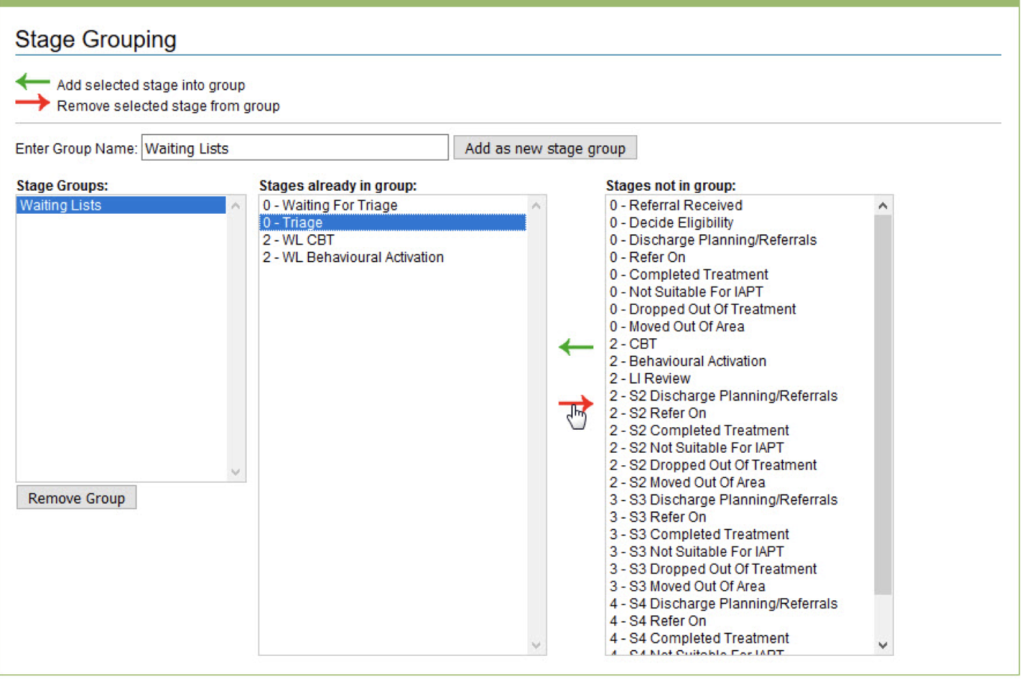
Stages can also be removed from a group using the red arrow.
If you no longer require a stage group, the entire group can be removed using the Remove Group button.