
This information guide will cover the various ways in which SMS are featured within the system.
Below are the types of SMS messages which can be generated and sent from within iaptus. This guide will look at Automated appointment SMS and Ad-hoc SMS in detail. The remaining feature specific options are touched on briefly and covered further within the guides for each specific feature.
- Automated appointment SMS:
- Appointment Confirmation SMS
- Appointment Reminder SMS (both individual and group)
- Appointment Cancellation SMS (both individual and group)
- Ad-hoc SMS
- Individual Ad-hoc SMS
- Bulk Ad-hoc SMS
- Feature specific SMS
- Electronic Letters SMS
- Online Appointment Booking SMS
- Online Referral Received Confirmation SMS
- Online Questionnaire SMS (both individual and group)
- Scheduled Bulk SMS
Requirements to send SMS within iaptus
To send any type of SMS from iaptus, the SMS feature will need to be switched on for your service (which can be requested via a support log).
Each patient will then need to provide a valid mobile phone number which must be added to the Tel (mobile): field within the patient registration, and also the SMS allowed box must be ticked.

Some types of SMS can also be sent to other contacts. These contacts will need to be recorded in the ‘other contacts’ section of the patient registration tab and have a mobile number.
Automated Appointment SMS
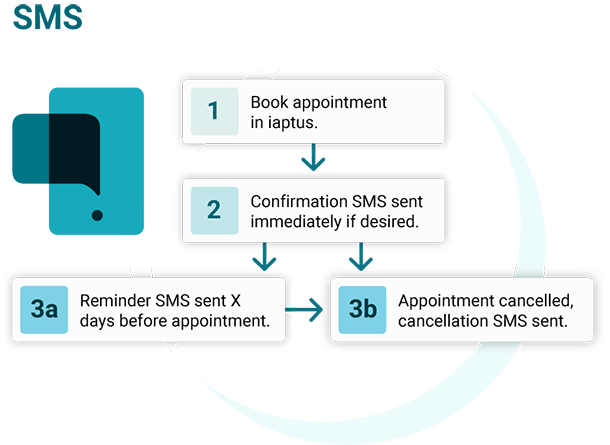
The iaptus integrated SMS feature allows automated appointment confirmation, reminder and cancellation messages to be set up.
Templates for these automated messages are linked to the consultation mechanism for the appointment, ie Face to Face, Telephone, Video etc and linked to the dataset mapping option against the consultation mechanism field within the clinical contact. This enables you, for example, to include the location in templates for face to face appointments but not for telephone, or include a link to the video session only within video appointment templates.
Appointment Booked Confirmation SMS
A service can arrange to set up confirmation SMS templates to be sent out when an appointment is booked.
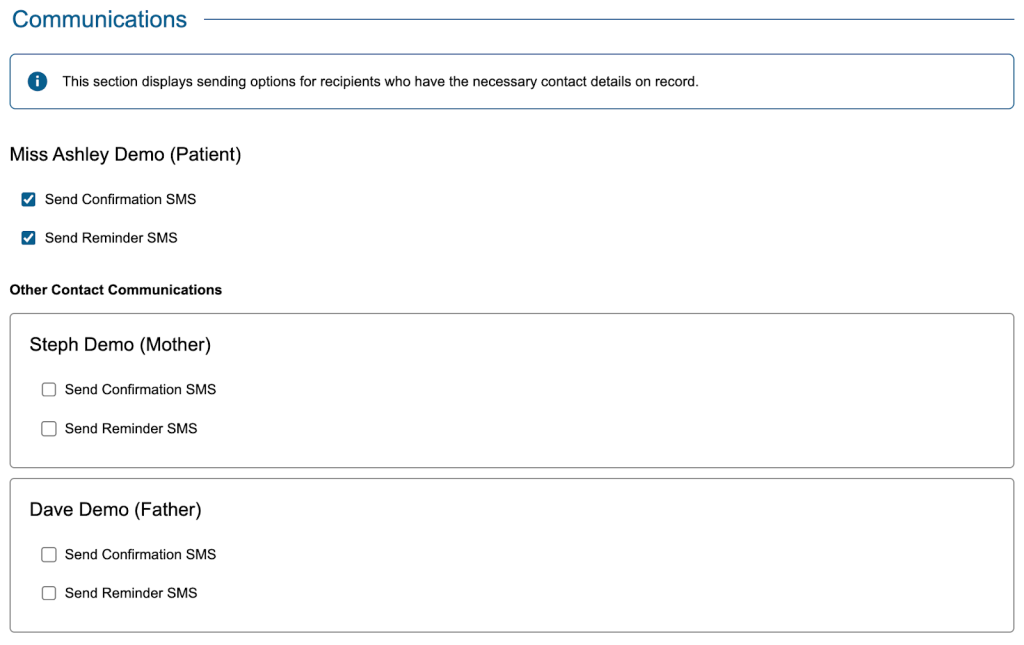
When booking an appointment in the diary, a tick box will show allowing the user to choose whether a confirmation SMS should be sent or not. This will be ticked by default for the patient (assuming they have provided a mobile number & SMS allowed is ticked). The option will also be displayed to send the message to any additional contacts who have provided a mobile number.
Appointment Reminder SMS
The system can send out a reminder SMS to patients or other contacts a set number of days before their appointment.
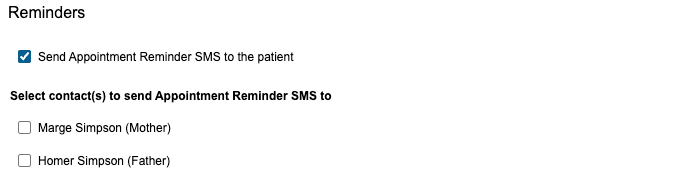
Much like confirmation messages, at the point of booking the appointment you have the option to select whether a reminder message is sent to both the patient and any applicable additional contacts.
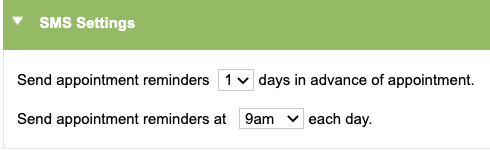
The service can determine how many days in advance of the appointment that a reminder SMS will be sent via the SMS Control option in the superuser menu. The SMS will be classed as ‘Pending’ up to the number of requisite days set below, i.e. 1 day prior to the appointment. After the time specified in the SMS Control Settings the SMS will be ‘Queued’ and it is not possible to alter the delivery at this point.
Appointment reminder SMS can be set up to send to all participants in a group session as well as for individual appointments.
Appointment Cancellation SMS
If there is a need to cancel an appointment, a cancellation text message can be generated and sent to the patient or any other contacts by updating the ‘Attendance’ field in the clinical contact to ‘Cancelled by Provider’/’Cancelled by Patient’/’DNA’. When you make this change and press save on the clinical contact, a prompt will pop up to ask if you wish to send a cancellation SMS message.
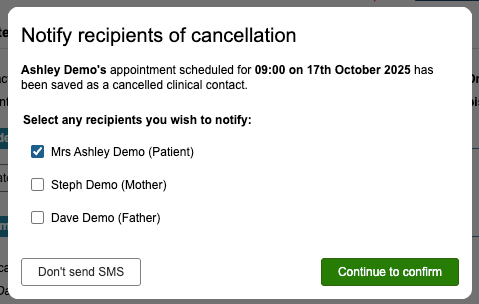
Cancellations can also be sent if an appointment is deleted from the diary or clinical contacts tab which would also trigger this pop up message.
Cancellation messages are sent within 15 minutes of creation.
Appointment cancellation SMS can be set up to send to all participants in a group session as well as for individual appointments.
Ad-hoc SMS
Individual Ad-hoc SMS
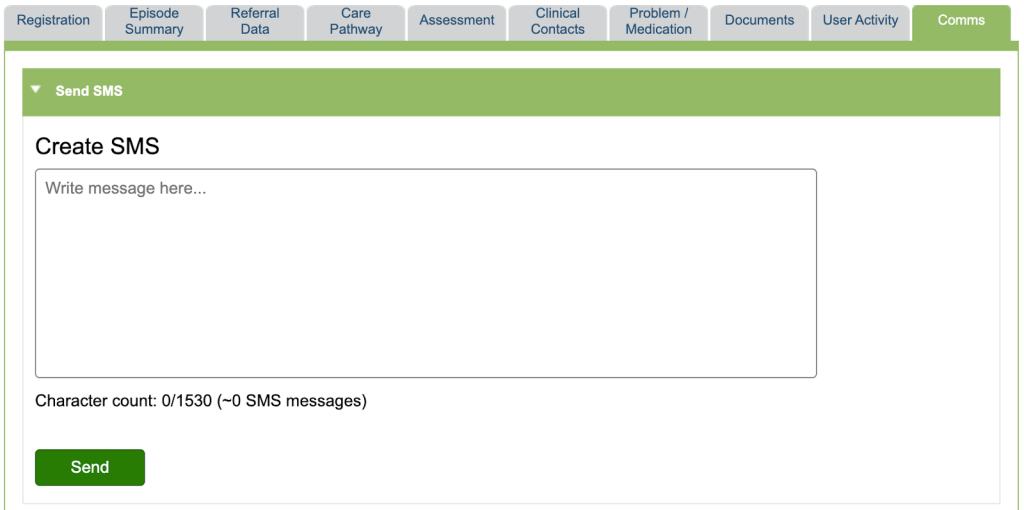
These can be manually created by loading the patient within iaptus and going to the Comms tab then adding the details of your message in the free form text box.
Bulk Ad-hoc SMS
In order to send bulk ad-hoc SMS the bulk actions feature must be enabled for your service. If this is not currently displayed for your service please get in touch via a support log. This is free to enable & any SMS sent are charged at the standard rate.
Bulk SMS can be sent to large groups of patients based on a patient search or group.
Step 1 – Create Patient Search
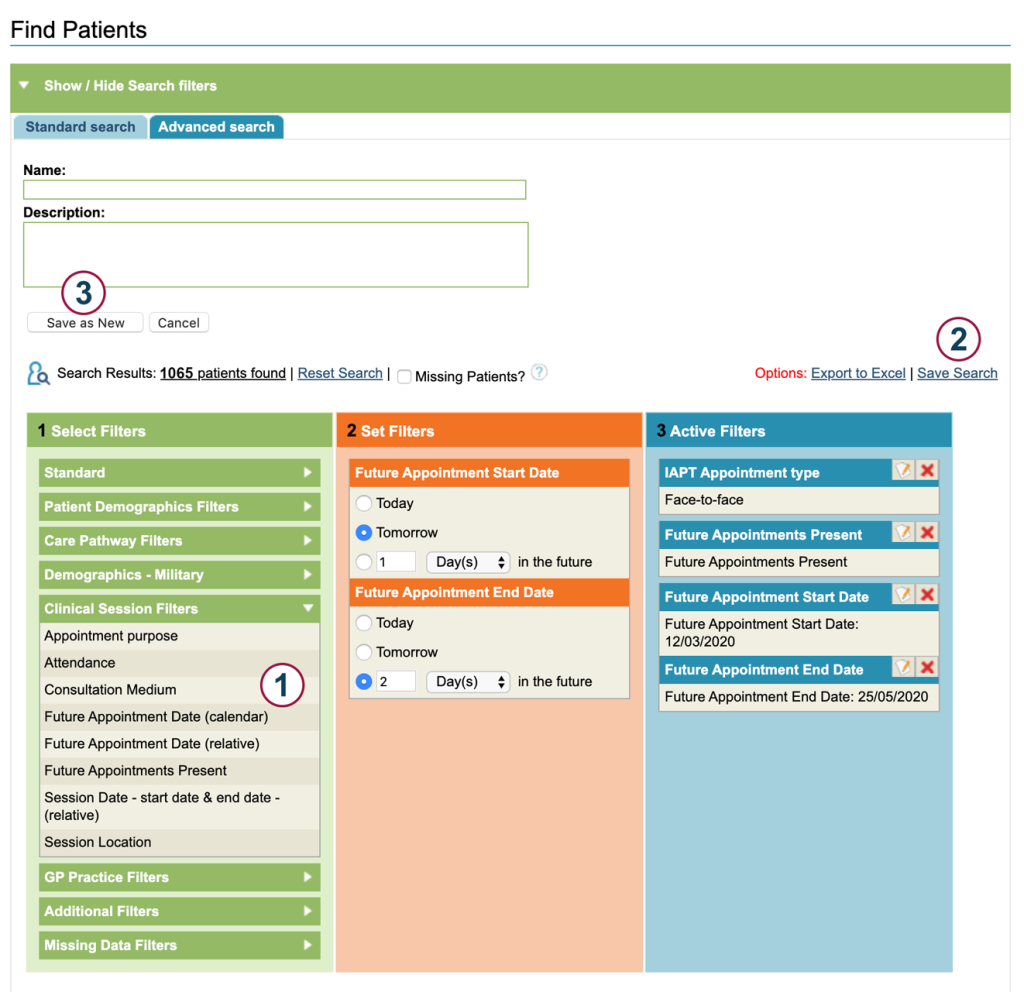
Create your search using ‘Find Patients’ advanced search and the filters within this function.
 | First, select your filters from the ‘Select Filters’ column. Apply the appropriate filters using column 2 and in column 3 you can check what criteria you have selected. |
 | Once you have done this, select the option ‘save search’ to save your search. |
 | You’ll need to give your search a name in order to do this. Click ‘Save as New’ to confirm this. |
This example is showing a Find Patient search for patients with an appointment within the next two days which is Face-to-Face.
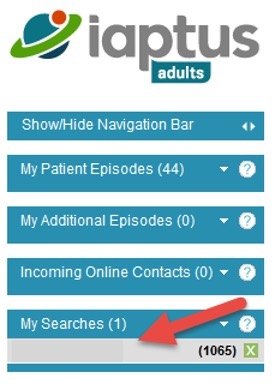
Once you have saved your search, you will be able to see this under ‘My Searches’.
Alternatively, you can transfer the participants of a group session to perform a bulk action on them.
Step 2 – Create a Bulk SMS Template
You will then need to select the Bulk SMS Template option within the Superuser menu to create your SMS template. Click the ‘Add New’ option to create your new Bulk Action.
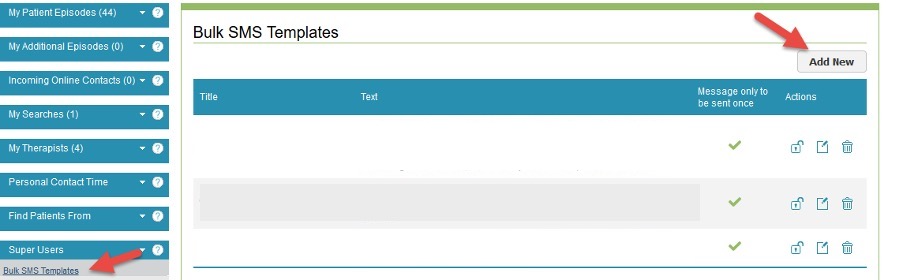
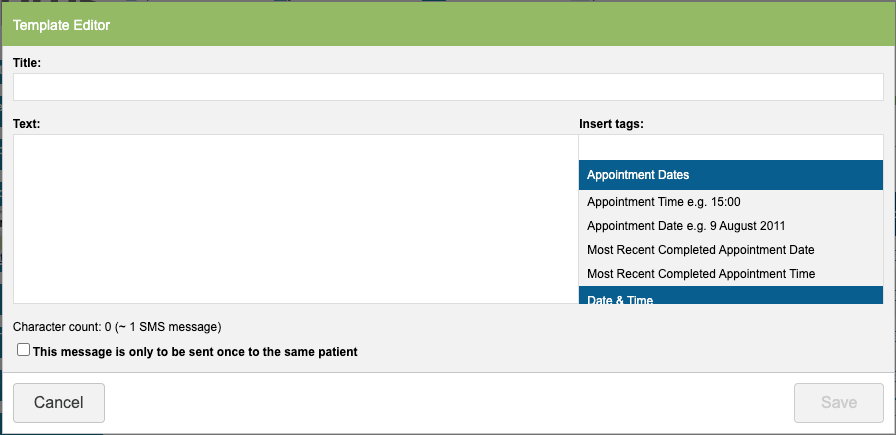
For the main text area, you can type in the contents as well as using tags which will retrieve information from the selected patients’ records and automatically populate the SMS text for you.
You will notice there is a character count for the SMS message. If this goes beyond 160 characters, the text message will be classed as two separate text messages and there will be cost implications.
Please note that if the therapist name is longer than the number of spaces that the tag has (eg [APP_THR] counts as 9 characters) the actual character count will be higher than shown.
It is possible to arrange for a template to be locked so it cannot be edited by other superusers within your service. In order to lock a template, please raise a support log within iaptus which your Mayden Account Manager can then action for you. You can also ask Mayden to unlock a SMS template.
Step 3 – Create a Saved Bulk Action
Once you have created the SMS template, you can then set this up to be used within the Saved Bulk Actions feature. This is to indicate it is a Bulk Action which is performed regularly.
To do this, click on the Bulk Actions icon towards the top of the iaptus page.
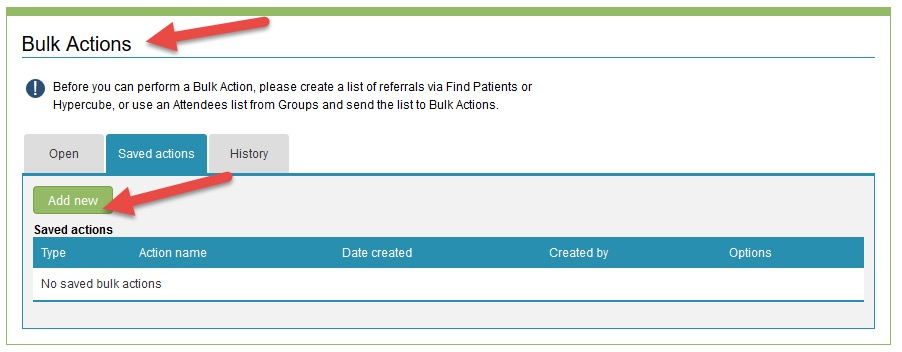
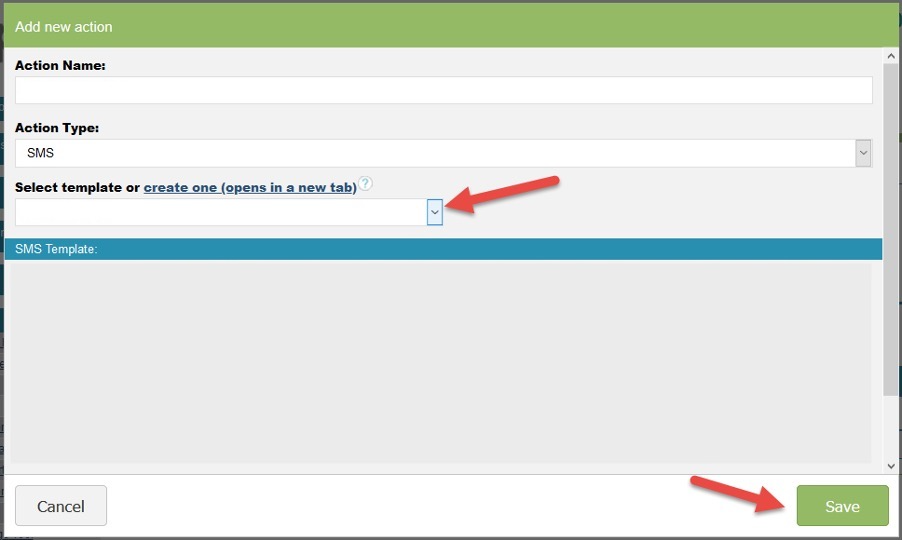
Once you click on ‘Add new’, the system will present you with the ‘Add new action’ window, where you will need to set an action name, select the action type (in this case SMS) and select your SMS template. When you select a template, you’ll be able to preview the content that will be sent within the SMS message. You can then click ‘save’ to confirm this.
Once you have saved this, you’ll then be able to see this saved action within the ‘saved actions’ tab.
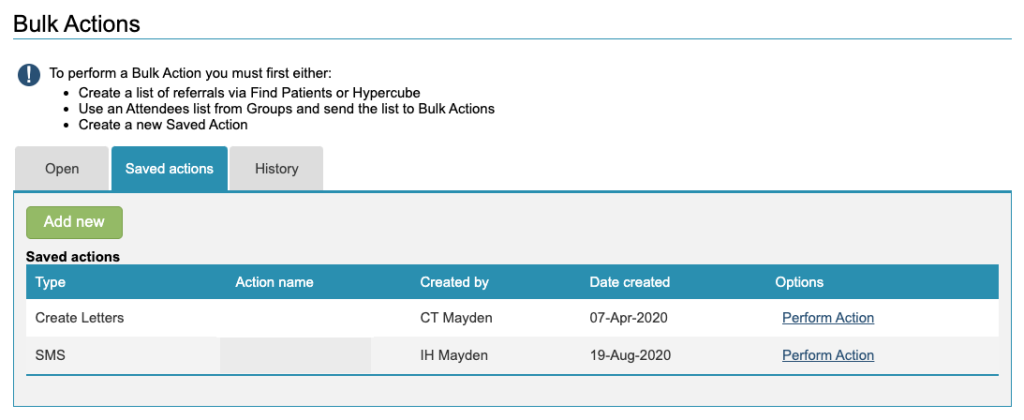
Step 4 – Perform action
Last step is to “Perform Action” by clicking the button.
This will prompt you to select the group of patients you wish to perform the actions for (eg. the search that you created and saved earlier).
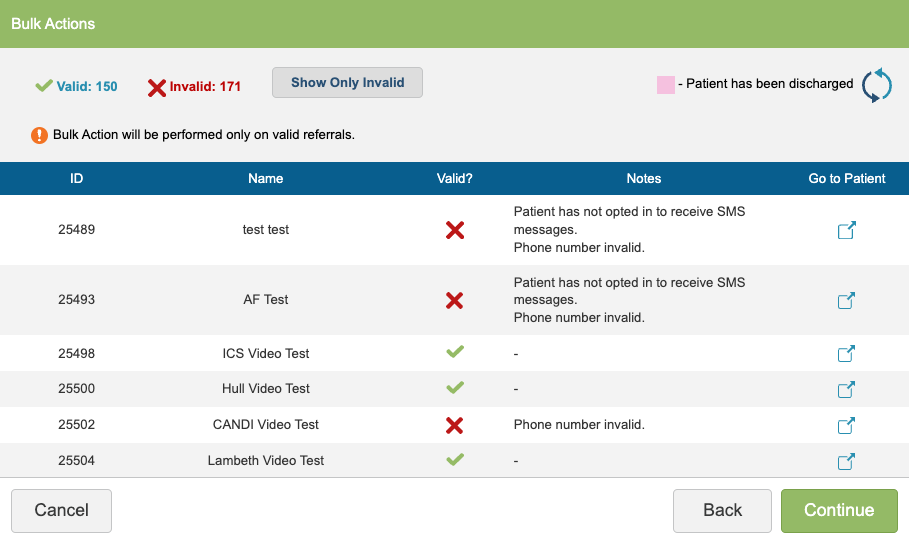
The next screen will review your list of patients and check for any reasons as to why the SMS cannot be sent. If there is a red X in the ‘Valid’ column, the reason why the SMS cannot be sent will be shown in the notes and you can ‘Go to Patient’ to rectify the issue if you wish.
Clicking continue will send the SMS to valid patients only.
Message History and Statuses
Once an SMS has been generated, it can be viewed within iaptus in the Comms tab under the SMS History section within a particular patient record.
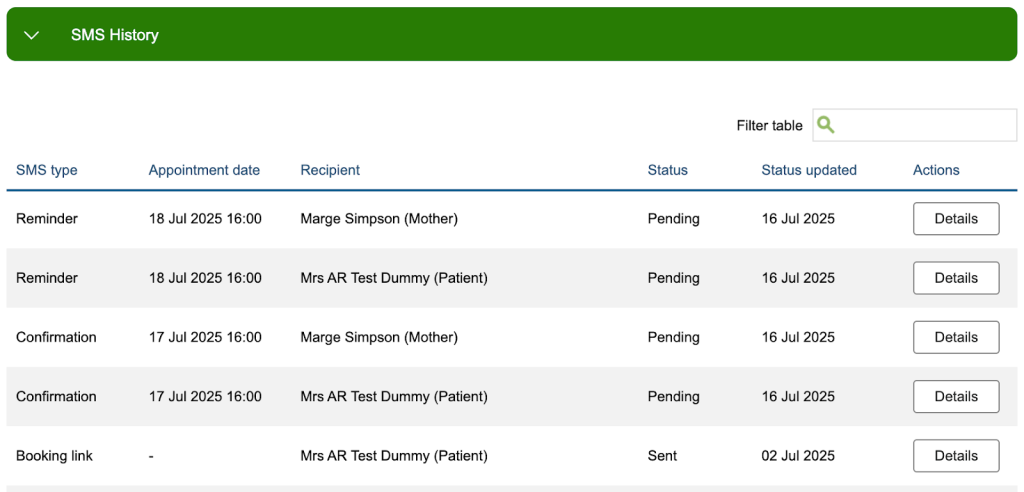
Clicking on a heading within this table will reorder the messages based on that column, or you can search in the ‘Filter table’ box for a particular recipient, status, or message type. You can also filter for a specific date by entering it in the short format yyyy-mm-dd. Clicking ‘details’ provides further information including the message content and status history.
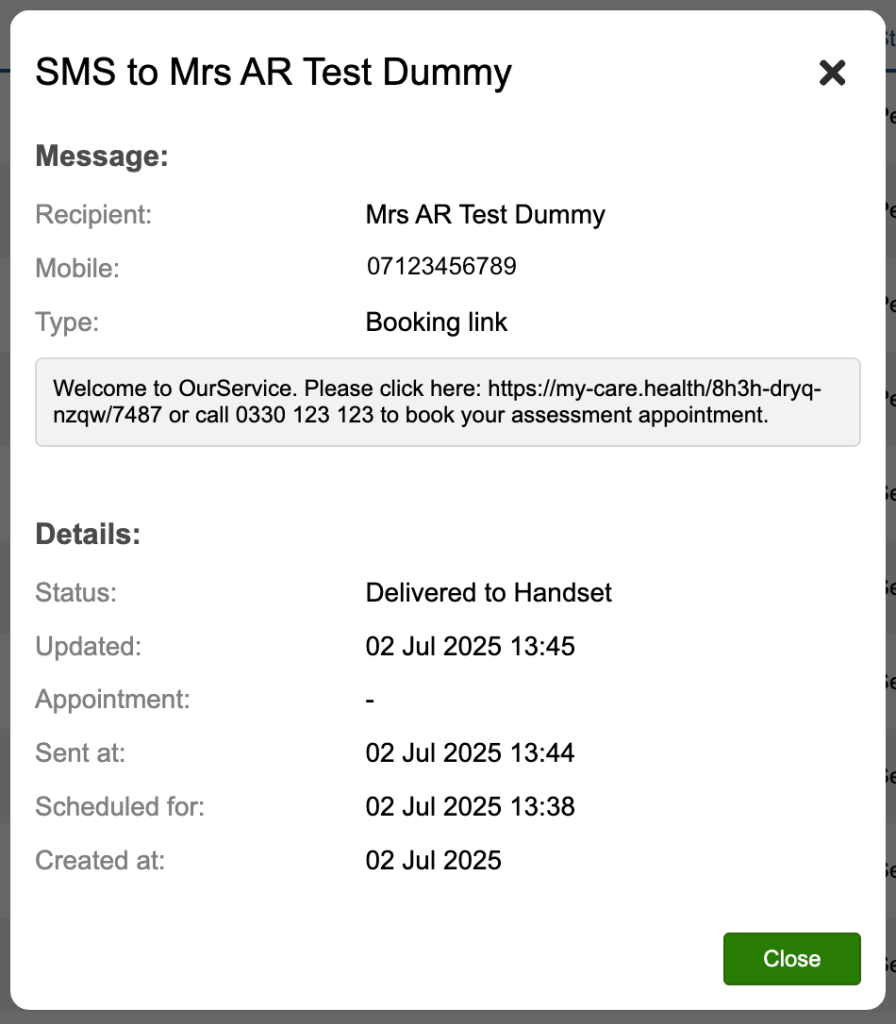
Alternatively, to see the status of any messages sent for a particular appointment, select that appointment in the clinical contact tab and scroll to the section ‘SMS Message’.
SMS Statuses:
There are several places in the system where you can check the status of an SMS message. Both the ‘Comms’ tab and superuser ‘SMS Control’ section provide an overview of the statuses explained below. You have the option in both locations to drill down into more detailed status information which is largely self explanatory. If you do come across any statuses you don’t recognise or are unsure about, please contact us via a support log to ask for clarification.
- Pending – Any SMS messages that are scheduled to send at a later date will sit at pending until their scheduled send date/ time. For example, appointment reminders are generated when the appointment is booked but will remain at a status of ‘pending’ until X days prior to the appointment. The scheduled date and time for sending will be displayed in this section so you can see when the message is due to be sent.
- Queued – This status indicates that we have passed the message from iaptus to our SMS provider for sending. Once messages reach a queued status they cannot be cancelled or deleted.
- Sent – The message has been sent by our SMS provider. Clicking through for more details will let you know if the message has been delivered to the handset, or is still awaiting delivery.
- Failed – There are a number of versions of the failed status you may see, for example ‘mobile phone number is not valid’, ‘failed to deliver’ or ‘rejected from handset’. These all indicate that the message was not delivered to the mobile number. There are a number of reasons this can happen, for example the mobile phone is unavailable/ has no signal or a full inbox.
If an appointment is edited e.g. Date/Location/Time is changed, the content of the reminder SMS will be updated prior to delivery, as long as the SMS is ‘Pending’.
Once an SMS is ‘Queued’, it is not possible to alter the contents prior to delivery but services have the option of sending a Cancellation message to the patient or an ad-hoc message to indicate the appointment has changed.
Superuser menu – SMS Control
Superusers have the option to temporarily disable SMS messaging within the ‘SMS control’ section of the superuser menu, for example over the Christmas period or during service down time.
If you want to switch SMS off completely, we would ask that you raise a support log requesting for this to be fully disabled in the system rather than using this temporary switch.
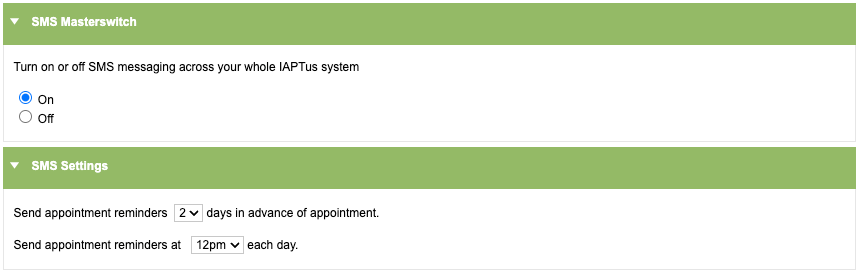
Superusers can also change how far in advance of an appointment reminders are sent, and set the time that the system should begin queuing and sending any reminder SMS each day.
Superusers will have visibility of a history table which shows the number of SMS in each status category. Each section can be clicked on to drill down further into the detail.
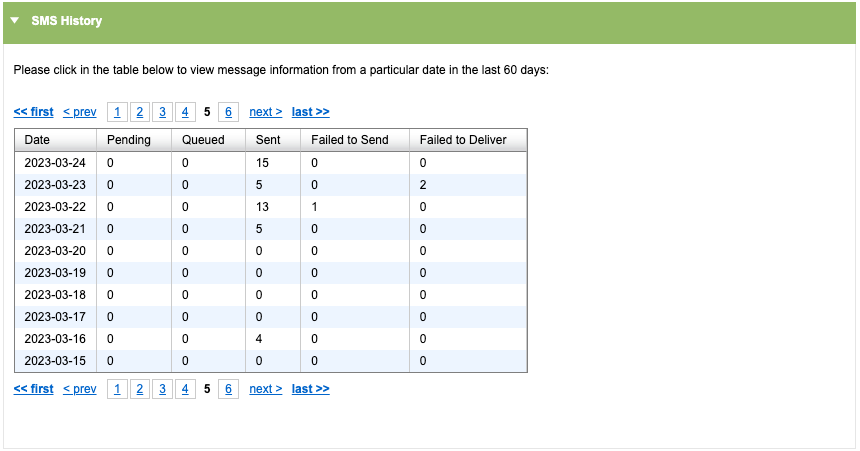
The values in this table are based on the ‘message created date’ in the date column. Therefore, for example, if an appointment is booked on 15th with a reminder SMS due to be sent on 20th, this will be included in the ‘pending’ number for 15th, the date it was created. When this message then sends on 20th and its status changes, this status will again be reflected in the ‘sent’ numbers for 15th because this is the date the message was created.

Tip: If you see an extremely high number of messages showing as ‘failed to send’ or ‘failed to deliver’, this suggests that either our SMS provider is having issues sending, or one or more mobile networks are experiencing disruption leading to issues delivering messages. Please raise this with us as soon as possible for investigation
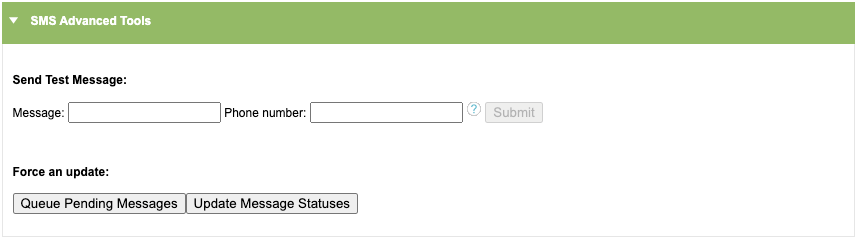
Under the SMS Advanced tools section, a superuser can test the system by sending a SMS to themselves.
Feature Specific SMS
Electronic Letters SMS
With the feature enabled and configured you can send a text message to the patient with a unique link allowing them to view their letters in our secure portal on their mobile device. You will also be able to see whether a patient has received, attempted to access, and/ or viewed a letter and take appropriate follow up action if necessary.
Further information regarding the SMS for Electronic Letters are detailed in the guide for this feature.
Online Appointment Booking SMS
With the feature enabled and configured you can send a text message to the patient with a unique link allowing them to book an appointment directly into the iaptus Diary. You will also be able to see whether a patient has been sent a booking link and expire a link if it is no longer needed.
Further information regarding the SMS for Online Appointment Booking are detailed in the guide for this feature.
Online Referral Received Confirmation SMS
With the feature enabled and configured you can send a text message to the patient to confirm the service has received their online referral submission form.
Further information regarding the SMS for Online Self Referral Confirmation are detailed in the guide for this feature.
Online Questionnaire (webforms) SMS (both individual and group)
With the feature enabled and configured you can send a text message to the patient with a unique link allowing them to complete a questionnaire(s) prior to their upcoming session. You can then view the contents for the questionnaire linked to the upcoming session.
Further information regarding the SMS for Online Questionnaire (webforms) are detailed in the guide for this feature.
Scheduled Bulk SMS
With the Scheduler enabled, you are able to schedule bulk action SMS to automatically send to a group of patients on a daily basis.
Further information regarding Scheduled Bulk SMS is detailed in the guide for this feature.
Appendix A – SMS Tags
We have a number of text message tags available to pull through patient specific content into text messages, for example, therapist name and appointment location, date and time. These are detailed below.
- Appointment Therapist (e.g. Jane Doe)
- Appointment Therapist (Dr) (e.g. Dr. J Doe)
- Appointment Therapist’s Title (e.g. Mrs)
- Appointment Therapist First Name (e.g. Jane)
- Appointment Therapist Last Name (e.g. Doe)
- Appointment Location (e.g. Health Center)
- Appointment Time (e.g. 9:00am)
- Appointment Date (e.g. Tuesday 8th April)
- Appointment Short Date (e.g. 08/04/2025)
- Appointment Day (word) (e.g. Tuesday)
- Appointment Day (number) (e.g. 8th)
- Appointment Month (e.g. April)
- Appointment Year (e.g. 2025)
- Patient Video Session Link (only available to services using the iaptus Integrated Video Feature)
- Patient First Initial (e.g. J)
- Patient First Name (e.g. James)
- Patient Last Name (e.g. Smith)
- Patient Preferred Name (e.g. Jim) – please note if this tag is used and the patient does not have a preferred name, this will fall back to First Name.
Please note that ‘Appointment Therapist’ tags are not available to use in group appointment messages.