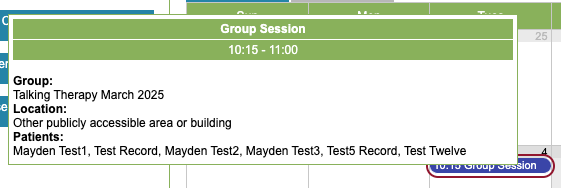
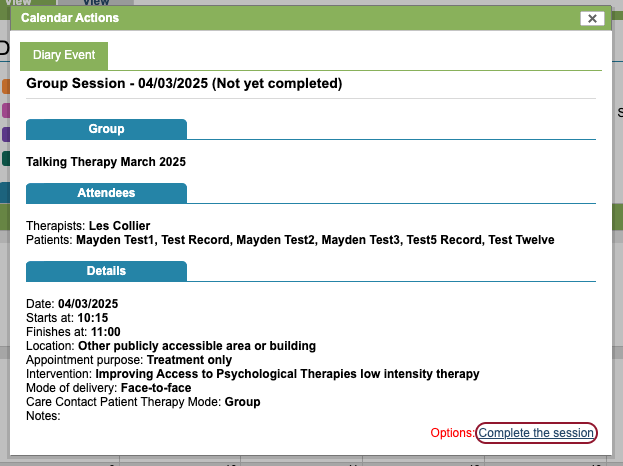
You can go to the lead therapist’s diary and hover over the group event to see a brief summary of the group session. Clicking on the event will give you more details, and you can even complete that group session for all attendees.
Another way to complete the group session for all attendees would be to find the group in Groups Overview, click ‘Manage Group’ and this will take you to the page where you can click Record Session.
Record session tab
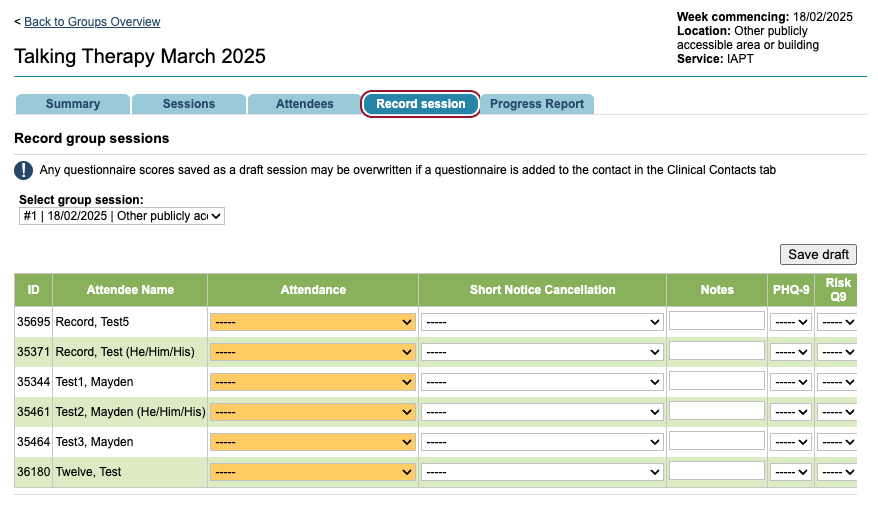
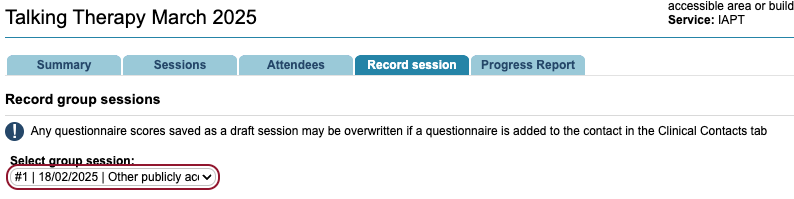
Either route will allow you to complete the group session. Make sure you are completing the correct session by selecting the session number and date using the field above.
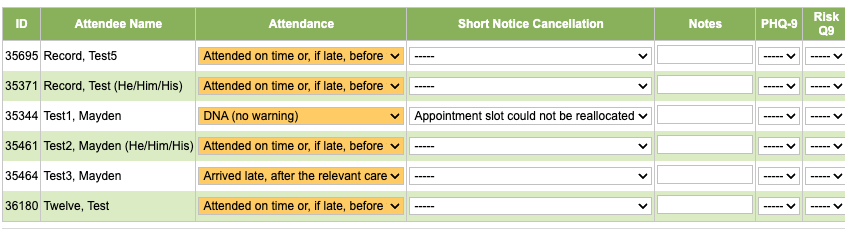
Each patient will have a row in the table which you will then need to complete the fields for. The ‘Notes’ field in the table is for specific patient notes about that particular session. You will need to scroll to the end to make sure all fields are completed.

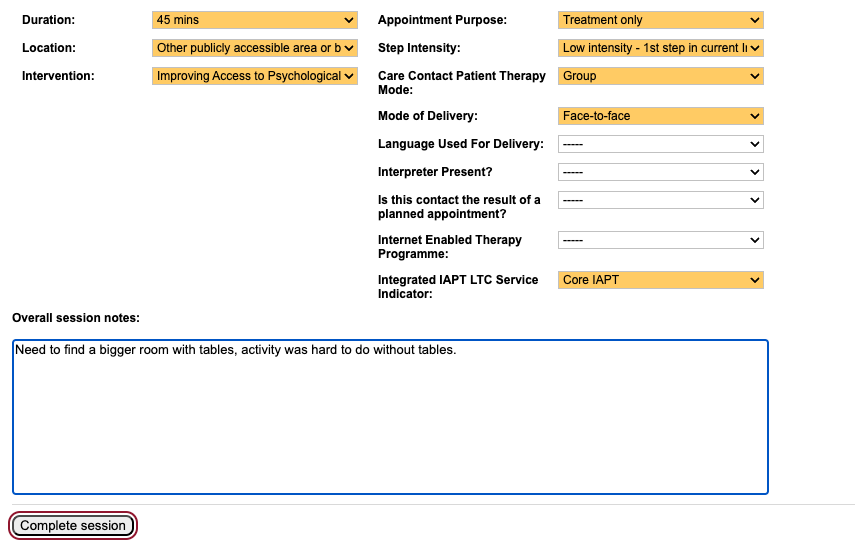
Below are the fields you have already completed when creating the group however you can amend these if need be. The overall session notes are not for patient specific notes, but more general notes about the group.
When you have entered all the information for the group session, click ‘Complete session’.
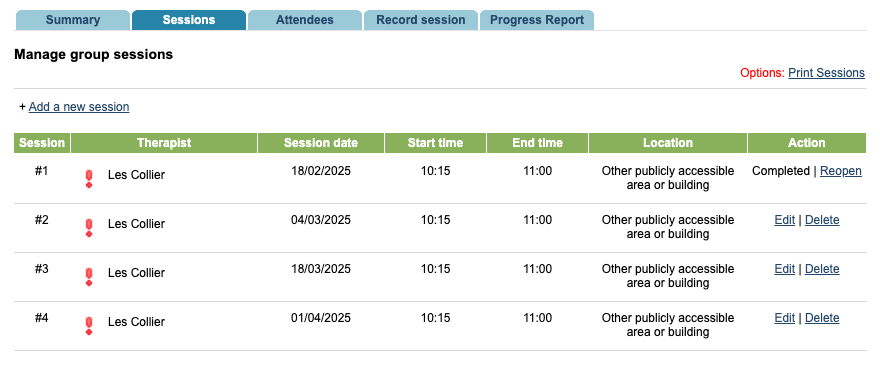
Once you have completed the session, the session will show as completed in the ‘Sessions’ tab. If you need to amend the information recorded against the session, click ‘Reopen’. You cannot delete a session when it is completed.
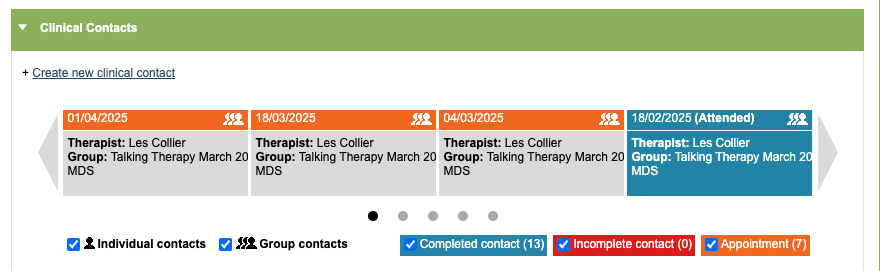
You can view any notes recorded for the patient in their group session by viewing the session the patient’s Clinical Contact tab.
Progress Report
As well as recording the group session information, you can also view the Progress Report. To do this, find your group in Groups Overview then click to the Progress Report tab.
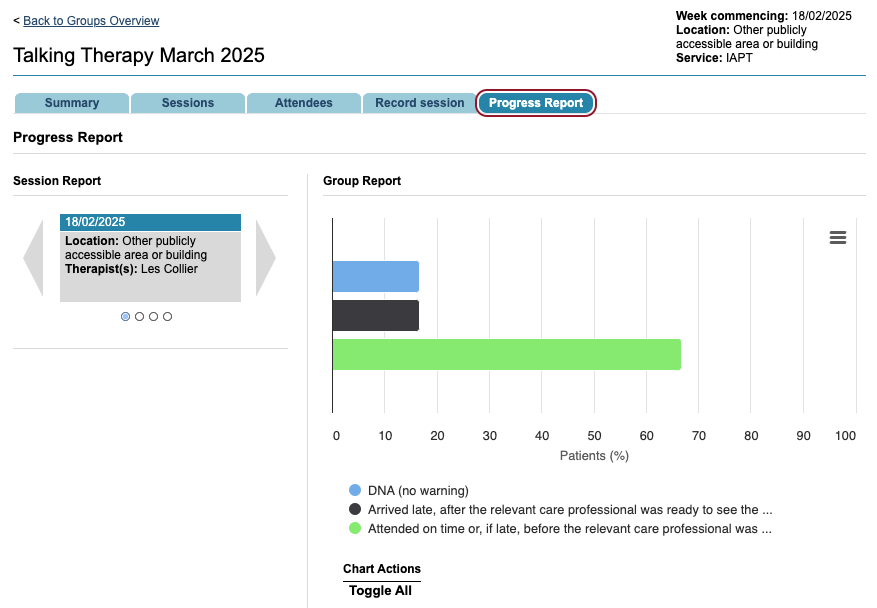
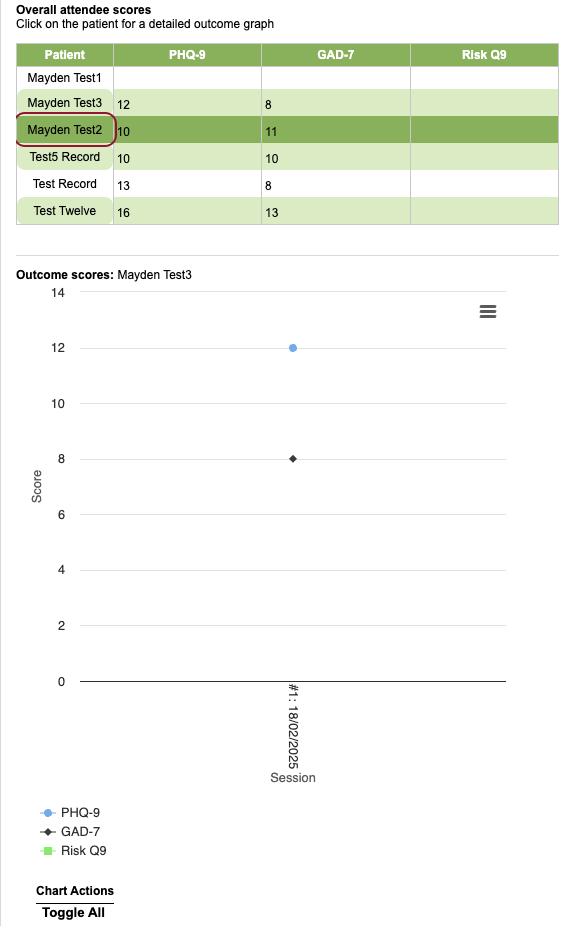
You will be able to compare attendance rates and scores for patients throughout the completed group sessions.
You can click on the patient to view a detailed outcome graph for their scores only.