
Online Referral Process
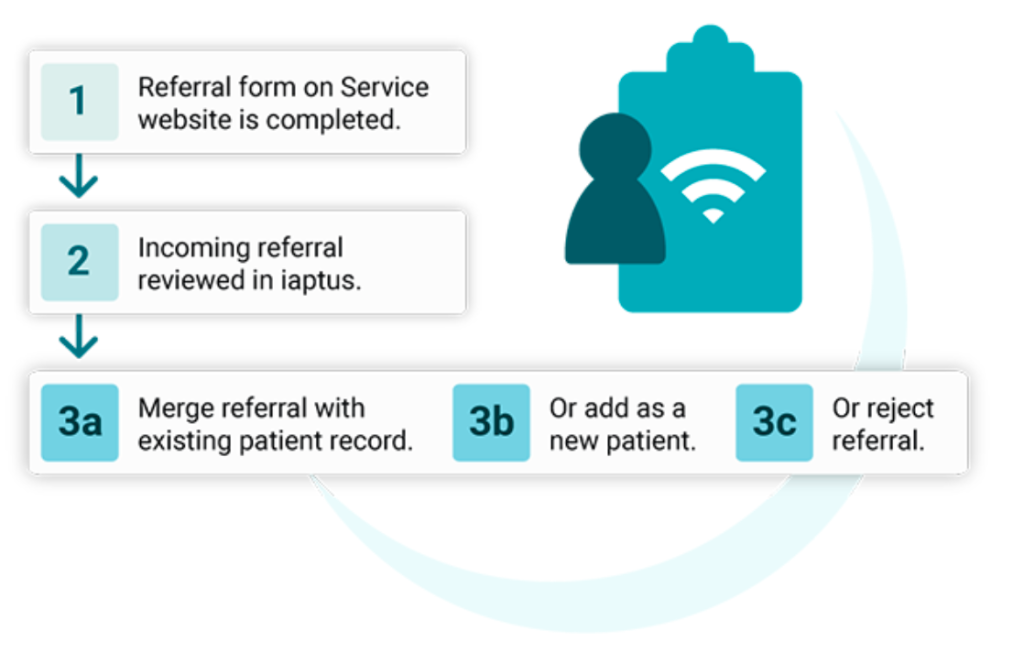
The referral process from an iaptus service user’s viewpoint involves three distinct stages. First, the referral form is completed on the website by a potential patient or Health Professional. This is then highlighted as an incoming referral in iaptus, before the service user can action the referral by either adding the individual as a new patient, merging with an existing patient record or rejecting the referral. A flowchart of this process is shown below.
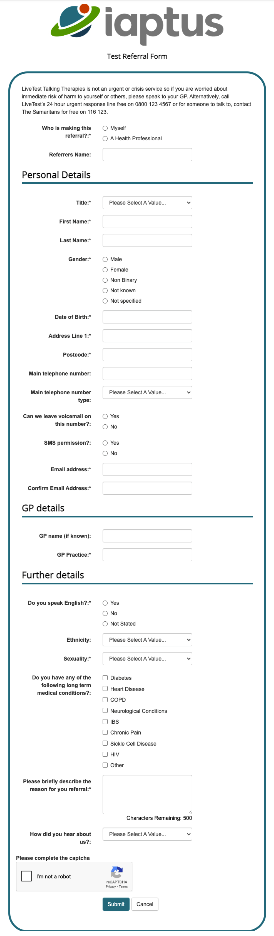
1a – Referral form on website completed
The user completes the referral form on the website. Fields can be made compulsory to be completed before the form can be sent and the Captcha ensures that the service can’t be spammed by an automated process.
1b – Success message
Upon submitting their referral, the user will see a customisable success message. This can include details of how your service will contact them, and any next steps to look out for like the example below.

1c – Patient confirmation SMS
If desired, a customisable ‘referral received’ SMS message can be set up to automatically send to the prospective patient when their referral is received into iaptus. This will be sent to the patient’s mobile number entered on the form as long as they have entered a valid number and selected yes to the SMS consent question.
To use this function, you must have the SMS feature switched on and each message will be charged at the standard rate.
2a – Incoming referral highlighted in iaptus
The referral is highlighted as incoming within iaptus on the ‘Incoming referrals’ Super User menu section and can be processed by going to this section.
2b – Incoming referral form identifier flags
All new referrals can be viewed in the incoming referrals section.
If you have multiple online referral forms, the source of the referral can be identified with customisable grey flags. This can support your admin team to differentiate between referrals.

2c – Reviewing a referral
Clicking on a referral within the incoming referrals section will expand it to show details of the data that was submitted.
At the top of the summary, you will see a list of any fields that will auto populate into the record if the referral is accepted. Below, under the ‘Referral Notes’ heading, you’ll see all of the other information that has been collected on the form and this will remain within ‘Referral Notes’ in the Referral Data tab if/ when the referral is accepted. This information can be added into existing fields if desired or left in the referral notes.
If you use the NHS Lookup feature, iaptus will also run an automatic spine lookup using the information on the form within minutes of its arrival and if found, the NHS number will be displayed against the ‘Automated Online Referral NHS Number Look-up’ field.
3a – Accepting a patient and merging with an existing record
Clicking on a referral within the incoming referrals section will expand it to show details of the data that was submitted.
The system will always attempt to find a patient match with those already registered on your system using the NHS number if this was found. If no NHS number has been found for the referral, then a ‘fuzzy match’ is performed instead using a weighted combination of key information including the patient name, gender, and date of birth.
If any potential matches are found, these will be displayed at the top of the referral information. It is possible to review any possible matches and if appropriate, update the existing patient with the incoming referral information and create a new episode.

The incoming referral data from the website form can be seen below. This patient looks to be an appropriate match, but has an updated email address and phone number. The green highlighted fields show how the patient record would be merged if the “save” button were pressed (green data and referral records are kept).

3b – Accepting a referral and adding as a new patient
It is also possible to create a new patient from the referral.

Upon accepting a referral, it is archived for future reference under the “Archived Referrals” tab.

3c – Rejecting a referral
If the patient doesn’t appear to be suitable or meet the required criteria for accessing your service, you can reject the referral and enter a rejection reason in the box provided.

Upon rejecting a referral, it is archived for future reference under the “Archived Referrals” tab. The rejection reason is only visible to you internally, this is not communicated to the patient automatically.

Tip: you may also wish to establish a process for informing the patient/ referrer should you reject a referral as they will not be automatically notified of this.
Form Field Selection
The fields for the online form need to be selected and confirmed at the start of the set-up process as the rest of the module is built around these fields and the corresponding data mapping in iaptus.
Many key fields can be set up to auto-populate data into a new patient record in iaptus. Where these fields are managed by the service within the Super User ‘List Management’ section, answer options will be pulled from those values set up in ‘List Management’. For other fields, list options can be fully customised. Field names can also be changed to support patients to understand the question and provide the correct answer.
Minimum Required Form Fields
In order to create a new record in iaptus, the following fields are required:
| Field Name | Field Type | Accepted Values | Auto-populates field in iaptus? |
| First Name | Text Box | – | Yes |
| Last Name | Text Box | – | Yes |
| Date of Birth | Text Box | (DD/MM/YY) | Yes |
| Gender | Radio Button | *As per list values on iaptus* | Yes |
| Address Line 1 | Text Box | – | Yes |
| Postcode | Text Box | – | Yes |
Auto-Populating Form Fields
The following fields can be set up to auto-populate the relevant field within a new patient registration form in iaptus.
| Field Name | Field Type | Accepted Values | Auto-populates field in iaptus? |
| Title | Drop Down | *As per list values on iaptus* | Yes |
| Address Line 1 | Text Box | – | Yes |
| Address Line 2 | Text Box | – | Yes |
| Town/City | Text Box | – | Yes |
| County | Text Box | – | Yes |
| Text Box | (EMAIL VALIDATION) | Yes | |
| Mobile Number | Text Box | (PHONE NUMBER VALIDATION) | Yes |
| Permission to Leave Voicemail on Mobile? | Radio Button | YesNo | Yes |
| Permission to Send SMS? | Radio Button | YesNo | Yes |
| Home Number | Text Box | (PHONE NUMBER VALIDATION) | Yes |
| Permission to Leave Voicemail at Home? | Radio Button | YesNo | Yes |
| Work Number | Text Box | (PHONE NUMBER VALIDATION) | Yes |
| Permission to Leave Voicemail at Work? | Radio Button | YesNo | Yes |
| Other Number | Text Box | (PHONE NUMBER VALIDATION) | Yes |
| Permission to Leave Voicemail at Other? | Radio Button | YesNo | Yes |
| Sexuality | Radio Button | *As per list values on iaptus* | Yes |
| Relationship Status | Drop Down | *As per list values on iaptus* | Dataset dependent |
| Pronouns | Drop Down | *As per list values on iaptus* | Yes |
| Religious or Belief Affiliation | Drop Down | *As per list values on iaptus* | Yes |
| Ethnicity | Drop Down | *As per list values on iaptus* | Yes |
| Nationality | Drop Down | *As per list values on iaptus* | Yes |
| Language | Drop Down | *As per list values on iaptus* | Dataset dependent |
| Able to Communicate in Spoken English? | Radio Button | YesNo | Yes |
| Understands written English? | Radio Button | YesNo | Yes |
| Ex-British Armed Forces | Drop Down | *As per list values on iaptus* | Yes |
| Are you a Carer? | Radio Button | YesNo | Dataset dependent |
Additional bespoke fields and styling
It will be possible to arrange for bespoke form fields to be included. These fields can be set up with a variety of field types (free text, drop down, multi select, date picker) and will produce text within the referral notes. Fields can be made optional, mandatory or conditionally mandatory as required.
Headings, note text, and other styling options are also available and should be discussed with a member of the Mayden Implementation team when designing your form specification.
Security Information
Online referral forms allow data to be securely submitted from the public internet by the patient which is then stored and transmitted in an encrypted form back to the iaptus servers on the NHS HSCN network, as is required by NHS E&I (formerly NHS Digital) for all patient data.
However, as evidenced by finance and military data leaks, there is always a risk from a sufficiently resourced and motivated attacker. Mayden operates a comprehensive set of measures to mitigate the threats in all forms, achieving a level of ‘exceeded’ in the DSPT submissions, obtaining Cyber Essentials Plus and retaining ISO27001 accreditation.
Mayden enacts vulnerability assessments on all projects at the planning phase and for this feature both internal and external penetration testing has also been carried out. Independent testing is used on a project by project basis depending upon factors such as complexity and risk of the project. In this case, testing resource was utilised during the pilot phase with three services and 800 referrals all securely transmitted. iaptus is also subject to regular external penetration testing. Penetration testing takes place at least every 12 months and is carried out on component parts of the application. This reflects the size of iaptus, its features and resulting testing scope. For the purposes of the penetration tests, features are considered separate applications and tests are scoped to these individually. The approach means that tests are concise, prevent any creep of scope and ensures that findings are focused, easily triaged and managed.
For the referral form, the data is encrypted using a 256-bit Standard AES cipher and an RSA public/private key pair. The public key used on the online referral can then only be decrypted with the private key stored inside the HSCN network. This use of public/private key pairs means that keys are protected from threat actors. Data submitted by the patient is done so over HTTPS only and immediately encrypted using a RSA 4096-bit length secret key. After transmission to iaptus has been confirmed, data may be stored for 30 days maximum in its encrypted form as a failsafe in case of transfer error. Once in iaptus, data retention policies are as stated.
Mayden remains in step with current best practice. Products are reviewed and tested for known attack vectors and common forms of vulnerability as compiled by the OWASP (Open Web Application Security Project).
Mayden remains informed on all technology based threats and implements multiple security measures in order to protect patient data whilst continuing to monitor and evaluate developments in cryptographic authentication and security, responding as required to future developments in this field.
Mayden appreciates the importance that technical controls play in enhancing information security, but also supports the training of staff to help them become more aware of the impact of their role to support a strong information security culture. Mayden conducts awareness training to all new starters around the importance of effective information security controls and data protection requirements such as Data Protection Act 2018 and GDPR. This is also accompanied by regular phishing simulations as well specific Cyber training. This is reinforced through annual reviews of Information Security policies and annual ISO 27001 audits by an external assessor.
It is normal for clients with specific policies or concerns to arrange tests independently of Mayden and we have processes to support this. Unauthorised attacks on Mayden systems are not permitted and Mayden reserves the right to respond accordingly.
Set Up and Next Steps
If you are an iaptus service looking to introduce the Online Referral module, please contact our Implementation Team, via your Account Manager.