Introduction
iaptus is constantly introducing revolutionary new ways to interact with patients, increase the efficiency of appointments and engage patients with their treatment.
One of the key aspects of the Talking Therapies approach to treatment is the ongoing recording of key outcome measures such as PHQ, GAD and WSAS. The Talking Therapies handbook encourages therapists and practitioners to go through these measures with the patient at each appointment. On average it can take 7-10 minutes in a 35 to 45 minute appointment to get a response from the patient for each question and enter it into the clinical system.
The development team at Mayden looked at this aspect of treatment and data recording and concluded that there must be a better way. Consequently, we developed an approach to data collection which engages the patient, increases data collection rates and reduces the time clinicians spend on administration. In short, we created a way for patients to submit the answers to these key outcome measures themselves whether that be on a mobile device such as a smartphone, on tablet devices such as an iPad or by using a home computer. Once the patient has answered the questions for these key measures online, that information is securely transferred back into iaptus, directly into their patient record.
This functionality allows data to be securely submitted from the public internet by the patient and then stored and transmitted in an encrypted form back to the iaptus servers on the HSCN network as required by HSCIC for all patient data.
How does it work?
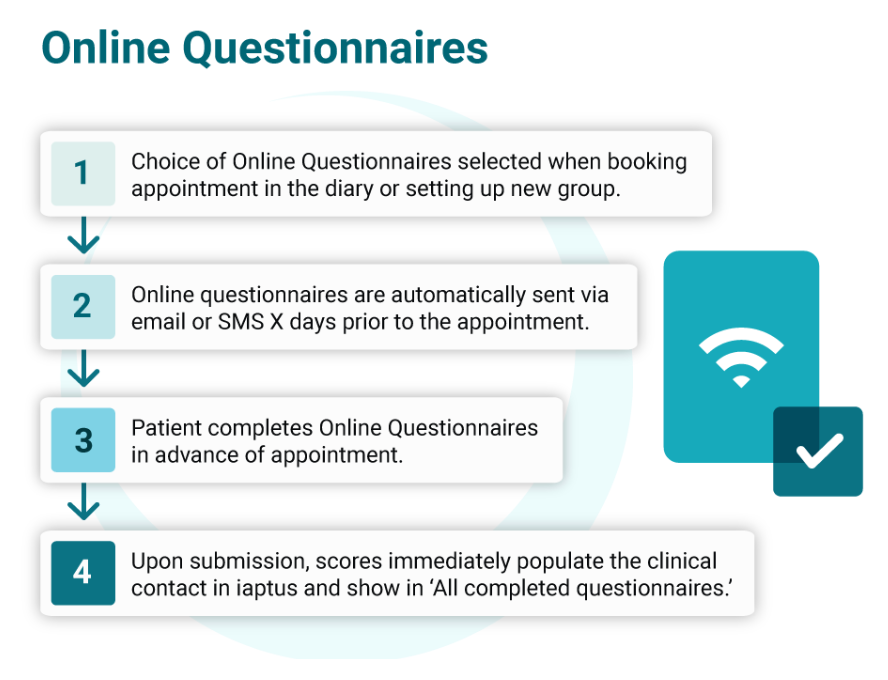
Online Questionnaires enables patients to complete questionnaires securely from their own home prior to their appointment.
In order for a service to make use of this functionality, the patient’s email address or mobile number and consent will need to be recorded. With these safeguards in place, an option will become available for clinicians and admin staff to request – at the time an appointment is booked – that appropriate questionnaires are completed by the patient online. This is by means of a dropdown menu at the bottom of the appointment screen.
Patients who wish to use this service can now complete key pre appointment questionnaires using a secure link sent via email or SMS. iaptus sends an email or SMS asking the patient to fill out measures a specified number of days in advance of their appointment. The default time is two days prior to the appointment. A single questionnaire or a combination of multiple questionnaires can be sent together.
The secure link allows the patient to access an online version of the questionnaire that they must complete, without requiring a complicated login and password process. Once the data has been submitted by the patient, the link expires, and cannot be accessed again.
Upon submission, this information is encrypted and sent securely back to iaptus. The results are then waiting in the patient’s record ready for their therapist to review prior to their appointment.
Sending method options
There are four settings options to choose from regarding your sending method:
- Only email
- When an email address is present and ‘Webforms Allowed’ is selected, outcome measures are sent via email.
- Only SMS
- A mobile number is required, and if ‘SMS Allowed’ is selected, outcome measures are sent via SMS. The ‘Webforms Allowed’ box does NOT need to be selected in this instance.
- Primarily email (fallback to SMS)
- This setting will send Online Questionnaires out via email by default. But, if the patient’s email address is missing and/or Webforms permission is missing, iaptus will then check for a mobile number and SMS permission. If these SMS details are present, outcome measures will be sent via SMS.
- Primarily SMS (fallback to email)
- The reverse of the above. This setting will send Online Questionnaires out via SMS by default. But, if the patient’s mobile number is missing and/or SMS allowed is missing, iaptus will check for an email address and Webforms permission. If the email is present, outcome measures are sent via email.
Should you choose to send Online Questionnaires via Email, these will come from the email address ‘webform@myprogress.info’. Patients should be advised to mark this as a trusted sender, and check spam or junk folders if they don’t receive an Online Questionnaire email they are expecting.
You are advised to include a line in your Online Questionnaire email content stating that patients should not reply and providing contact information if required. However, we also ask you to provide a ‘reply to’ email address for a monitored service inbox just in case a patient does attempt to respond.
Patients cannot reply to an Online Questionnaire SMS (as with all SMS sent from iaptus).
Sending Process
In order to send electronic questionnaires to patients via email there must be a valid email address listed in their patient In order to send Online Questionnaires to patients via email there must be a valid email address listed in their patient registration form and the “Webforms allowed?” box must be ticked. You can enable or disable questionnaires via email for individual patients by ticking or unticking this box.
Alternatively, if you wish to send Online Questionnaires via SMS, a mobile number must be present on the registration form along with the SMS allowed box ticked.


If the patient has no Email or SMS sending details on their record, the Webform sending option will not appear and no Online Questionnaires will be created.
It is important to consider that questionnaires will only be sent for appointments created after the box has been ticked and only for appointments made through the diary function in iaptus including the Online Appointment Booking feature. They will be sent to the email address or mobile number entered in the patient registration form so you may wish to verify these with the patient to guard against typographical errors.
When booking the appointment in the diary, under the ‘communications’ section, you will see the list of questionnaires that can be sent to the patient under the heading ‘Select webform to send’’. You will need to select which questionnaire or set of questionnaires to send to the patient. You can select one or multiple options in this dropdown. Pre-set combinations will appear at the top with individual questionnaires listed underneath.
If you can’t see the questionnaire you want to send in this dropdown, please raise a support log to enquire whether it is available to be added.

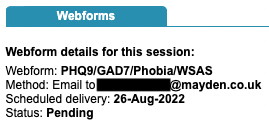
The email or SMS containing the secure link to the Online Questionnaire(s) will be sent at a specified number of days prior to the date of the appointment. The default value is 2 days. The time between the form being sent and the date of the appointment can be changed by contacting our team via a support log. This can be between 1 and 5 days. The status of the questionnaire(s) for an appointment can be checked through the Clinical Contact page.
Status‘
Pending: Indicates that the request to send the form was successful and it is waiting to be sent.
Email sent/ SMS delivered: The form has been sent via the specified method.
Questionnaire accessed: Indicates that the patient has opened the link to the online questionnaire(s) but has not yet submitted their response(s).
Questionnaire completed: The patient has submitted their response(s) to the online questionnaire(s) and the clinical contact should automatically be populated with their scores.
Failed to send: This will be accompanied by a failure reason such as ‘Cancelled as webforms disabled’ or ‘Rejected from handset’.
In the event of an Online Questionnaire failing to send, or being sent but not completed by the patient, questionnaires should be completed in session.
Sending an Online Questionnaire using groups
When creating a new group you have the opportunity to select an Online Questionnaire or a combination of Online Questionnaires to send to the patients. This can be seen in the image below. iaptus will automatically create a form for all future sessions within that group when an attendee is added to the group.
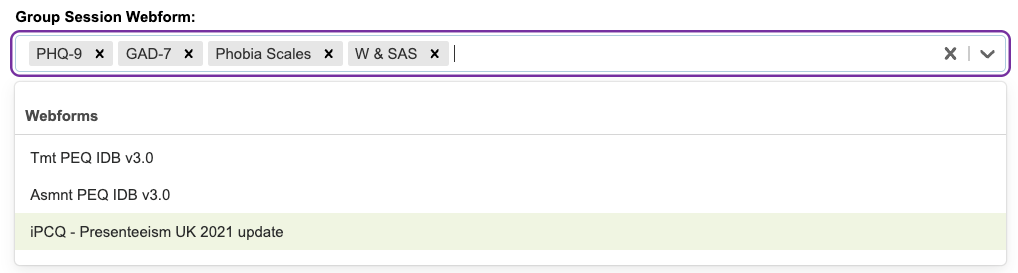
After a patient has completed the Online Questionnaire sent prior to the group session, the scores will be brought back into iaptus in the same way as for individual appointments. The scores will automatically be added to the group contact as well as to any relevant fields in the Record Session tab in the relevant group session. You can complete the group session, edit and add any further information as normal.the relevant group session. You can complete the group session, edit and add any further information as normal.
Sending a Online Questionnaire independently of a session
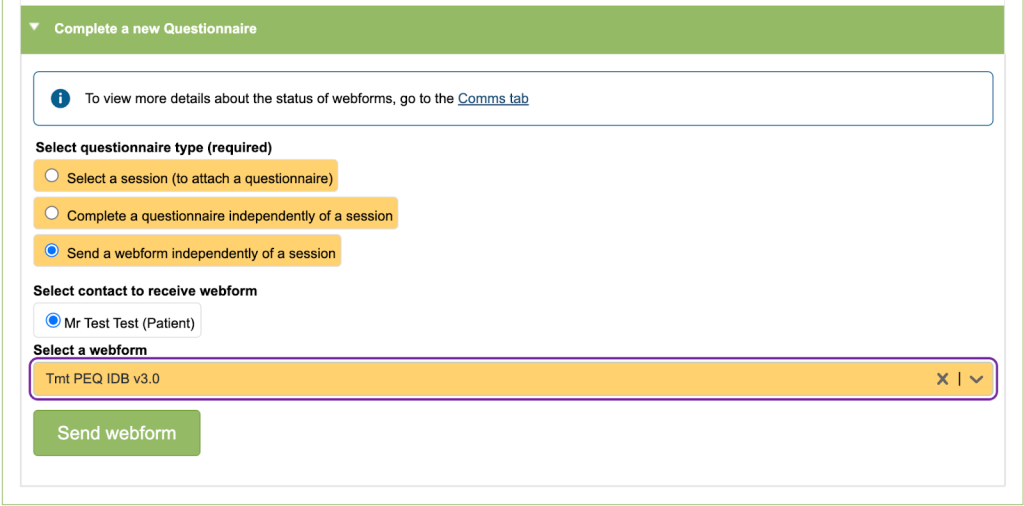
At the bottom of the Clinical Contact tab, you can select to send certain questionnaires independently of a session. Once you have clicked “Send webform” this will send the form to the patient. Please note this functionality is only available where questionnaires are not scored and do not need to be attached to a clinical session.
Webform Status Table
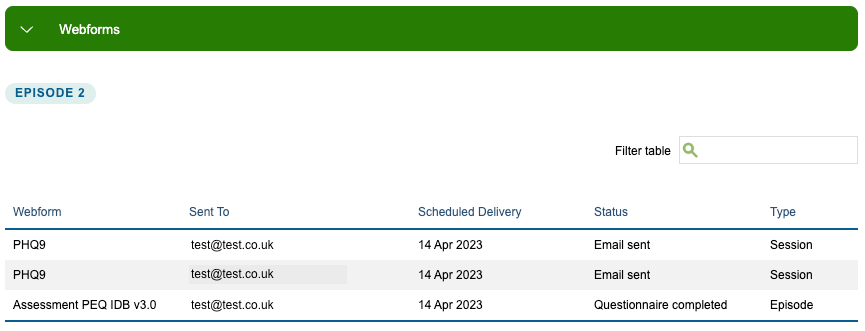
At the bottom of the Comms tab (beneath the SMS history) within a patient record, you can find a record of all Online Questionnaires sent to a patient within the selected episode, along with their statuses, which are detailed on page 10 of this document.
Viewing a Completed Online Questionnaire
Any completed Online Questionnaires can be reviewed through the ‘All Completed Questionnaires’ section of the Clinical Contacts tab alongside any manually completed questionnaires.
Where appropriate, completed Online Questionnaire scores will also flow directly into the relevant fields in the associated clinical contact for that appointment if the following conditions are met:
- The appointment has not already been edited (turned from an orange appointment into a red or blue contact)
- The contact is not in progress or being edited at the time the data is submitted.
If, for one of the reasons provided above, the scores have not been able to directly populate the contact, they can be manually added using the data provided in the ‘All Completed Questionnaires’ section.
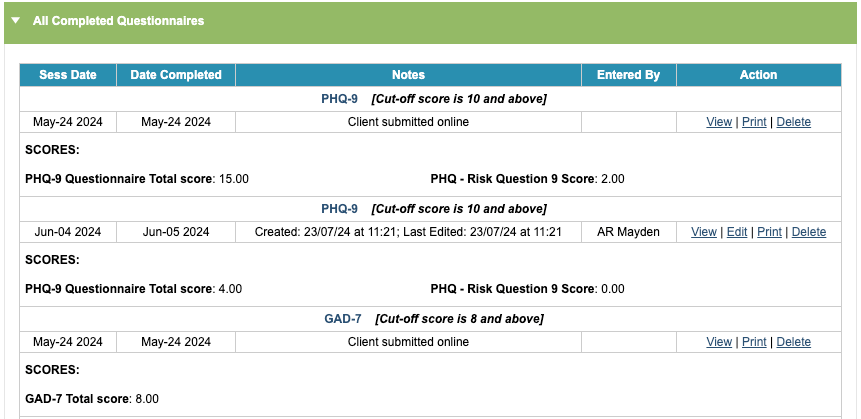
The ‘Notes’ column includes an indication of whether the questionnaire was submitted online or completed with a therapist in session.
You can also view the full completed questionnaire from the ‘Action’ column.
Superuser Permissions
Online Questionnaire Manager
Your superusers can be provided with access to the Online Questionnaire Manager. Here they will be able to view the Online Questionnaires that are currently enabled in the Online Questionnaires tab. There is also a filter field to search for specific online questionnaires that have been enabled.
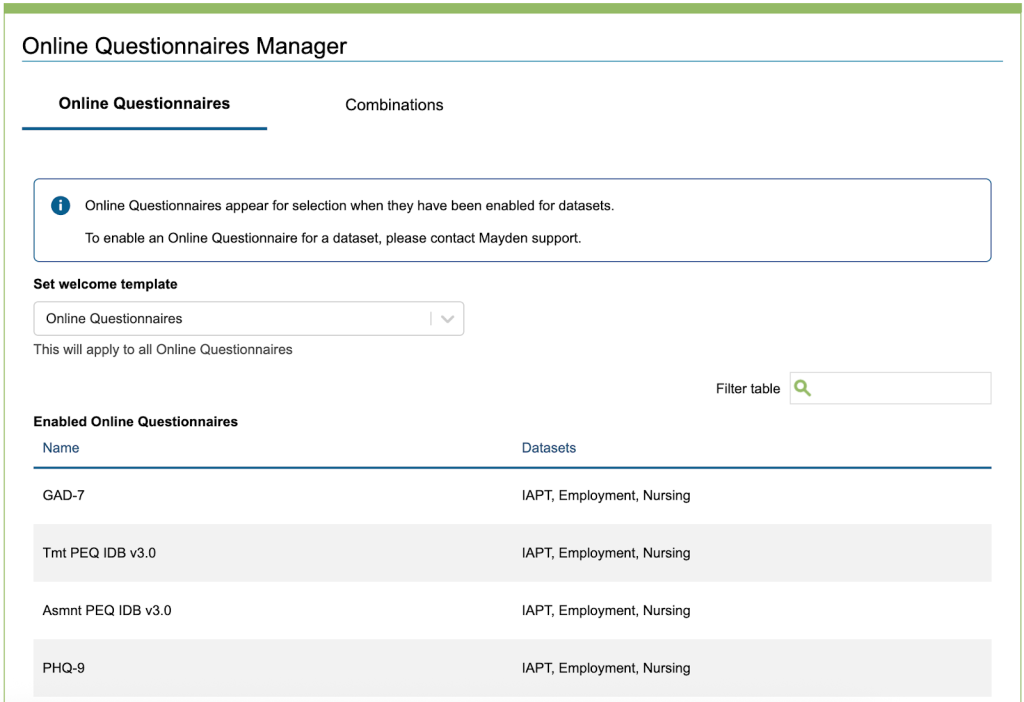
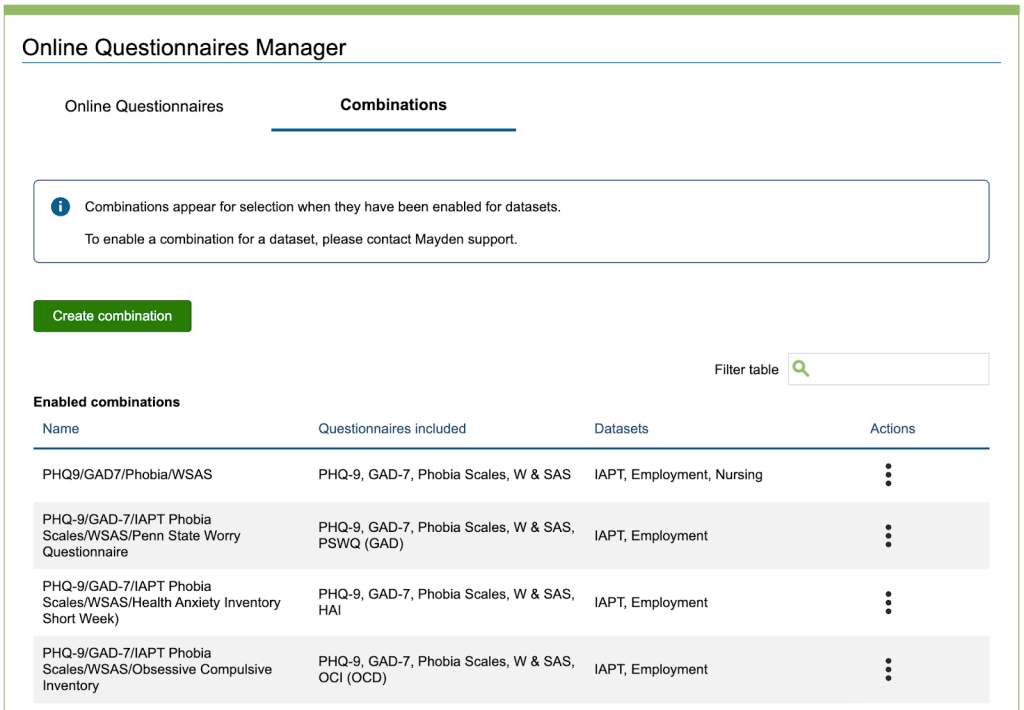
In the Combinations tab a user will be able to create new default combinations using the Create combination button, and edit combination names using the three dot button under the Actions column. Here you can also archive combinations if they are no longer being used. Again there is a filter field to enable searching through the combinations if required. If you would like access to this section please raise a support log in iaptus letting us know which user group(s) you’d like provided with access.
Email Template Manager
Superusers can use the Email Template Manager to customise and edit the content of the Online Questionnaire Email.
Within this section, you can update the following:
- Template title – the template name is not used outside of this editor, but will help you identify which template you are editing. There is currently only one option, but we hope to provide more in the future.
- From name – this is the sender name of the email. Your patients will see this when they receive the email. We suggest this should be set as your service name.
- Reply to email address – this is the email address your patients will see and will be replying to if they try to reply to the email. We recommend that you ask patients not to reply to the email by adding a statement within the email content. But there is still a chance someone will attempt to reply and the inbox should be monitored in case the patient replies indicating any risk.
- Subject – Patients will see the email subject line before opening the email content.
- Body – This section is where you can add and format the content of your email. You may wish to include information such as details of how to contact you, a cancellation policy, information about your service or links to your website. You will need to ensure the Webform link is included somewhere in the email to allow patients to access their outcome measure questionnaires. You can only add the Webform link once within the email.
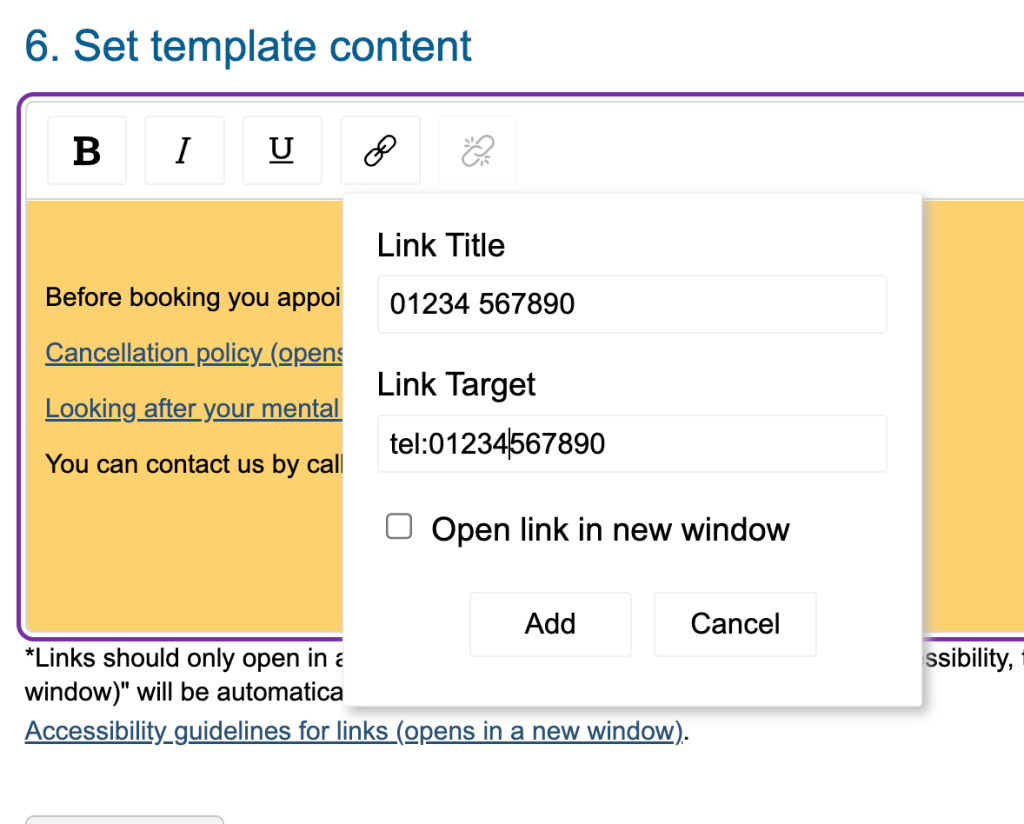
You can also link to a telephone number or email address so that when clicked on, it will automatically open for calling or emailing. To do this, enter the number or email address as shown in the examples, making sure the link target contains no spaces and begins with either tel: or mailto:
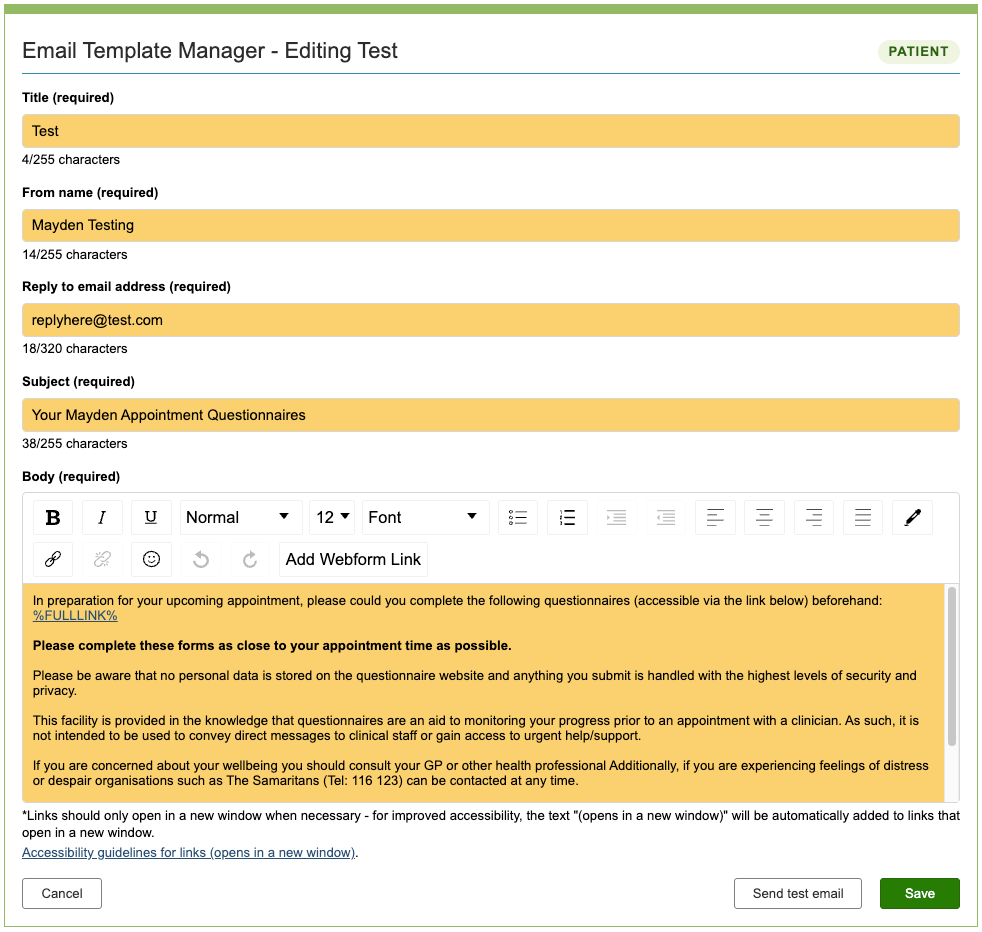
Once you are happy with changes, you can send a test email to yourself to preview how the email will appear to your patients. You can continue to make changes to the email and send tests, until you are happy with the contents.
Once you are happy with the content you have entered, ensure you press Save Template at the bottom of the screen and then the template will be ready to use. The email will be updated as soon as you press save, so ensure the content is correct before you save.
Welcome Page
Patients can now be greeted with a customisable landing page (similar to the online appointment booking and video features), containing your service logo and some customisable text, providing the recipient with more context prior to filling out their questionnaires.
This appears once the online questionnaire link in the email or SMS is clicked but before they answer the questionnaires. To make use of the customised landing page you will need to provide a .png of your service logo and the content that you would like placed here.
Example of email content and questionnaire
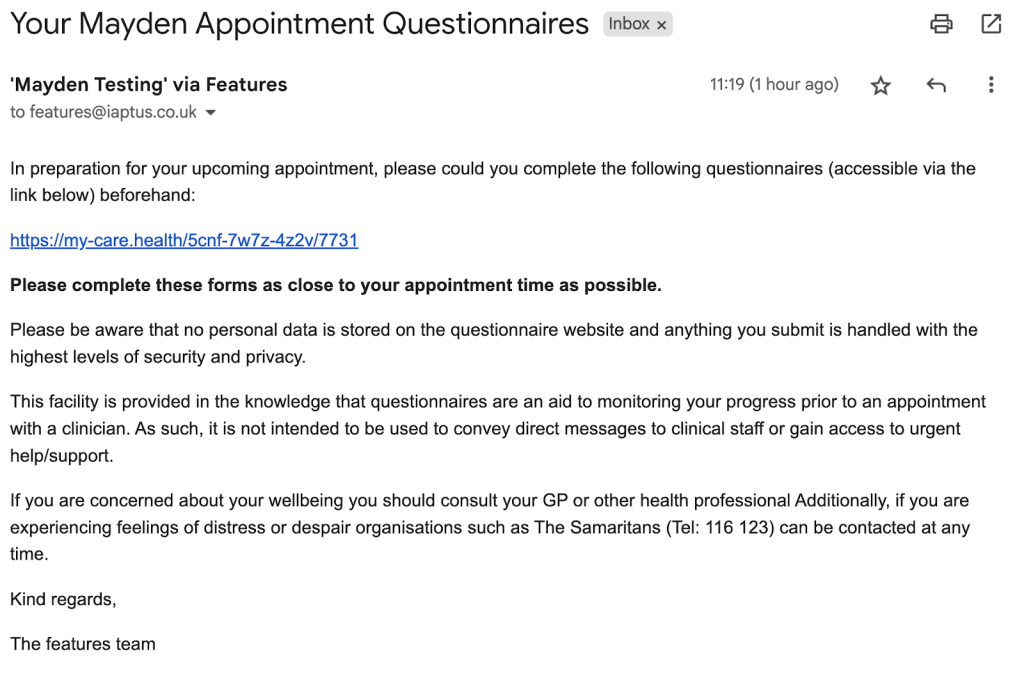
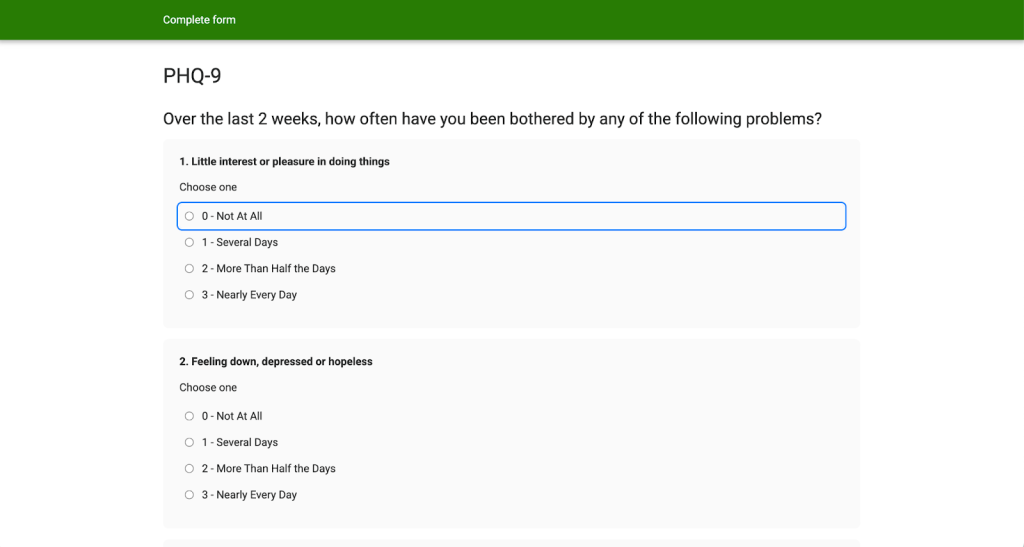
The following images are examples of the customisable e-mail the patient would receive and the Online Questionnaires themselves.