
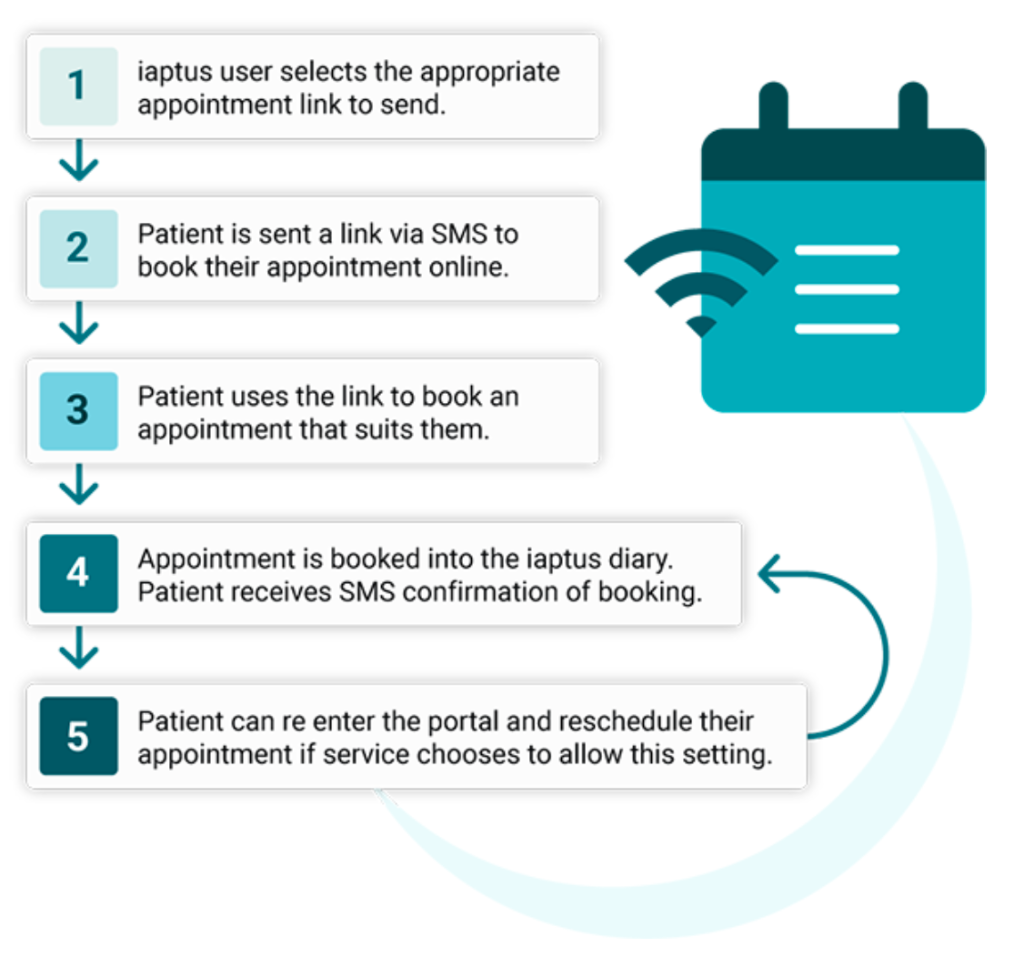
Therapist/ Admin User Workflow
With this feature switched on, a new section is enabled in the care pathway tab of the patient record called ‘Online appointment booking’.

To send an appointment booking link to a patient, use the dropdown menu to select the type of appointment link you would like to send, and click ‘Send appointment booking SMS’. This menu is searchable by typing the broadcast rule title in the box. The options in the drop down will be based on ‘Broadcast Rules’ set up by your superusers for different appointment types.

The patient will receive a text message including a secure, unique link to book their appointment. The content of this message can be customised to your service.
After clicking send, you will see the link that has been sent to the patient and details of the appointment that this will allow them to book.
If necessary, the link can be copied from here and re-sent in an ad hoc SMS or email.

Once the patient books their appointment, the unique link will automatically expire and disappear from this section, preventing the patient from double booking. Alternatively, if the patient chooses to call up and book over the phone instead, clicking ‘Expire link’ will prevent the link from being used to book an additional appointment.
As soon as the patient books their appointment, it will be visible in the iaptus diary, and will appear like any other appointment. Hovering over the appointment with the cursor brings up a summary of the appointment details where it indicates that the appointment was booked online.

You can open this appointment at any time and edit it in the same way as any other.
Booking Link History Table
Everytime a booking link is sent to a patient it is recorded in a history table within the Online Appointment Booking section in the Care Pathway tab. In here you can see the current status of the booking link (sent, accessed, booked, rescheduled, expired or deleted.

Clicking the 3 dots in the ‘Actions’ column also allows you to navigate directly into the clinical contact associated with the appointment that has been booked, or view a full history of the booking including any rescheduled appointments.


Patient Workflow
When a booking link is sent, the patient will receive this via SMS. When clicked, the link will open in their browser and they will be presented with a welcome page. This is fully customisable and can include your service logo and any information you would like the patient to know, including hyperlinks.

Clicking ‘Continue to book appointment’ starts the booking process. The patient will be presented with a booking screen showing the available appointments and can select a date and time that suits them. They can then review their selection and confirm their booking.


Once the patient presses confirm appointment, they will see a confirmation screen. This displays their appointment details and can also be used to display further information such as your phone number or links to your cancellation policy and service website.
Having been used to book a single appointment, the link will now have expired. If it is clicked again, the patient will see further confirmation that their appointment has been booked, and will not be able to enter the booking portal a second time.
From this point onwards, the appointment will act like any other booked into the diary with appointment reminder SMS messages and webforms sent out as per your service’s settings.

Rescheduling Appointments
Having booked an appointment, patients can be sent an automated confirmation text message including a link to manage their appointment. This is not currently customisable, however it will include the date and time of the appointment, as well as a unique link to manage their appointment.
Clicking the link will bring them to the portal where, following a verification process, they can view their appointment details, a customisable information screen, and, if you have chosen to allow it within the broadcast rule settings, they will have the option to reschedule.


TIP: If an appointment is rescheduled with a different therapist a message can be sent to the new therapist that an appointment has been booked with them. This is sent within the “Messages” as long as your service currently uses the messages function. If you do not use this currently, please get in touch.