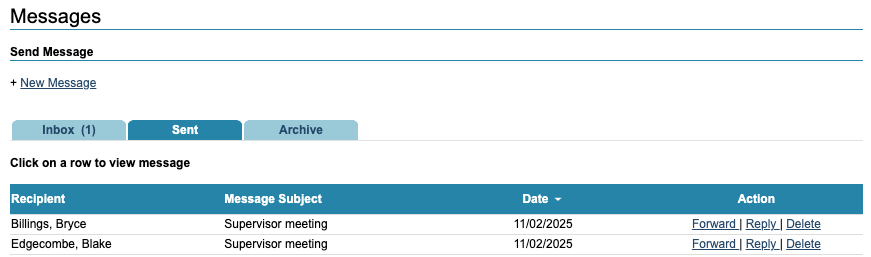
The Messages function can be used to send a message to anyone who has an active iaptus account in your service. It is a stand-alone messaging system that is not connected to patient or colleagues’ emails, or any text message functionality.
Viewing your inbox
To access your messages, click on the icon towards the top of iaptus. If you have any unread messages, an envelope will appear next to the icon with a number indicating how many unread messages you have. Messages can be viewed in the inbox and will appear in bold if they are unread.

The following options are available for each message
- Forward – this allows you to share a message with another person.
- Reply
- Move to Archive – this moves the message to the ‘Archive’ tab; from there you can move the message back into the inbox.
- Delete.
A Superuser can enable the following automated messages for all of your iaptus users
- Message to a new therapist upon therapist reassignment
- Message to previous therapist upon therapist reassignment
- Message to notify therapist that an appointment has been booked on their behalf.
These can be enabled or disabled by a Superuser via the Control Panel area of the Superuser menu.
Mayden can also enable automated messages for incoming patient electronic questionnaires for a therapists upcoming appointments. If you would like this option to be enabled or disabled, please raise a support log.
Sending a message
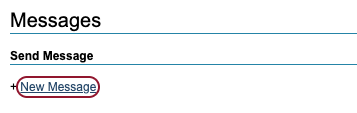
To send a message, click ‘New Message’ and select the name of the person you want to send a message to.
To select multiple people, hold the ‘Ctrl’ key whilst selecting the other recipient’s names.
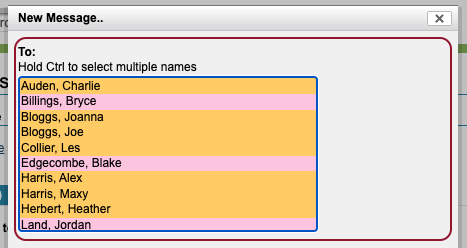
Add the subject of the message, then type the body of the message and press ‘Send Message’.
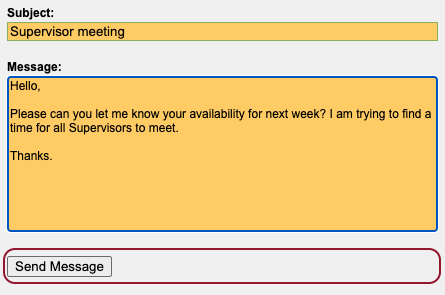
The message will then appear in the ‘Sent’ tab.