
GP Practices allows Superusers to add and remove GP Practices and Local Sources and create GP Practice groups for reporting purposes.
GP Practices in iaptus
Viewing your GP Practice list
Click on GP Practices in the Superuser menu to view the current list of GP Practices.

The Practices tab displays all GP Practices added previously. this includes:
- GP Practice Code
- is this a branch practice
- nickname
- name and address
- is it part of any groups
- GPs associated with this practice
- letter send method
- option to remove
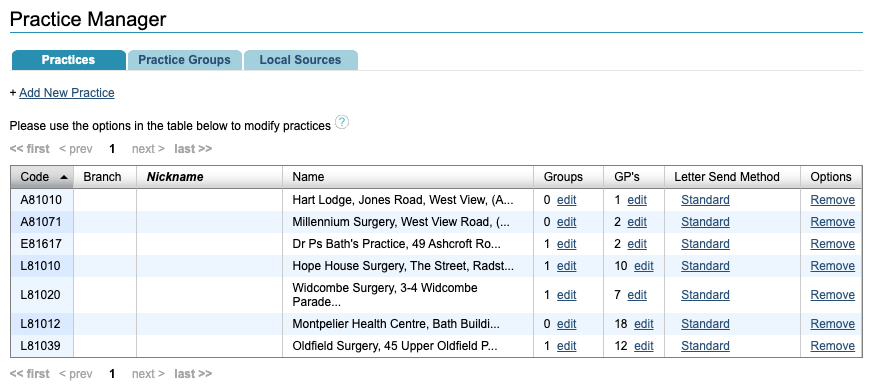
You can give a practice a nickname or change a nickname by clicking into the cell.

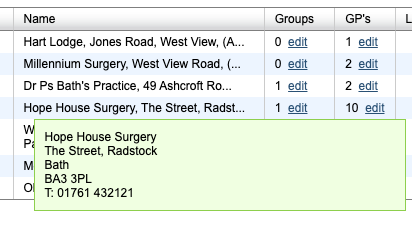
If you hover over the name and address, you will be able to see the full details for the practice.
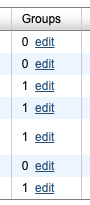
You can view and edit which groups a practice is in by clicking the edit button in the Groups column.
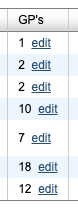
You can view and edit which general practitioners are associated to the practice by clicking Edit in the GP column.
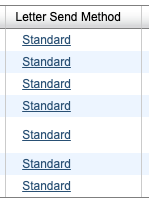
The Letter Send Method will say standard, unless you are using our GP Electronic Letter Sending feature.
Removing a GP Practice
You can remove a GP Practice from the system by clicking Remove in the Options column. Removing a practice means you can no longer allocate it to a patient and it will be removed from any current patient records. We suggest updating to the new practice for patients before removing the practice from iaptus; this can be done via Bulk Actions.

Adding a new GP Practice
Click Add New Practice to add a new practice.
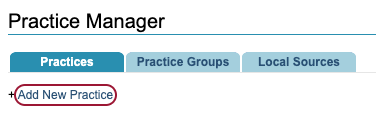
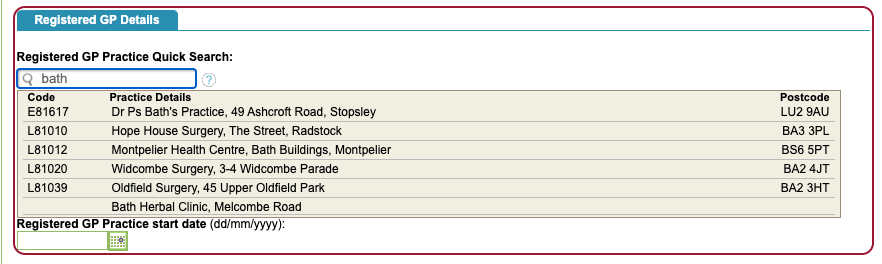
Start typing the name, address or the code for the GP Practice in the search box. Results will start to appear when you start typing. This list is pulled through from the Organisation Data Service (ODS) and is updated once a month.
Click on your chosen practice and then chose either Add To Local Practice List or Cancel.

Creating practice groups
The Practice Groups tab shows any GP Practice Groups. You can edit or delete current groups or add new groups. These GP Practice Groups can be used in Find Patients and Hypercube as search options instead of selecting GP Practices individually.
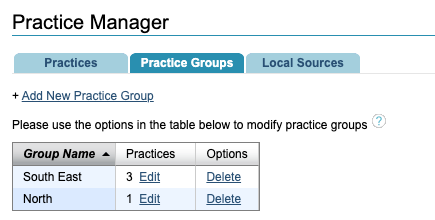
To add a new group click Add New Practice Group and give this a name.
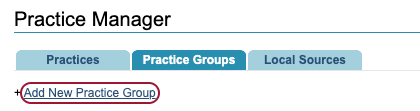

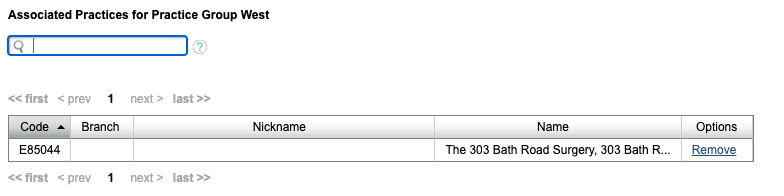
The new group will appear in the table and you can now add practices to the group by clicking edit. You can search the GP Practices on your system and add the relevant ones to the group. Click Add to Group to save this practice to your group.

All the practices added to the group will be displayed in the table below.
Adding local sources
Local Sources are used to record other healthcare providers the patient could be registered as an alternative to a GP Practice. Non GP Practice codes can also be recorded here, e.g. unknown.
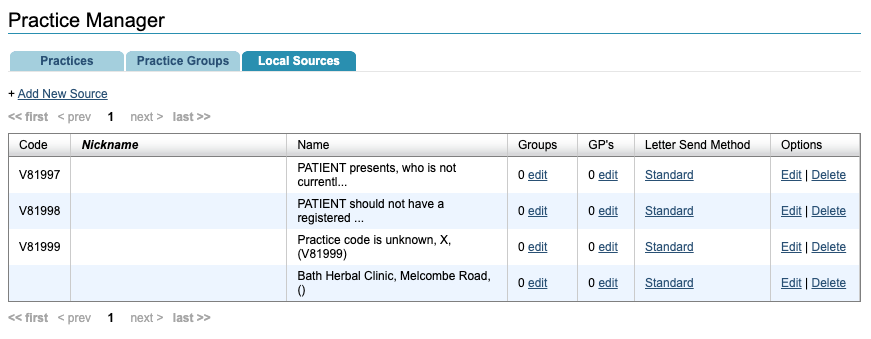
Existing local sources will be displayed in the table below. You can edit or delete these from the table. You can also add these Local Sources to your practice groups or add associated GPs to the Local Sources.
Click Add New Source and complete at least the mandatory yellow fields. Click Submit to save the new Local Source.

