
Tags Manager is located in your Superuser menu and this area of the system allows you to create, remove, and edit patient and referral labels that can be applied to a patient’s record within iaptus. Patient labels are applied in the registration form and referral labels are applied in the referral form. These labels also appear on the boarding card.
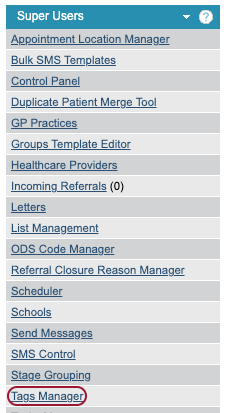
When you first click into Tags Manager, you will see two options: Edit Locks, and Edit Tags. Please note the Edit Locks area is not currently available to users. Click on the ‘Edit Labels’ option.

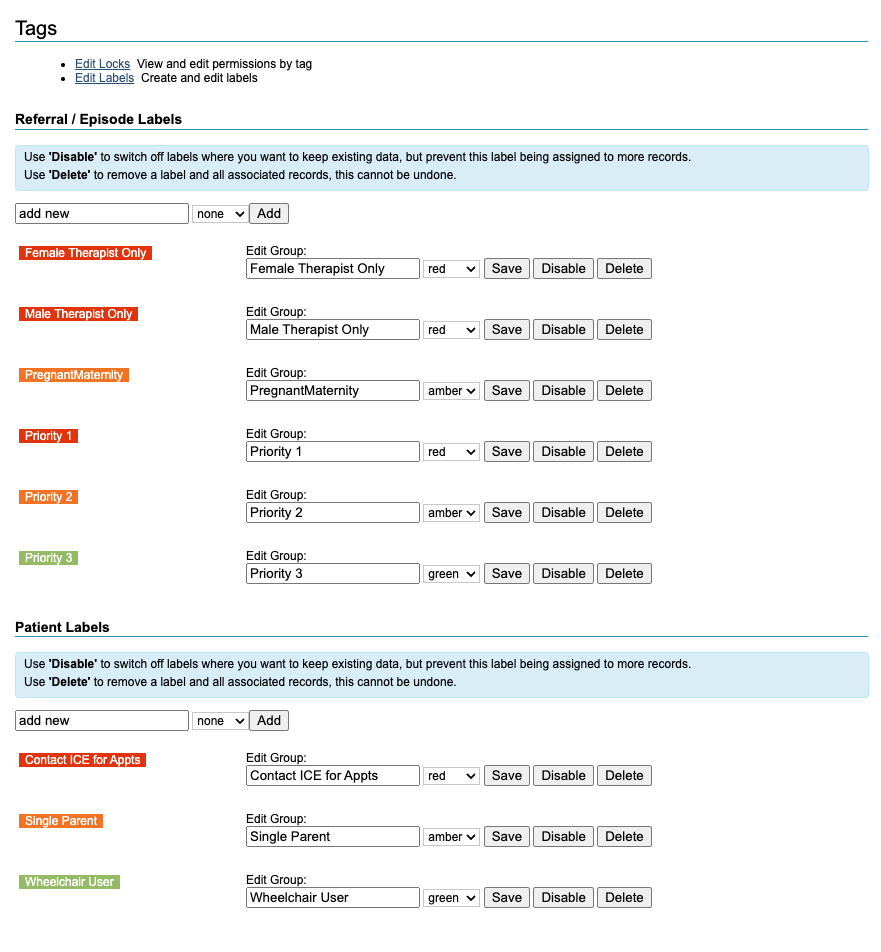
Here you can either view the labels already added or make changes to the labels. The top section is for referral labels, which are added to the patient record in the referral form. The lower section is for patient labels, which are added in the registration tab.
Adding a new label
To create a new label for the appropriate section, type the required text into the box that says ‘Add New’. You can then choose a background colour for the label from the dropdown box. Clicking the ‘Add’ button will create the label for you.

Editing a label
You can change the name/ meaning of a label by clicking in the textbox and amending the wording. You can change the colour of the label using the colours in the dropdown menu. When happy with your changes, click ‘Save’.

When thinking about updating labels, you should be aware that any changes made to a label will be reflected on all patient records (including historic data) on which it has been added. Generally, we would recommend that editing the text of a label should only be used for spelling errors.
Removing a label
When you no longer want a label to be used, there are two options available to you.
The ‘Disable’ button will leave the label on those patients for whom it has previously been selected, whilst preventing it from being added to any further records. This protects the integrity of historic data. Items that have been Disabled will show in the list.

Disabled labels can be re-enabled using the ‘Enable’ button. They can also continue to be reported on.
The ‘Delete’ button will remove the label from the system completely. This means that it will be removed from any patient records on which it has been used previously. Deleting a label cannot be undone. Deleted labels will no longer show in reports.
