
List Management allows Superusers to manage the list items within fields and configure the dataset mapping options for list items.
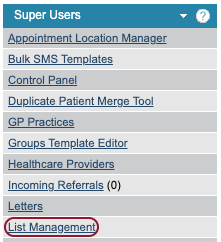
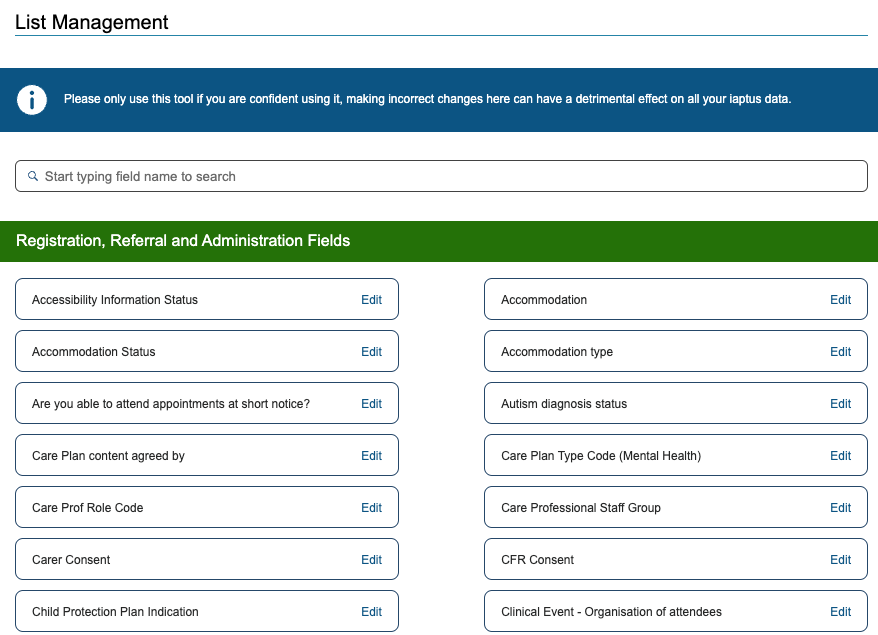
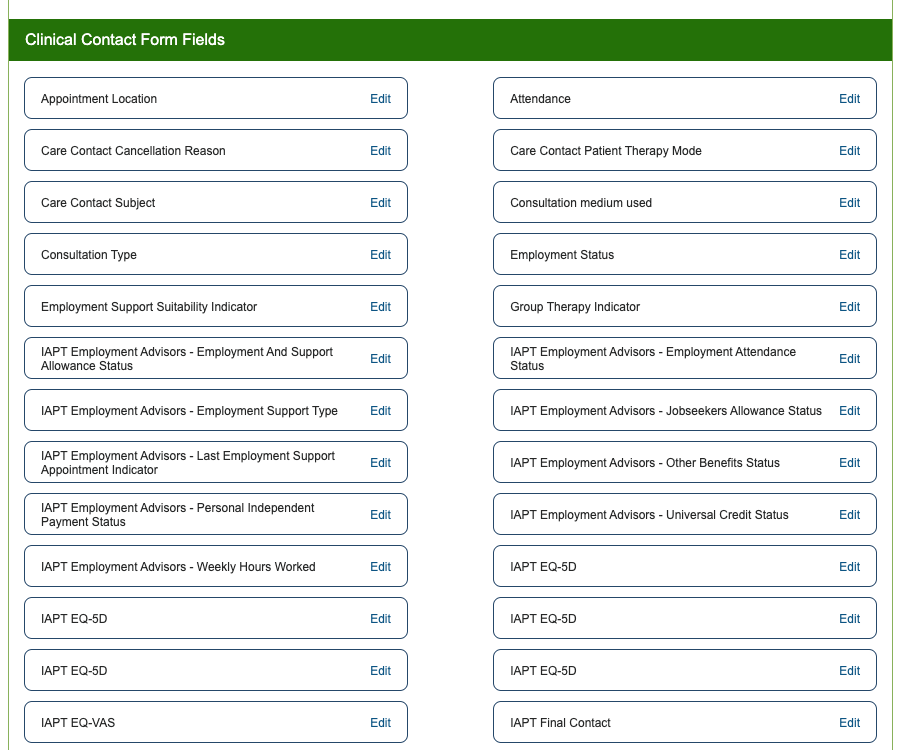
When you click on List Management in the Superuser menu, you will see a search option to quickly find the field you are looking to amend. You can also scroll through the list of fields which are separated out between Registration, Referral and Administration and Clinical Contact Form fields. The fields will be listed in alphabetical order in each section.
Adding a new list option
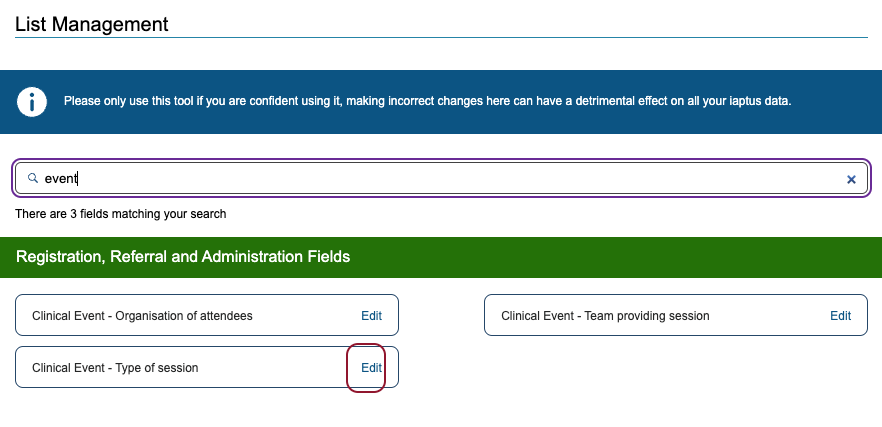
Once you have found the field you are looking for, click Edit.
Before adding a new list item, search the current list to make sure it does not already exist. There is a search box above the list. Click Add new to add a new list item.
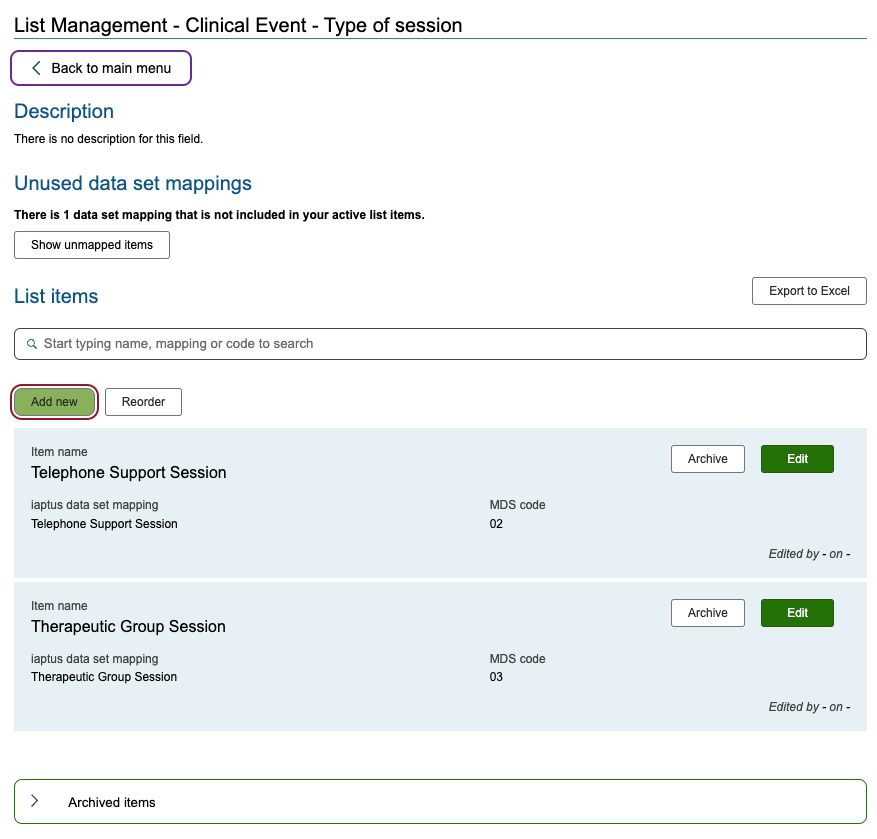
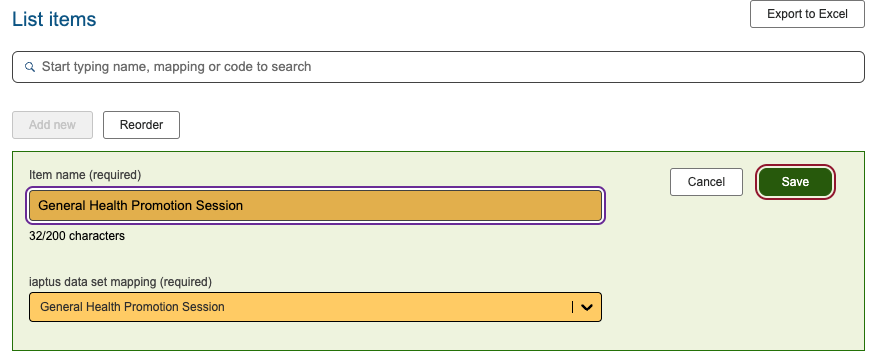
Complete the item name and a dataset mapping option if this is required. Some fields will not have this option if they may not need a dataset mapping option. Dataset mapping options are provided by the dataset providers, such as NHS Digital. If there is not an option you would expect to see in this list, please refer back to your dataset technical specification document or your dataset provider.
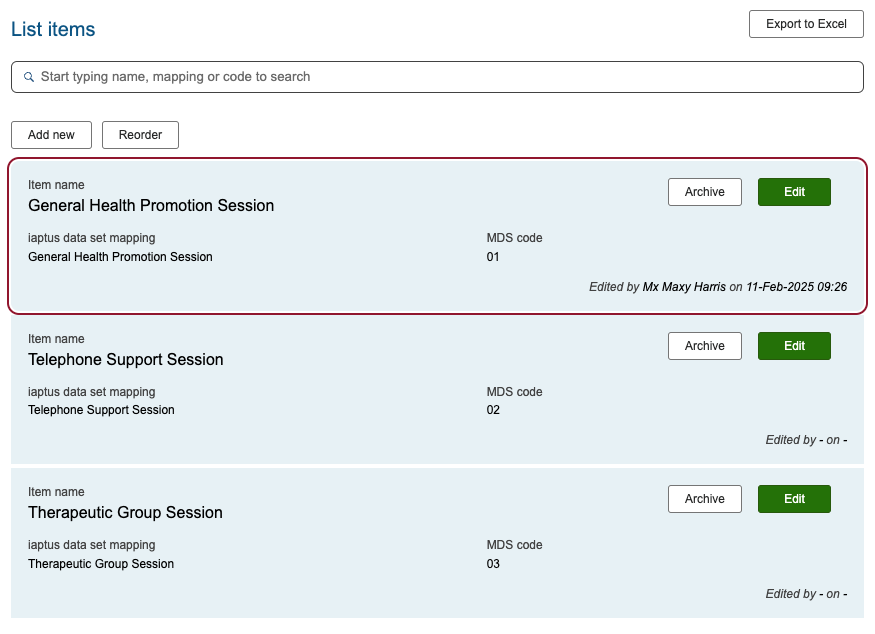
Click Save to save your changes. Your new list item will appear in the list.
Editing existing list items
To edit an existing list option, use the search option, or scroll through the list, to find the item you wish to edit. Click Edit.

Amending an existing list item will update everywhere it everywhere it is currently used, including client records. Only use this option if you need to update all historical records, e.g. for a spelling mistake. If the meaning of the list item has changed, archive the current item and add a new item.
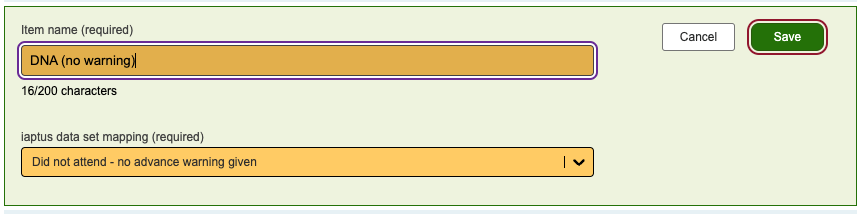
Click Save to save your changes.
Re-ordering list items
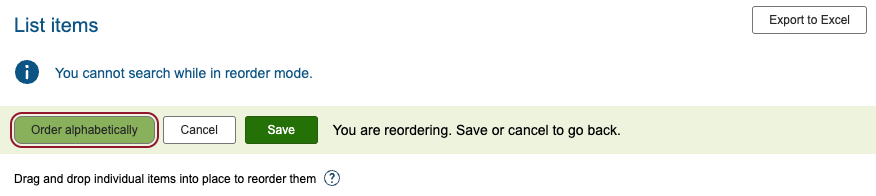
Click Reorder to reorder the list. You can choose to Order Alphabetically or drag and drop items to their new place in the list.

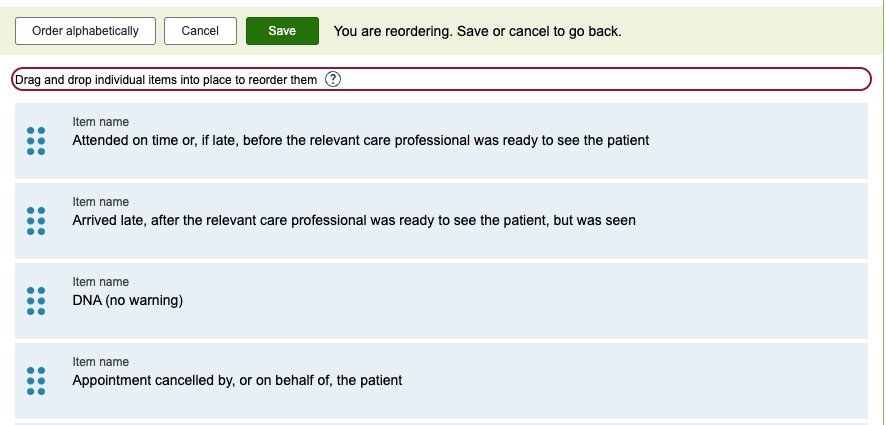
Click Save to save your changes once you have finished reordering the list items.
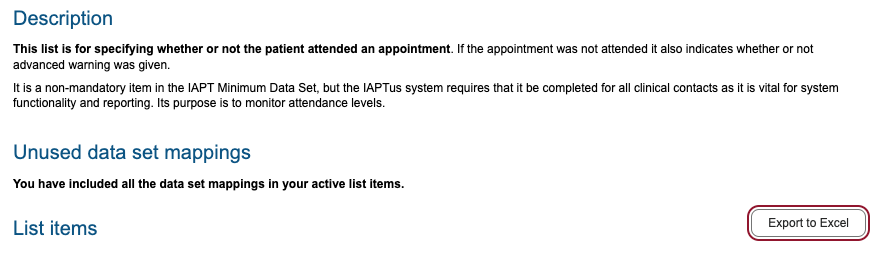
You can also export the list items for a field into a CSV format using the Export to Excel option.
Archiving list items
Archiving a list item will remove the item from the list so it can no longer be selected. It will not change any patient records where the list item was previously recorded.
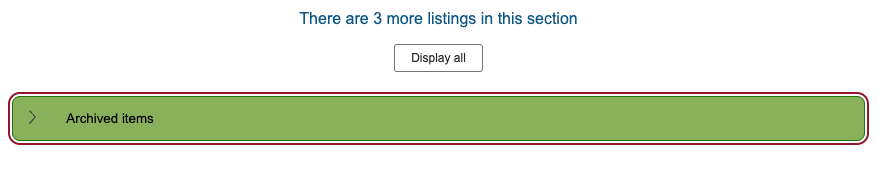
Click on Archived Items to view previously archived items.
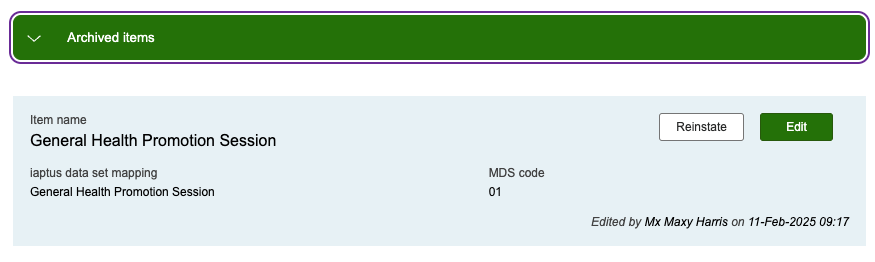
You will see options to Reinstate or Edit previously archived items.
Reinstate will move the item to back to the active list.

Edit can be used to change data set mapping.
