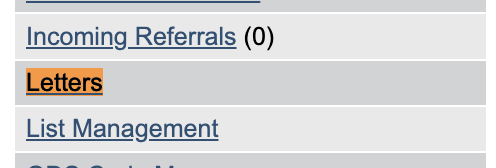
In the Letters section, superusers can add, edit or remove letter and style templates. Letters can be accessed in the Superuser menu, which is located at the bottom left of iaptus in the left hand navigation bar.
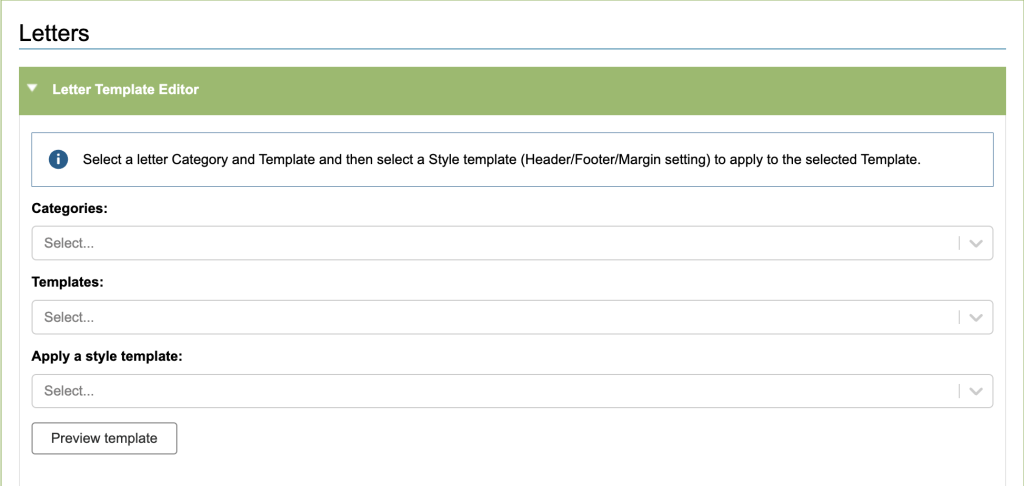
To edit an existing letter or style template you will select them in the Letter Template Editor. If you wish to create a new template, simply leave these fields blank.
Here is where the main body of the letter will be formatted. The toolbar has several options to help with this.
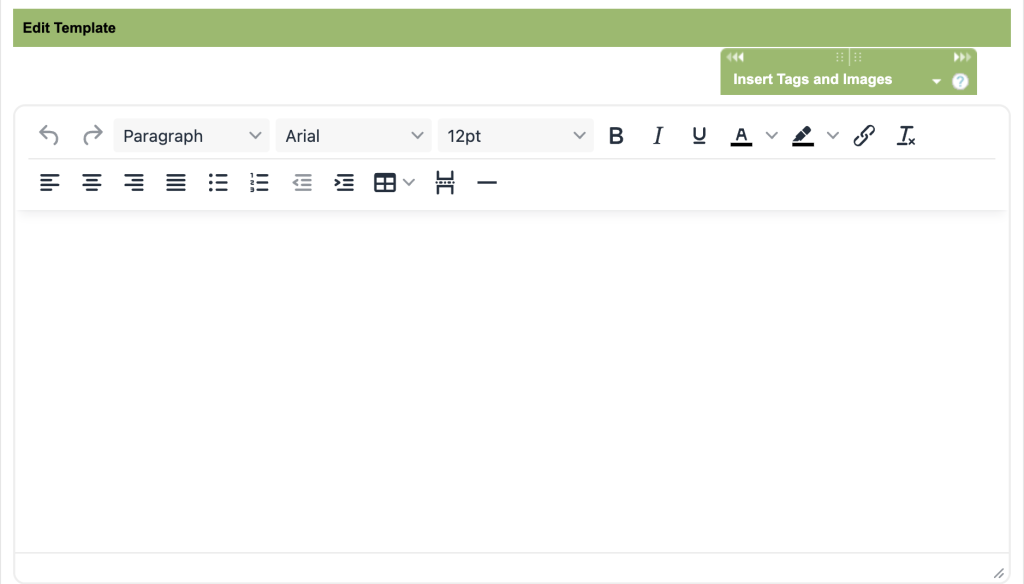
To add tags and images, use the Insert Tags and Images widget located on the top right.
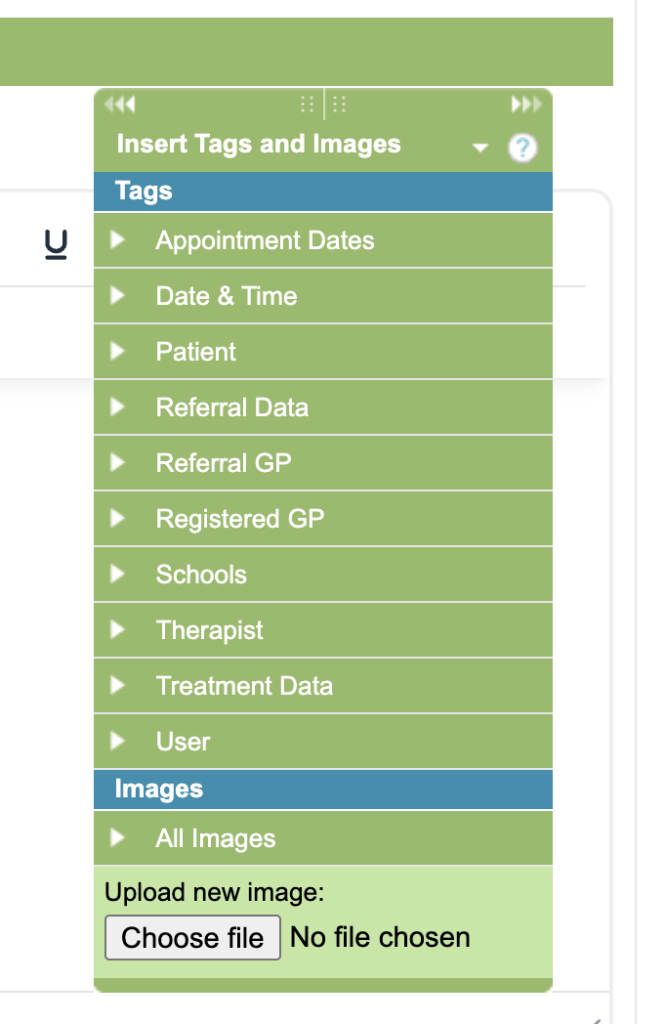
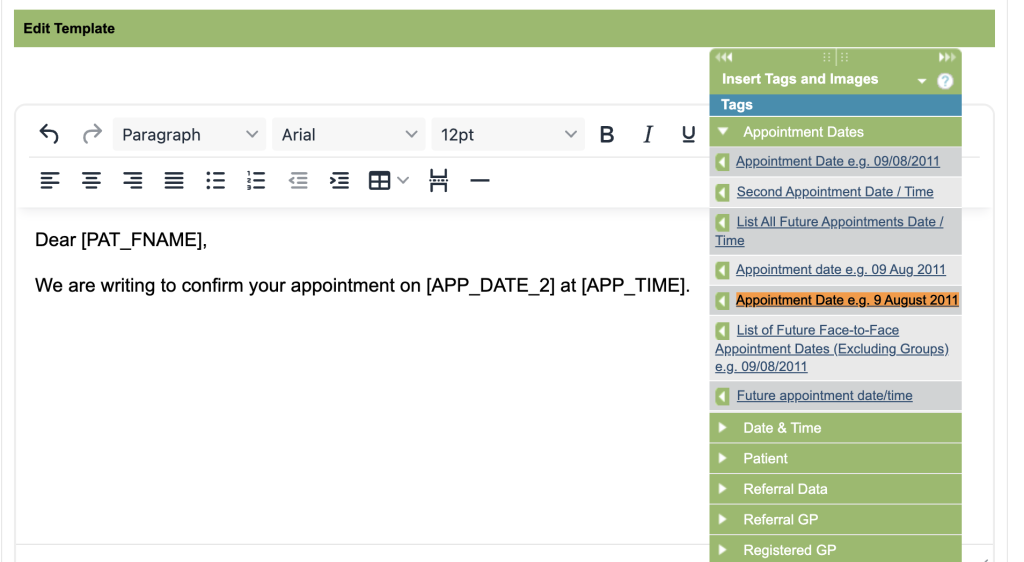
Tags are used to automatically pull data from iaptus. For example, if you want the letter to automatically populate with the patients Appointment date, use the letter tag located under Appointment Dates.
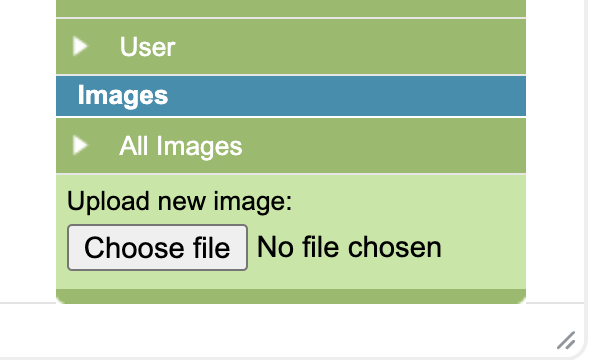
To upload images, use the same widget and navigate to the bottom of the menu. Select Choose file then select the image you wish to upload to iaptus. Once this has been performed, the image can be accessed in the All images section here. It can be placed into the template using the Insert in Editor button.
Please avoid copying and pasting text and images into iaptus because code can be hidden in the text that will cause system issues and can corrupt the letters.
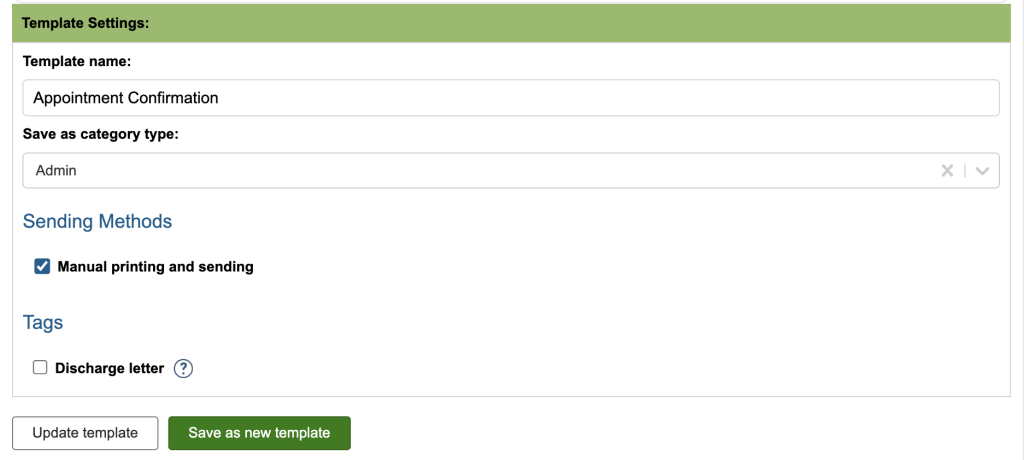
When you are happy with what you have, scroll down, name the letter template, then select a category to save it under, then click Save as new template, when editing a template there will be an Update template button as well.
Letter Styles Editor
Here is where the style of the letter template can be edited. This affects the headers and footer of the document, where you will likely have your service logo. To help with spacing, we recommend using the Table function. Insert a 3 by 1 table as so. To insert a logo or image, please use the Insert tags and images widget.
Here we have an example that you may wish to emulate. When you have finished formatting your header or footer you can make the table borders invisible by clicking on Table properties. Navigate to advance and select white as the border colour. You can preview the style template by clicking the Download button.
When you are happy with how the header and footer look, navigate to the bottom of the screen to set the page margins. This is a very important step as improperly set page margins can cause text to overlap on the final product. To save your work, name the template and click Add new, or click Save if you were editing a template.
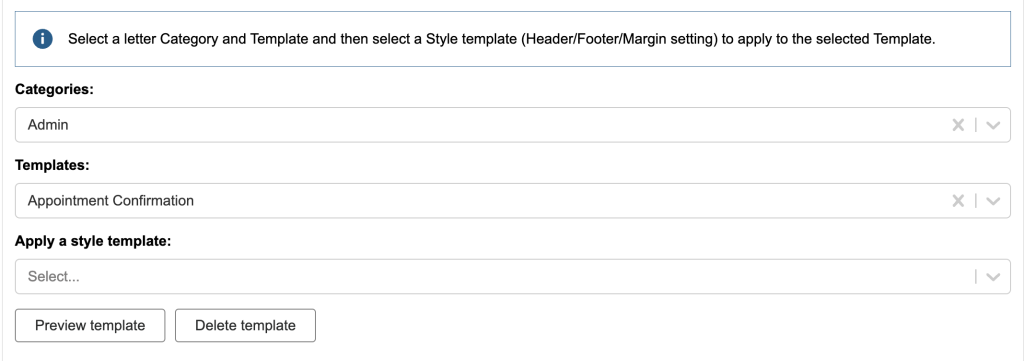
Back at the top, you will be able to test how the body template and style template interact with each other.
Choose a template and a style then click the Preview template. There will also be a Delete template option if you no longer need that template.