This section will provide users with an overview of Hypercube, including how to use the filters.
It will also cover common reporting themes. It is meant to be a guide and can be adapted to suit your own requirements. It is possible to save a report with the related criteria and also to share the saved reports with other system users (and the support team at Mayden).
Accessing Hypercube reports
To access Hypercube reports, select the Report icon at the top.

There are 3 available tabs, Hypercube, National Reports and Dashboards. If you require access to any of these, please contact you Superuser who will be able to do this for you.
Under the Hypercube tab you will have access to 3 further tabs, My Saved Reports, Shared Reports and Create New Reports.
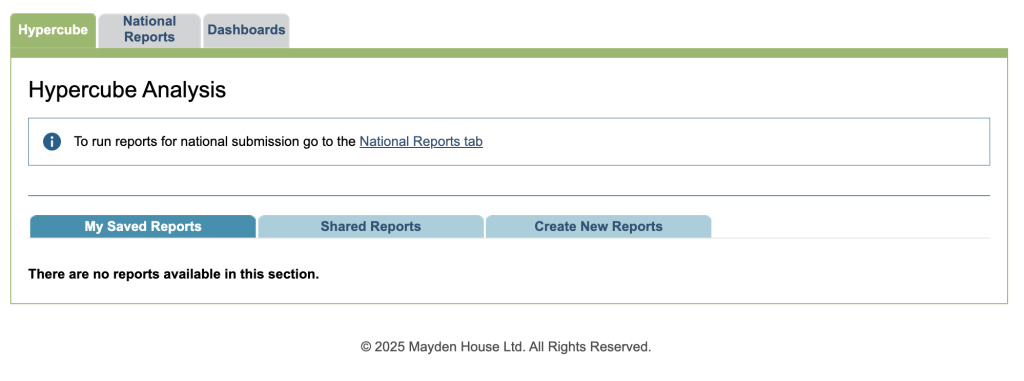
Create New Reports
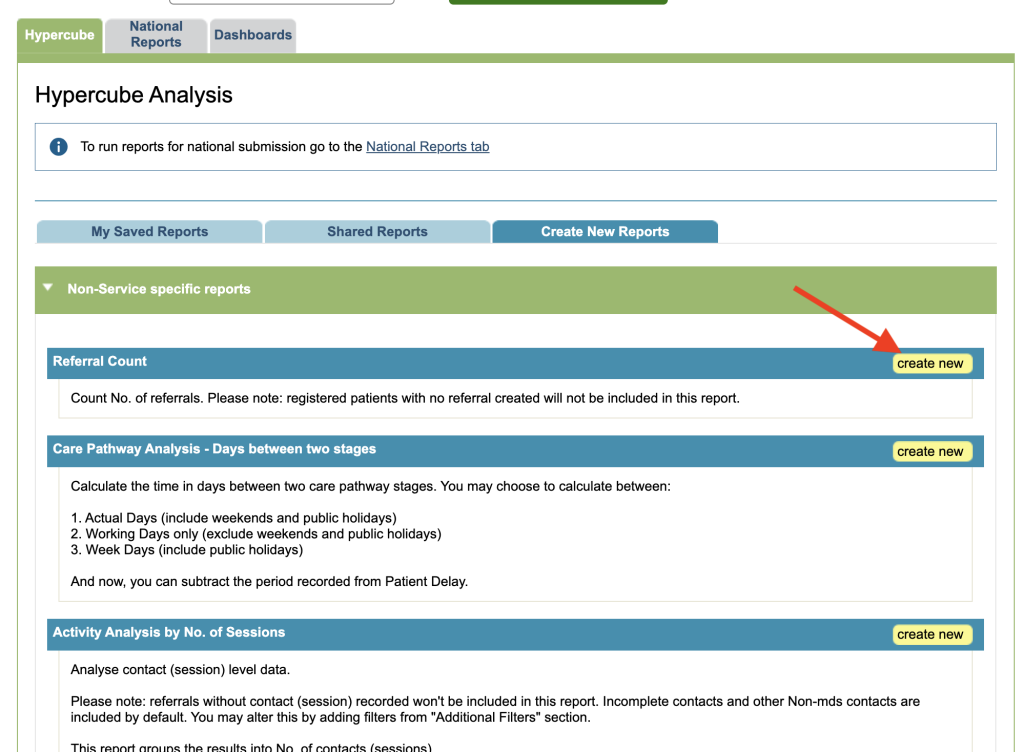
Select the Create New Reports tab. There is a list of predefined reports which look are certain areas of your data and contain useful fields. Under each report heading is a description of what the report can do for you.
Once you have chosen a report you can then use the filtering area to refine your results. In this introduction, we are going to look at the Referral Count report, select the create new button.
Introduction to filtering using Referral Count
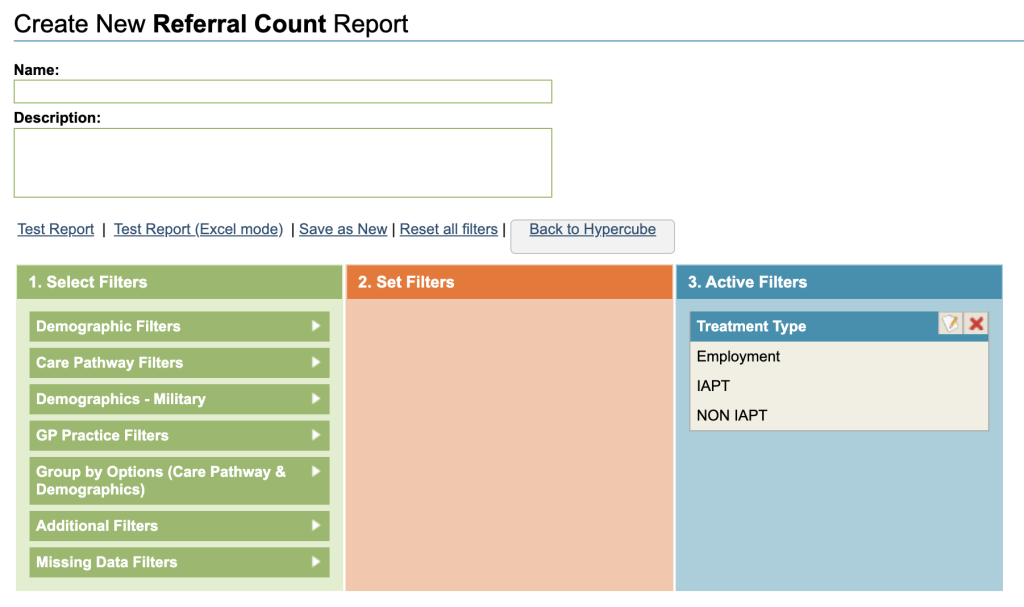
You will be presented with the Create New Referral Count Report screen with 3 columns, Select Filters, Set Filters and Active Filters.
Filters
The Select Filters column includes all the fields generally found against the patient record. Most fields which have predefined options can be included in reports.
Each green section represents the area of the patient where you will find a field.
Demographic Filters
Contains the fields held under the Patient Registration tab.
Care Pathway Filters
Contains Fields held under the Referral Data and Care Pathway tabs.
Demographics – Military
Contains Military fields held under the Patient Registration tab.
Clinical Session Filters
This section is available under specific reports and contains fields held within the Clinical Contacts tab.
GP Practice Filters
This section contains Registered GP Practice held within the Patient Registration tab and the Referral GP Practice fields from with the Referral Data tab. Also allows you to query by GP Groups, which can be setup by your Superuser and allows GP Practices to be grouped together under one heading, making reporting easier.
Additional Filters
Contains various fields criteria not relating to specific tabs.
Missing Data Filters
This section allows you to search for certain fields that have been left blank, good for data quality analysis.
Filtering
Some reports will contain Mandatory Filters which must be completed in order to run the reports.
There is an additional filter for Grouping which allows data (identified by the search criteria(s), to be analysed by categories chosen within the group filter. A category is typically a data field within iaptus.
Click on a filter category it to reveal the fields it contains.
Filtering Tip
If you are new to Hypercube and iaptus it is recommended to carry out the following to find the required fields.
Expand each section by clicking on the category heading (start from the bottom to save you scrolling).
This will open up each section and you will be presented with a long list of fields available for reporting.
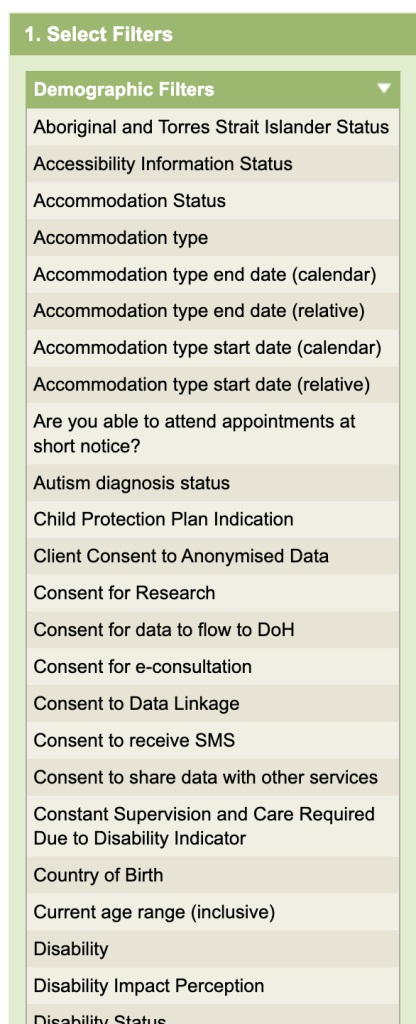
To search for the required field, activate the Find on Page option (available feature for any browser) by clicking the Ctrl key (Command for Mac) and F on your keyboard.
The find on page field will be displayed, top right of your screen. Type in the name of the field you are looking for. It will highlight the closest matches, you can use the up and down arrows to scroll through the matches on the page.
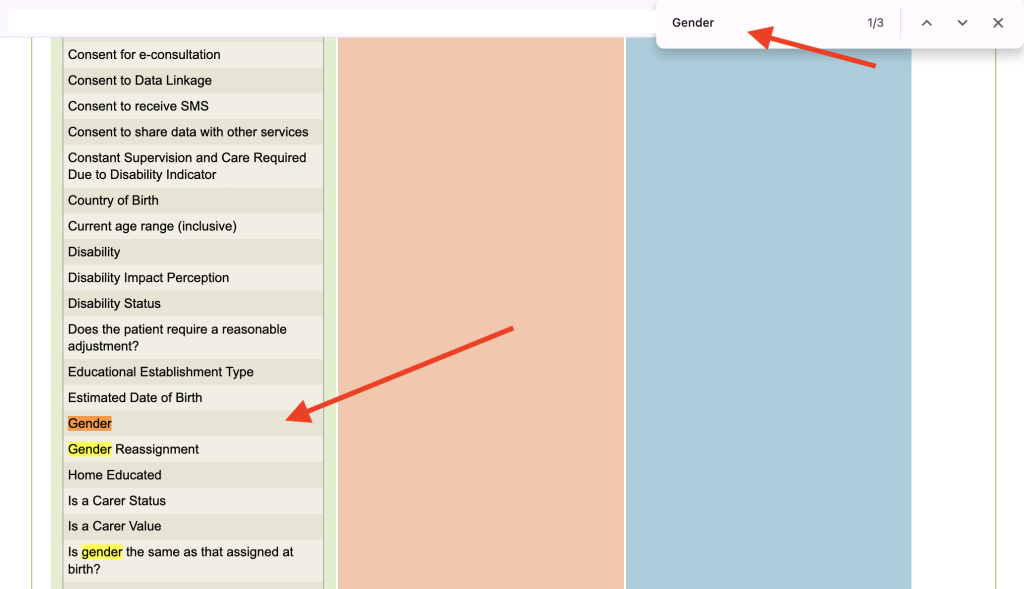
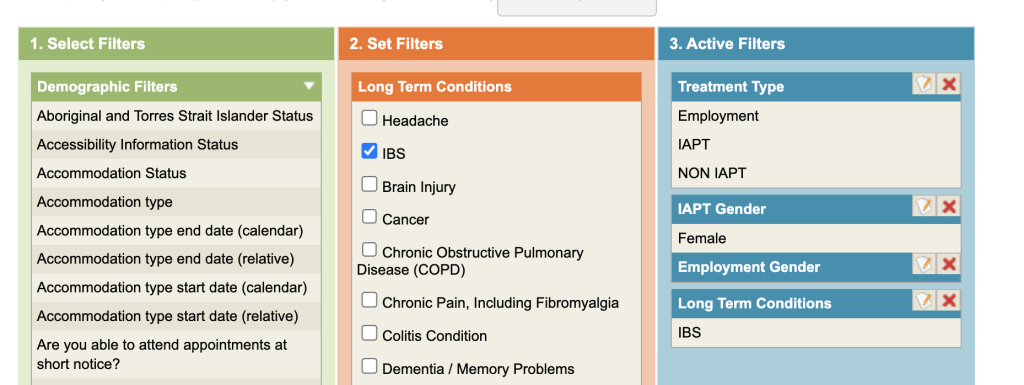
Select the field required. The values contained in that field will now appear in the orange, Set Filters column.
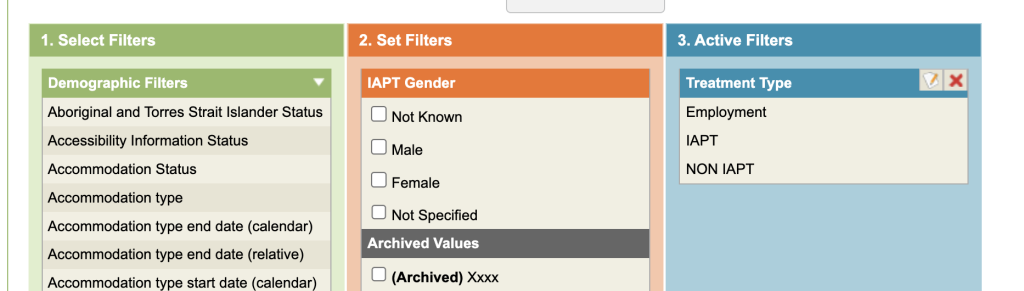
Select the values required, these will now be populated in the blue Active Filter column.
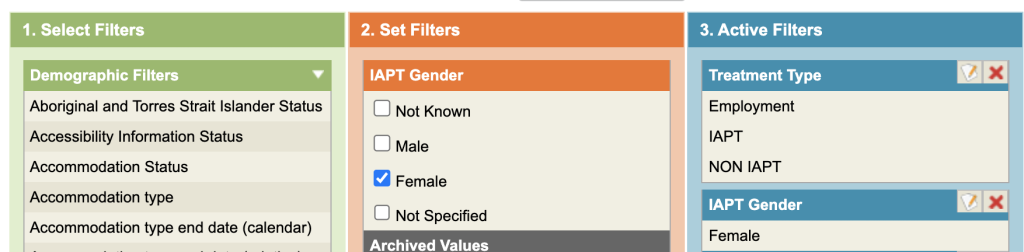
More than one choice can be selected for the same field (ie Female, Male). The choices will be treated in query terms as an OR i.e. Female OR Male records.
It is also possible to select options from more than one field criteria e.g. female with LTC of IBS.
When more than one field criteria is used (ie more than one blue bar box in the third column) the query will be treated as an AND statement (eg Females AND LTC of IBS).
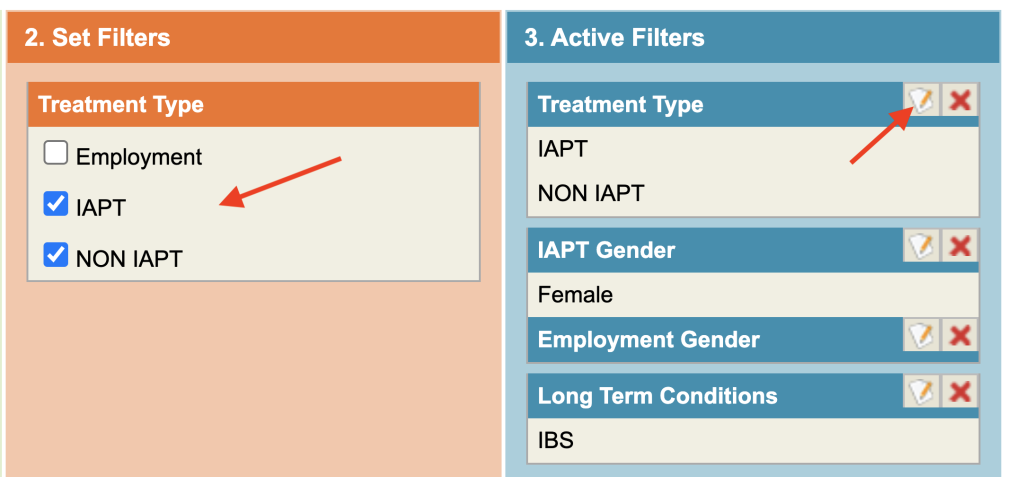
Edit Criteria
To edit the criteria, click on the Pencil/Paper icon. The values will be displayed back in the orange Set Filters column where you can make any necessary changes.
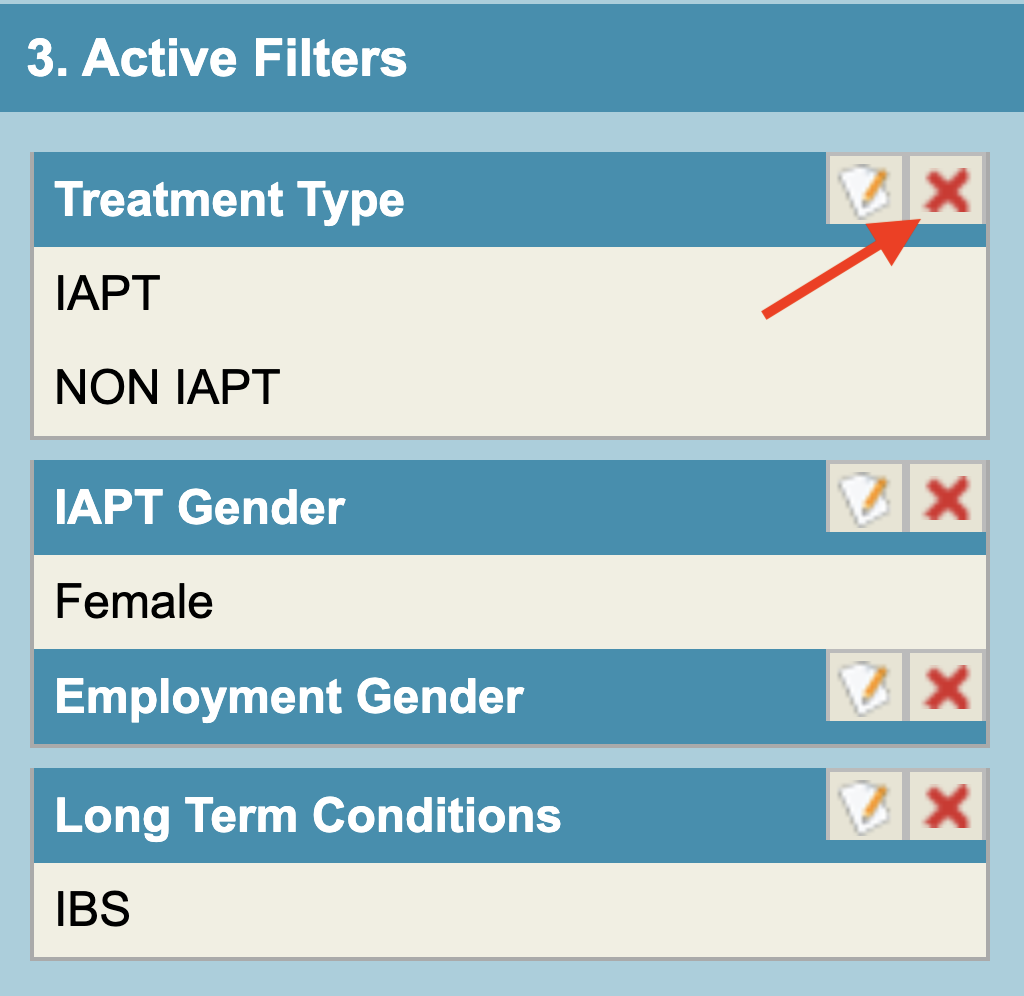
Delete Criteria
To delete a criteria, select the red cross next to it. This will remove all values for that field.
Testing your Report
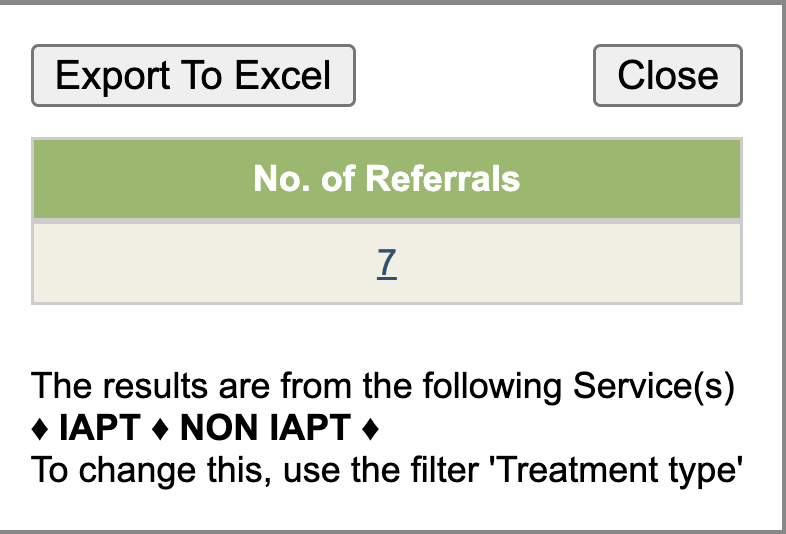
You can test your report by clicking Test Report at the top.
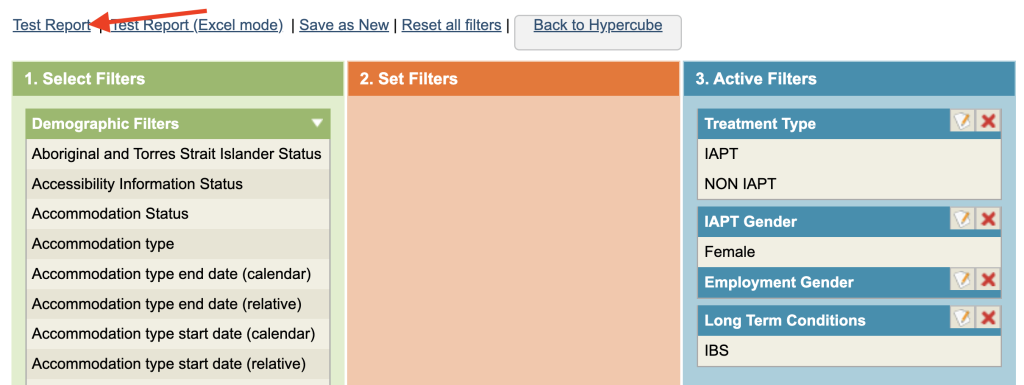
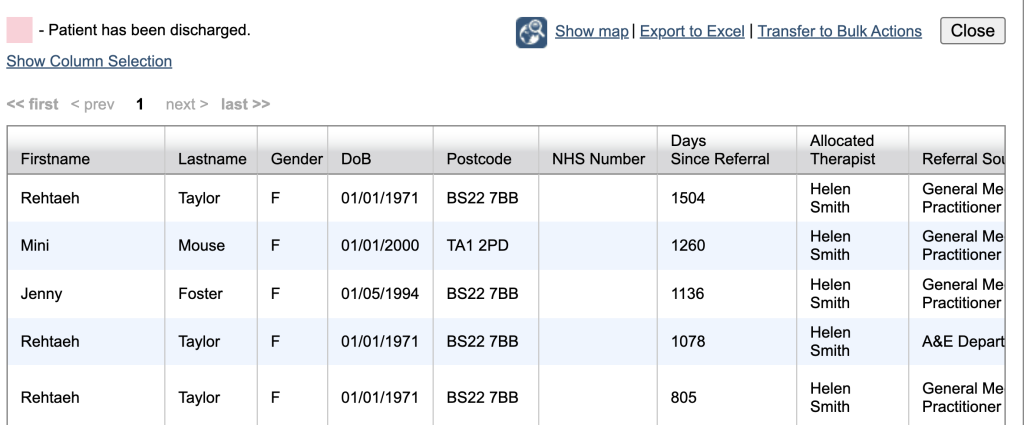
This will display a window with the results of you query. The blue hyperlink lets you view the results with details of all referrals in a table.
Saving the Report
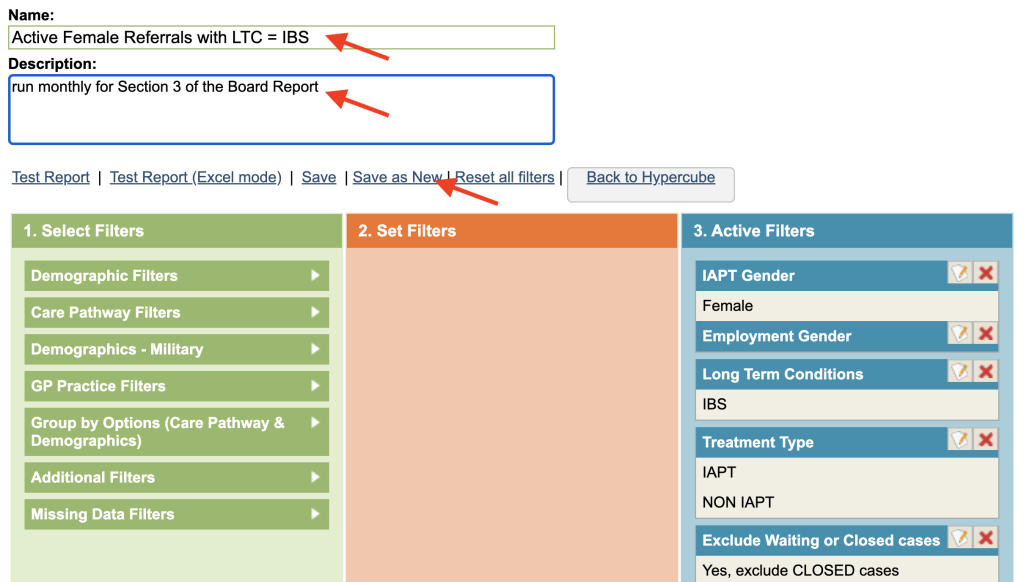
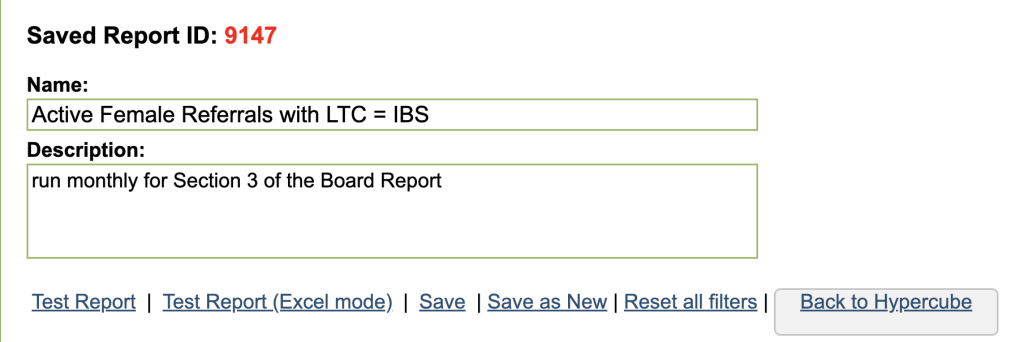
To save a report, in the section above the filters, enter a report name and complete the description box.
Click Save As New.
The saved report will appear in Hypercube reports under the first tab.

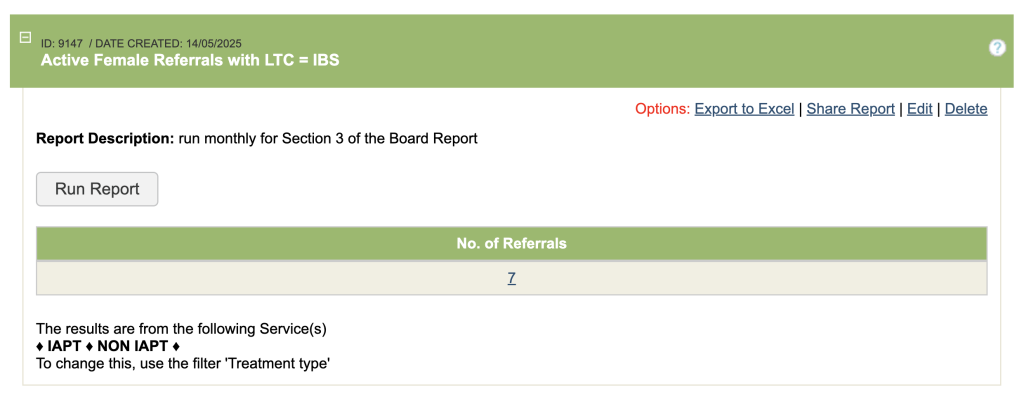
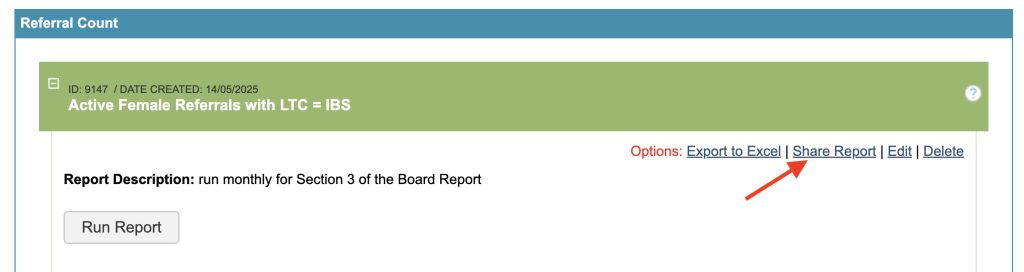
Click on the green bar for the report to show the description box for the report. The Run Report button will show the current results.
On the right hand side are options to Export to Excel, Share Report, Edit and Delete. The report needs to be fully loaded before clicking on any of these options.
Edit Report
Click Edit to reopen the report builder with the 3 coloured columns.
Once you have updated it, you can Save, which will overwrite the existing report, or you can give it a different name and Save a New.
Sharing a report
You can share saved reports with other users or with Mayden staff if you need support.
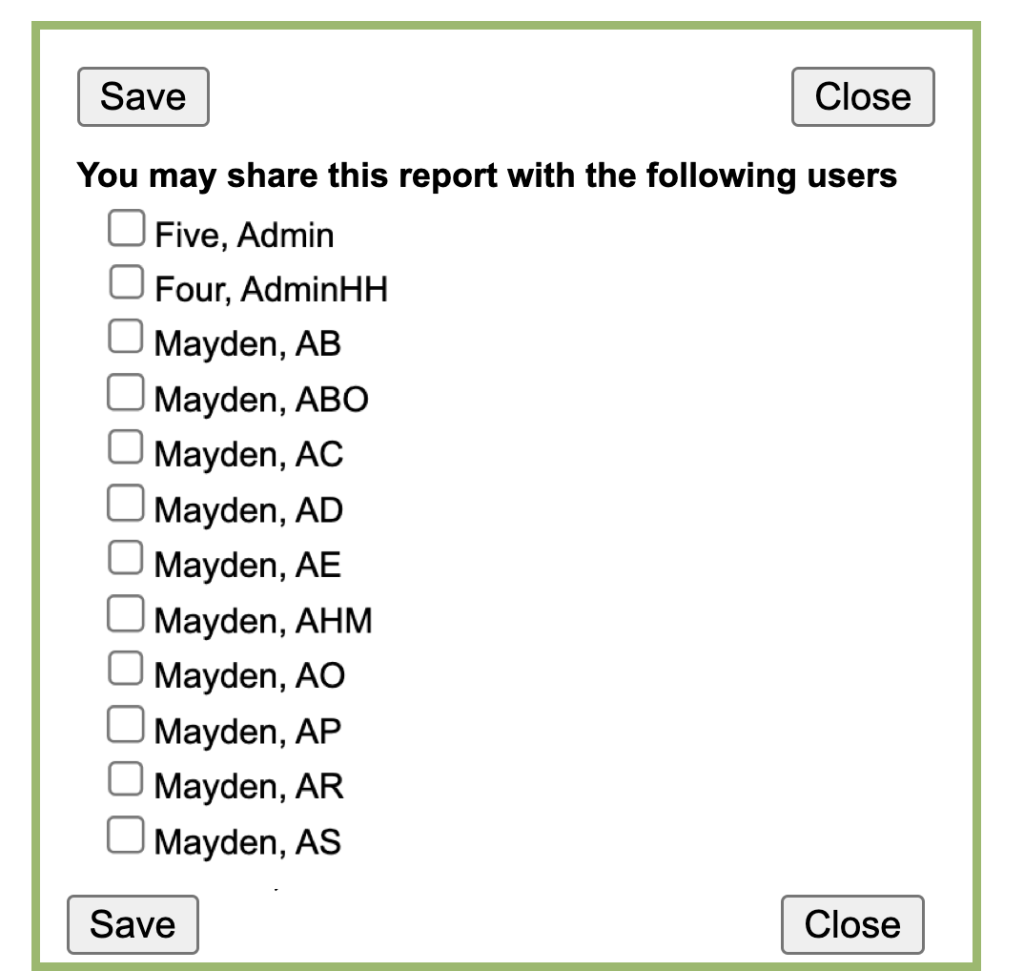
Under My Saved Reports, click on the green bar for the report you want to save, then click Share report.
Tick the individuals you wish to share the report with and click Save. If you have a query concerning a report, you can share it with a Mayden user, they can inform you of the correct initials to chose.