
Generating a link for a video session to take place
With the iaptus integrated video feature enabled, there are two ways to generate a video session link; one via the Diary when an appointment is created and the other via the Clinical Contacts tab. New ‘Video Session’ sections in both of these areas of iaptus will only appear once the generation of video session links has been enabled for your service.
Via the Diary
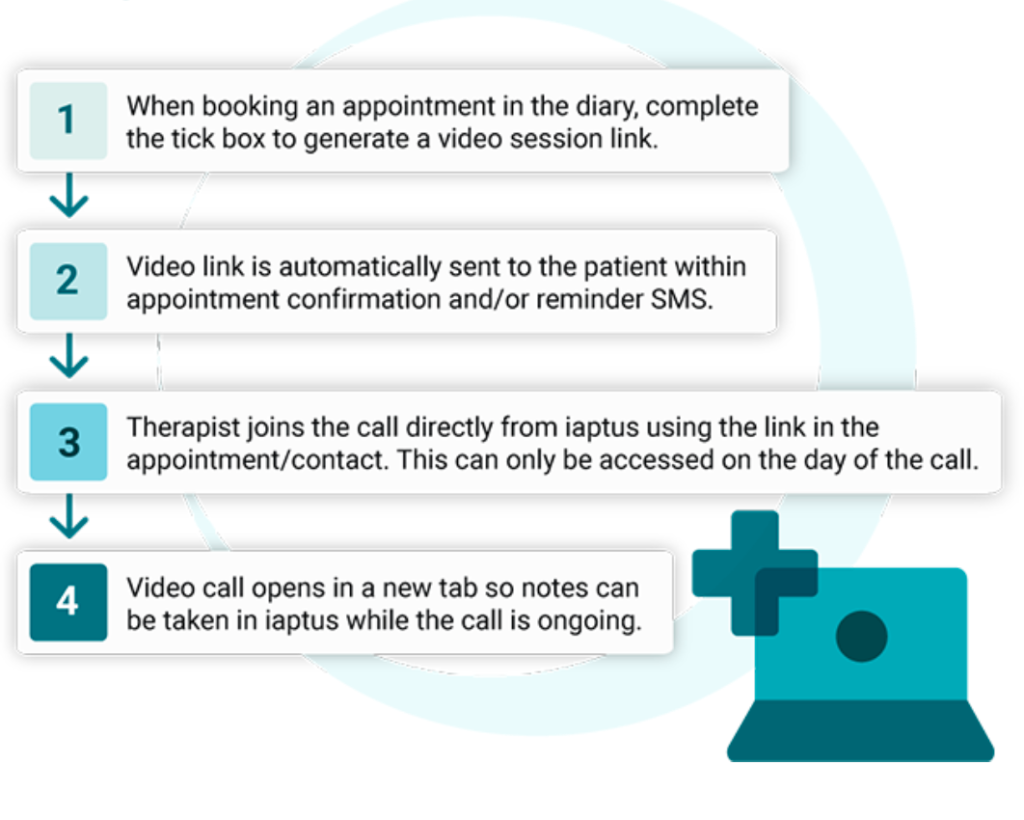
When you create an appointment in the Diary in iaptus, you will notice a new ‘Video Session’ section which includes a checkbox to ‘Generate video session link’.

Tip: If your service has functionality enabled to generate video session links, the checkbox option in the Diary will be ticked by default when creating appointments.

Tip: If the ‘Generate video session link’ checkbox is ticked when recurring appointments are created in the Diary, each appointment in the series will have a unique video link attached to it. Please ensure that links for each session are issued to the patient in advance of their appointments.
Once the appointment has been created, video session links for therapist and patient access will be attached to that session and can be accessed from the Diary or the clinical contact for that appointment.

The unique video session link can either be automatically sent to the patient within an automated appointment reminder SMS or copied and pasted to share via an alternative means of communication prior to the appointment.
When they are ready, the patient can click the link provided to enter the video session, either via their computer or mobile device.
The therapist can join the video session by clicking the ‘Start video session’ link in either the clinical contact associated with the appointment, or in the Diary, as shown in the above screenshot. The video session will commence in a new tab, with the patient record remaining open so that clinical notes can be taken by the therapist during the appointment. Please note that the patient record will only remain open if the clinician is active within it. The twenty minute countdown will still apply and if the clinician is not clicking or typing in the patient record, iaptus will automatically log the clinician out after twenty minutes of inactivity.
Via the Clinical Contacts tab
If a video session was not created when the appointment was booked in the diary, this can be generated within the Clinical Contacts tab instead.
Navigate to the Clinical Contacts tab for the relevant patient and select the session for which you would like to generate a video session link. Then click on the ‘Generate video session link’ button attached to the contact.

Once you have chosen to generate a video session link for the contact, the joining details for both therapist and patient to access the video session will appear.

The unique video session link can be shared with the patient before their appointment. You can issue the link via SMS, in an email, etc.
Tip: If the video link is generated from the Clinical Contacts tab and not the diary, this will not be automatically sent in the appointment reminder SMS and will need to be manually shared with the patient.
When they would like to join, the patient can click the link provided to enter the consultation space, either via their computer or mobile device.
When the therapist is ready, they click the ‘Start video session’ link in the clinical contact or in the Diary. The video session will commence in a new tab, with the patient record remaining open so that clinical notes can be taken by the therapist during the appointment.
Please note that the patient record will only remain open if the clinician is active within it. The twenty minute countdown will still apply and if the clinician is not clicking or typing in the patient record, iaptus will automatically log the clinician out after twenty minutes of inactivity.
Custom welcome page
When the patient clicks on the unique video link, it can direct them to a custom welcome page. This can be set up to include your service name, logo and any text you would like, including links, for example to your website or information hosted on your website.
A custom welcome page also allows your service user a moment to read any instructions before arriving in the session, giving them a button to click to continue.
This is optional, if you do not wish to have a welcome page, when the patient clicks on the video link it will take them directly to their session joining screen.


Video session joining screen
The therapist’s name is pulled directly from their iaptus account and will be visible to the patient during the session, but can be changed in the joining screen if desired. To the therapist, the patient will appear as ‘Attendee’ unless they rename themselves in the joining screen.

The joining screen also allows you to check your camera and microphone settings and blur or change your background before joining the call when you are ready.
Video session view
Once started, the session screen provides audio and video controls:

There is a typed chat function and both therapists and attendees can share their screen via the buttons in the main toolbar.

In the top right hand corner, information on connection quality is available to help users to understand and troubleshoot any issues e.g. if broadband quality is low and the session needs to move to telephone. Hover over the green icon shown below to view this.

When selected, the ‘three dots’ menu in the main toolbar includes some additional features such as changing your display name, the option to blur or change your background, and sharing other audio and videos e.g. from YouTube.

A lobby area can be enabled for the patient if the therapist has joined the session first by clicking on the three dots menu -> Security Options -> Enable Lobby.

Tip: A unique 15 digit meeting code of the form 123-xxxx-xxxx-xxxx will be displayed on both the joining screen and at the top of the screen within the call. Should you experience any issues during the call, this code allows us to identify your video session and assist with troubleshooting so it is important to make a note of this information.


Key information
The following is provided to support services prior to video sessions taking place:
- Browser Compatibility and Access
- Our technical teams have been involved in cross-browser testing to understand which internet browsers are compatible with the software. Chrome provides the best experience and all modern browser versions are supported. However, two legacy browsers Windows Internet Explorer 11 and Windows Edge (Legacy) are not supported.
- Patients and therapists require access to the domain https://my-session.health/ and patients will also access https://my-care.health/. Both are typically available via the public internet with no additional settings required. Depending on your service’s internal infrastructure set-up there may be some support required from your IT department. Mayden will be able to liaise with them during set-up.
- Due to the nature of remote video calls, Mayden is unable to provide guarantees in relation to factors affecting quality such as internet connectivity, hardware and software suitability and user error. However, Mayden will provide the appropriate resources, and scale appropriately where necessary to accommodate service use.
- Session Settings
- Video session links are only enabled for the day of the appointment and are unique to each appointment.
- Security
- Access is provided through the use of JSON Web Tokens generated by iaptus, providing secure and unique access via links for patients and therapists on a per appointment basis.
- A combination of unique letters and numbers will display at the top of the screen for both patient and therapist during a video session to act as an identifier (the ‘meeting code’). Such an identifier enables attendees of a video session to confirm they are in the correct meeting, as well as to allow for the diagnosis of technical issues here at Mayden, should any arise during the call.
- Data Protection and Lawful Use
- It is the responsibility of the service to ensure that agreements for use, data sharing and privacy policies between the service and the patient exist as required under relevant Data Protection law.
- Mayden is unable to provide guidance on suitability of use for particular patients, including hardware and connection assessments, and services should ensure appropriate back-up plans are in place to support patients should connectivity be an issue (e.g. move to telephone).
- Mayden will not be responsible or liable for any actions resulting in complaints received from patients relating to the provision of this feature or for any other liabilities perceived in relation to its use. The service is wholly responsible for the actions of their staff whilst using the Integrated Video Feature and Mayden is in no way liable for any inappropriate or unauthorised usage. It is recommended that appropriate auditing protocols are initiated by the service in order to monitor and identify any abuse of this function.
Video session hints and tips
The following is provided in order to support successful implementation of video session use within services. It is not intended as comprehensive advice or therapeutic guidance and services should assure themselves of national guidance. References and helpful links can be found in the relevant section of this document.
- Patient Consent
- NHSX has released advice regarding consent around the use of video sessions. They advise that “the consent of the patient or service user is implied by them accepting the invite and entering the consultation. But you should safeguard personal/confidential patient information in the same way you would with any other consultation.” (1)
- The above may be sufficient for your service, or you may wish to put an additional measure in place whereby the patient explicitly consents to take part in video sessions as part of therapy delivery.
- Although the video session itself will not be recorded, you may wish to inform the patient that their therapist will take clinical notes during the appointment and store them on their electronic record on iaptus, as is the usual procedure for non-remote appointments.
- Where needed, additional clinicians can access the video session via the link in iaptus, but please bear in mind that this could result in a reduction in quality as the connection will cease to be peer-to-peer.
- Prior to the Appointment
- It may be useful to have a telephone conversation with the patient to discuss how they will be accessing the video link; i.e. computer or smartphone.
- Ensure that whichever device the therapist and patient are using has either a built-in webcam or a separate webcam that can be set up for use during the video session. The same applies for built-in microphones/speakers; if not available on the chosen device, an external microphone and/or speakers can be connected and used instead.
- All video sessions will require an internet connection, so ensure that one is established prior to the video session.
- As with face to face appointments, video appointments should take place in a location free from distractions where participants won’t be overheard. If the patient has others at home with them, agree what you will do if the session is interrupted e.g. use of the chat function to communicate privately.
- Decide on a procedure to follow if the technology fails during a video session – e.g. to resume the session via telephone.
- The above information could be communicated to the patient when the appointment is booked.
- Identity Checking
- Making time at the beginning of the video session to check the identity of the patient is key. A quick verbal identity check can be performed by the therapist by asking the patient to confirm at least two pieces of personal information, for example their full name and date of birth, before the session commences.
- This is also a good time to ensure that the therapist has the correct patient record open within iaptus in order to take any clinical notes whilst the video session is in progress.
- Further Support
- A separate support guide containing troubleshooting hints and tips is available to support your staff when using this feature.
FAQs
What if the appointment overruns?
Don’t worry if the appointment lasts longer than was originally scheduled in iaptus; neither the patient nor the therapist will be kicked out of the video session, enabling for a natural conclusion of the appointment when both parties are ready.
Can the video session link be accessed outside of the appointment time?
Access to the video session link is restricted to the day of the appointment. If either party attempts to join a video session for a previous or upcoming day, access will be denied. The patient or therapist can join the video session any time before its scheduled start time on the day of the appointment.
Can I use this feature for group therapy?
Currently, this feature is only available for one to one therapy. We will soon be looking at whether this technology, or something different, would be appropriate for expanding to groups.
Can multiple therapists participate in a video session?
Yes, anyone with access to the clinical contact in iaptus can click the ‘Start Video Session’ link and join the appointment alongside the session therapist.
How do I end the video session?
When participating in a video session you will see a red telephone icon in the main toolbar which will end the call.
Can I share documents during a video session?
Document sharing is not currently available within this feature, but it is possible to share your screen and to share links via the integrated chat function.
Is there a video recording facility?
It is not possible for sessions to be recorded via the video session itself. However, as with any video software, it is possible to record utilising third party software or additional devices. Services should put in place appropriate processes in place to mitigate or enable functionality as required.