
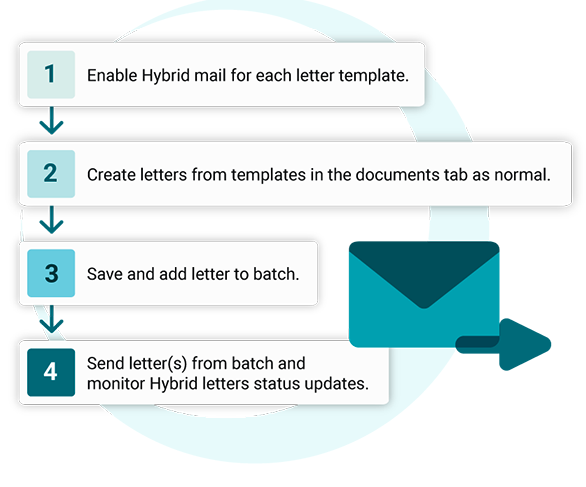
Enabling a letter template to be sent using Hybrid Mail
In order to send messages in this way, you will need to enable specific letter templates for Hybrid sending.

Tip: Please note that hybrid letters can be a maximum of 14 pages (28 sides) in length.
Step 1
Click on ‘Letters’ in the Super Users menu.
Step 2
Under Letter Template Editor, select the relevant Category and Template to open the template you wish to update.

Step 3
Scroll down to ‘Template Settings’ and select ‘Hybrid Mail’. This will automatically generate any letters using this template to be sent via Hybrid Mail.

It is recommended that you name your letter template in a way that makes it clear that Hybrid Mail sending has been set up, eg. ‘Assessment Letter Hybrid’.
Click either ‘Update template’ to update the current template, or ‘Save as new template’ to save it separately as a new template.
Tip: Please set a minimum of 10mm left-hand border on any of your style templates that you intend to use with Hybrid Mail letters to allow for printing. This can be set in the Letter Style Editor – Edit Margins.
Tip: If you are updating an existing template to be ‘Hybrid Mail’ enabled, please ensure there are no letters with that template currently in your batch letters.
Communication Preferences
Within the Registration tab you can select the patients preferred method of contact. You can also select options for Postal Letters (manually printed or sent via Hybrid Mail) and Electronic Letters (via an SMS, if you would like more information on this feature, please raise a support log within iaptus).

These will then display in the Letters tab as a visual aid when creating letters to send to a patient. Please note: these do not force the system to only send via their preferred method, they are just a visual aid so you can determine which letter template you select to send.

Creating a letter using the Hybrid Mail template
Using a Hybrid Mail template to create a letter is initially no different from creating a letter from any other template in iaptus but has additional functionality relating to the Hybrid Mail settings.
Step 1
From the Documents Tab of the Patient Record, choose the letter Category and Template with Hybrid Mail sending enabled.

Now you can complete the letter as normal.
Step 2
Select a Style template and click ‘Save and Add to Batch’.
Step 3
A prompt will appear asking you to confirm the recipient of the letter. Either the patient or the registered GP can be chosen.
You can also enable an option to address letters to ‘Parent/ Carer of xxxxx’ which CYP services may find especially useful.

Click Continue.
A further prompt asks you to check the printing preferences for the letter.

As a default, the cheapest options are pre-selected.
Click Send to Batch.
Step 4
The letter will appear in the Letters list, as well as in the Batch Letters list, with a Batch Print Status of [H] Pending.

Sending Hybrid Mail letters
The sending of Hybrid Mail letters has been designed to be easily incorporated into existing workflows and so is almost identical to printing and sending paper letters.
Step 1
Click on the Batch Letters from the top menu in iaptus.

Step 2
Batch Letters defaults to open for ALL letters that are Pending.
Use the checkboxes to tick the letters you wish to send.
Click on ‘Print/ Send Selected’. This will send the letters marked for Hybrid Mail sending securely to the Hybrid Mail provider.

Any letters created with a letter template not marked for sending via Hybrid Mail will be downloaded to your computer as normal.
Batch Letters Table
The batch letters table includes a number of filters that allow you to easily find and identify letters.
The ‘Status’ drop down allows you to see the status of Hybrid Mail letters:

Pending: [H] Pending – The letter is waiting to be sent to the queue. This status will be the first status to be shown in Batch Letters alongside any other types of pending letters.
Sent Hybrid Mail – Queued: [H] Queued – The letter is in the process of being sent to the Hybrid Mail provider.
Sent Hybrid Mail – Sent for processing: [H] Sent for processing – The letter has been sent to the Hybrid Mail provider and is being processed.
Sent Hybrid Mail – Posted: [H] Posted – The letter has been posted by the Hybrid Mail provider.
Sent Hybrid Mail – Failed: [H] Failed – The letter has encountered an error in sending or has been posted but subsequently returned to sender (information where available is included in the CSV file provided).
All Failed letters appear automatically in Pending as [H] Failed to ensure that they can be obviously seen and dealt with appropriately. Typically these will need to be actioned and re-sent (e.g. changing the address).
For any of the applied filters, a summary report can be downloaded by pressing the “Download all histories as CSV” button.
Tip: once ‘Send’ has been pressed, the letter will leave iaptus within a matter of minutes and it is rarely possible for us to retrieve the letter and prevent it from being posted. Any edits made after this point will not be reflected in the letter that is sent.
Sending a Letter via Multiple Send Methods (CC)
Letter templates can be set up to generate multiple letters to be sent via different methods. For example, you may want a particular letter template to generate a copy of the letter which is sent via Hybrid Mail to the patient, alongside a copy for the GP to be sent using GP Electronic sending.
This functionality means that all you have to do is create one letter in the documents tab, click add to batch, and then hit send. The rest takes care of itself.
Superuser Set Up
When setting up your letter templates to send via Hybrid Mail in the ‘Letters’ super user section, you have the option to select multiple different send methods per template. For example, selecting both ‘Hybrid Mail’ and ‘GP Electronic Letter’ will mean that when the template is used and added to Batch, two letters will be created, one Hybrid Mail letter and one GP Electronic Letter.

The options available to you under ‘Template Settings’ will depend on which letter sending features you have enabled for your service. If you are interested in adopting additional letter sending features, please raise a support log and the Additional Features team will be happy to assist you.
We strongly recommend naming your letter templates with clear reference to the sending methods they are enabled with, for example: ‘Appointment Confirmation Letter Hybrid and GP’
Using a template with multiple send methods enabled
Letters can be created from templates in the documents tab of the patient record as normal.
If you save your letter as a draft, a single draft letter will be added to the draft letters table which can be edited or deleted at any time.

When you click ‘Save and Add to batch’ a modal will appear as usual to confirm the letters being created, and clicking through it may request any additional information required such as Hybrid Mail postage choices. Once the letter has been added to batch you will see multiple copies covering each send method that the template is enabled for.

From here, multiple letters can be selected and printed or sent as normal.