
Introduction
Sending letters to GPs electronically from iaptus has been proven to significantly improve efficiency and reduce costs, particularly with regards to postage.
Using this feature, letters can be created in iaptus in the normal way, but instead of being downloaded locally for printing and posting, the letters are electronically transmitted straight into the system workflow at the GP practice. This saves money, time and resources for both the iaptus users and the GP practice and improves the speed and data quality of communications.
This capability is provided via the secure HSCN network using a third-party provider, Advanced.
Electronic Letter Sending Process
iaptus allows you to send letters using the Batch Letters section, avoiding the need for physically posting. The letters can be created and edited in the usual way.
An outline of this process can be found below:
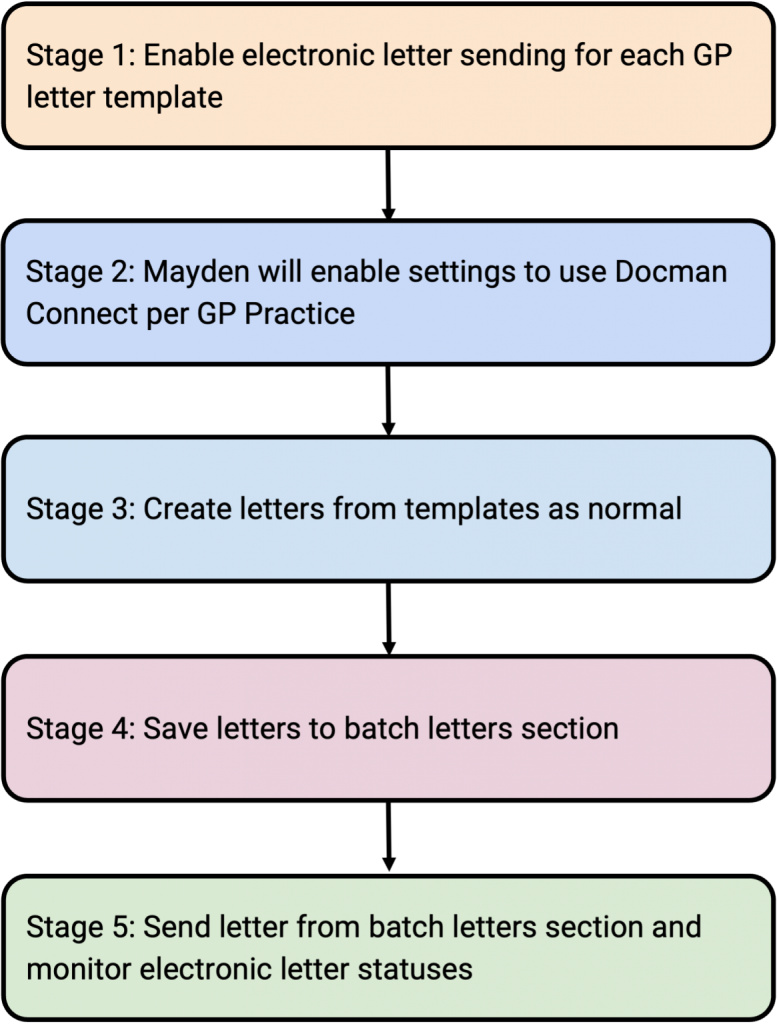
Electronic Letter Sending
Enabling a letter template to be sent electronically
In order to send messages in this way, you will have to enable letter templates for electronic sending.
This means that only a template with this setting enabled will create an electronic letter. All other templates will only create letters to be downloaded, printed and sent by the IAPT service as per local protocols.
Step 1
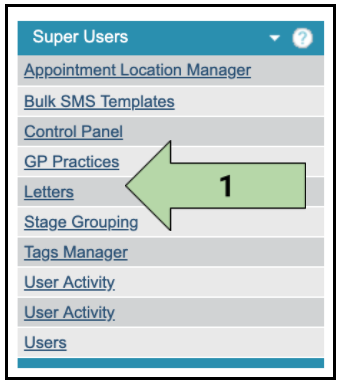
Click on Letters in the Superuser menu.
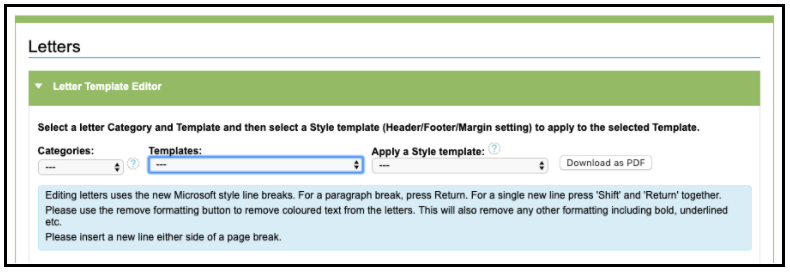
Under Letter Template Editor, select the relevant Category and Template.
Step 2
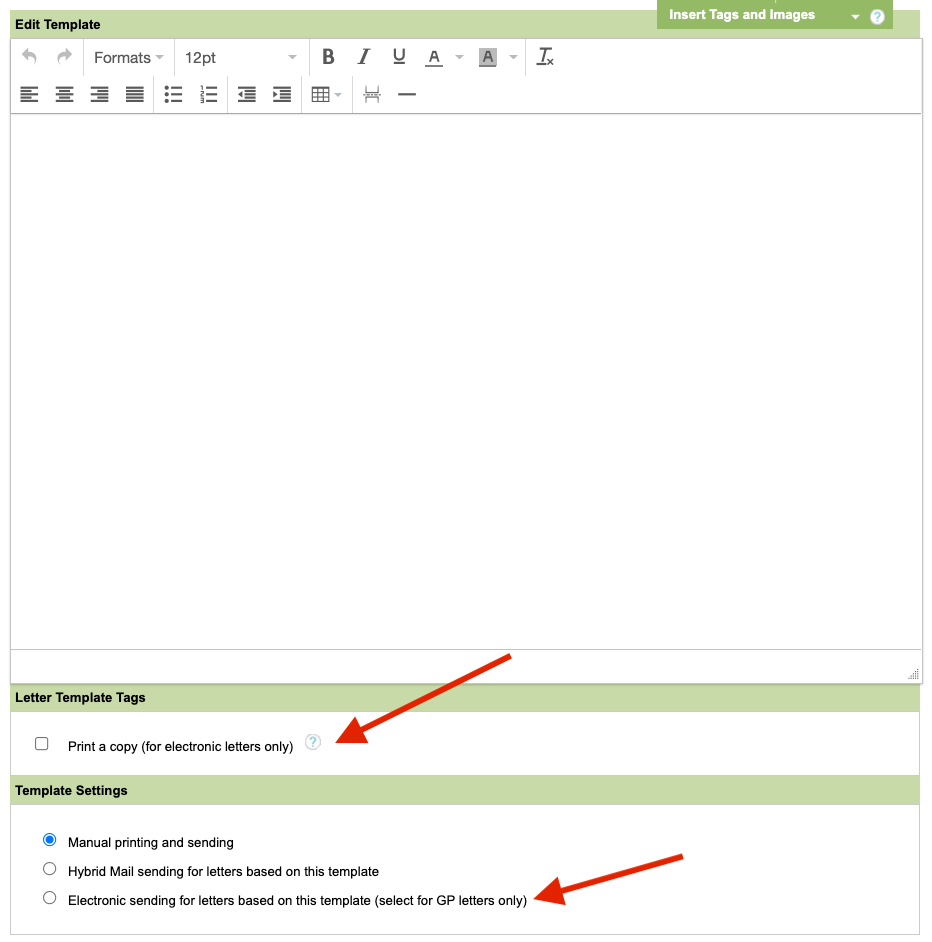
At the bottom of the page, tick the box labelled “Enable electronic sending for letters based on this template”.
Also Electronic letters cannot be sent to a Referring GP if they are not the Registered GP. however, on the template there is the option of setting up dual-mode whereby letters can be sent electronically and also printed manually (print a copy). This option could be used to send an electronic letter to the Registered GP and a printed copy to the Referring GP.
To enable this, at the bottom of the page, tick the box labelled “Print a Copy (for electronic letters only), If this is not available please raise a support log to request this function to be enabled.
Click on either Save to update the current template or Save New to create a new template with this setting.

Enabling GP Practices to be sent letters electronically
In order to send letters in this way, GP practices must be enabled for electronic sending. When you initially switch over to this feature, the Implementation Team will liaise with you to establish which of your GP practices are eligible for electronic sending, and ensure that the appropriate practices are enabled.
Once you have started using the feature, if one of your GP practices decides to adopt a new system you can confirm with our Implementation Team whether electronic sending is possible. Once confirmed, your superusers will be able to make this change themselves through the superuser menu. The steps to do this are detailed below.
Step 1
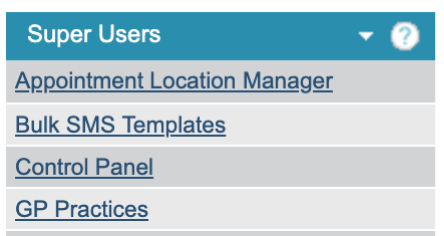
Click on GP Practices in the Superuser menu.
Step 2
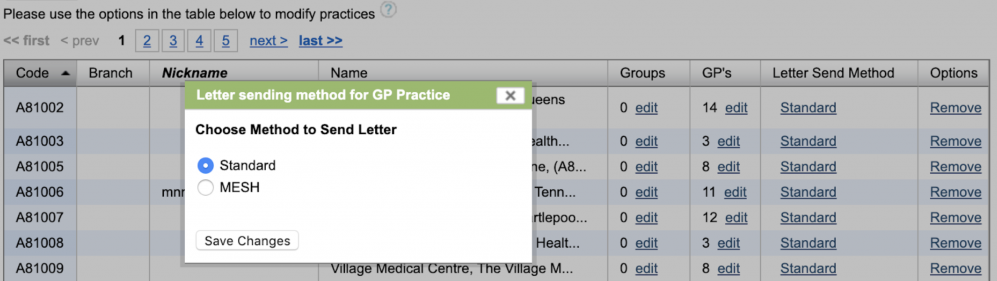
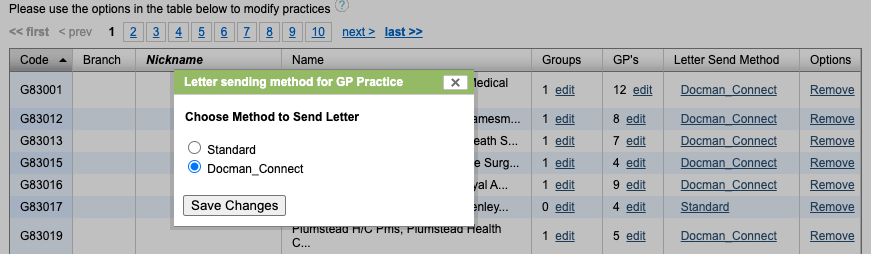
In the GP practices table, for each GP practice that has been arranged to receive electronically, enable MESH or Docman Connect letter sending by selecting MESH or Docman Connect under the Letter Send Method and Save Changes.
Using the electronic template
Using an electronic template to create a letter is no different from creating a letter from any other template in iaptus.
Step 1
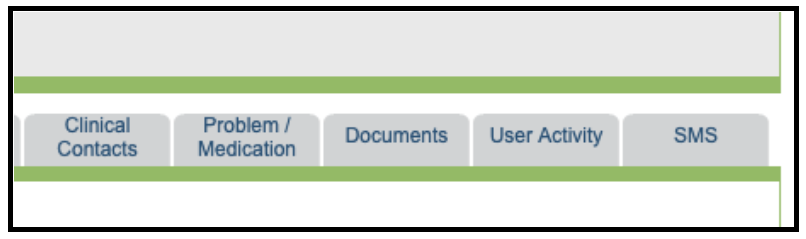
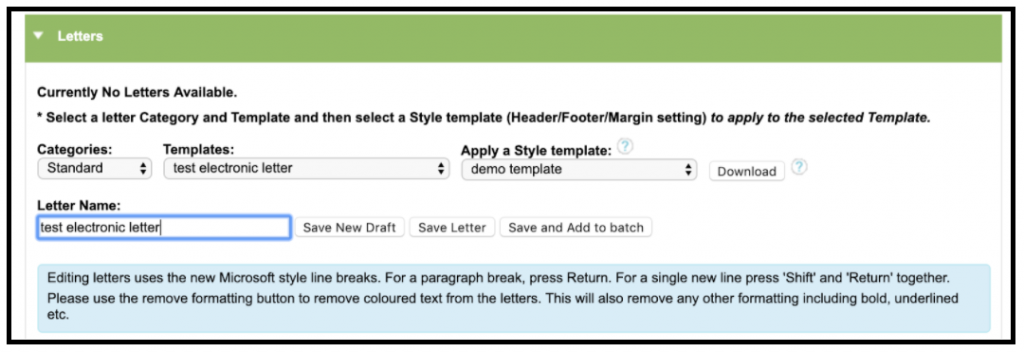
From the Documents Tab of the Patient Record, choose the letter Category and Template with electronic sending enabled.
Now fill in the letter as normal.
Step 2
Click on Save and add to Batch.
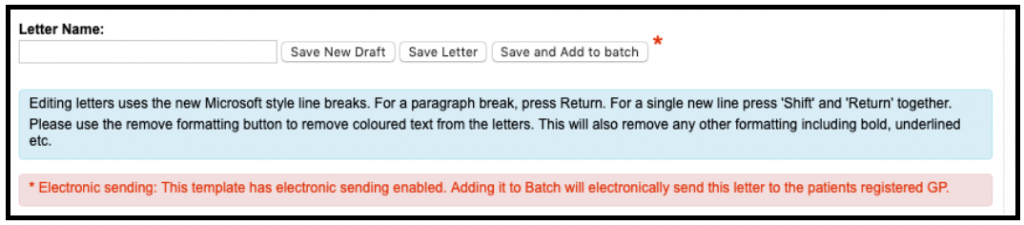

TIP: A message will appear in the red box, alerting you to the fact that the letter will be sent electronically.
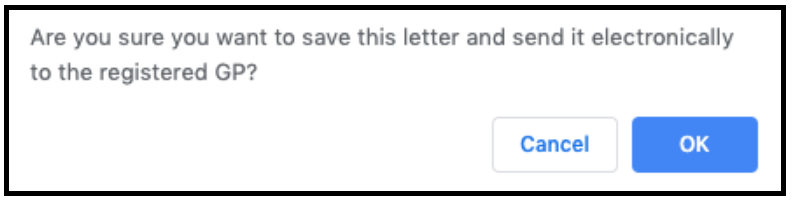
A prompt will appear asking you to confirm that you wish to send the letter electronically to the patient’s registered GP. Click OK.
The letter will appear in the Letters list with a Batch Letter Print Status of [E] Pending.
Sending electronic letters
Sending the letters electronically from iaptus has been designed to fit within the same workflow as printing and sending hard copy letters in order to ensure the process is as seamless as possible.
Step 1
Click on the Batch Letters Icon.

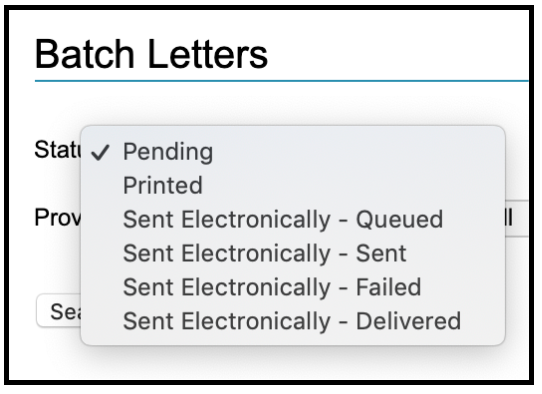
Choose Pending letters using the Status dropdown menu.
Step 2
Use the checkboxes to tick the letters you wish to send.
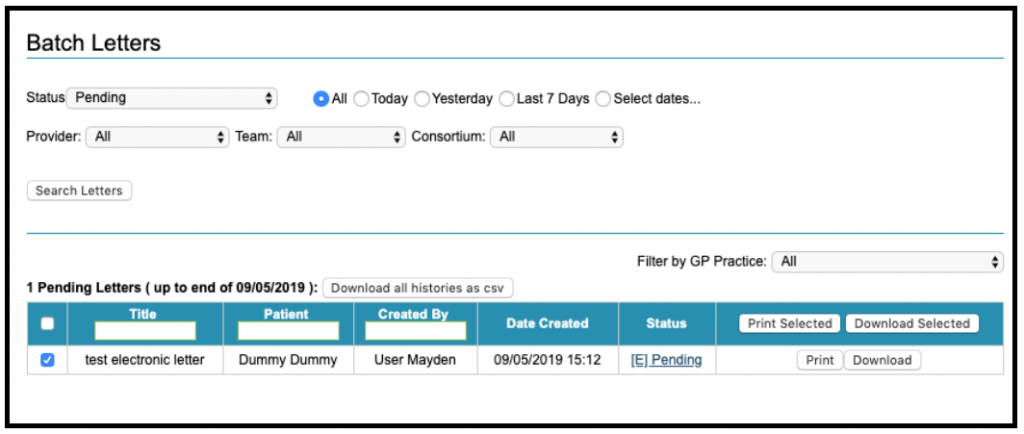
Click on Print Selected. This will send the letters marked for electronic sending via Docman to the patient’s GP.
Step 3
The Status dropdown allows you to see the status of electronically sent letters.
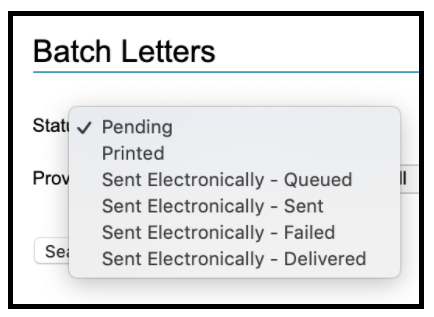
Batch letter statuses
There are four different statuses reported:
Sent Electronically – Queued: The letter is in the process of being sent to the GP but has not yet left your service. It should no longer be edited as edits may not be saved before the letter is sent.
Sent Electronically – Sent: The letter has been sent tom Docman Connect and the GP practice has been verified.
Sent Electronically – Delivered: The letter has been sent by Docman Connect to the GP practice and the practice has received it
Sent Electronically – Failed:
This status can occur when there is a system error, the GP Practice cannot be verified or if the GP practice has rejected the letter. This facility is not available to all practices and so you may be contacted via other methods should letters be rejected. All Failed letters appear automatically in Pending as [E] Failed to ensure that they can be obviously seen and dealt with appropriately.
When you hover with the mouse you will be provided with a reason for failure of electronic letters,

From here you will need to print and post the letter to the GP Practice.

When you filter the printed letters and hover over the status. you will be given the full detail of the status.
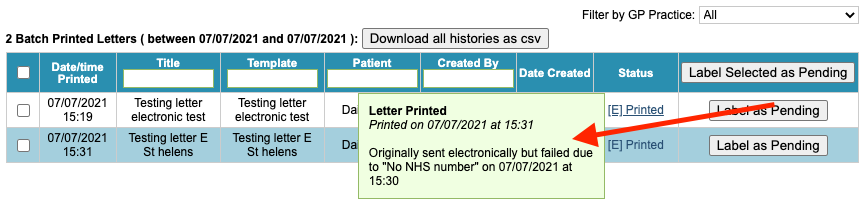
For any of the applied filters, a summary report can be downloaded by pressing the “Download all histories as CSV” button

All statuses are also recorded against the letter in the patient record under the Documents tab.
TIP: Services should monitor ‘Sent’ messages to ensure that letters move to the ‘Sent Electronically – Delivered’ status as otherwise they will not have been received by the GP practice