
The Episode Summary tab shows information recorded across most areas of iaptus about the current referral you have selected in the Boarding Card. Its a read only tab and so is sometimes used for users that just need read only access. You can view and print information.
This area is also used to print the patient record as part of a Subject Access Request (SAR). Supervision and Questionnaires
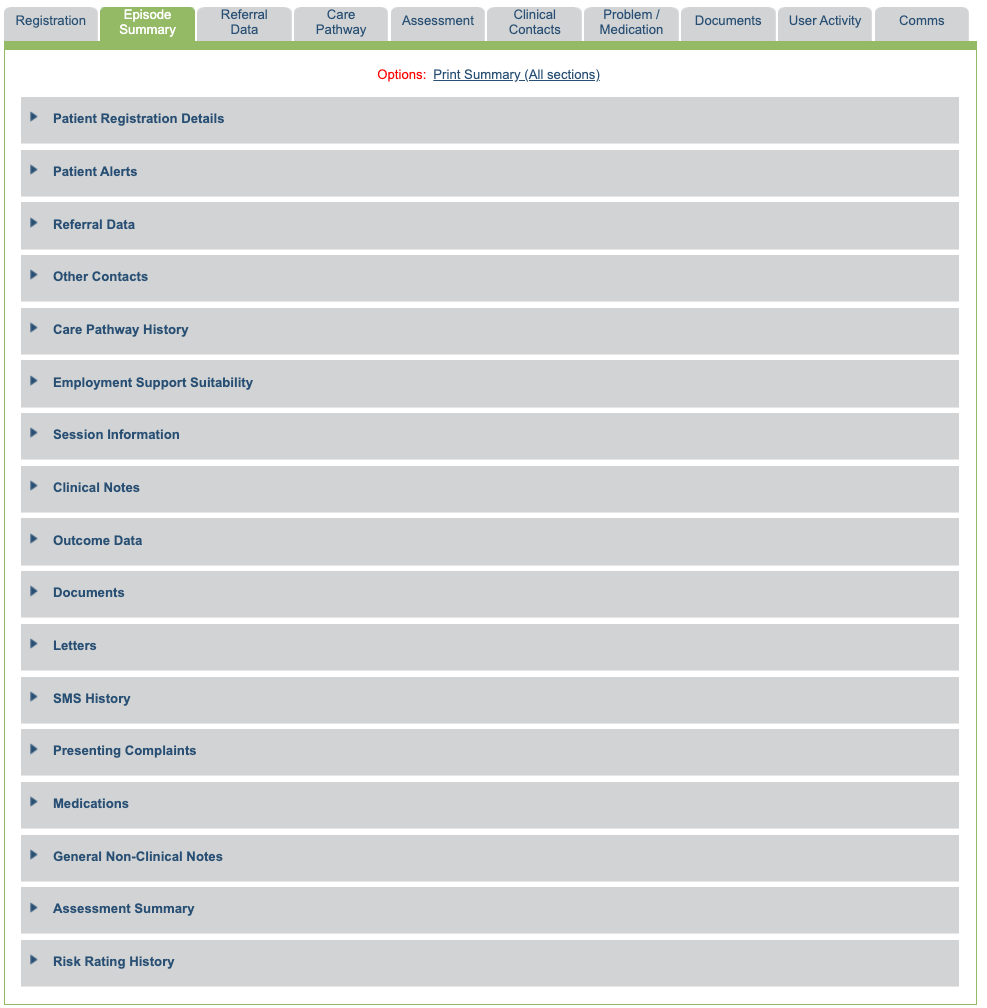
Patient Registration Details
The Patient Registration Details area displays a summary of information recorded when entering a new patient onto the system.
Patient Alerts
If you have recorded PHQ or GAD scores in this episode, they will be displayed in this section.
Referral Data
The Referral Data area displays a summary of information recorded when entering a new referral onto the system.
Other Contacts
The Other Contacts area will show you any added additional contact details associated with the patient, such as their next of kin.
Care Pathway History
In the Care Pathway History section you will see a history of all Care Pathway moves the patient has been through in this episode. This is the same table as in the Care Pathway tab.
Employment Support Suitability
This section shows the completed fields for Employment Support Suitability that are completed in the Clinical Contacts tab.
Session Information
The Session Information area gives a summary of all clinical contacts for the chosen episode and shows the Outcome Data table also displayed in the Clinical Contacts tab.
Clinical Notes
The Clinical Notes section shows all clinical notes made in clinical contacts in date order. If you do not wish for clinical notes to be displayed in the Episode Summary section, a superuser can enable/disable this via the Control Panel area in the Superuser Menu.
Outcome Data
The Outcome Data area gives a summary of all the questionnaires recorded against attended MDS clinical contacts for the selected episode.
Please note: If a questionnaire has been completed in a non MDS session or is completed independently of a session this will not been shown on the outcome graph.
The key at the bottom of the graph allows you to select which questionnaire data you wish to display, and will only display data options that have been filled in for the patient.
To display the results in more detail, you can click and drag on any area of the graph to zoom to the selected area. A ‘reset button’ will then appear, allowing you to reset this to the original view.
To find information about the specific scores, hover over each recorded data point to see the score, questionnaire, and date it was recorded.
You can also print this graph, or create an image or a PDF, by clicking the button just above and to the right hand side of the graph. If you wish to view the data in excel, there is the option to ‘Export the Data to CSV’. Printed or exported (e.g. to PDF, JPEG, SVG or PNG) outcome graphs do not contain any client identifiers.
Documents
In the Documents area you will be able to see all documents uploaded to the patient during the selected episode. Here you will be able to see the
- document title
- file tpye
- document type
- size of the file
- date uploaded
- who uploaded the document
- an action to ‘Download’ the document.
The ‘Print Section’ option will print a summary of the documents listed and not download the documents themselves.
Letters
The Letters section will show you all the letters associated with the patient during the selected episode. You may also be able to see a key explaining the statuses of the Batch Print status.
In the table, you will be able to see
- the letter title
- who it was created by
- the date it was created
- if the letter was updated by anyone
- when the letter was updated
- the print status if sent to Batch Letters
- an action to ‘Download’ that letter.
The ‘Print Section’ option will print a summary of the documents listed and not download the documents themselves.
SMS History
In the SMS History section, you will see all SMS Messages sent to the patient in this episode of care.
This will show you the type of SMS (for example, ad hoc, or scheduled), the body of the message, when it is scheduled to deliver, when it was created, its status, and the date it was queued.
Presenting Complaints
In the Presenting Complaints area you will see a history of problem descriptor entries in the Problem/Medication tab. You will be able to see
- the category
- first onset
- type
- problem
- number of episodes
- time since remission
- onset of this episode
- who updated the presenting complaint
- when it was updated.
Medications
The Medications section shows a history of medication that has been recorded against the patient in this episode within the Problem/Medication tab, split out by category.
General Non-Clinical Notes
Any patient and episode level notes recorded through this episode will be displayed. Patient general non-clinical notes are shown throughout all recorded episodes for that patient.
Assessment Summary
Here you can see a summary table of the standard fields displayed in the Assessment tab. Bespoke assessment forms will not be displayed here.
Risk Rating History
The risk rating history recorded in the Assessment tab will be shown in this section.