
This guide is going to show you how to use the Employment Advisors areas of iaptus.
The update to IAPT MDS v2 in June 2019 contained all the necessary data requirements for the Employment Advisors collections including the addition of a new 004 Employment Status (IDS004) table. This report can be found under the National Reporting Tool.
There are 2 ways of capturing Employment Advisors information in iaptus:
- Option 1 – using one episode
- Option 2 – using two episodes
Option 1 – Using One Episode
Considerations for using option one:
- Data is captured appropriately for NHS reporting requirements.
- You have one single shared Care Pathway.
- You have one single primary allocated therapist. Your employment advisors will need to either: be aware of the referral or be made the additional therapist.
- Appointment purpose is mapped to Employment Support Code 10.
- You will need to ensure that all employment advisor sessions that are captured against the primary intervention have a value that is mapped to the employment support SNOMED code.
- You will need to make sure that the employment support start and end dates are captured in the employment support suitability section.
Using one episode
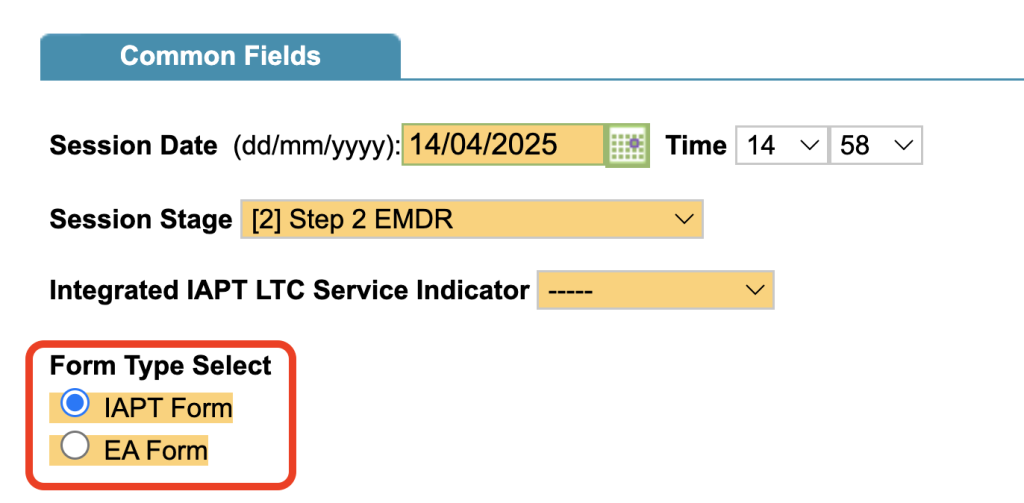
The first way is to use a single episode of care, with the Employment advisor(s) using the ‘EA Form’ Clinical Contact form and the Therapist using the ‘IAPT form’ Clinical Contact Form option. At the top of the Clinical Contact form, shown below, there is a radio button that allows the form to be switched from IAPT to EA or visa versa.
The IAPT form is the standard Talking Therapies contact form, and the EA form is a trimmed-down version excluding the outcome measures. All of the Employment data fields are available in either form.
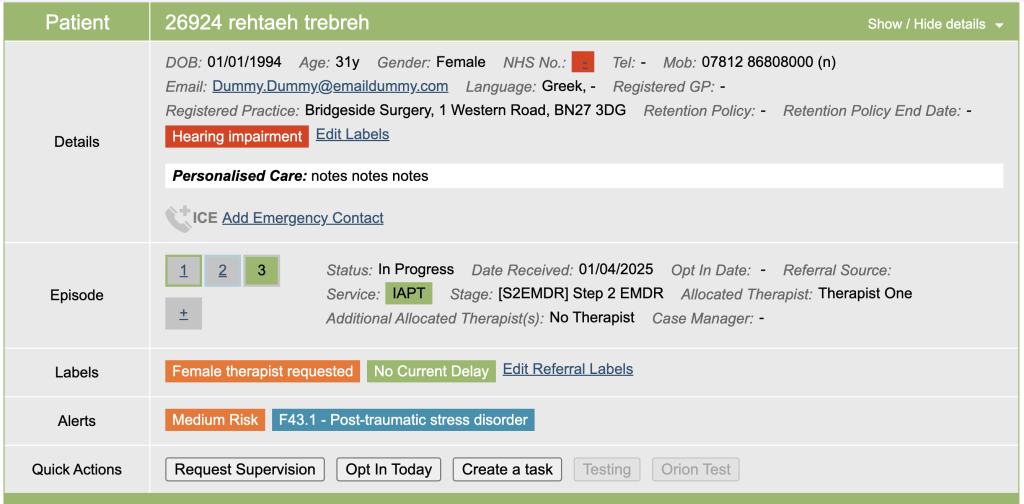
Add Talking Therapy Referral
Add the Talking Therapy referral, as normal
Employment Support Suitability
You will then need to add the employment referral information,
Goto the Clinical Contacts tab, Open the Employment Support Suitability section and select Edit.
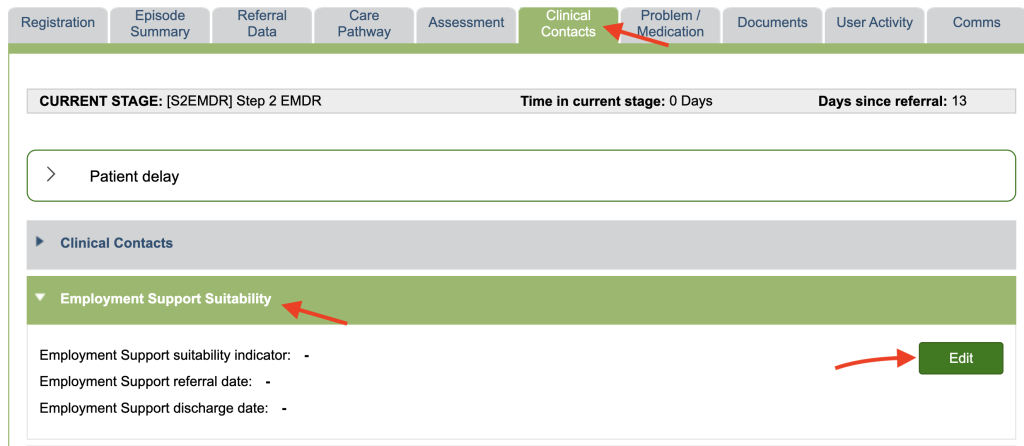
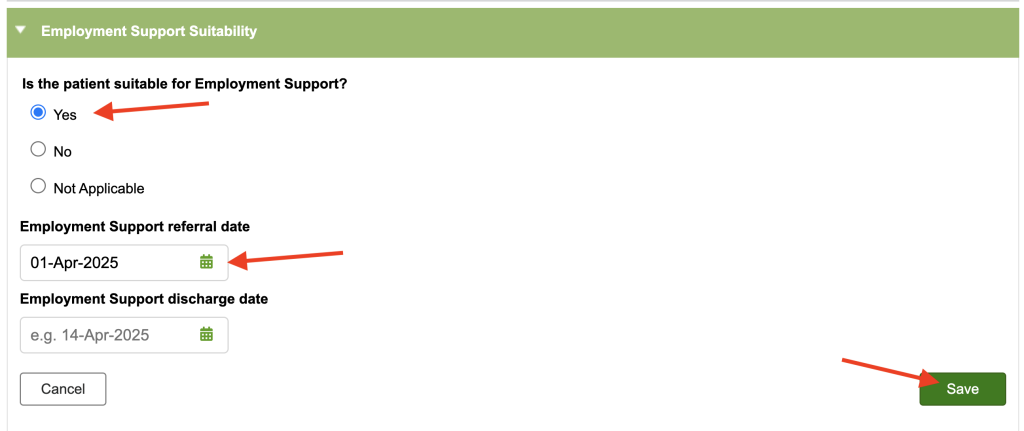
To add the information, click edit and select “Yes” for the question “Is the patient suitable for employment support?” Choose the referral dates from the calendar drop down and click save.
Adding the Employment Appointment
You now need to add the employment appointment through the diary.
As normal, with the patient selected, go into the diary and click on the day you want the appointment. Click on book appointment, select the appropriate availability slot and add the appointment details.
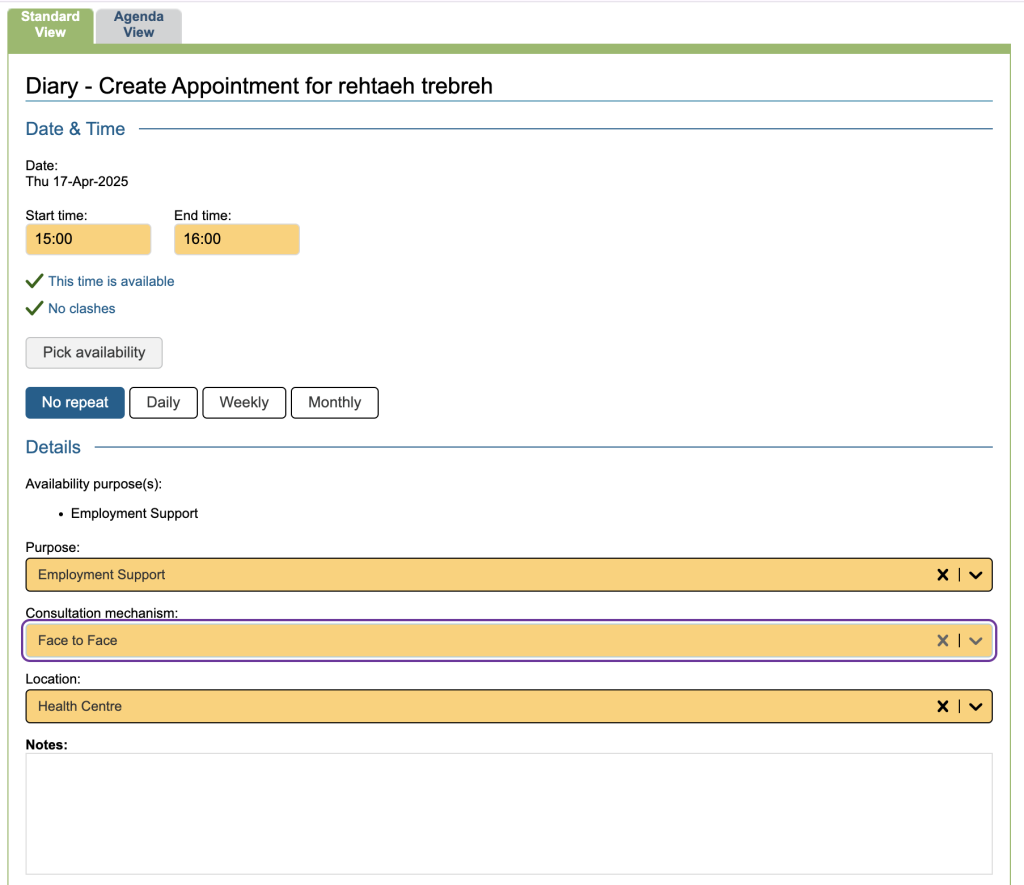
The iPCQ Questionnaire
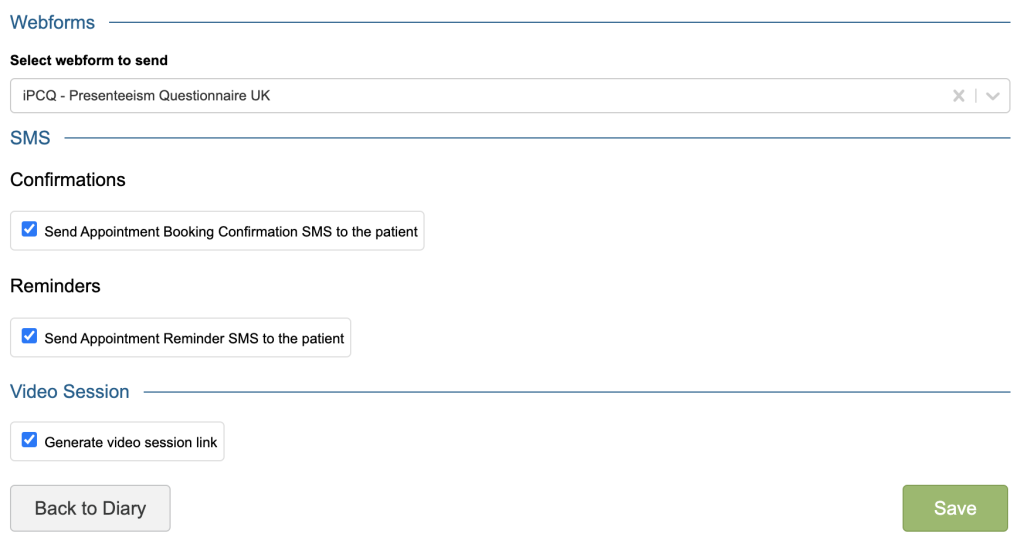
If your service has opted in to use Webforms you will be able to select the IPCQ from the drop down list. This will send the patient a secure link to the questionnaire that can be completed ahead of the appointment.
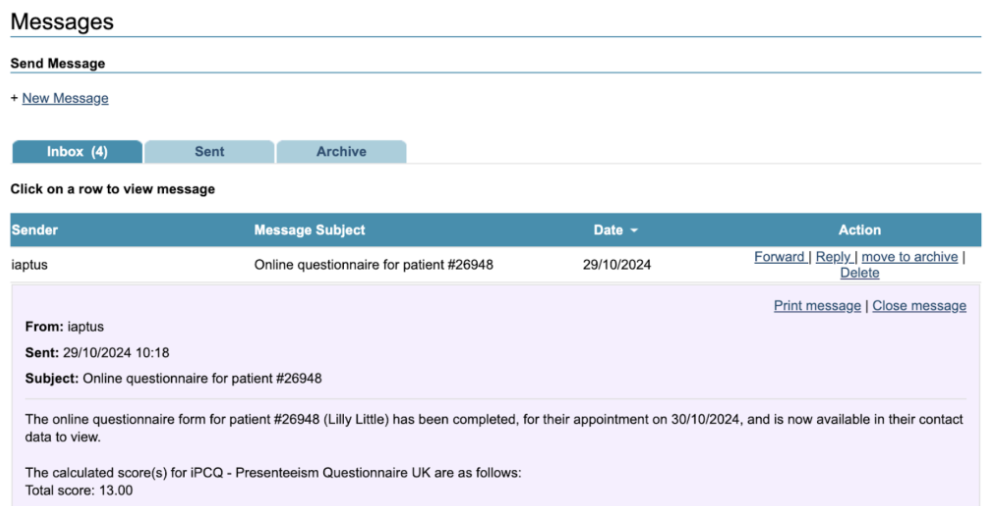
Once the patient has completed the Webform, the allocated therapist will receive a message in the messaging area alerting that the questionnaire has been completed.
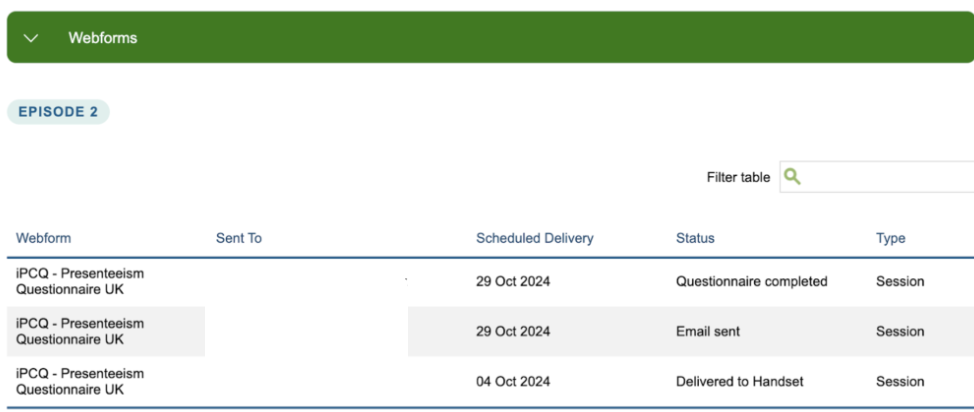
The Webforms section of the “Comms” tab in the patient record will also be updated.
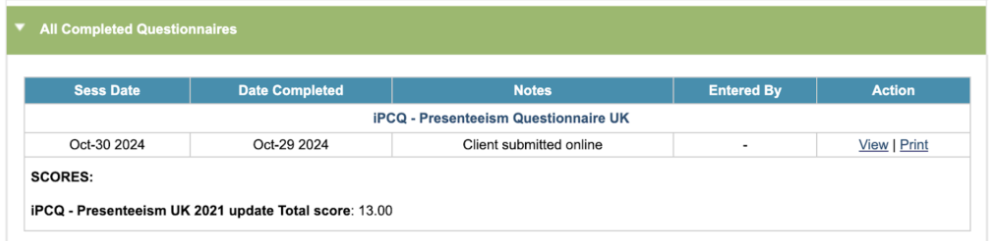
The completed questionnaire can then be viewed under the Clinical Contact tab under the All Completed Questionnaires section.
Recording the EA Appointment
Open the Appointment, either from the Diary or from the Patient’s clinical contact tab.
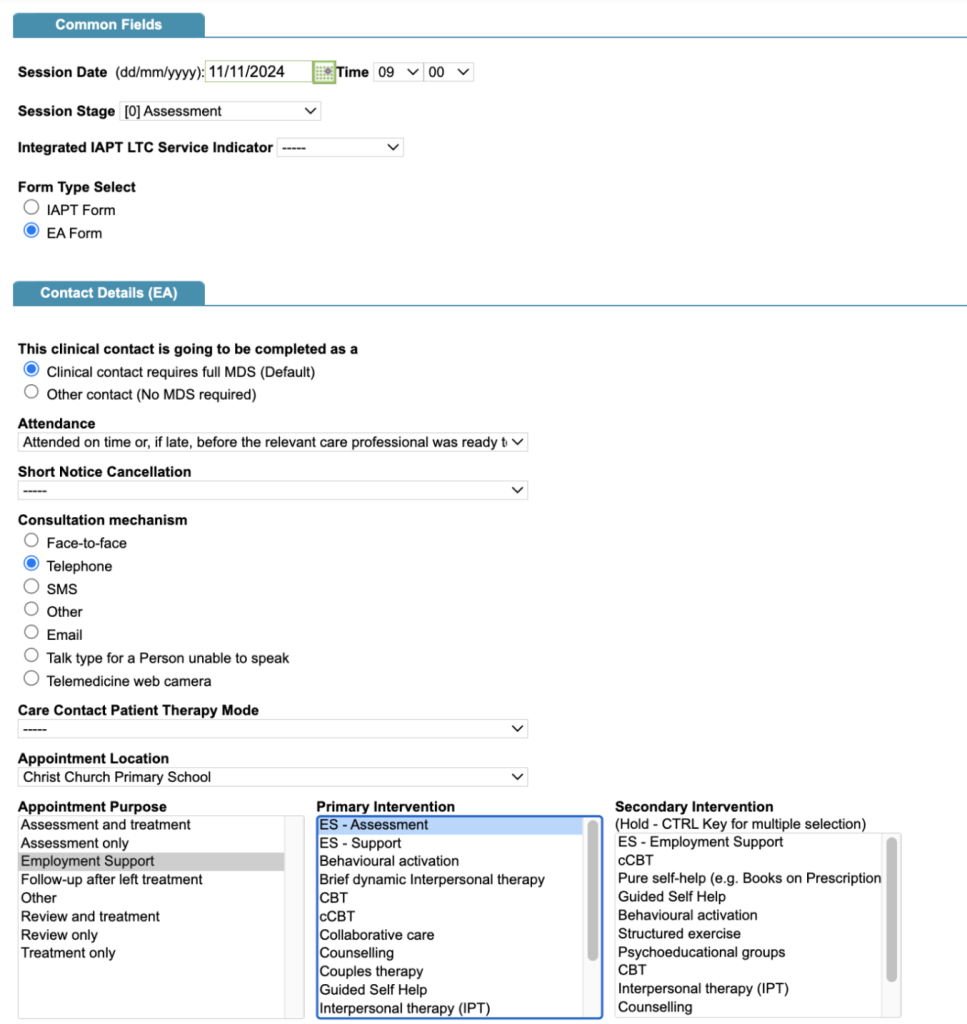
Switch the Form Type to EA Form.
Ensure that the Appointment purpose is Employment Support (Code 10) and the Primary Intervention value selected is pointing to the EA Snomed code (your Superuser will be able to clarify this for you).
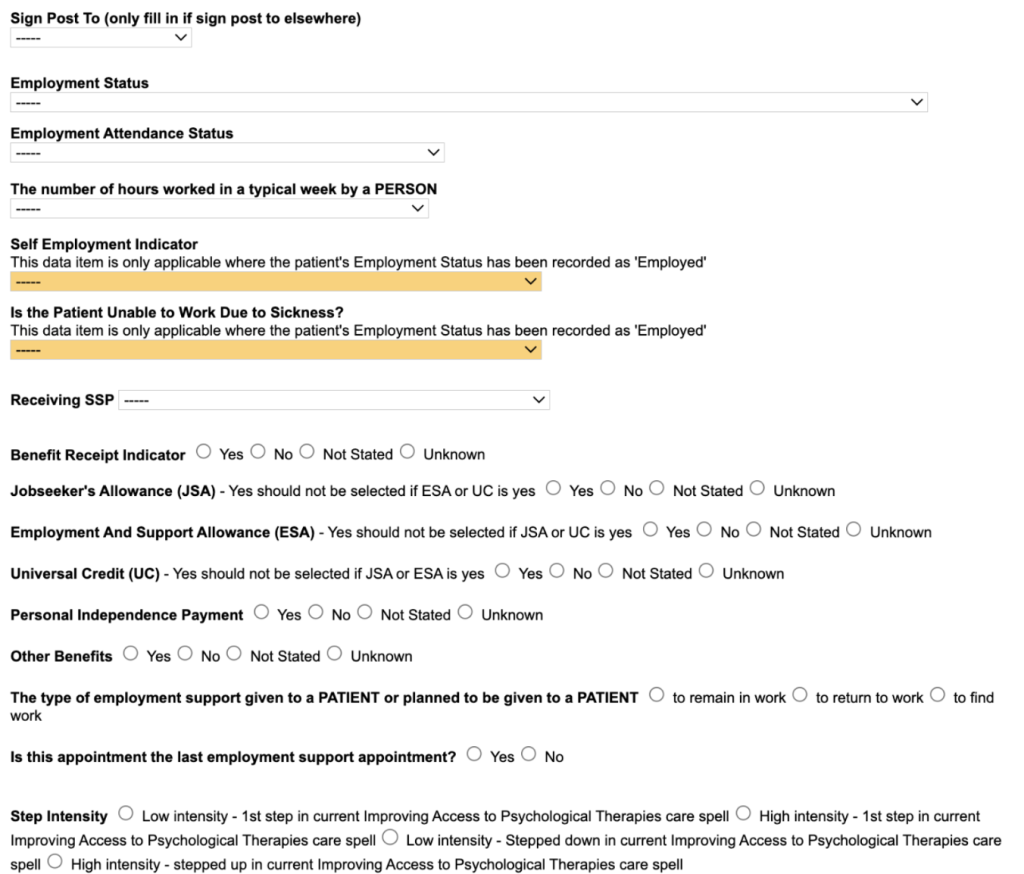
If you don’t have access to all of the above EA fields, or you’d like to make them mandatory or optional to complete, please contact your Account Manager by raising a support log who will be able to assist.
Recording the iPCQ manually
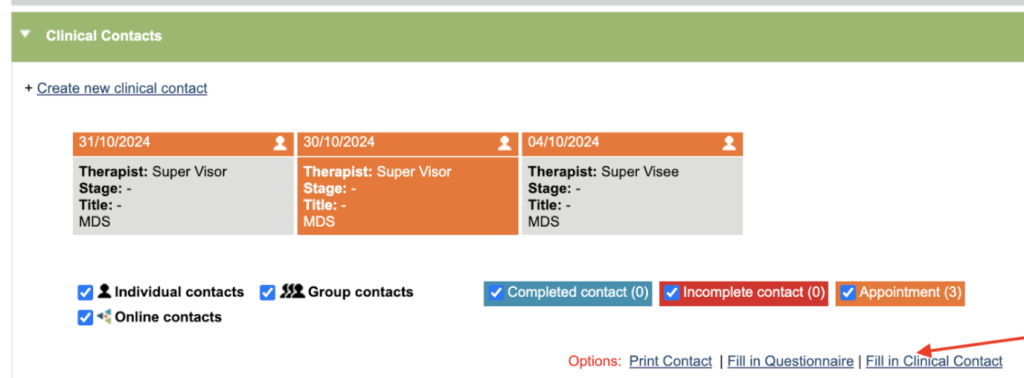
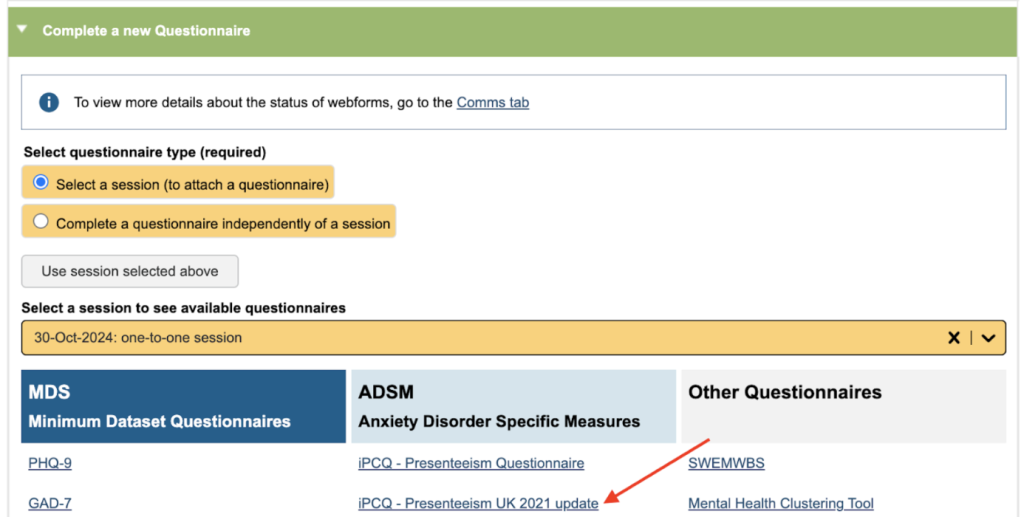
If the iPCQ wasn’t sent online then it can be completed from the Clinical Contact. Select the contact in the Carousel and click on the Fill in Questionnaire link. This will jump you to the bottom of the page, and select the date of the session. Select the iPCQ Presenteeism UK 2021 link to open and complete the questionnaire.
Discharging the EA Referral
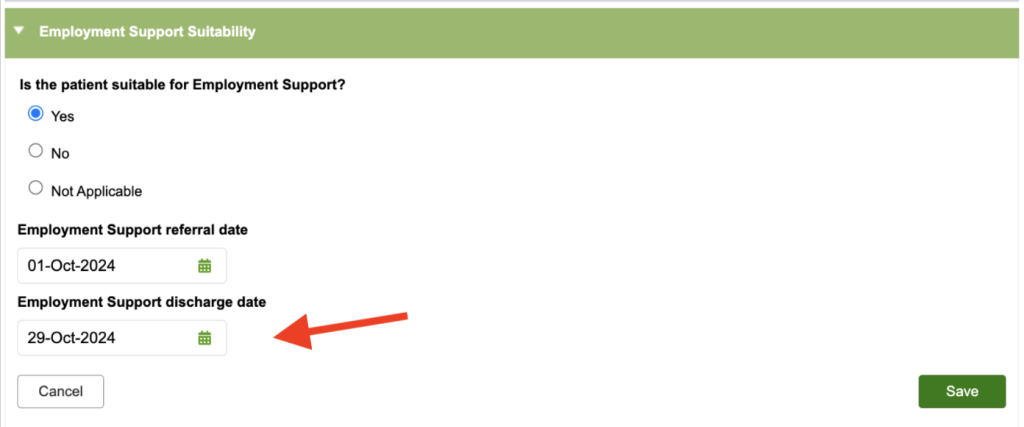
To Discharge/Close the EA referral go to the Employment Support Suitability section found under the Clinical Contacts tab. Edit, and then enter the Employment Support discharge date, shown below. This can be done at any time during or after the patient’s main talking Therapies Treatment episode has been closed. Once the form has been saved all Employment activity is now completed and this will be shown in the reports.
Option Two – Using 2 episodes
The second option is having two separate episodes, IAPT and one for EA, that are then linked together for reporting purposes. NHS England requires Talking Therapies and Employment Support data to be submitted as a single referral/episode.
Considerations for using option two
- Data is captured appropriately for NHS reporting requirements
- Separate care pathway for Employment Advisors
- Employment Advisors can be primary allocated therapist on the EA referral
- Parent Referral must be the Talking Therapies referral and the linked (2nd) referral must be the Employment Support referral. The Submission report will take the Employment Start and End date of the Child referral. So if they are reversed the dates will be wrong.
First add the Talking Therapies patient treatment episode.
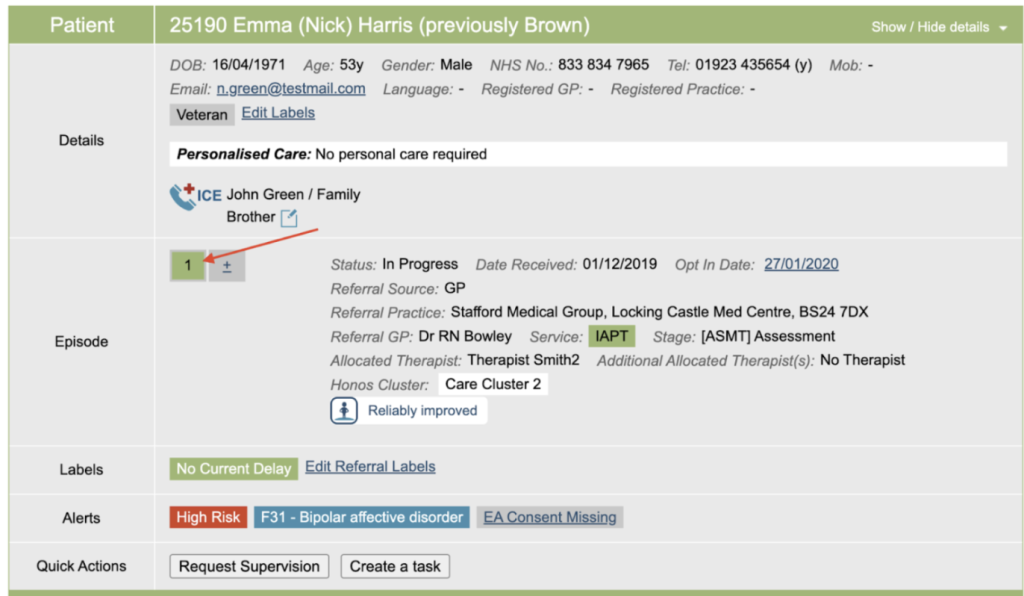
To the IAPT/Talking Therapies referral you need to switch the Employment Support suitability indicator to Yes.
This is found under the Clinical Contacts tab under the section Employment Support Suitability, shown below. Select Yes and Save.
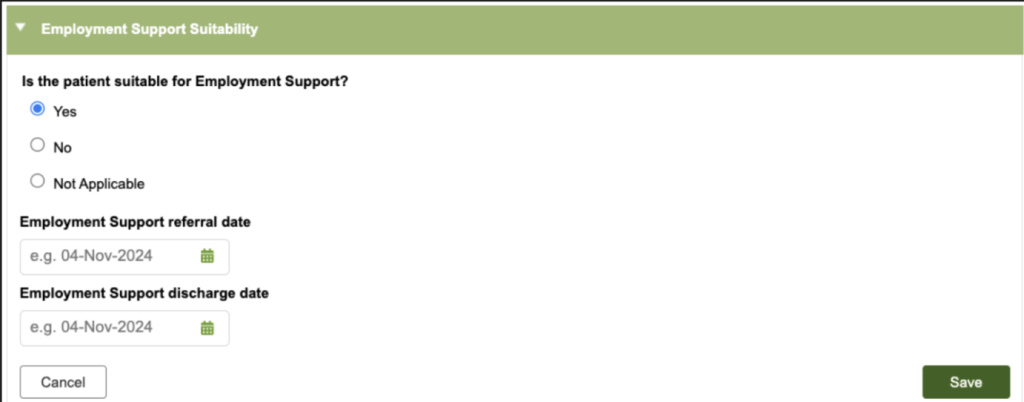
On the boarding card, check which number the TT (IAPT) referral is as you will use this later when linking the episodes together.
From the patient boarding card click on the plus sign to add the additional Employment referral.
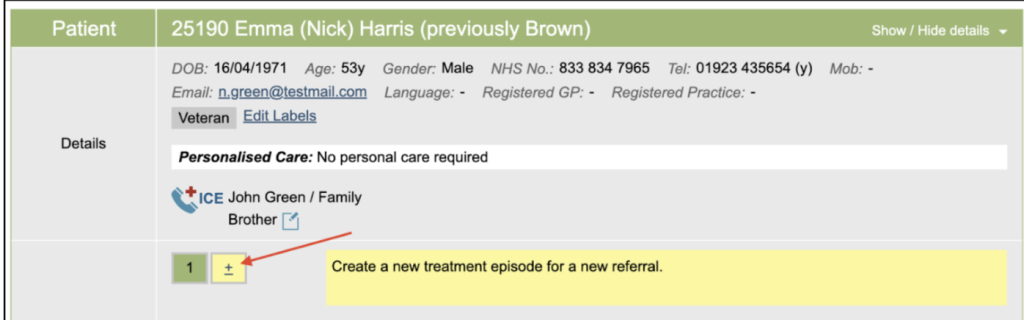
Enter the date received as the date of referral to the Employment service.
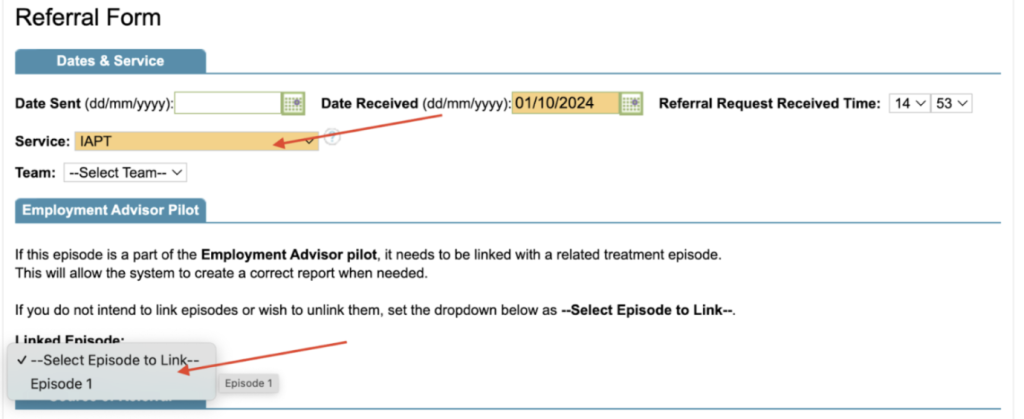
Complete the Service field. Depending on your set up you may be expected to select either IAPT (Talking Therapy) or Employment. Both will give you the Employment field as you proceed through the pathway and sessions.
Next, under the Employment Advisor tab, in the Linked Episode section, select the Talking Therapies referral by selecting the number you noted earlier. This will then link the two episodes of care together in your reporting.
Complete the rest of the referral information and select Save.
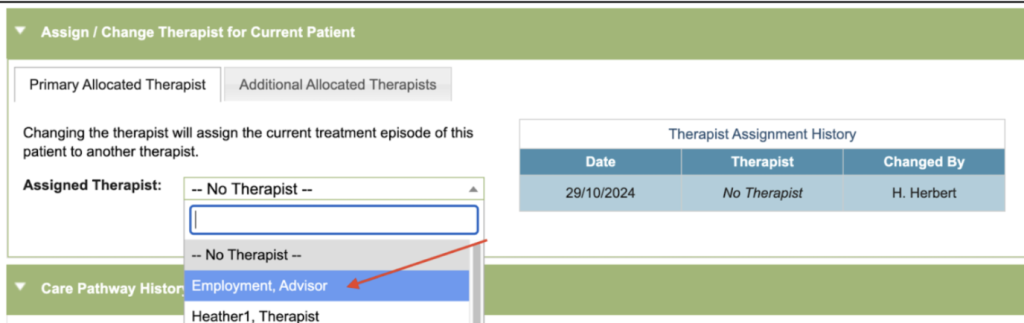
The Employment referral has now been added; you can now allocate the Employment Advisor under the care pathway tab.
Adding a EA Session
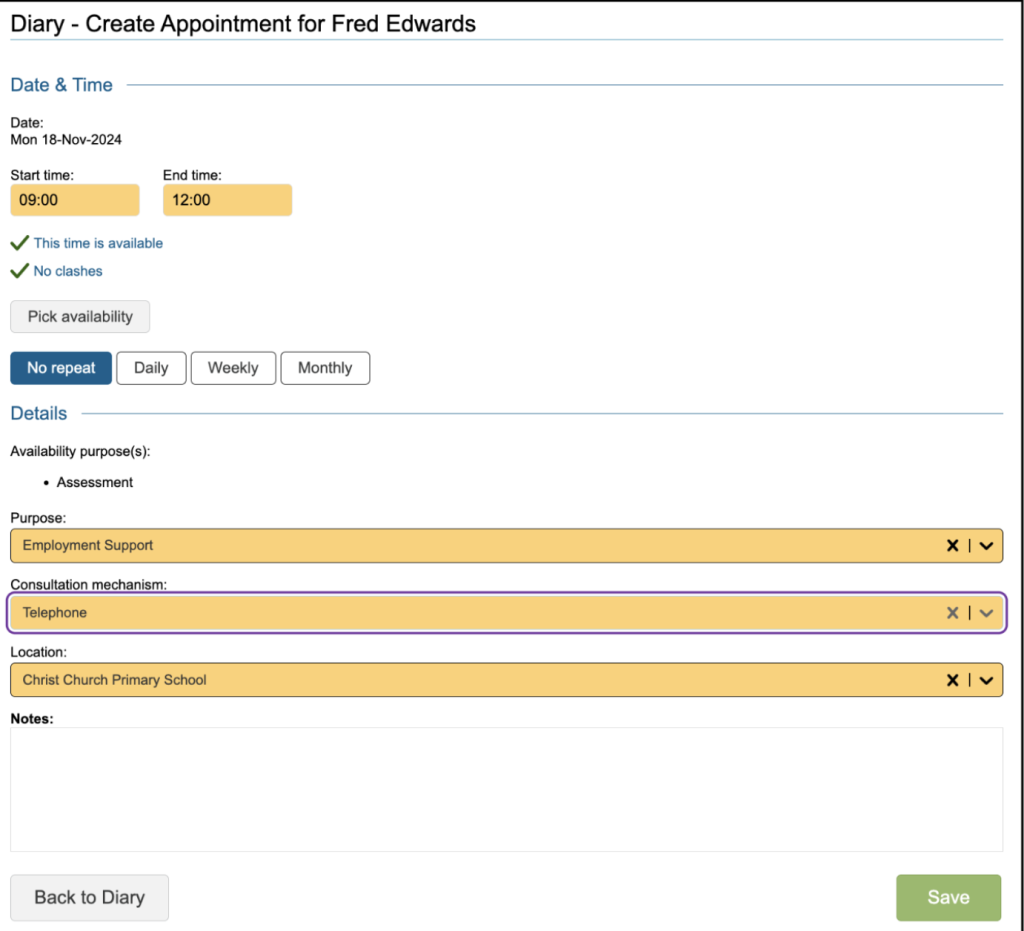
Add the Employment appointment in the diary and save. This appointment has now been created.
iPCQ questionnaire
If your service has opted in to use online questionnaires (webforms) you will be able to select the iPCQ from the drop down. This will send the patient a secure link to the questionnaire that can be completed ahead of the appointment.
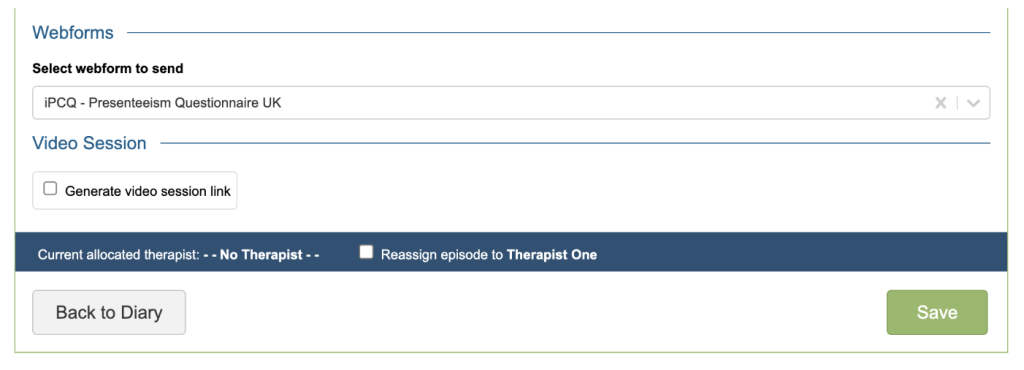
Once the patient has completed the questionnaire the Allocated Employment Advisor will receive a message in the Messaging area alerting that the questionnaire has been completed.
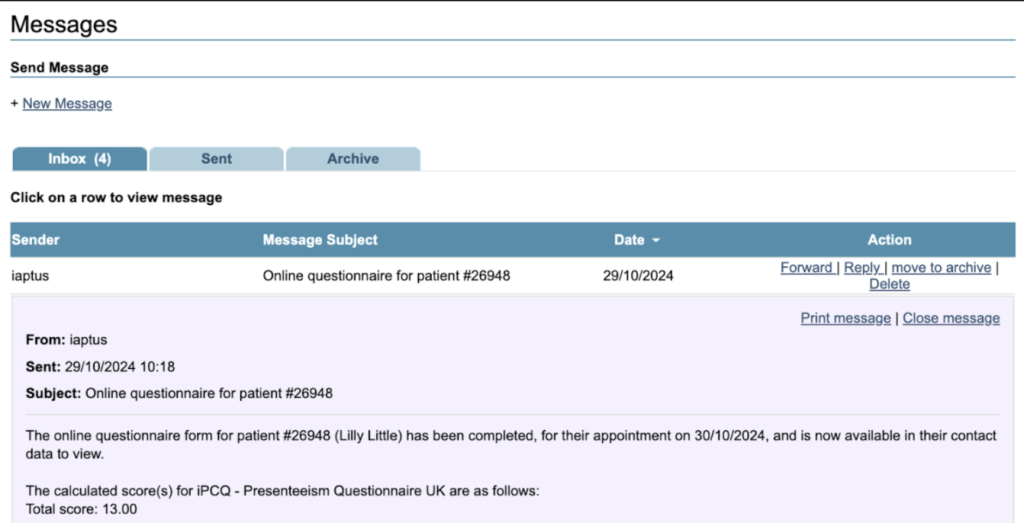
Under the patient Comms tab the Webforms area of the patient record will also be updated.
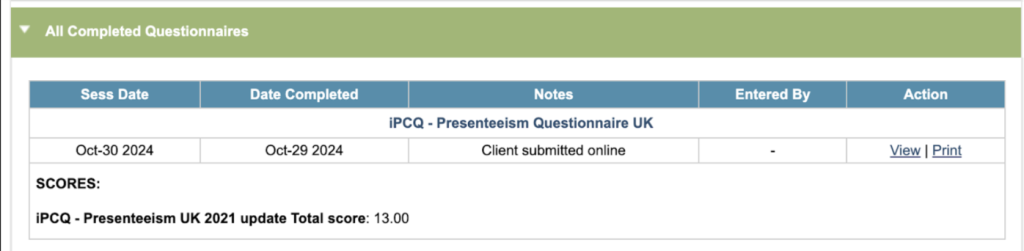
The completed questionnaire can then be viewed under the Clinical Contact tab under the All Completed Questionnaires section.
Recording the EA Appointment
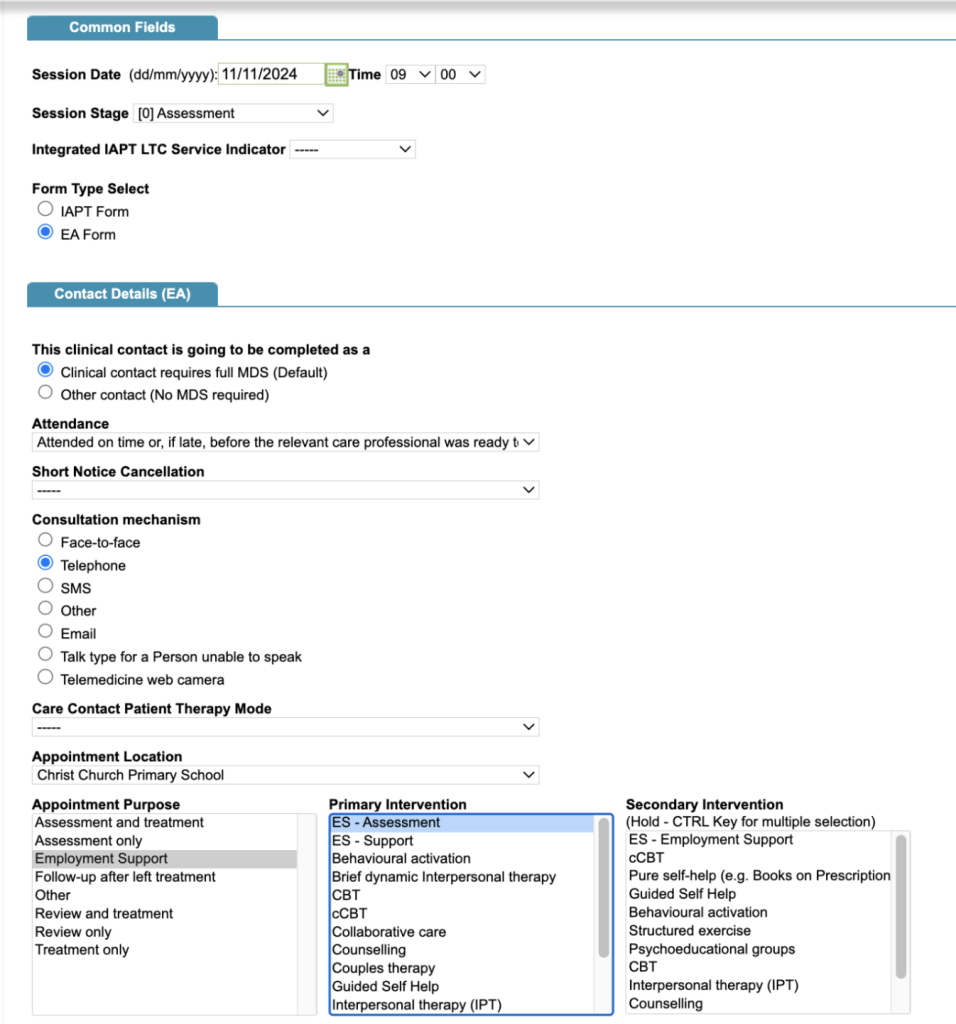
Open the Appointment, either from the Diary or from the Patient’s clinical contact tab.
Switch the Form Type to EA Form.
Ensure that the Appointment purpose is Employment Support (Code 10) and the Primary Intervention value selected is pointing to the EA Snomed code (your Superuser will be able to clarify this for you).
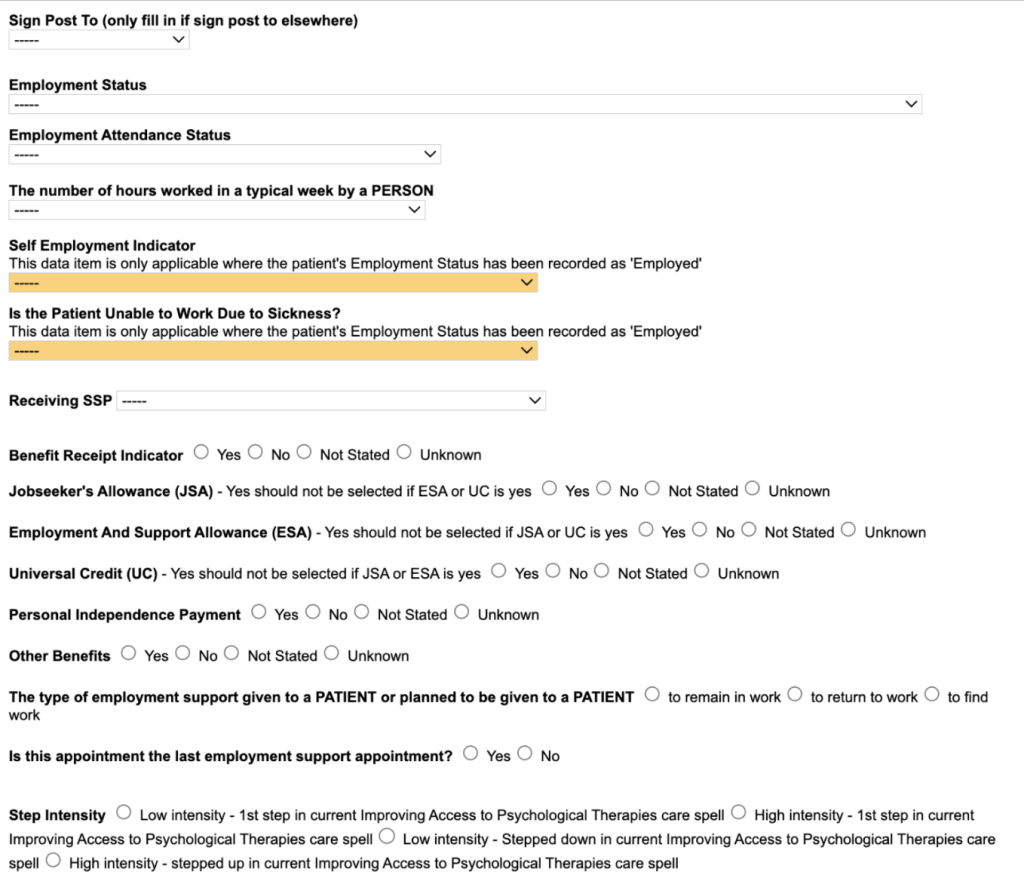
If you don’t have access to all of the above EA fields, or you’d like to make them mandatory or optional to complete, please contact your Account Manager by raising a support log who will be able to assist.
Recording the iPCQ manually
If the iPCQ wasn’t sent online then it can be completed from the Clinical Contact. Select the contact in the Carousel and click on the Fill in Questionnaire link. This will jump you to the bottom of the page, and select the date of the session. Select the iPCQ Presenteeism UK 2021 link to open and complete the questionnaire.
Discharging the EA linked Referral
Once Employment Support has concluded it is time to discharge the patient. You can do this by going to the Care Pathway tab.
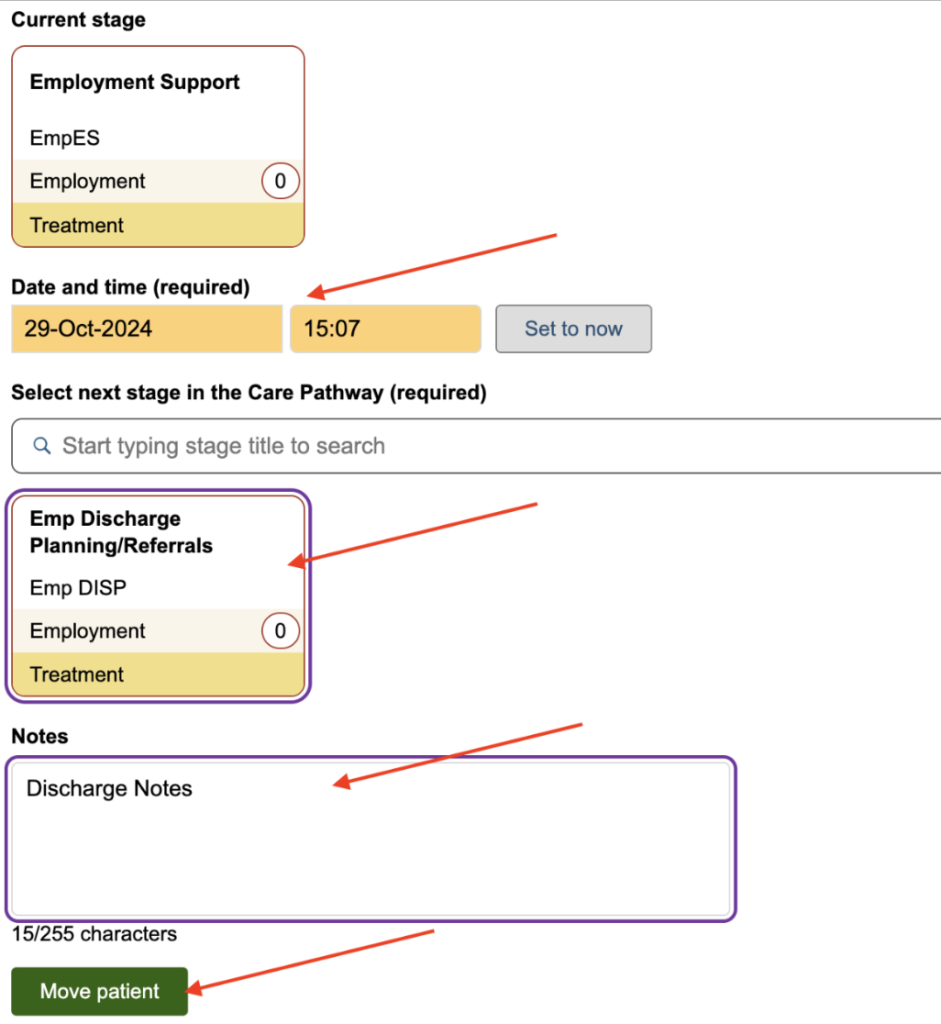
- Go to the Move Patient in Care Pathway section.
- If different from the current day, edit the Date and time (required) field to be the discharge date.
- Select Discharge Planning/Referrals, enter any notes and select Move Patient.
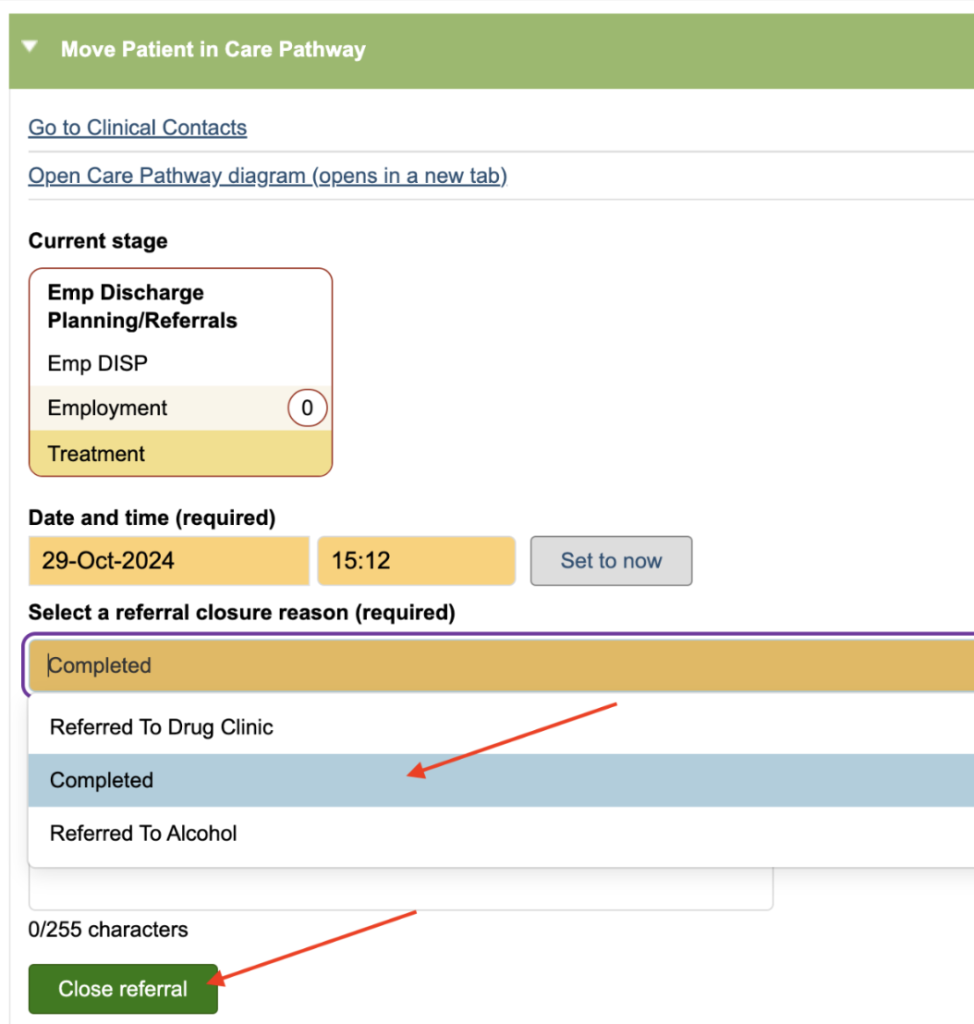
Next click on the Select a referral closure reason drop down and select the reason, add to any notes, and click on Close referral.
You will see that the current stage has turned purple stating it is closed, along reason for the closure.
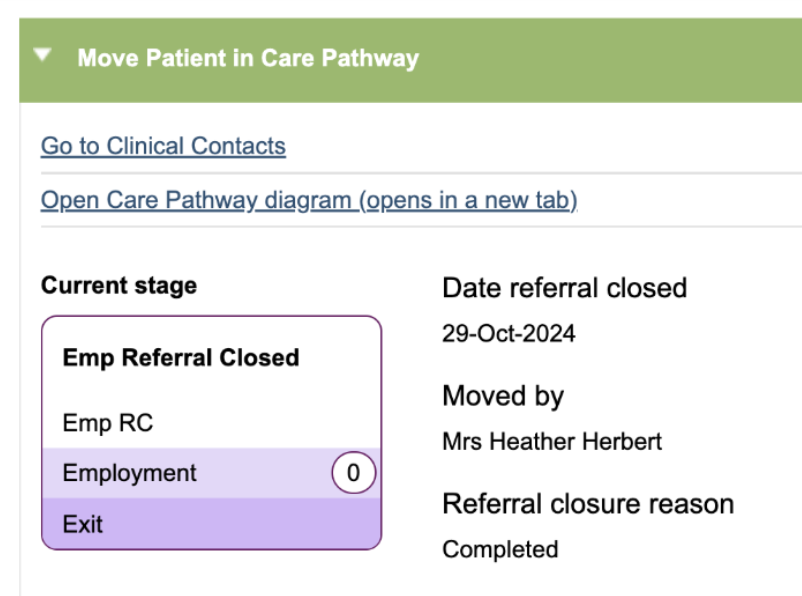
The care pathway history will be updated and the status on the patient’s boarding card will be displaying completed, in red, with the completion date in brackets.

Additional Information
With Option 1, where all Employment activity is included in the main referral, Mayden makes no automatic adjustments to the data for submission.
With Option 2, where there is a separate episode for Talking Therapies activity and Employment activity, Mayden makes a few adjustments to the data for submission.
In the National reports, all data is reallocated to the Talking Therapies referral, ie, the Employment episode ID will be updated with the Talking Therapies episode ID as required by NHS England.
If a Treatment type of ‘Employment’ is used, all intervention mappings are automatically replaced with the correct Employment Support intervention in the reports. So, if you have an Employment contact where an option of CBT and Employment support is chosen, the CBT intervention code will be automatically replaced with the Employment support code.
Referral and Discharge Date Reporting in Option 2
The Employment Support Referral Date and Discharge Date are taken to be the referral and discharge dates for the linked referral used for Employment Support Activity. If the Employment Support Referral Date and Discharge Date has been accidentally populated in the main TT referral using the Employment Support Suitability area, these will not be considered. The TT Referral is the Parent referral and the Employment is the Child and cannot be vice versa.