This tool allows you to merge two patient records when a duplicate patient has been added to the system in error.
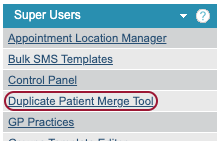
Please note that this tool is only available to Superusers and once a patient record has been merged, this is a permanent action that cannot be undone. Therefore, we advise that you use this area with caution.
If a user creates or updates a patient record with similar details to an existing patient, iaptus will provide a warning. This should help keep the need for this tool to be used to a minimum.

Finding duplicate patient records in iaptus
Duplicate Patient Finder
This part of the tool finds potential duplicate patient records based on matching NHS Number, first name, last name and date of birth or a combination of these options. To check for duplicate patients, tick the items you would like iaptus to check for.
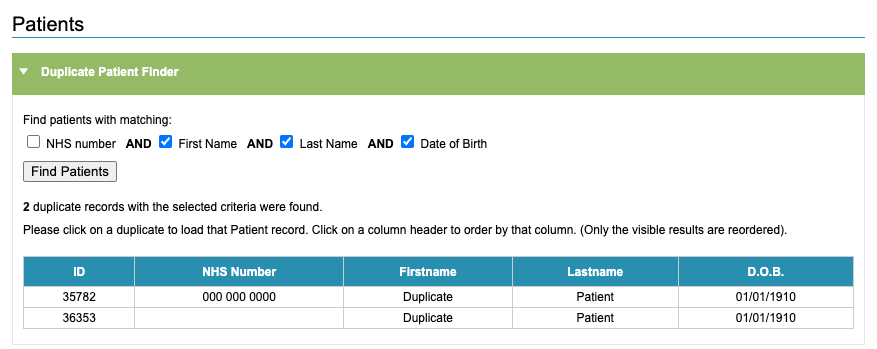
An obvious first choice would be to check for matching NHS Numbers as these should be unique to each individual. However, there may be records that are currently on the system without the NHS number and therefore you may wish to also search by full name and date of birth too.
Once the option(s) have been chosen, details will appear of those patients matching the criteria. Having found duplicate patient records the superuser can choose to merge the details using the Patient Merge Tool.
Merging records together
The iaptus ID number for the record to be kept, should be entered into the first search box. The iaptus ID number for the record to be deleted should then be entered in the second box. Then click on load patients.
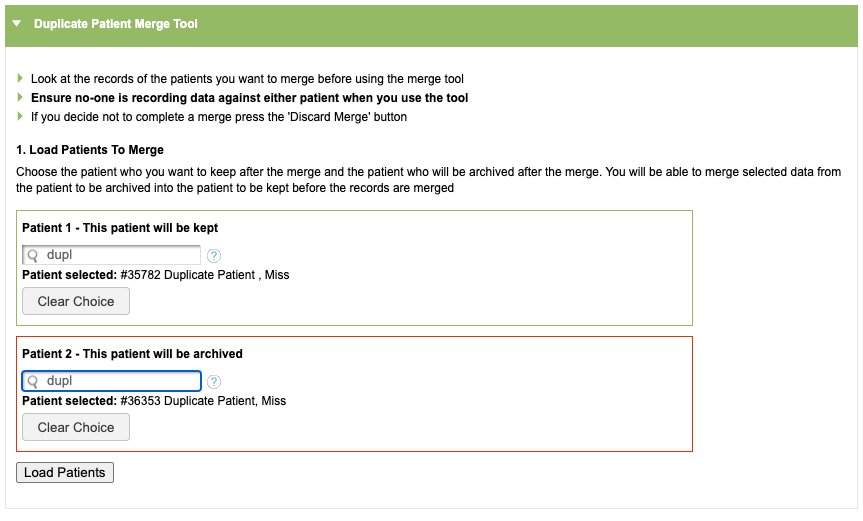
To reiterate, the action of merging patient records is permanent and cannot be undone. Please ensure this is carried out with great attention to detail.
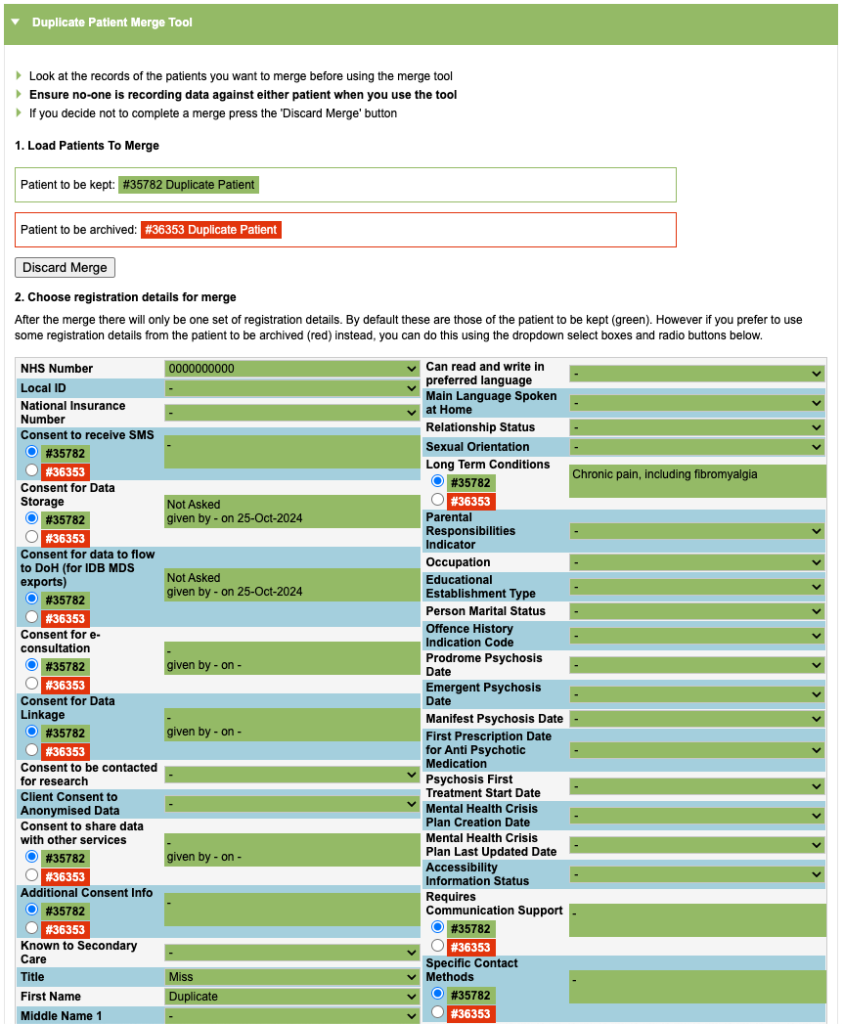
Patient Registration
By default, all fields will appear as green fields, with the information you have selected to keep being pulled through. You can amend this on a field by field basis by selecting the red option if you wish for that specific field’s information to be kept instead. Anything not selected will be deleted.

Merging Referrals/Episodes
Once the correct data has been selected to keep, you must now review the individual episodes from the record to be deleted. The episodes on the record to be kept, shown in green, will stay the same and are listed below for reference only. If you want to delete data from these episodes you can do so using normal Superuser delete options after the merge. You must choose what to do with each of the treatment episodes of the patient to be deleted out of the following two options.
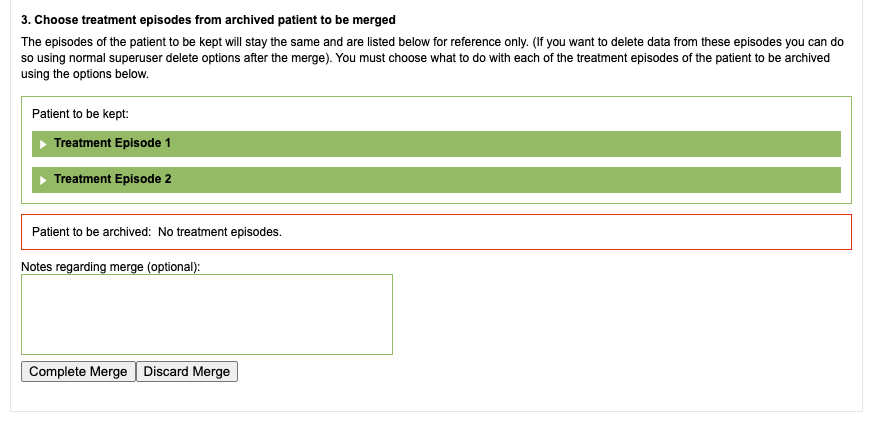
Before choosing to complete the permanent merge of these two patient records, we recommend that notes are kept with as much detail about the merge and the choices made to keep or discard data. You may also wish to include the discarded data items here as a backup.
Once you are ready, click Merge Patients to complete the merge. Once this has been actioned, this cannot be reversed or undone. iaptus will ask you if you are sure that you would like to go ahead. You can discard the merge at anytime by clicking on ‘Discard Merge’. If you do not discard or complete a merge, users may have issues viewing a record whilst the records are still loaded in the Duplicate Patient Merge tool.
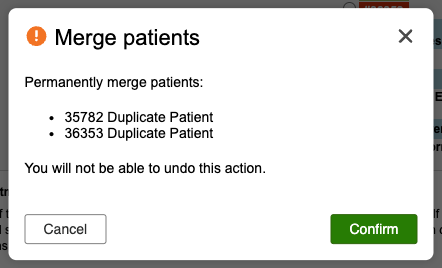
Once the Merge has completed, another alert will show, indicating the merge has been completed.
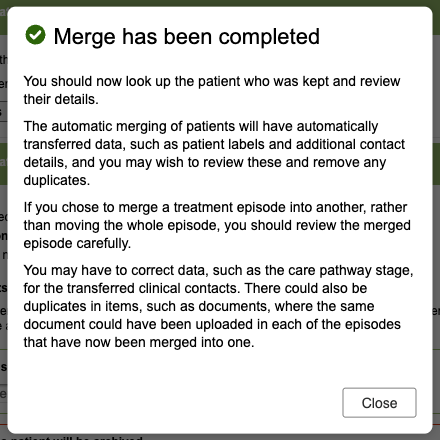
Merge Alert
Now, only this one patient record exists. At the top of the Registration page, there will be a section with details relating to the merge. It will also reference the Patient Merge History Section.

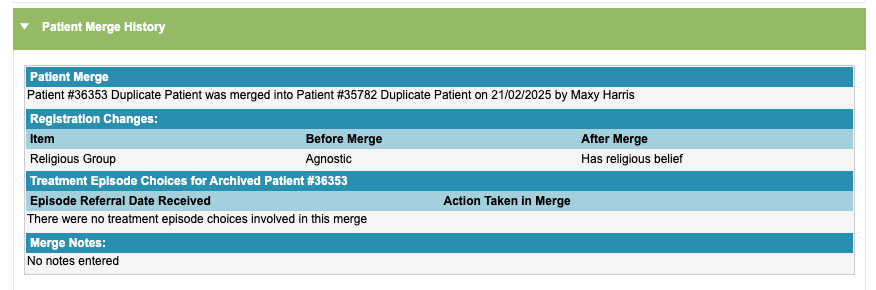
The Patient Merge History section can be found further down on the Patient Registration tab and will provide details of the merge and what changes were made to the registration details of the patient that was kept. Details relating to the treatment episodes will also show along with any notes that were made.