
The Documents Tab allows you to create and print letters for the referral, and allows storage of any additional documents.
Documents
The Documents area allows additional files to be uploaded and saved to the referral.
To add a new file, simply click the ‘Choose file’ button. This will open a window on your device where you can select the file you want to upload.
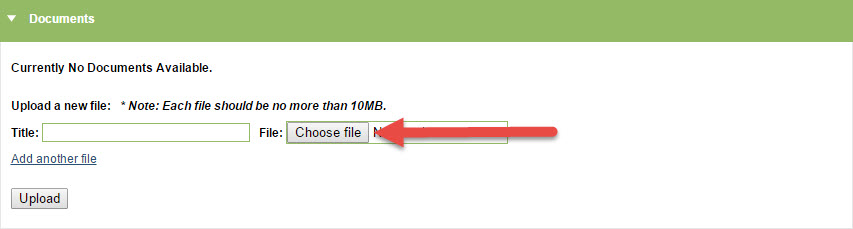
This will allow you to upload a file stored on your computer. There are some restrictions regarding the type of Document you upload and the file type.
You cannot upload videos or emails as a Document and the file size of the Document must not be over 10 megabytes.
It is important that you don’t refresh the page when uploading a Document as you will duplicate the amount of copies uploaded.
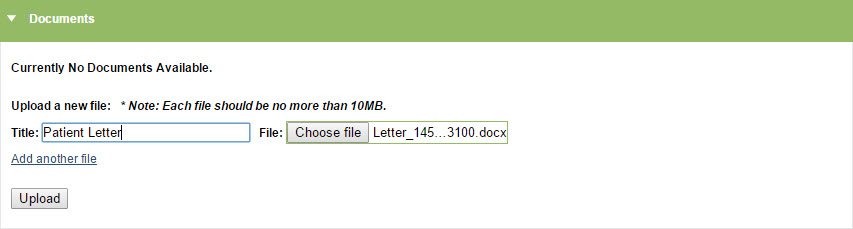
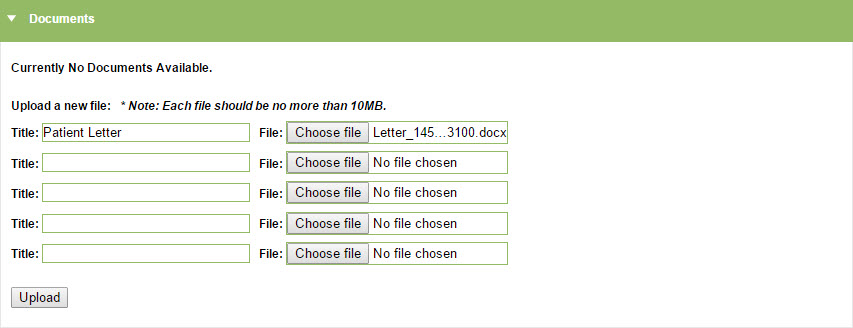
To add multiple files in one upload, click the ‘Add another file’ option. You can add up to 5 files in one upload
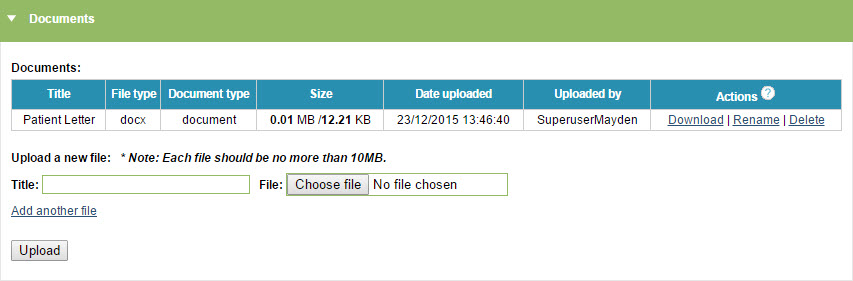
Once a document has been uploaded, this will appear in a table along with further information about the upload. Documents can be downloaded again to view at any time. Users will have the option to delete or rename the document for 48 hours after it has been uploaded – after this period has elapsed only superusers have this function
Letters
Letters for a referral can be created, saved and printed from the Letters area under the Documents tab.
Creating a Letter
Letters can either be created ad-hoc, or designed using templates created by superusers in the Letters area of the superuser menu. The iaptus letter tag system allows information from the patient record to be included in the letter.
To add a new letter, simply start typing in the letter editor area. If you wish to use a pre-created template, you will need to select these from the following drop downs:
Categories – The type of letter being created. Leave this blank to see all options.
Templates – The template for the letter content. The options here will change depending on the category selected.
Apply a Style Template – Creates a header and footer for your letter.

Editing letters uses the new Microsoft style line breaks. For a paragraph break, press Return. For a single new line press ‘Shift’ and ‘Return’ together.
Please use the remove formatting button to remove coloured text from the letters. This will also remove any other formatting including bold, underlined etc.
There are a number of Letter Tags which allow you to autofill information into the Letter from elsewhere in the record. For instance the patient name, future appointment date and outcome measure scores.
Using tags
To pull information from the patient record, the letter tag function can be used. This appears as a green box with the title Insert tags and can be minimised, maximised, or moved to the other side of the letter editor area.
To insert a tag, simply find the field you wish to insert and click on the field name. This will insert the tag at the current cursor location in the letter editor.
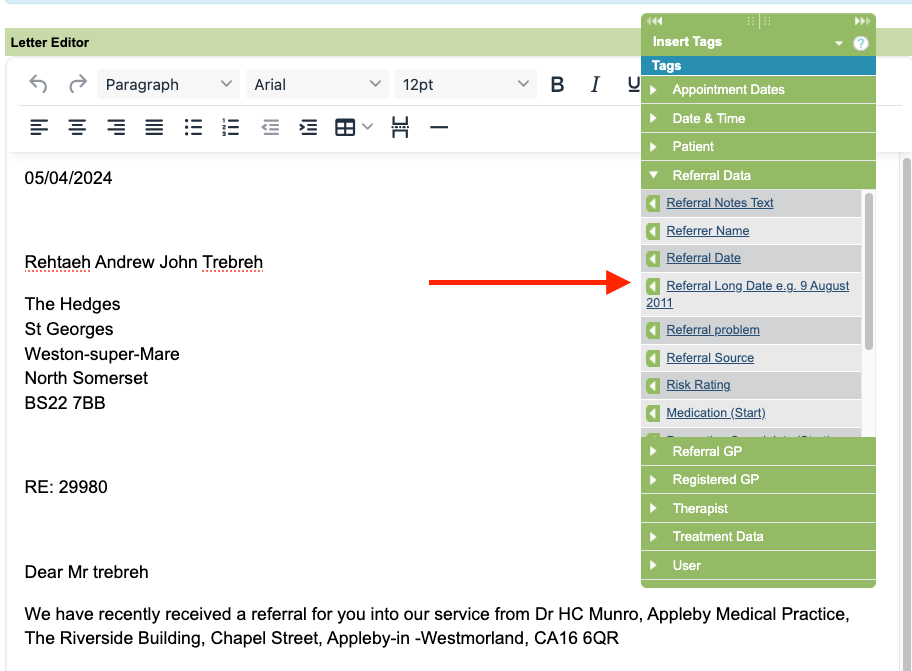
If the information appears in red text, then it has not been found in the patient record (i.e. if you are trying to add next appointment details but no appointments have been booked).
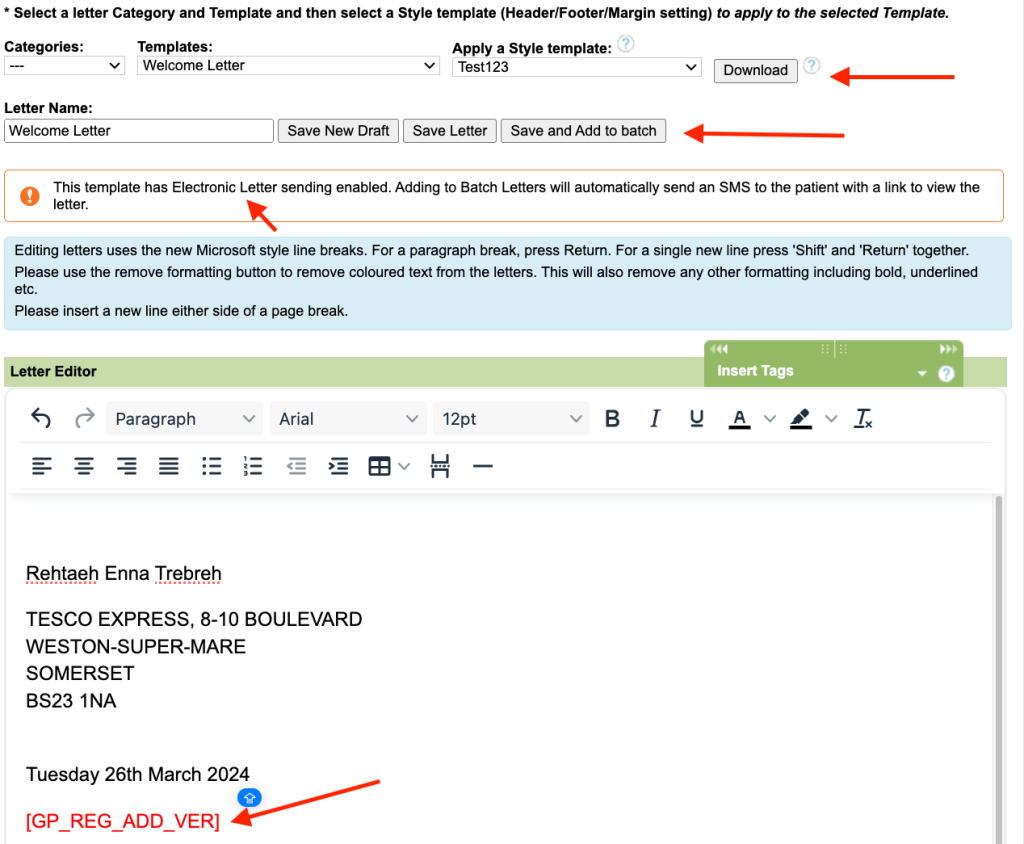
The letter, along with its style template, can be viewed by clicking Download button. This will open the letter as a PDF.
Autosave / Drafts
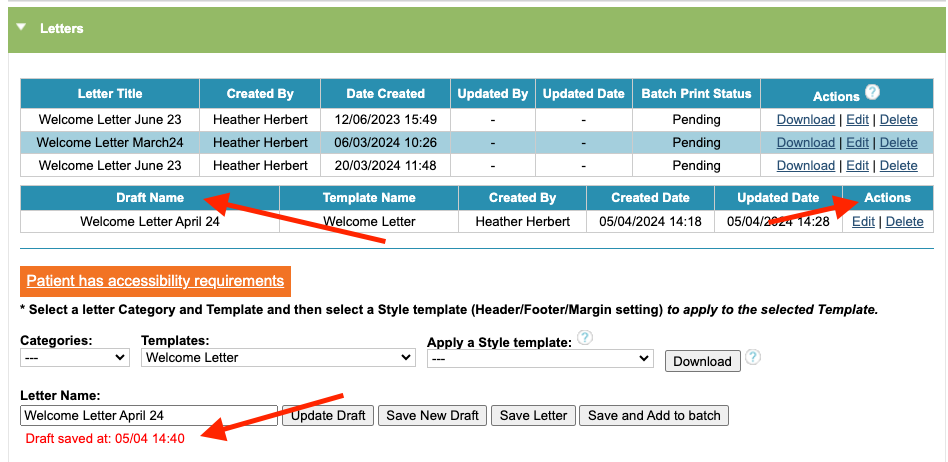
Letters is an area of iaptus that has an autosave function. Your letter will automatically be saved as a draft every 2 minutes. You don’t need to do anything at this stage, as when you save the letter the draft will automatically be deleted. If however, you have inadvertently closed the patient record, when you view the letter you will see the saved draft, you can then use the action options to either Edit or Delete the letter.
Saving the Letter
Once the letter is complete, there are several save options above the letter editor area. These vary depending on the letter currently open:

Electronic sending methods
If the Template has an sending method that is Electronic, an information message/s will be displayed as shown below.
GP Electronic Letter

Patient Electronic Letter

Letter Table
Batch printing allows multiple letters from more than one patient to be printed together, and is often used by administrative staff within a service.
Once the letter has been saved, either as a draft or as complete, it will appear in a new table summarising the letter details.
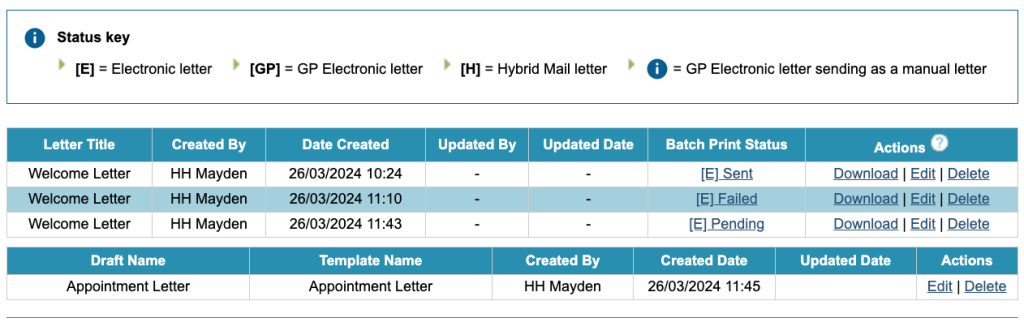
Draft letters can always be edited or deleted by the user who created them. Saved letters can only be edited or deleted by the user within 48 hours of their creation. After this period has elapsed, only Superusers have this ability, though the letters can still be downloaded and viewed after this time. This will open the letter as a PDF, and single letters can then be printed via this method, rather than via the batch printing function.
What to do if the Patient has died
Please note if you have recorded that a patient has died, future letters will not be automatically cancelled. Users will need to cancel these manually.