Instructions on how to start a Bulk Action can be found in the main Bulk Action guide.
Before using Bulk Actions to create letters, you need to set up your letter templates and style templates.
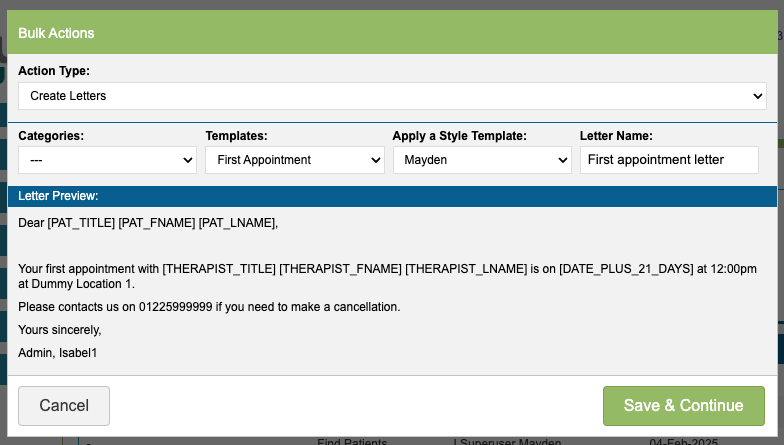
Within Bulk Actions select the letter template and a style template and give the letter a name. You will see a preview of the letter template you have selected.
Click the Save & Continue option to proceed.
iaptus will display which patients are valid or invalid for the action. Valid means they have all the required information recorded to go ahead with the action. Invalid means there is missing information causing the action to be incomplete for this patient. The ‘Show Only Invalid’ option will display any patients with missing information causing the action to not be performed for them. The reason why will sit under the ‘Notes’ column. There is a link to the patient’s record, allowing you to make changes if you wish for the patient to be included in this Bulk Action.
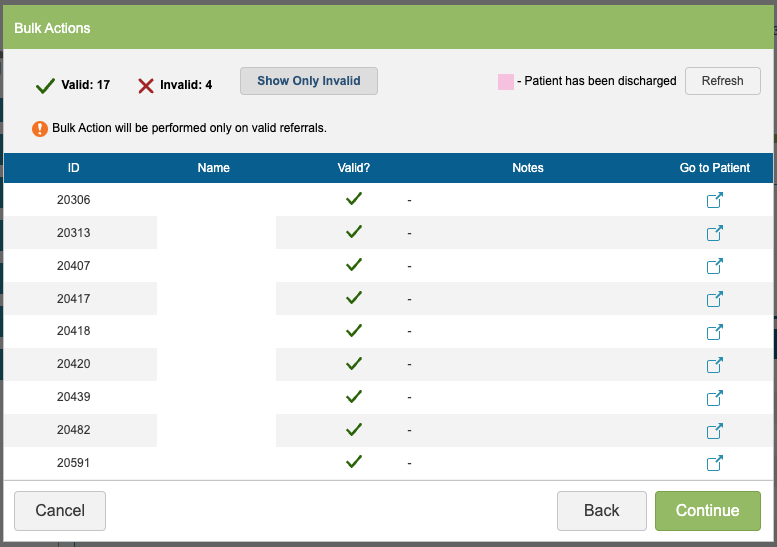
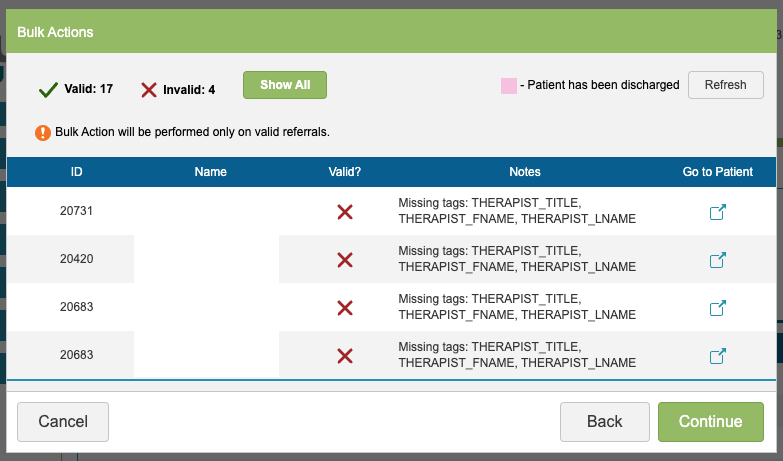
Once you are happy with the patients included in Bulk Action, click ‘Continue’.
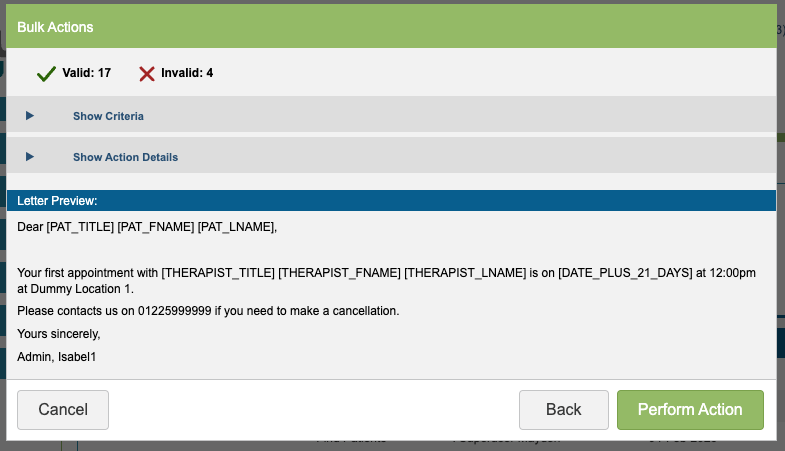
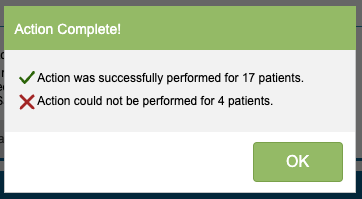
The action window will appear with a summary of what you are about to do. Click ‘Perform Action’ to create the letters. Letters will be saved on the patient record and sent to Batch Letters ready to be printed.