
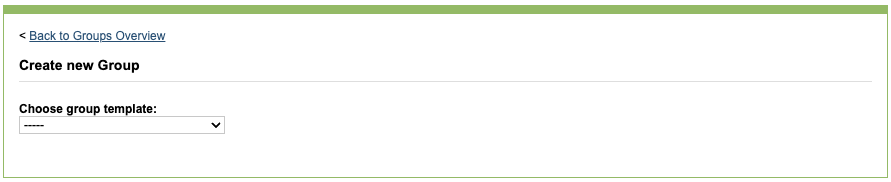
To create a new group, click the ‘Create a new group’ option in the Groups icon.

iaptus will ask you to select a group template; this will help you easily configure the fields for your group. Group templates can be created by a Superuser using the ‘Groups Template Editor’ option.
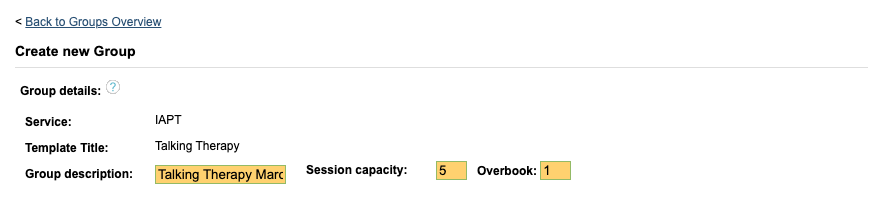
Group details
The service type and template title will be pulled through from the group template and you can update or change the group description. You will need to complete the session capacity and overbook fields. The total number of attendees that can be added and therefore attend the session are the session capacity plus overbook places so be prepared to accommodate this total number.
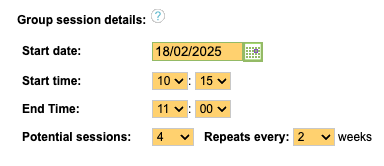
Group session details
The start date will default to today’s date and you will need to complete the start and end time of the group.
Potential sessions is the number of sessions that the group will be created with, You can always reduce this or add more sessions later. The repeat option will determine how often the sessions are, ranging from weekly, to one session every 10 weeks.
Appointment purpose and Intervention will pull through from the group template but these can be changed.
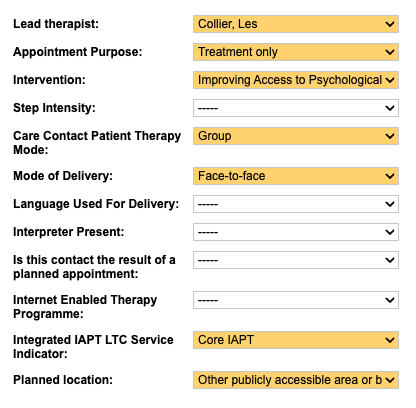
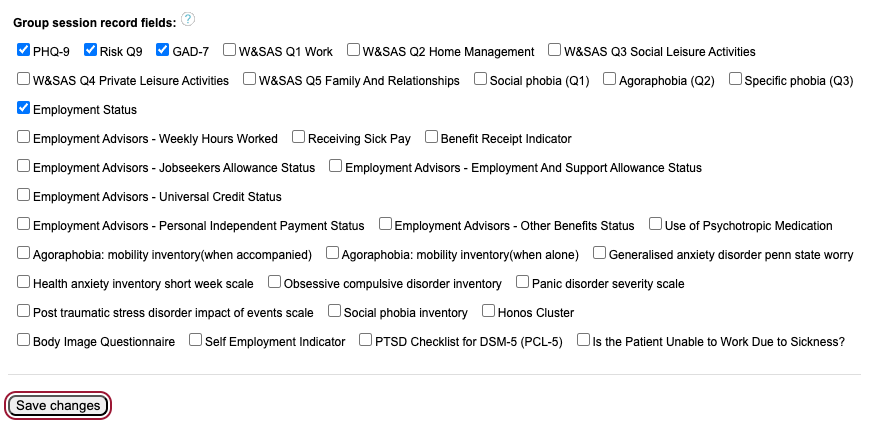
Group session record fields
Below, you will then have the Group session record fields. Here, you are selecting information to record at the group session. Tick the options that apply for your group. Once you are happy and ready to save this group, click Save.
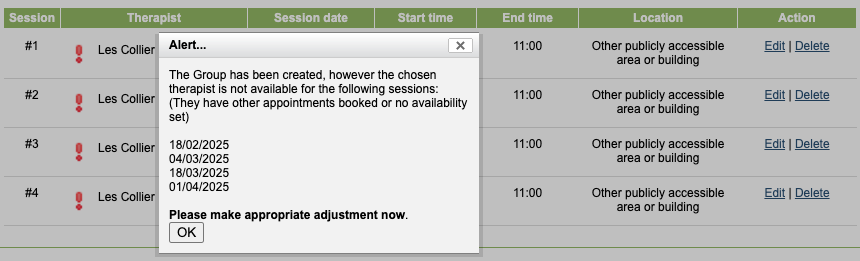
Unlike patient individual appointments, iaptus does not require the therapist to have availability first for the group sessions to be booked into. If the therapist has not made themselves available first, a message will pop up to alert you of this so you can check that the therapist is available to attend this group and they have no other clashing commitments.
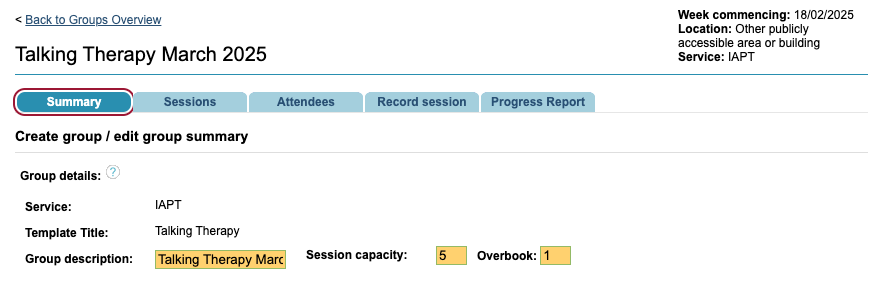
Summary tab
Once you have created the group, if you wish to make any changes to the group details you can do this in the Summary tab. This will take you back to the same form and fields that you selected when creating the group.
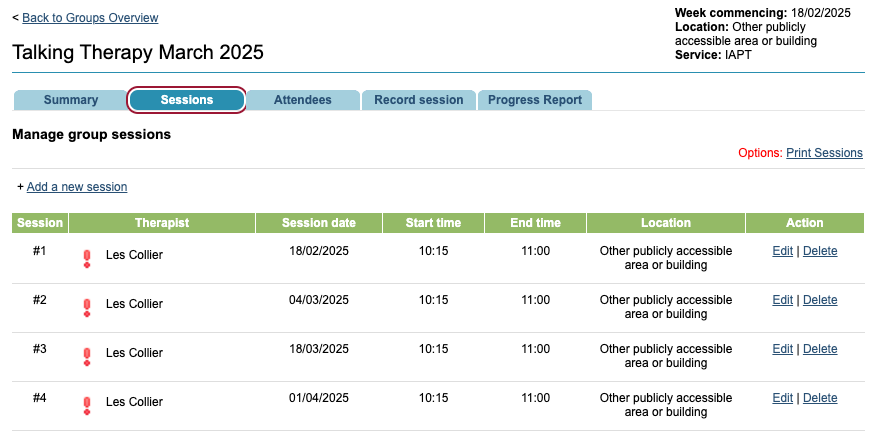
Sessions tab
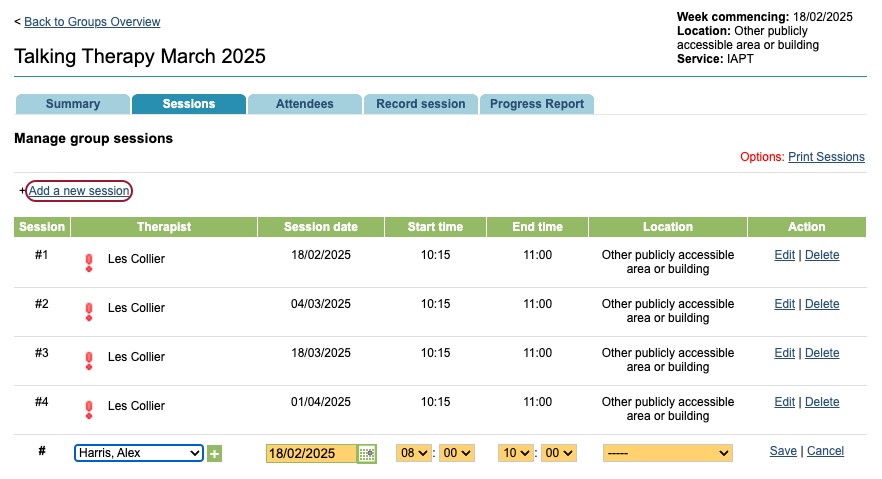
Here you will see the sessions that have been created so far with key information. The red exclamation mark is reminding you that the therapist hasn’t included their availability for this. You can edit or delete a specific session.
You can also add more sessions if you wish. You will need to complete the fields for any additional sessions you add here.
Attendees tab
To ass attendees to the group, click on the Attendees tab and you will see the Find Referrals search box.
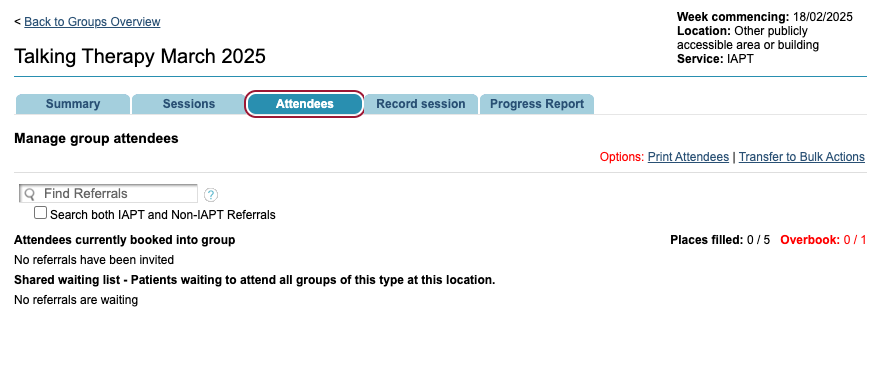
The ‘Search both IAPT and Non-IAPT Referrals’ option will find referrals that belong to both treatment types so they can both attend the same group. There is an option in the Control Panel for Superusers to enable or disable this option.
Type in the search box the name of the person you wish to add to the group and select their name. You can then either add them directly to the group or add them to a waiting list.
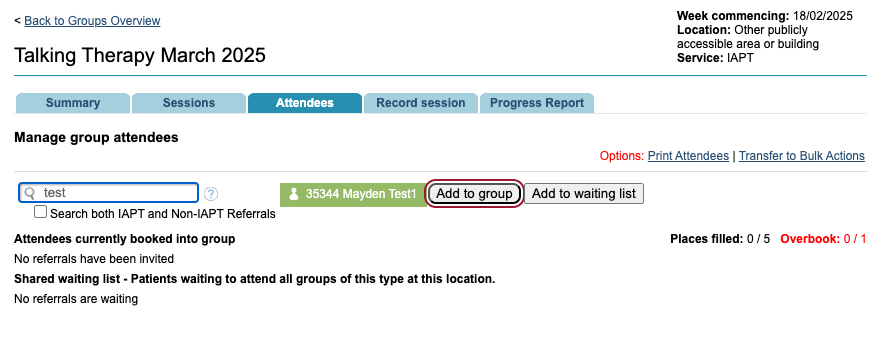
When the places are all filled, it will then be indicated that anyone else joining will be in the overbook spaces so you know when you have reached the group’s capacity. If you try to add more people to the group after this, they can only be added to the waiting list.

If an attendee is moved from the group, the person at the top of the waiting list will automatically be added into the group. You will also be able to see any shared waiting lists which are groups that are the same group template type and location so you can move patients into the next upcoming groups.
You can print the attendee list for the group or transfer this list of attendees to Bulk Actions.