
The Control Panel allows superusers to change how different features act within iaptus.
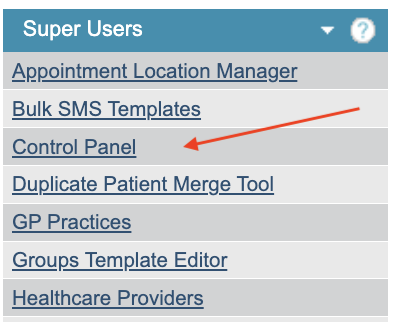
It is split down into sections that represents different areas of the system.
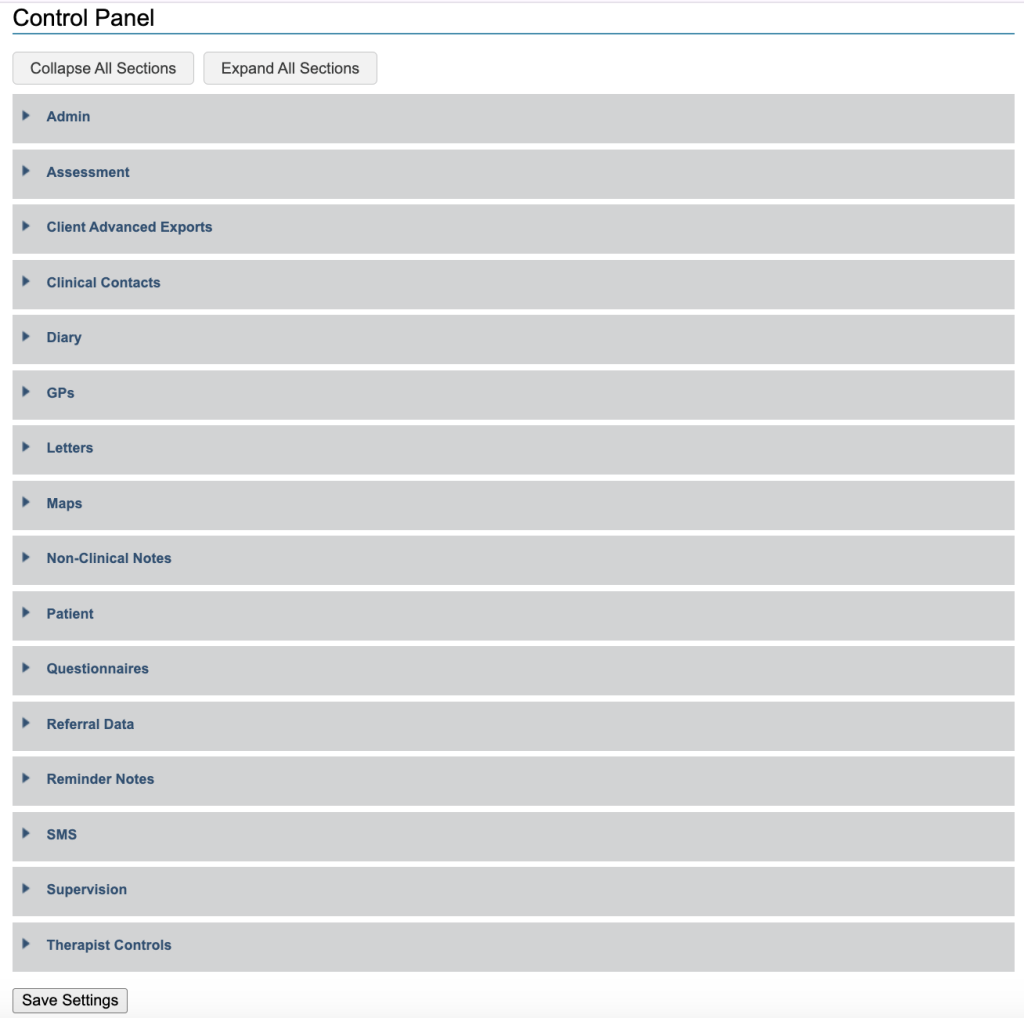
Admin
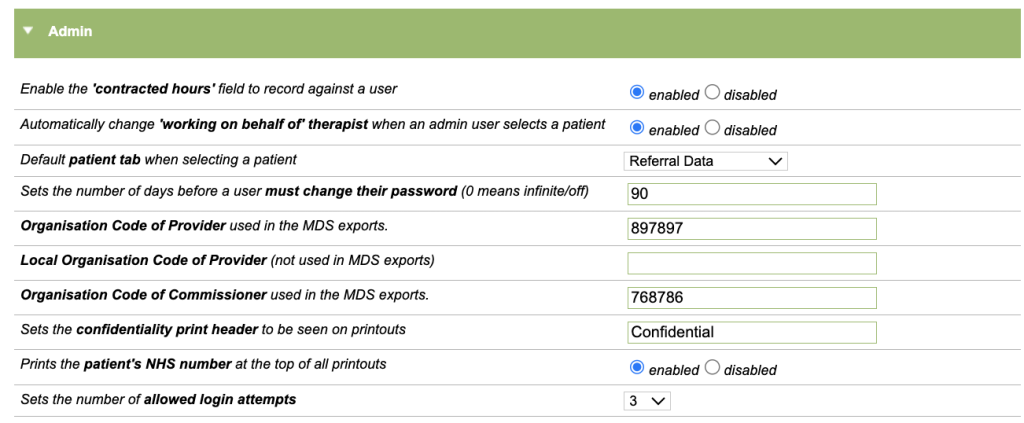
The Admin section includes specific options for admin settings.
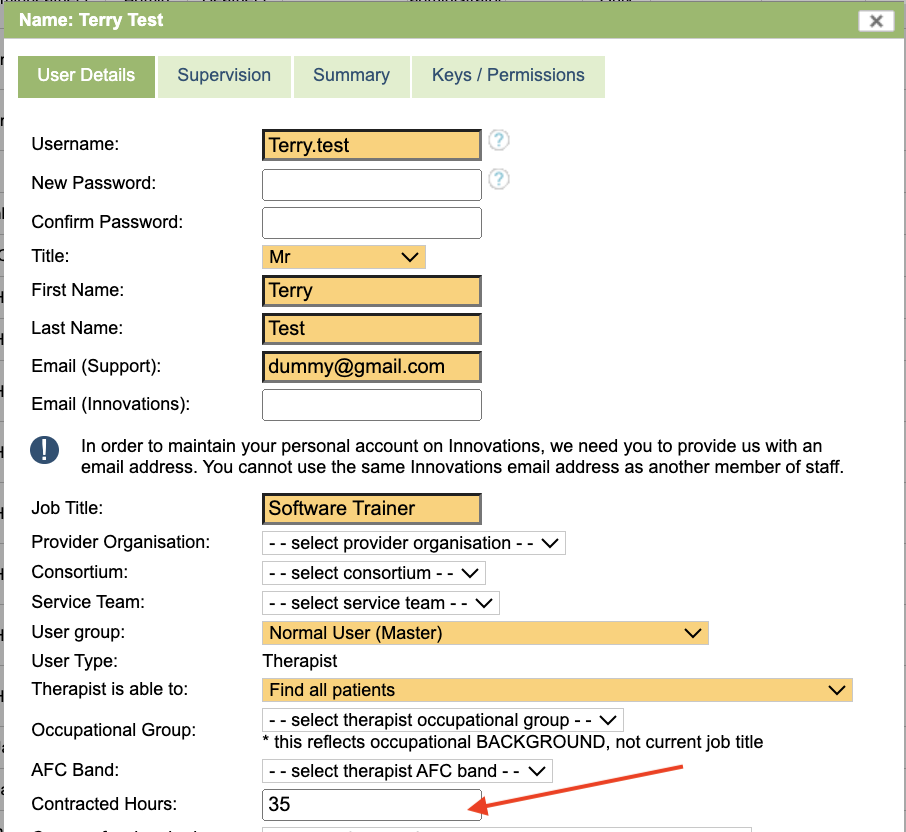
Contracted Hours
When enabled, an additional field Contracted Hours field shows against a Therapist user to record contracted hours. Contracted hours is used in the dashboard area of iaptus.
‘working on behalf of’ therapist
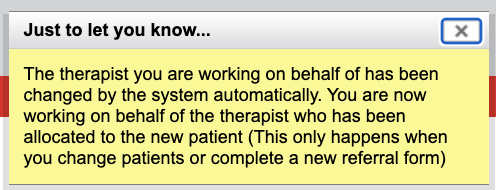
When enabled, each time an admin user selects a patient, they will not have to then select the new therapist to work on behalf of because iaptus will do this automatically and this message will be displayed to inform you.
Default patient tab when selecting a patient
Here you can select which tab is selected first when displaying a patient record.

Change Password
Sets the number of days before a user must change their password (0 means infinite/off) – If left blank, users will never be required to change their password.
Organisation Code of Provider
This is used in the MDS exports. If the service is submitting data for National Reporting, this field must be completed to ensure it is captured for the reports submission process.
Local Organisation Code of Provider
This relates to an additional feature, your Account Manager will set this up, if necessary.
Organisation Code of Commissioner
This relates to provider and commissioner extracts.
Providers and commissioners of IAPT services can retrieve processed monthly extracts covering their own services and the patients they are responsible for. These extracts are available after the monthly data submissions on the Strategic Data Collection Service in the Cloud (SDCS Cloud), have been processed. Provider extracts contain data for their own services and patients.
Commissioner extracts will be filtered by Organisation Identifier (Code of Commissioner) and commissioners can only receive records where their NHS organisation code matches that supplied by the provider for the patient. The structure, format and content of this extract are similar to the provider’s final extract, but the extract does not include patient identifiable data items.
Confidentiality print header
Sets the confidentiality header to be seen on printouts.
NHS number
Prints the patients NHS number at the top of all printouts
Allowed login attempts
Sets the number of allowed login attempts. If a user fails the number of allowed login attempts, a superuser will need to reset the password for the user account.
Assessment
If a service has a bespoke tab within the Assessment section, this option will allow the main Summary tab within this section to be disabled.

Client Advanced Exports
Allows you to set the Number of months until a new CAE Access Key expires.

Clinical Contacts
The Clinical Contacts section includes specific options for the clinical contact settings.
Maximum Value
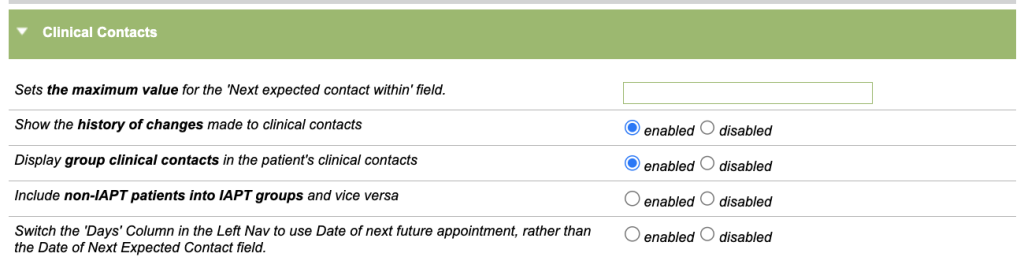
Sets the maximum value for the Next expected contact within field. When creating/updating a clinical contact there is the option to record when the clinician expects to next see the patient. The service can define the maximum numeric value for the Next expected contact within field. (The time field has the values of Days, Weeks or Months).
Show the history of changes made to clinical contacts
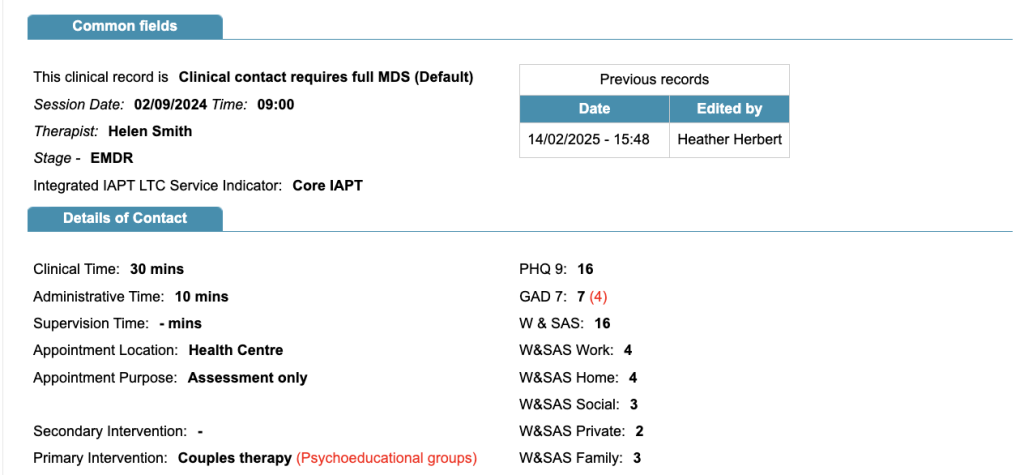
This option will enable a small table (see below) within a clinical contact. The table will indicate if the contact has been edited and by who. When a row is selected within the table, the previous value for a changed field, will appear in red, in brackets.
Display group clinical contacts in the patient’s clinical contacts
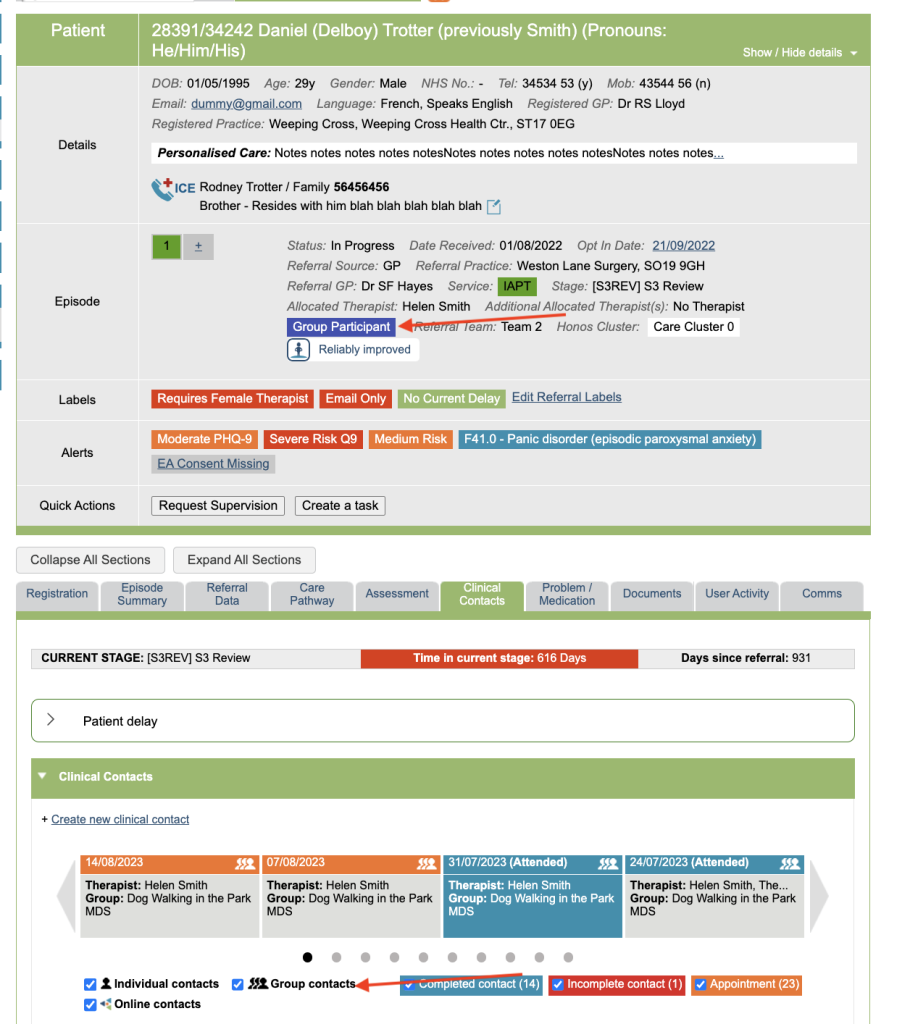
This adds the Group filter under the carousel of appointments. It also switches on the Group Participant flag on the patients boarding card.
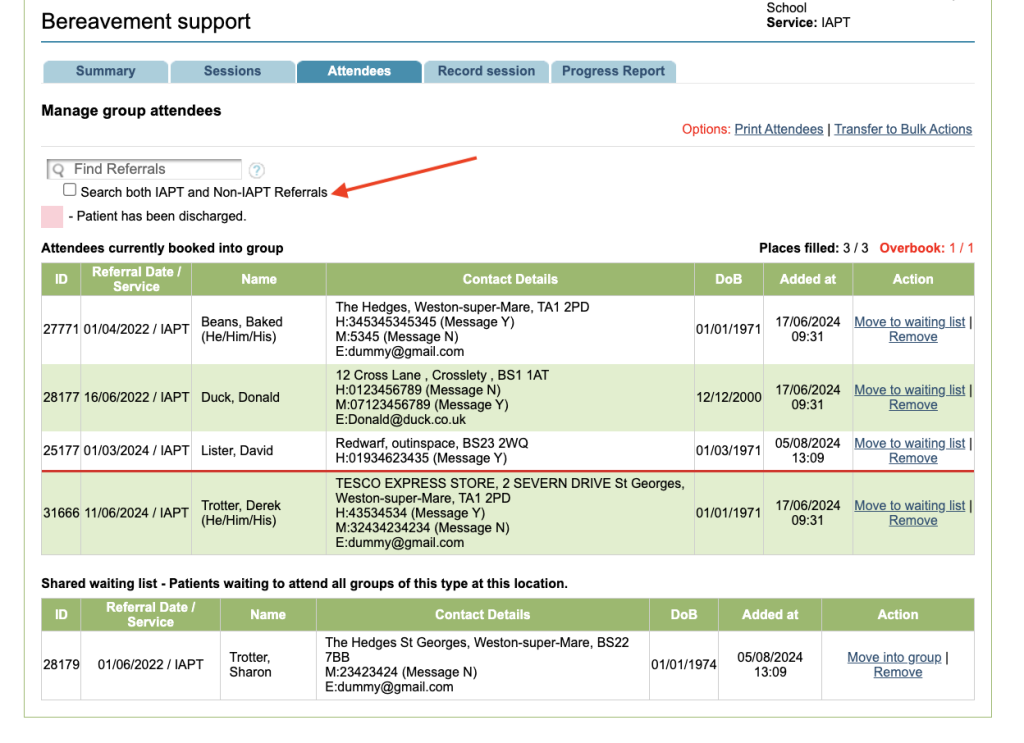
Include non-IAPT patients into IAPT groups and vice versa
Typically when a group is set up as IAPT, only IAPT referrals can be added to the group. Enabling this option means you will also find non-IAPT referrals when searching for participants to add to the group.
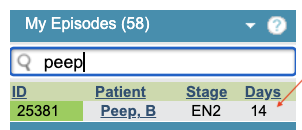
Switch the ‘Days’ Column in the Left Nav to use Date of next future appointment, rather than the Date of Next Expected Contact field
By default the Days column within My Episodes, is calculated using the Next Expected Contact Date field within Clinical Contacts. Enabling this option switches the Days column to use appointments book via the Diary.
Diary
The Diary section includes specific options for the diary settings.
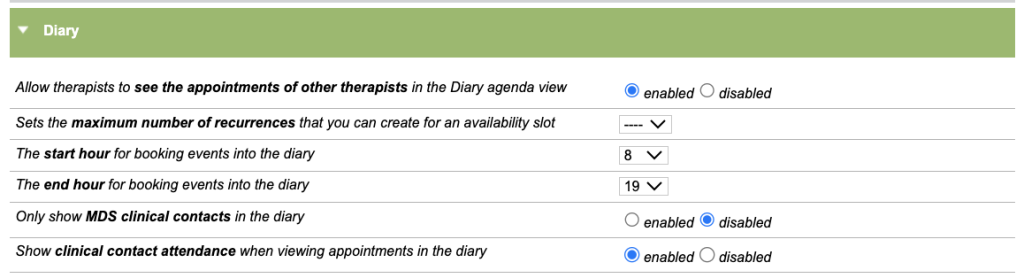
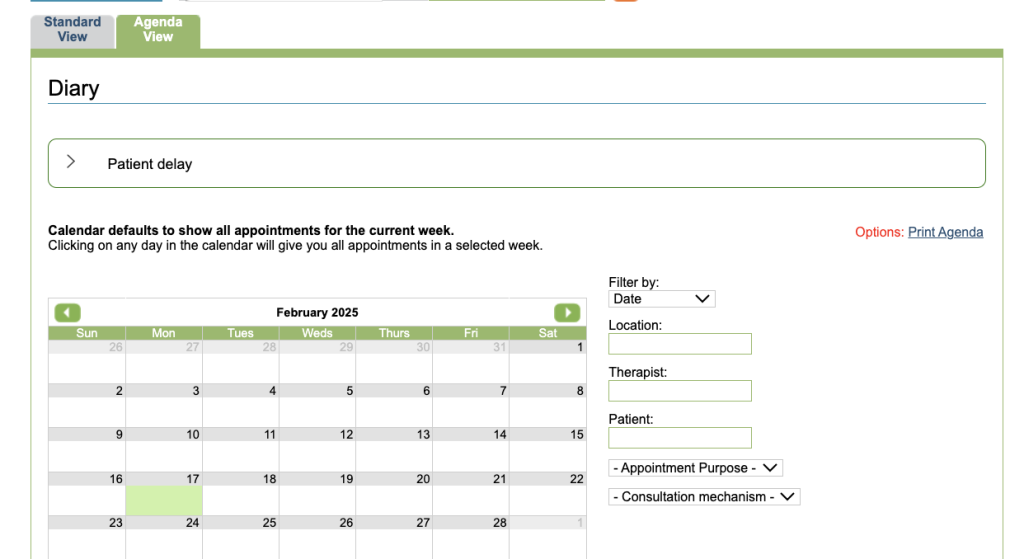
Allow therapists to see the appointments of other therapists in the Diary agenda view
The Agenda View tab shows at the top of the therapist’s diary. This option will allow the service to decide if a therapist can only see their own appointments or also those of other therapists within the Agenda View.
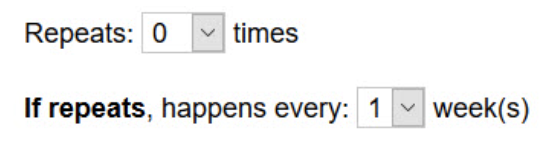
Sets the maximum number of recurrences that you can create for an availability slot
When booking availability in the diary, you can choose how many times to repeat the slot. This option determines the maximum number of reoccurrences (20 Max) a diary availability slot can be repeated for.
Start/end hour for booking events into the diary
Allows the service to specify earliest or latest time for a availability slot
Only show MDS clinical contacts in the diary
Allows the service to hide non-mds contacts from the diary and only show mds contacts.
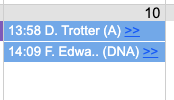
Show clinical contact attendance when viewing appointments in the diary
Enable to attendance indicator in the diary so each contact shows (A) – attended or (DNA) did not attend.
GPs
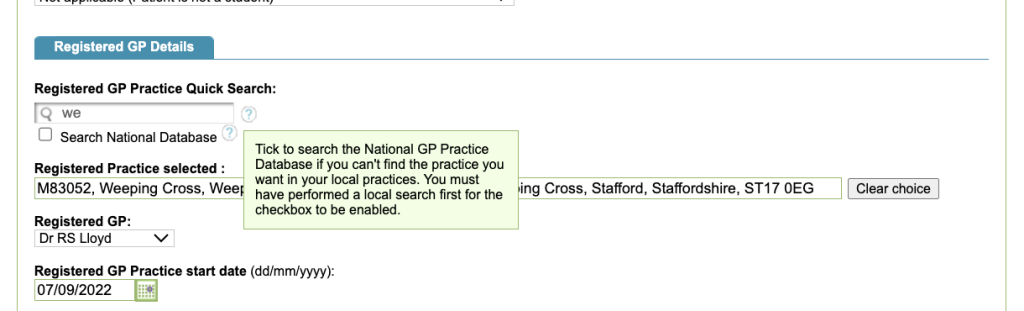
The GP Practice search on a patient record only includes the practices switched on by a Superuser. This setting expands the search to a national level, based on the latest GP list from NHS England.

Letters
The Letters section allows services to select letter options.

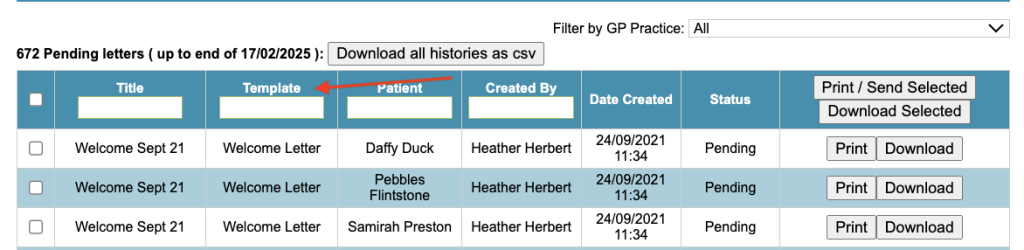
Add a column to batch letters to display the template type
This will allow a service to include the letter template type in the Batch Letter table.
Allow any user to edit all letter drafts even if they did not create them
Users can only edit their own letter drafts. Enabling this option allows users to edit letter drafts created by other users.
Sets the number of letters allowed to be printed at one time in batch printing
Service can decide maximum number of letters printed in one action.
Maps
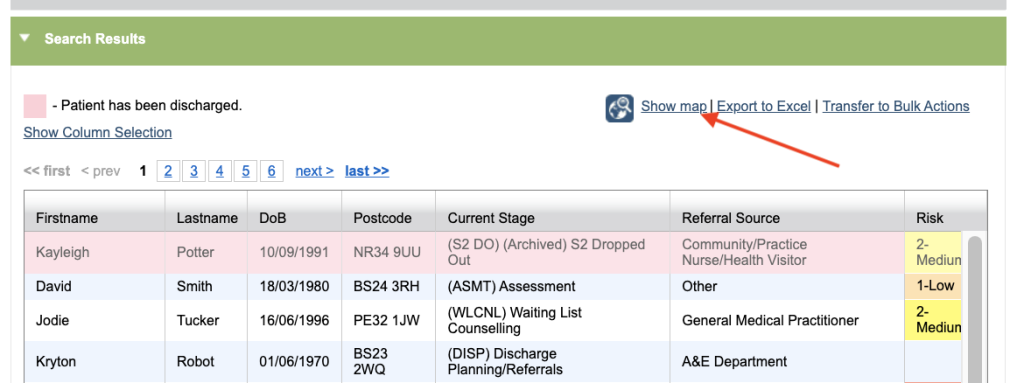
If enabled, this option will allow you to view patients by their postcode on a map. The Show Map featured will appear in the Patients results table from Find Patients & Hypercube.
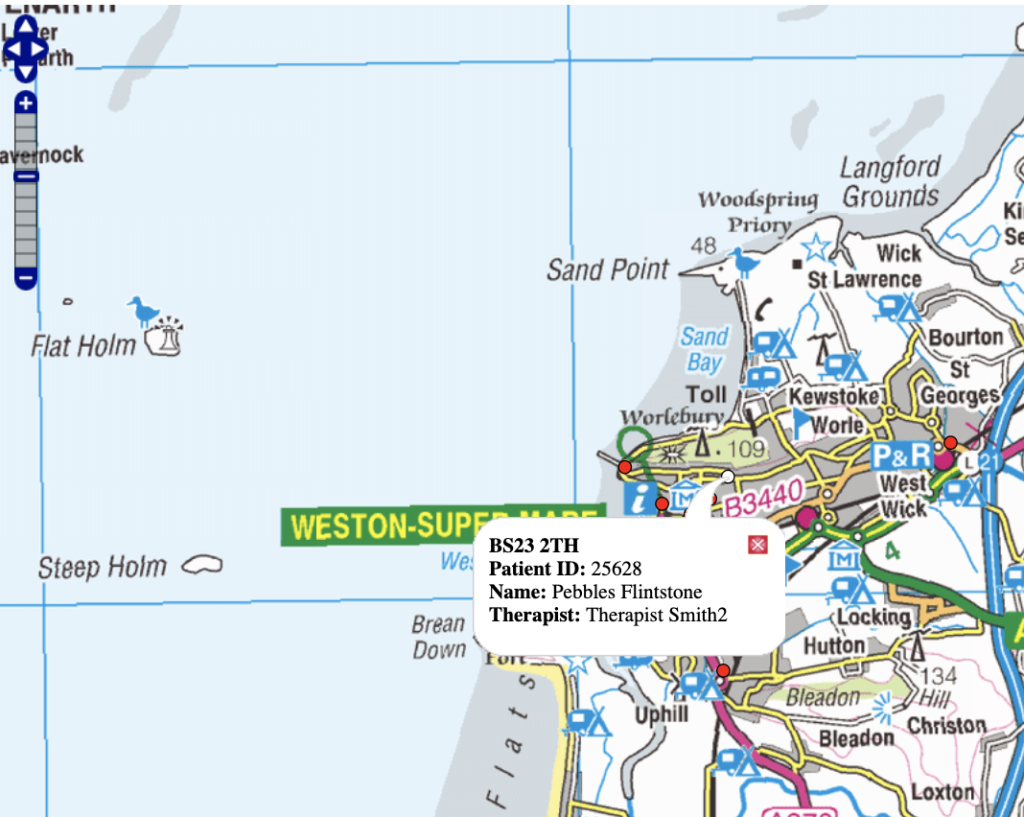
On the map referrals are represented by a red dot. Clicking on the red dot will display the postcode, patient ID, name and therapist.
Non-Clinical Notes
This option enables the delete option on non-clinical notes.

Patient
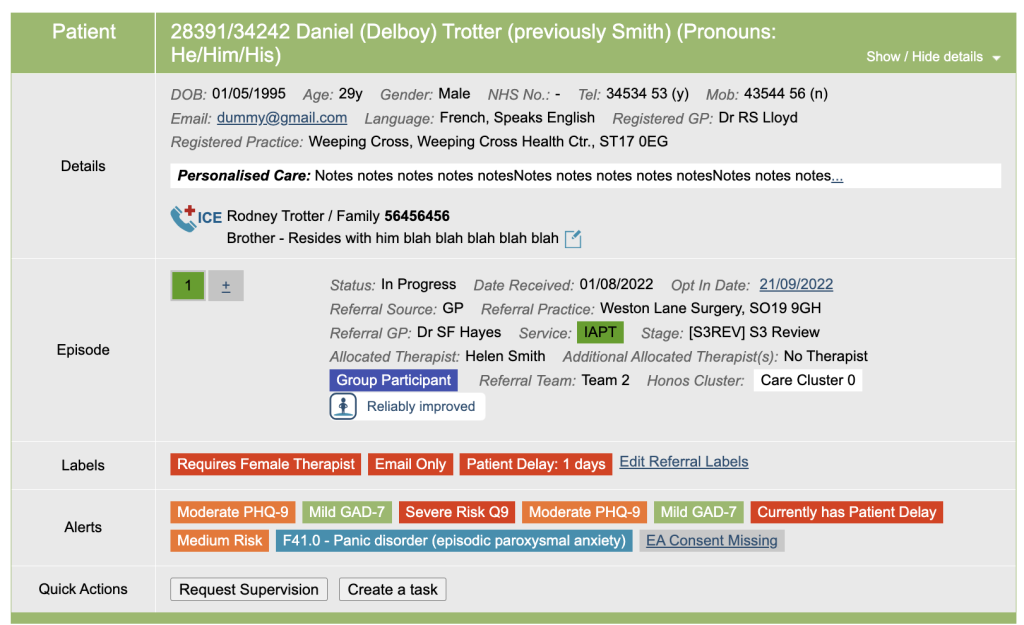
This option enables the patient delay reminder tag on the Boarding Card.

The patient delay reminder tag is activated when the patient has a current patient delay. The tag will appear under Labels will provide a countdown until the patient is available to be seen/contacted. The label is colour coded and will show the first ⅓ of the delay as Green, the middle ⅓ as Amber and the last ⅓ as Red.
Questionnaires
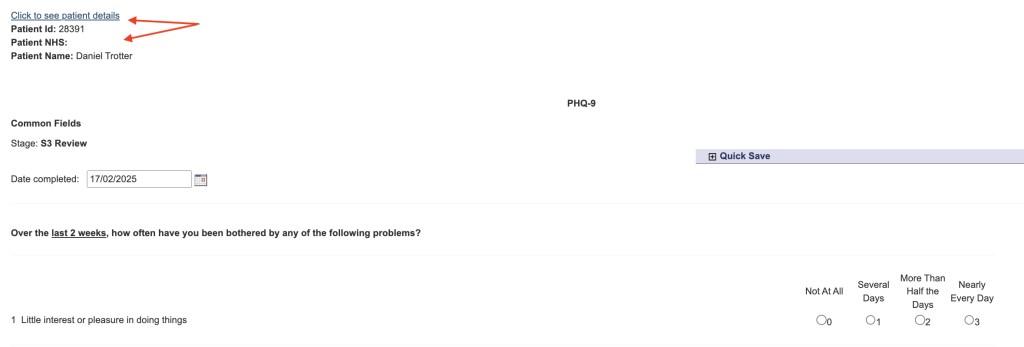
This option adds a hyperlink to questionnaires. When clicked it will display the patient’s iaptus ID, NHS number and full name at the top of the questionnaire.

Referral Data
The Referral Data section allows services to select referral options.

Auto-selected treatment type (service) in referral form
When creating a new referral, you will need to assign a treatment type. Here you can select whether there is a default treatment type. You may only have one treatment type available. If your service changes and you start offering additional services, please speak to your Account Manager.

Auto-selected treatment type (service) for incoming referrals
This option works in the same way as the above, but is specifically for Incoming Online Referrals (if you have an online self-referral form that links with iaptus). The option selected here will be auto-selected for all referrals made via Incoming Online Referrals. For more information on Online Referrals, please raise a Support Log and your Account Manager will be happy to help.
Reminder Notes
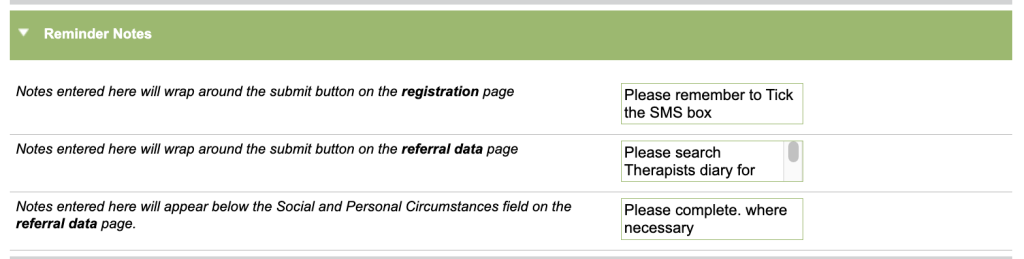
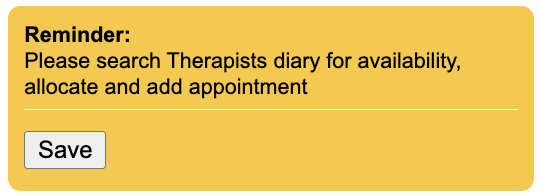
Reminder notes can be added around the save buttons of the registration and referral forms. These will be visible every time you go to save one of these forms. They can be used for customer prompts/reminders for your staff.

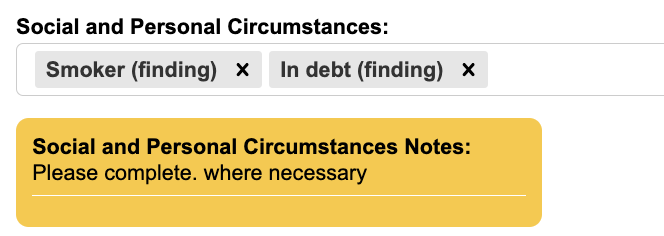
A reminder/prompt can also be added beneath the Social and Personal Circumstances section on the referral form.
Supervision
The Supervision section allows services to select supervision options.

Disable ability for admin to view supervision related information and only permit therapists to see their own supervision details
If enabled, this stops admin users from viewing supervision information and only allows therapists involved in the Supervision to view it.
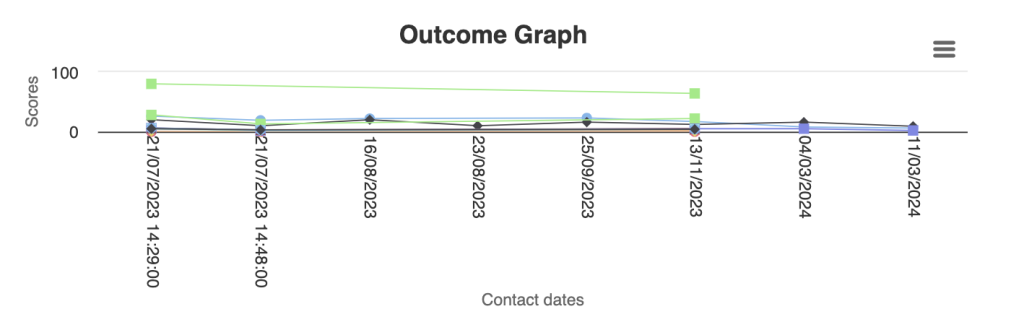
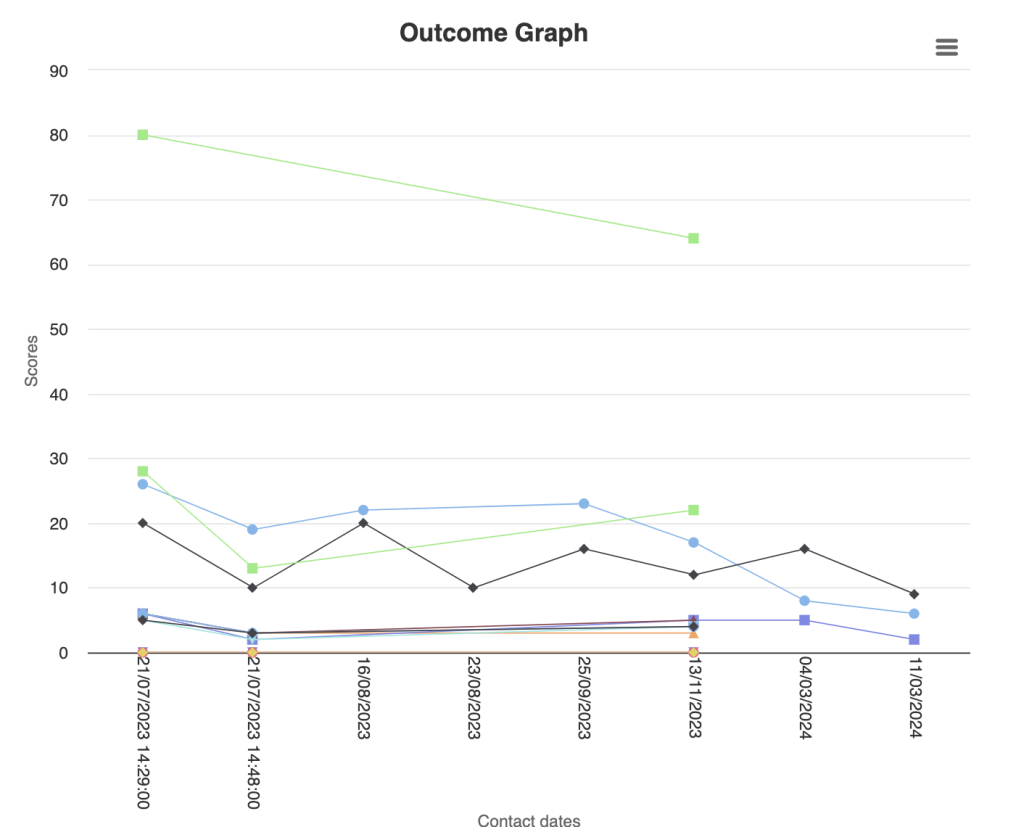
Enable full height outcome graphs in supervision
The outcome graphs in supervision are condensed to save space, but they can be made full height if preferred.
Therapist Controls
The Therapist Controls section allows services to select therapist options.
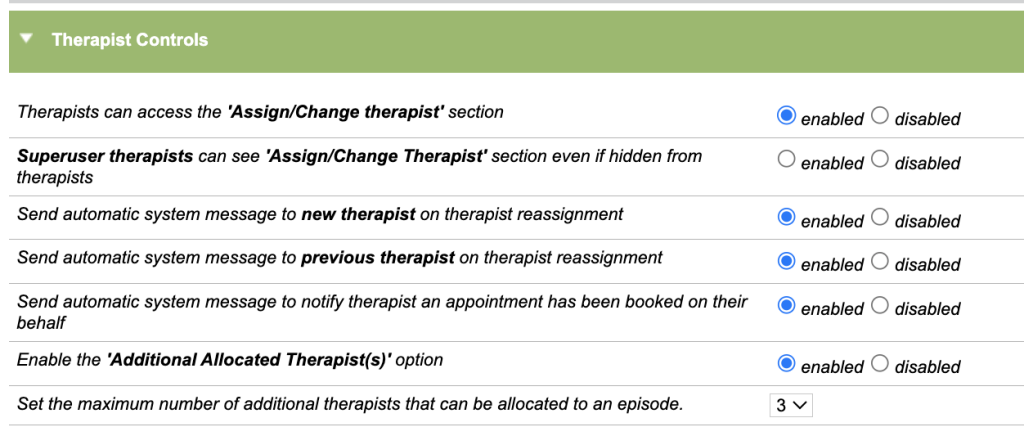
Therapists can access the ‘Assign/Change therapist’ section
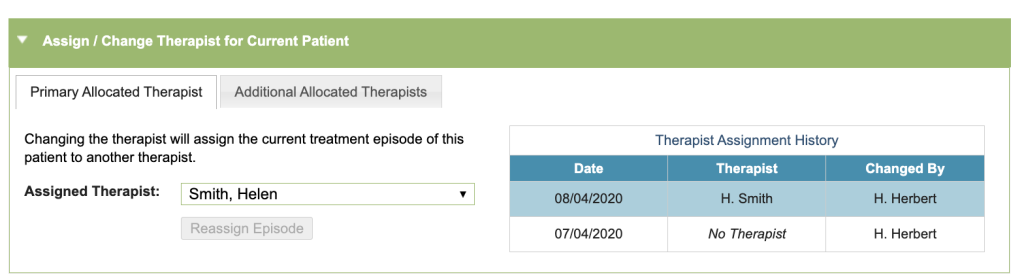
When enabled, therapists will be able to see the section below, and re-assign referrals to/from therapists. When disabled, only admin users can view this area.
Superuser therapists can see ‘Assign/Change Therapist’ section even if hidden from therapists
Alternatively, you can choose for only superuser therapists to have access to this section, alongside therapists.
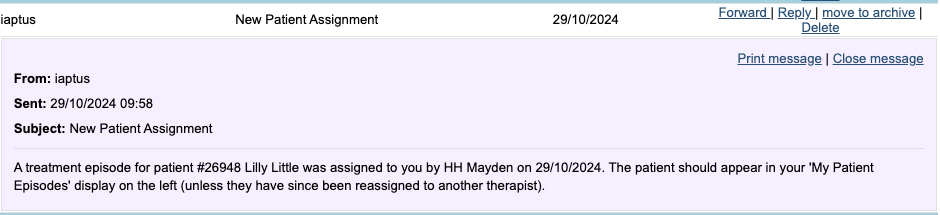
Send automatic system message to new therapist on therapist reassignment
If enabled, the newly allocated therapist will receive an automatic message under Messages, informing of a new patient in their caseload.
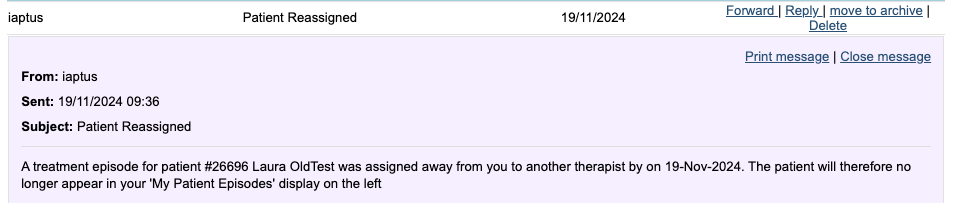
Send automatic system message to previous therapist on therapist reassignment
If enabled, the therapist will receive an automatic message under Messages informing of a patient being moved away from their caseload.
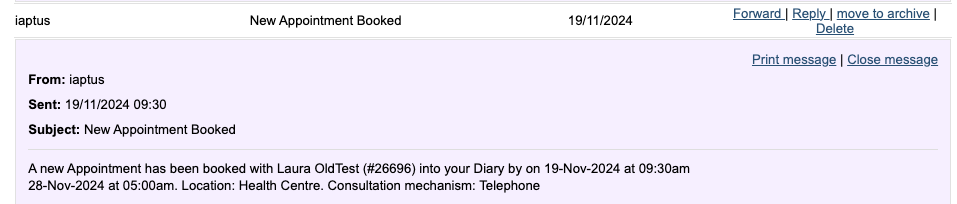
Send automatic system message to notify therapist an appointment has been booked on their behalf
If enabled, the therapist will receive an automatic message in Messages informing them an appointment has been booked in their diary.
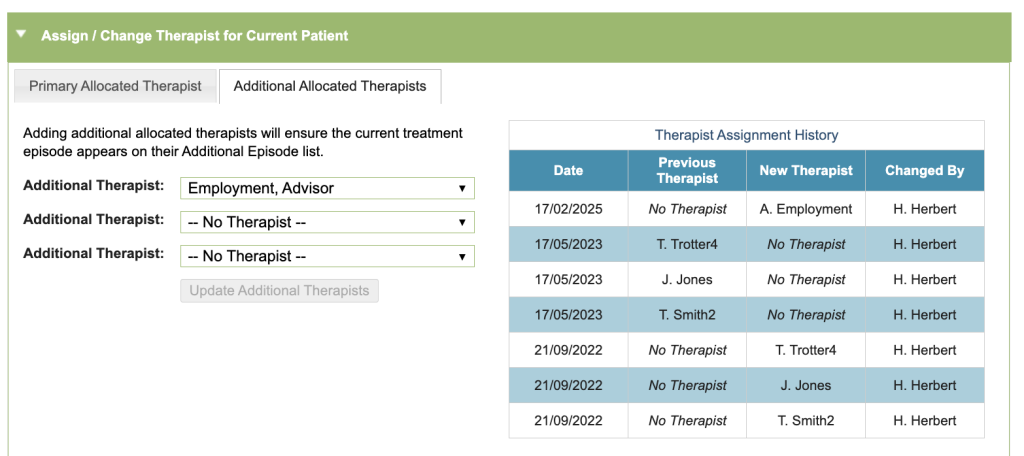
Enable the ‘Additional Allocated Therapist(s)’ option
Enabling this options allows multiple therapists to be allocated to each patient. If enabled, there will be a new ‘Additional Allocated Therapists’ tab under the ‘Assign/Change Therapist’ section (as shown in the screenshot below). You can have up to eight additional allocated therapists.
Set the maximum number of additional therapists that can be allocated to an episode.
This option allows you to control the number of additional therapist you can allocate to an episode, to a maximum of eight.