
To complete a supervision session, you can either:
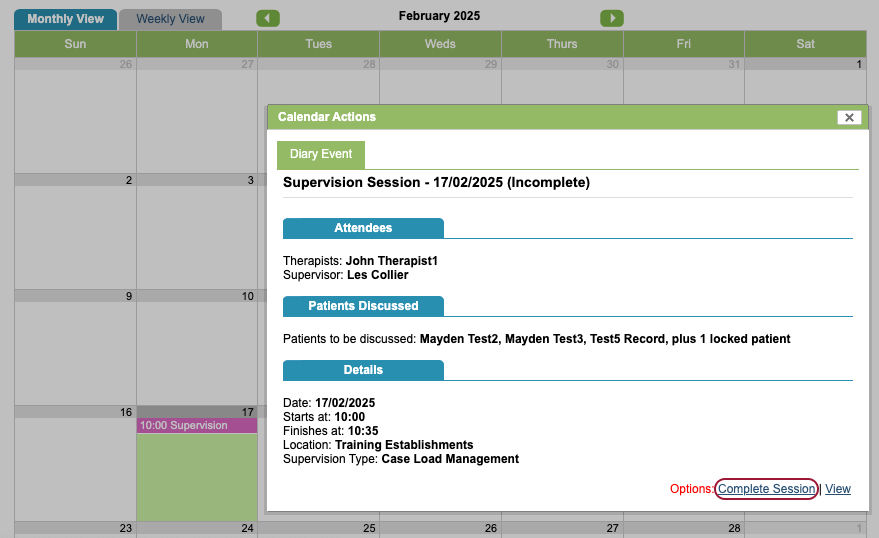
- click on the pink supervision entry in the diary and the Complete Session.
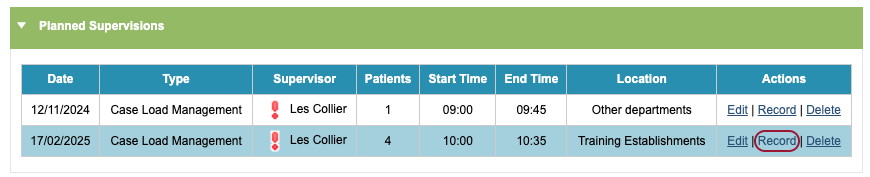
- Under Planned Supervisions in the Supervision Overview, click Record.
Recording the session
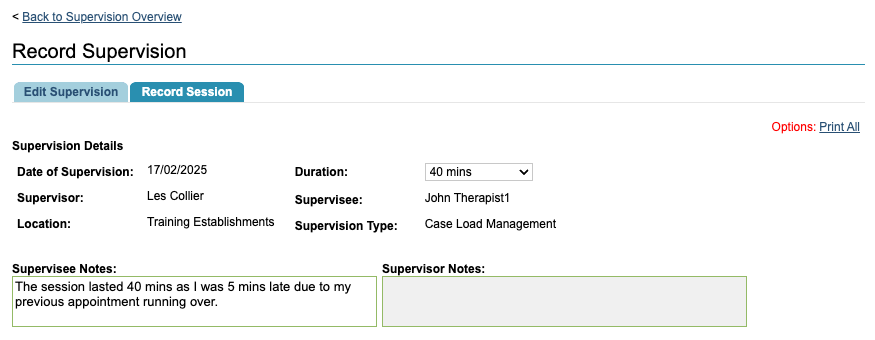
At the top of the Record Supervision screen you can see the Supervision details. Here you can update the duration and the overall notes if needed.
If you are the supervisee, the supervisor side will be greyed out. If you are the supervisor, the supervisee side will be greyed out. You can view the greyed out notes but you will not be able to edit them.
Each patient will have their own section heading. You can collapse or expand each section by clicking on the bar.
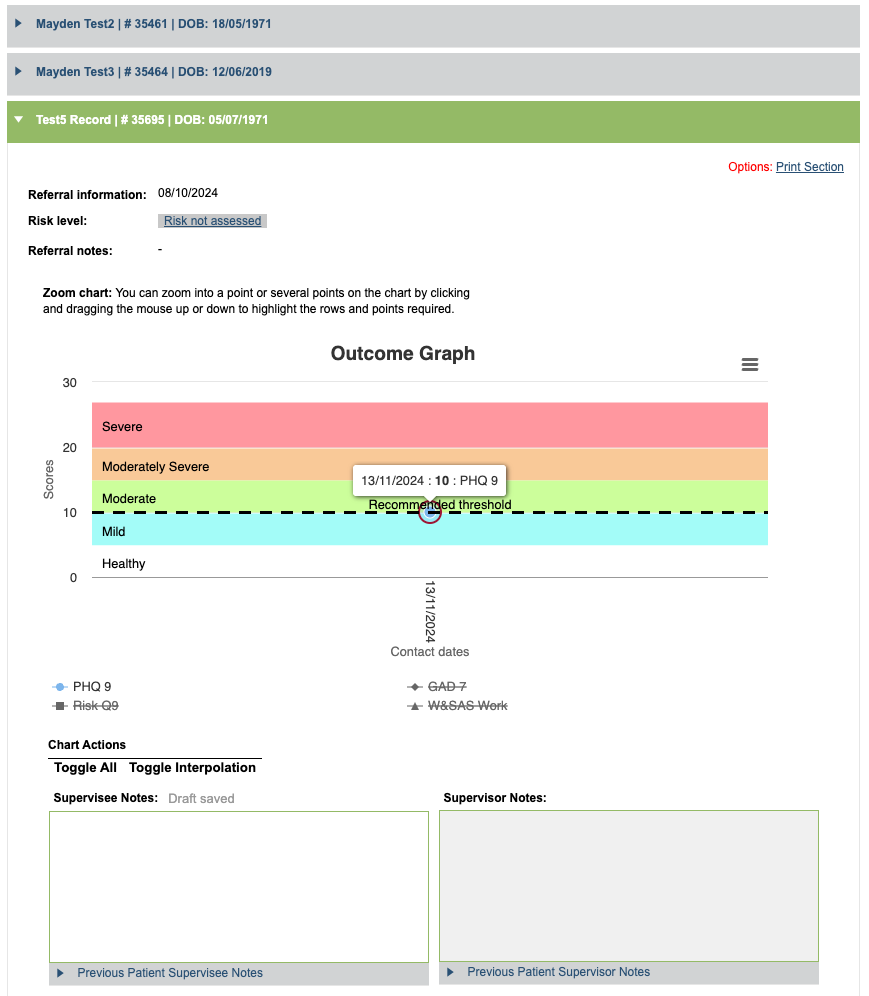
At the top of each patient section you can see their referral information, risk, referral notes and the Outcome Graph showing recorded scores.
Hovering over points on the graph will show you more detail about the score. There is an area to record your supervision notes for the patient and you can view previous Supervision notes by clicking on Previous Patient Supervisee Notes.
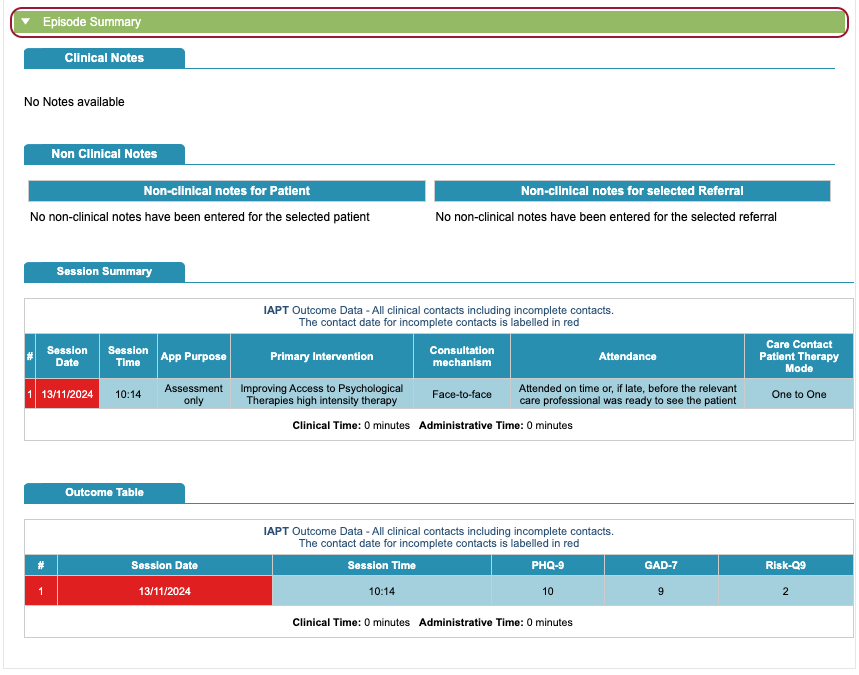
At the bottom of the patient section is the Episode Summary, which displays more information about that patient’s episode.
Once you have finished recording the supervision session, you can either:
- Save Draft
- Save and Mark as Completed
Save Draft will save the information but the notes will not be appear in the patient’s Clinical Contact tab. This is to allow users to amend their notes until they are happy with the final version.
Save and Mark as Completed will save the information and show the notes against the patient’s Clinical Contact tab.
Both supervisors and supervisees should save and mark their session as completed. The supervision session will move the from Planned Supervisions to Completed Supervision. Here the session can be updated, viewed or deleted.
