
In this area you are able to add and view details about any clinical contact you have had with the patient for the referral you have selected in the Boarding card. This includes questionnaires and their scores.
It also allows you to add a clinical contact directly onto the patient record without the need of a pre-arranged appointment, which are added through the diary.
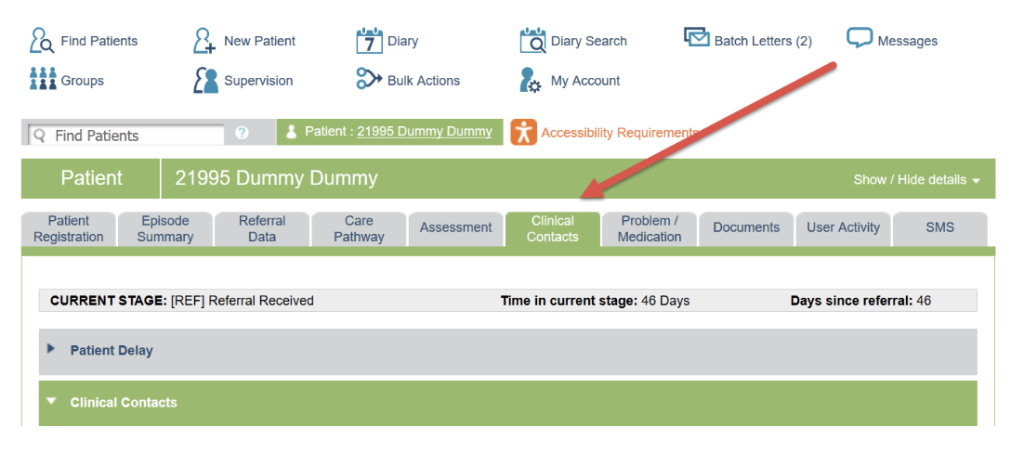
Clinical Contact Tab Header
The header area of the clinical contact tab gives you a quick overview of the current care pathway stage that the patient is in and how long they have been there, as well as how long it has been since the service received your selected referral, as indicated in the boarding card.
You can move patients through the care pathway via the Move Patient in Care Pathway option in the care pathway tab.
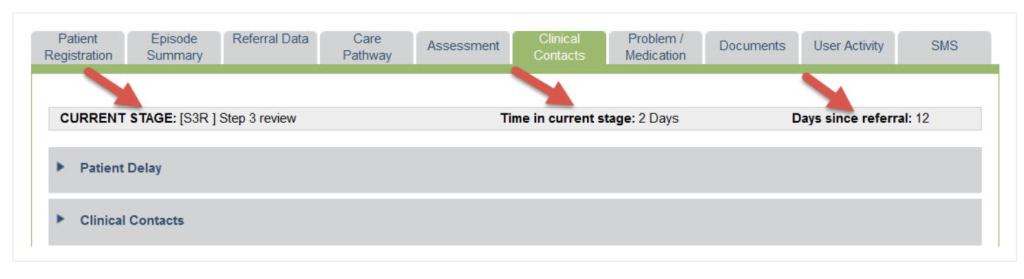
Depending on your service, you may also find that the Time in Current Stage area is colour coded. We can set up for you, so that each stage in your care pathway displays as yellow after a certain number of days, and then red after another number of days.
Please raise a support log to request this, as it cannot be added by superusers.

The Carousel
At the top you can find the ‘Contact Carousel’. This is our term for the display of clinical contacts that have already been added to the system for this referral.
If you are looking at a brand new referral, this area may be empty. You can use the grey arrows at either side of this carousel to look at older contacts. The system will automatically display to the most recent entries.
Appointment, Completed and Incomplete Contacts
The clinical contacts are colour coded according to their status:
- Orange indicates a future appointment that has been made via the Diary or the Diary Search.
- Red indicates an appointment where some information has been filled in, but is not complete.
- Blue indicates a completed contact, and no further information needs to be added.
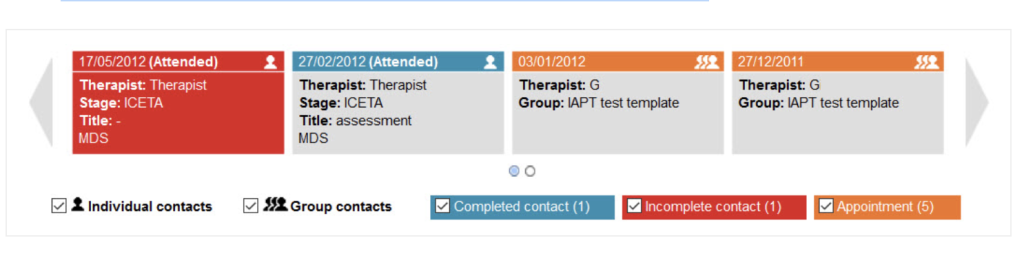
You will also see a brief summary of the contact, including the following:
- Contact/Appointment Date
- If the contact was attended
- The therapist for the contact
- The Care Pathway stage that the clinical contact was allocated to
- The title of the contact (as added when creating a new clinical contact)
- Group contacts will also be indicated by 3 silhouettes in the top right corner of the contact, instead of a single silhouette.
Filtering
You can filter which contacts display in this area by using the filter options beneath the carousel.
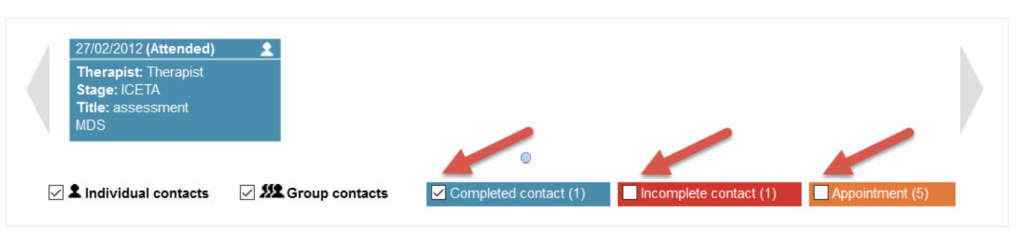
Viewing Contact Information
To display information about a specific contact, click on the contact you wish to select on the carousel. This will display a summary of the contact in the ‘Details of Contact’ area, and well as information about who added the contact and when.
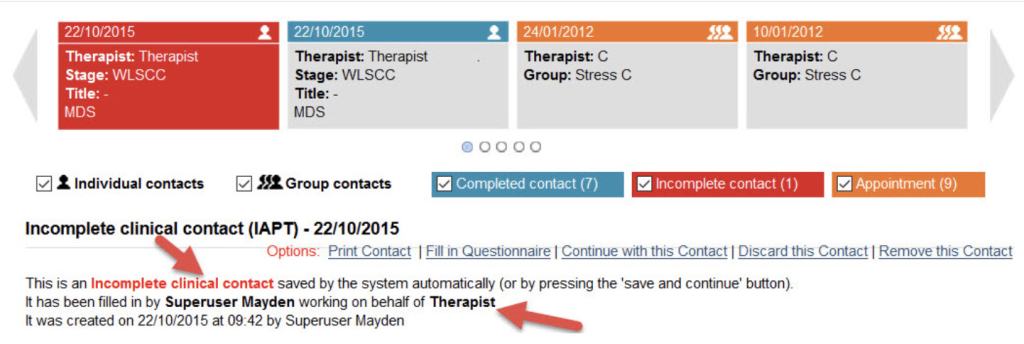
Depending on what type of contact you have selected, you will be able to see a selection of the following:
- Print Contact – This allows you to print the information in the selected contact; it will open in a new tab
- Fill in Questionnaire – If you wish to fill in a patient questionnaire using iaptus, rather than just inputting an overall score, this option will take you directly to the Complete a New Questionnaire section in the Clinical Contacts Tab
- Continue with this contact/Edit – If you created the contact, or are working on behalf of the user who created the contact, you will be given the option to complete or edit the contact. This will bring up the Clinical Contact Form
- Discard this contact – If you have selected an incomplete contact, this option allows you to clear all the information in the contact and remove it from the patient’s record. This performs the same function as:
- Remove this contact – Deletes the contact and all it’s information from the client record.
Contact Edit History
Depending on your service settings, the clinical contacts may display a record of any changes made to that contact. If the clinical contact has been edited, a table will appear to indicate that a change has been made, when it was made, and who it was made by.
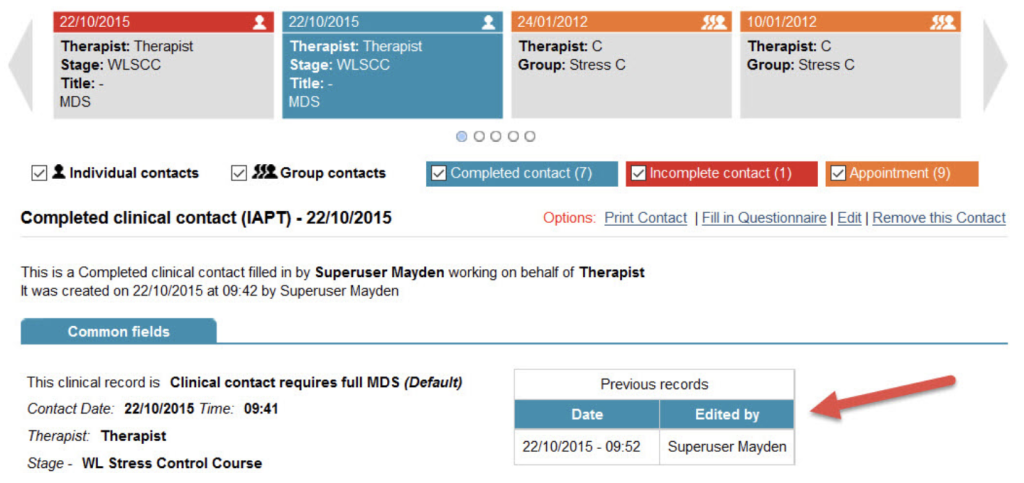
To view information about the change, click on the rows within this form. Any changes made on the selected date will then be highlighted in red text in the clinical contact.
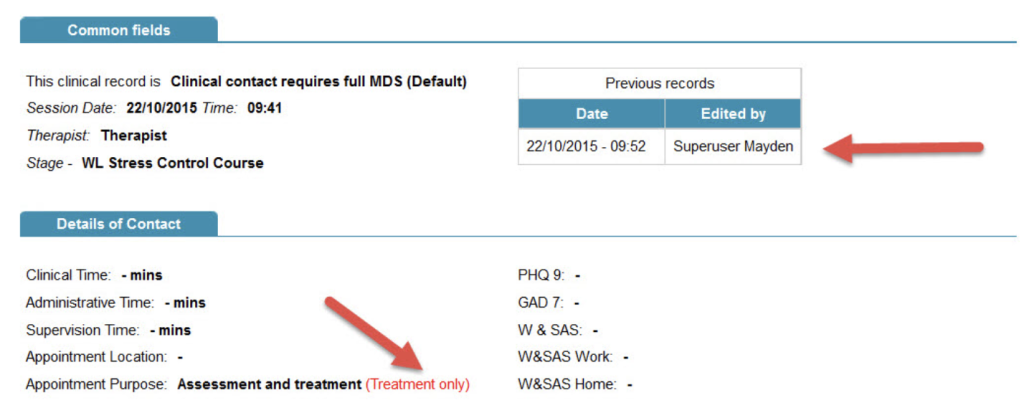
This option can be enabled or disabled for your service by a superuser in the Control Panel area of the Superuser Menu.
Please note if you have recorded that a patient has died within your iaptus system, you will need manually remove any future appointments as this will not be done automatically when recording the patient’s date of death.