
Introduction
The Care Pathway is unique to iaptus – it allows services to easily track patient progress along their custom patient care pathway. Your service will have a bespoke Care Pathway that gives you a clear view of what stage of care the patient is at, and what pathway options are available to them. This ensures that the service delivery and the patient journey are consistent.
The patient’s journey within the pathway is captured through the system, so performance data can be easily collected and analysed. For more information on iaptus reporting, please take a look at our other aarticles on Hypercube Reports.
As the care pathway is custom, it can be modified as a service requires. Stages can be altered, added or removed, and connected pathways can be created and adjusted using the links. This can be done by your service’s Account Manager, using the Support Log System to raise a request.
You can view the entire pathway via the Care Pathway Diagram, which is accessed by clicking on the Open Care Pathway Diagram hyperlink from the Care Pathway tab of any patient.
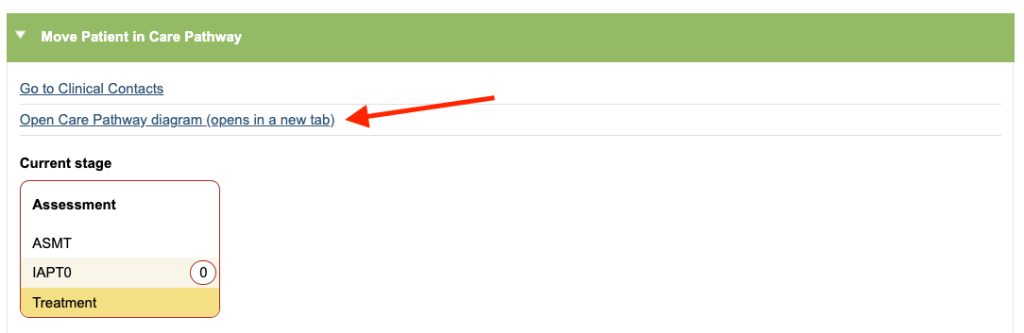
The Diagram
Within the Diagram, you will see an overview of the pathway on the right hand side and the Diagram Actions on the left.
1. Current Stage – The diagram will highlight the stage the patient is currently at with a purple border.
2. Navigation Window – This window will show you which area of the diagram you are viewing. You can move around the diagram by dragging and dropping an area with your mouse.
3. Zoom & Fit Screen – These will zoom in and out of the diagram and zoom to fit.
4. Hide/Show Actions – This arrow allows you to toggle between hiding and showing the Actions area.
5. Stage List – This will allow you to jump to a particular stage on the diagram by selecting it from the list.
6. Stage Details – This area shows you the details of the selected stage:
- Function – e.g Treatment
- Service level – e.g IAPT0
- Stage to – Stages that can be selected to move to (black arrows)
- Stage From – Stages before the current stage
- Stages back to – Stages that can be moved back into (orange arrows)
- Stages back from – Stages that the stage could have come back from (orange arrows)
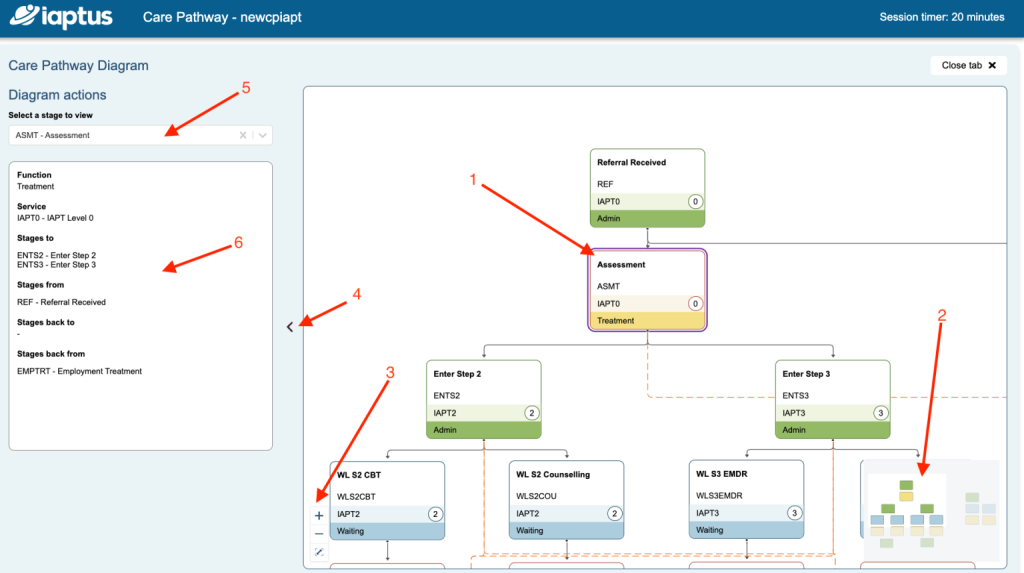
Each stage will have its own custom name and code, so that you can see the full name of the stage as well as a short code, for quicker navigation.
Function
Function is the type of the stage, of which there are 3 options:
Admin (which is green)
Waiting List (which is blue)
Treatment (which is yellow).
These 3 options allow you to categorise different stages of the pathway by the type of activity.
For example, if a patient is on a waiting list, you can make a corresponding Waiting List stage for that list. You can then set the Treatment they are waiting to receive its own Treatment” stage. Admin can be used for activities that may need to be captured, but would not fall under a Waiting List or Treatment.
Service Levels
Service level allows you to designate specific stages to a specific level or step intensity – for example, you may have a treatment pathway where all stages are Step 2 and then another pathway for Step 3, or Employment. This allows you to separate out different types of journeys.
Each Service Level can also have its own specific ways of discharging a patient if required.
Links
The remaining options are dictated by how the stages on the Care Pathway are joined together, using links. Links between stages will create specific routes on the care pathway as they control which stages can be moved into and when, and are displayed using the Black and Orange arrows in the diagram.
Black arrows show a link forward from one stage to another, which allows you to move the patient forward through the pathway.
Orange arrows show a link back from one stage to another, which allows you to move the patient back to a previous stage in the pathway.
Referral Closure Reasons
You will have a list of Referral Closure Reasons within the Care Pathway tab. These can be configured by your service Superuser, so you can have specific options to record why a patient may have been discharged.
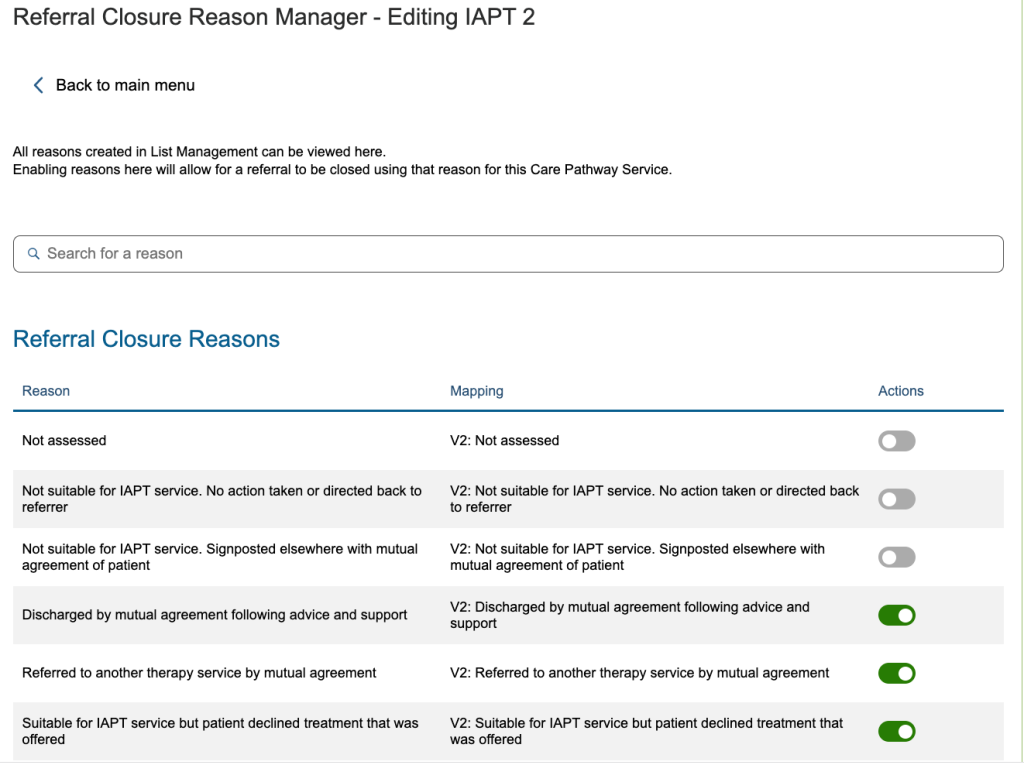
Referral Closure Reasons can be added by a Superuser in List Management – please take a look at our List Management article for more information on how to do this.
As mentioned above, each Service level can also have its own specific ways of discharging a patient – you can designate specific Referral Closure Reasons to each of the Service Levels you have available. Please see our article on the Referral Closure Reason Manager in the Superuser Menu for more information on how to do this.