
Batch Letters is an area that can be used to manage the printing and sending of patient letters and can be accessed in the icon menu.

Batch Letters table
In the batch letters section admin users will be able to see all letters that have been added to the batch, by any user. Users with therapist accounts will only see letters they have created and added. When first viewing the Batch Letter area, the filters will default to display all pending letters i.e, those which have not been actioned.
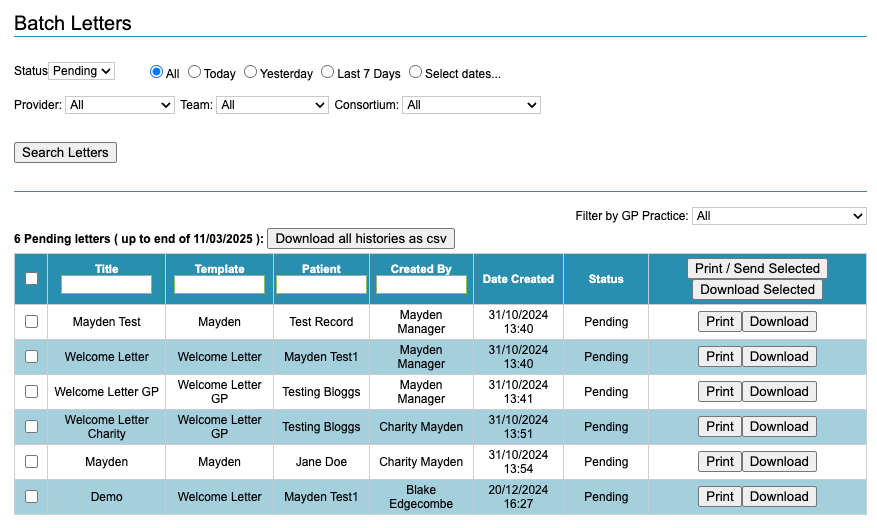
You are able to filter by the following fields:
- Status – if the letter is still pending or how it was actioned
- Date – when the letter was created
- Provider, Team or Consortium – user account fields associated to the user who created the letter
- GP Practice – the practice a patient is registered to
- Title – title of the letter
- Template – template used to create the letter
- Patient – name of the patient
- Created By – user who created the letter
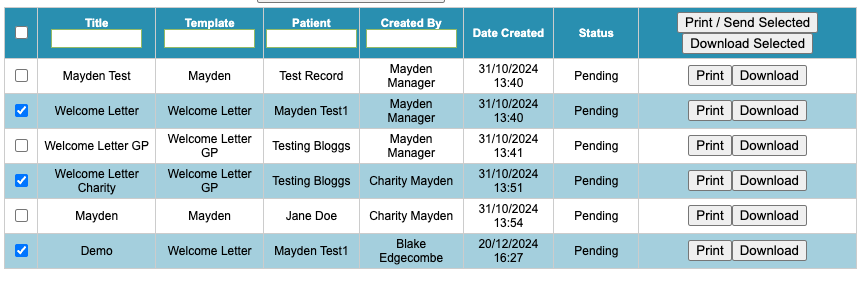
The selection of letters to action is achieved via the tick boxes on the left-hand side of each letter. You can tick to action one letter or multiple letters.
All the letters displayed can also be selected using the tick box found in the header row.
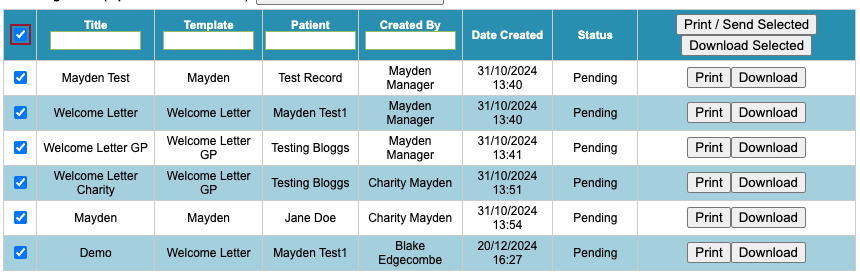
Multiple letters can be printed/sent or downloaded using the Print/Send Selected or Download Selected options in the header row. This can also be done for individual letters by clicking on their respective buttons.
If you are printing multiple letters, please note that your printer settings need to be set to single sided printing to ensure that two patient letters do not appear on opposite sides of a single page.
You’re also able to download a csv file that contains all the currently displayed letters as dictated by the active filters. This option is particularly helpful if you want to download and review the reject reasons for GP Electronic letters.
There are a few additional settings that can be enabled and disabled for letters and batch letters by a Superuser in the Control Panel Superuser option. You may wish to ask your Superusers if there are any settings that could be applied globally across your iaptus instance to support you and your other iaptus users.
Action meanings
This will change the letter status from Pending to Printed and initiate a PDF download of the letters selected. The user will still need to manually select the print option from their laptop or computer.
Download
This will initiate a PDF download of the letters selected, but the status will not change.
Send
This will send the letter to the appropriate source based on the electronic type of letter (GP and patient Electronic letters or Hybrid Mail letter sending).
Letter statuses
All statuses are recorded against the letter in the patient record under the Documents tab.
Pending
This letter has not been actioned.
Printed
This letter has been marked as printed, assuming that the user has also asked their computer or laptop to send these letters to their printer.
Sent to GP Electronically – Queued
The letter is in the process of being sent to the GP but has not yet left your service. It should no longer be edited as edits will not be saved before the letter is sent. Once a letter has moved from Pending to Queued, deleting it from the patient record will not stop the letter from sending as it has already been passed to the provider.
Sent to GP Electronically – Sent
The letter has been sent to the electronic provider and the GP practice has been verified. Services should monitor ‘Sent to GP – Sent’ messages to ensure that letters move to the ‘Sent to GP – Delivered’ status as otherwise they will not have been received by the GP practice.
Sent to GP Electronically – Delivered
The letter has been sent by the electronic provider to the GP practice and the practice has received it.
Sent to GP Electronically – Failed
This status can occur when there is a system error, the GP Practice cannot be verified by Docman or if the GP practice has rejected the letter. All Failed letters appear automatically in Pending as [GP] Failed to ensure that they can be obviously seen and dealt with appropriately. From this status, the letter can next be downloaded to print locally. Letters can then be actioned and/or re-sent.
Pending: [E] Pending
The letter is waiting to be sent to the queue. This status will be the first status to be shown in Batch Letters alongside any other types of pending letters.
Sent Electronically – Queued: [E] Queued
The letter SMS has been queued with the provider for sending.
Sent Electronically – Sent: [E] Sent
The letter SMS has been passed to the mobile network provider (eg. Vodafone, O2, EE, Three).
Sent Electronically – Delivered: [E] Delivered
The letter SMS has been delivered to the patient’s device. This status is returned to us by the network provider. If a letter is showing an [E] Delivered status but a patient has reported not receiving the letter please double check their mobile phone number and ask them to check their SMS spam section. This should allow the patient to find the letter.
Sent Electronically – Accessed: [E] Accessed
This status appears when the patient has clicked the link for their letter, but has not yet gone through the authentication process and viewed the letter.
Sent Electronically – Viewed: [E] Viewed
The patient has completed the authentication process and has viewed the letter.
Sent Electronically – Failed: [E] Failed
The letter has encountered an error in sending. Hovering over [E] Failed will display the failure reason. All Failed letters appear automatically in the Pending section as [E] Failed to ensure that they can be easily seen and dealt with appropriately. Selecting Print on an [E] Failed letter will download this for manual sending, and will change the status to [E] Printed.
Pending: [H] Pending
The letter is waiting to be sent to the queue. This status will be the first status to be shown in Batch Letters alongside any other types of pending letters.
Sent Hybrid Mail – Queued: [H] Queued
The letter is in the process of being sent to the Hybrid Mail provider.
Sent Hybrid Mail – Sent for processing: [H] Sent for processing
The letter has been sent to the Hybrid Mail provider and is being processed.
Sent Hybrid Mail – Posted: [H] Posted
The letter has been posted by the Hybrid Mail provider.
Sent Hybrid Mail – Failed: [H] Failed
The letter has encountered an error in sending or has been posted but subsequently returned to sender (information where available is included in the CSV file provided). All Failed letters appear automatically in Pending as [H] Failed to ensure that they can be obviously seen and dealt with appropriately. Typically these will need to be actioned and re-sent (e.g. changing the address).