The assessment tab allows you to document a clinical assessment of the patient and any associated risks at the beginning of their treatment. It can also be updated at any point during the course of their journey on iaptus.
Assessment details

Standard Form
If your Assessment form looks different from the standard form shown in the example below, this will be because the service has requested for a bespoke form. This will either be a bespoke embedded form where you will see the fields in the Assessment tab itself or you will see a hyperlink to a questionnaire. If you have the first option, the functionality described in this section will still apply. If you have a hyperlinked questionnaire, you may wish to read the Questionnaires topic to find out how these work within iaptus.
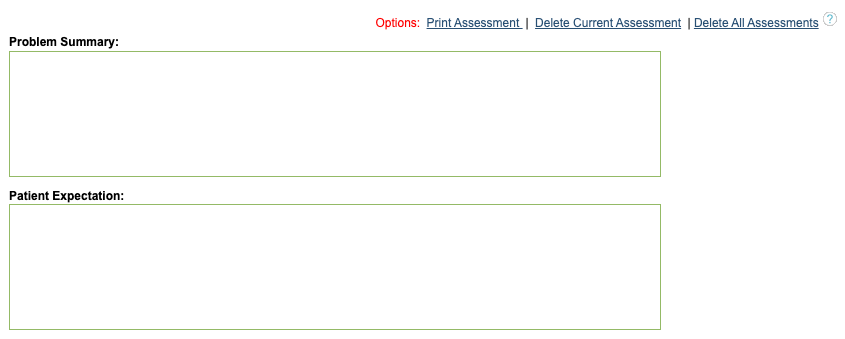
To complete an assessment form, start typing the notes and completing the fields within the form.
Risk Rating
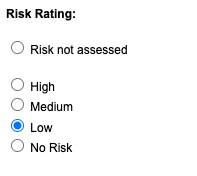
You can use the Risk Rating to indicate the patient’s risk. Each of the options is denoted with a different colour as follows:
- White indicates risk not assessed,
- Blue represents no risk,
- Green denotes low risk,
- Amber signifies medium risk,
- and Red indicates high risk.
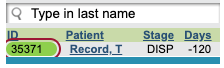
The different colours can be seen on the patient’s boarding card which can be seen on the therapist’s caseload.
Saving the Form
Once all information is entered, click “Save Assessment Form” at the bottom of the screen.
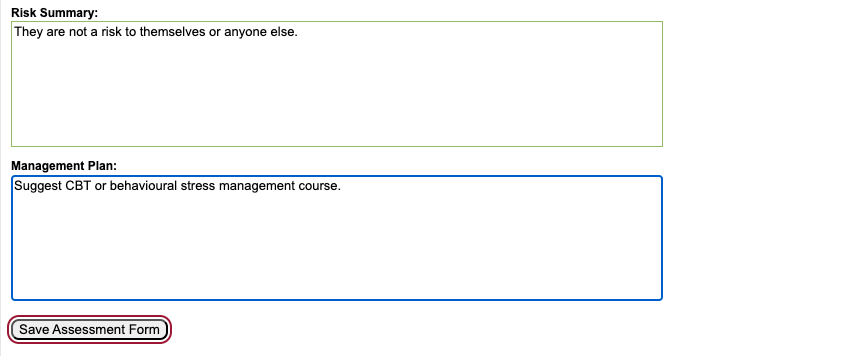
The current summary will remain visible in the assessment form. This allows you to easily review the prior risk assessment and update it as necessary.
Previous summaries
If you make any subsequent edits to the form, the most recent version of the form content will be displayed and a section ‘Previous Summaries’ will appear. Here, you can choose to view previous versions of Assessments.
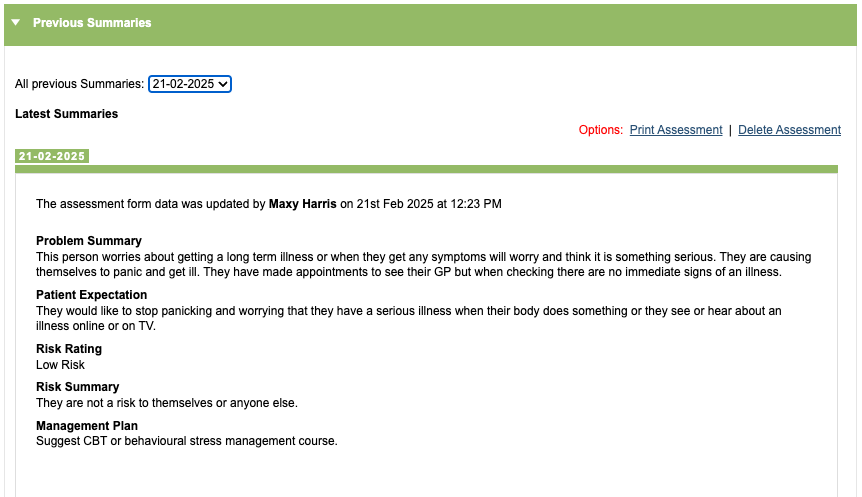
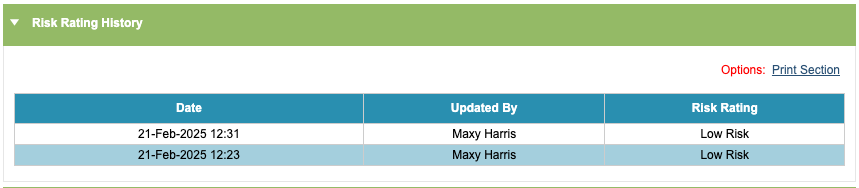
Risk Rating History
Any time a version of an assessment is recorded, whether the risk rating changes or not, a risk rating history will be displayed in the history table.