
Booking Appointments
Where there is availability, a patient appointment can be added. This option is only available when a patient has been loaded in the selection field, shown below.

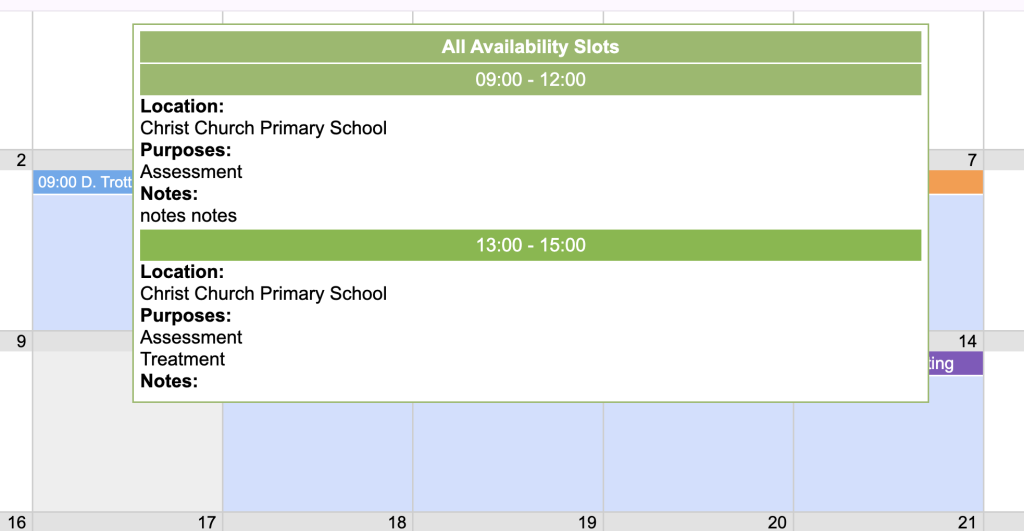
To add an appointment, hover over the required day, this will display availability slots for that day.
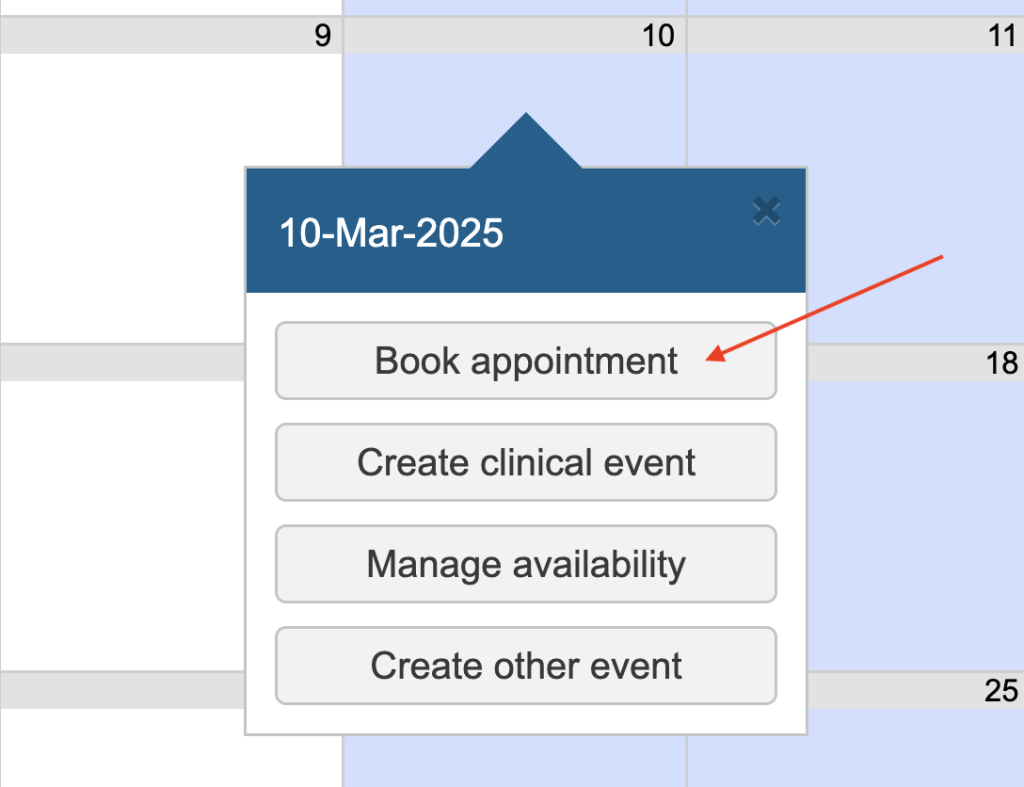
To book an appointment, simply click on the day you wish to add the appointment for. This will bring up a pop-up. Select the Book appointment option.
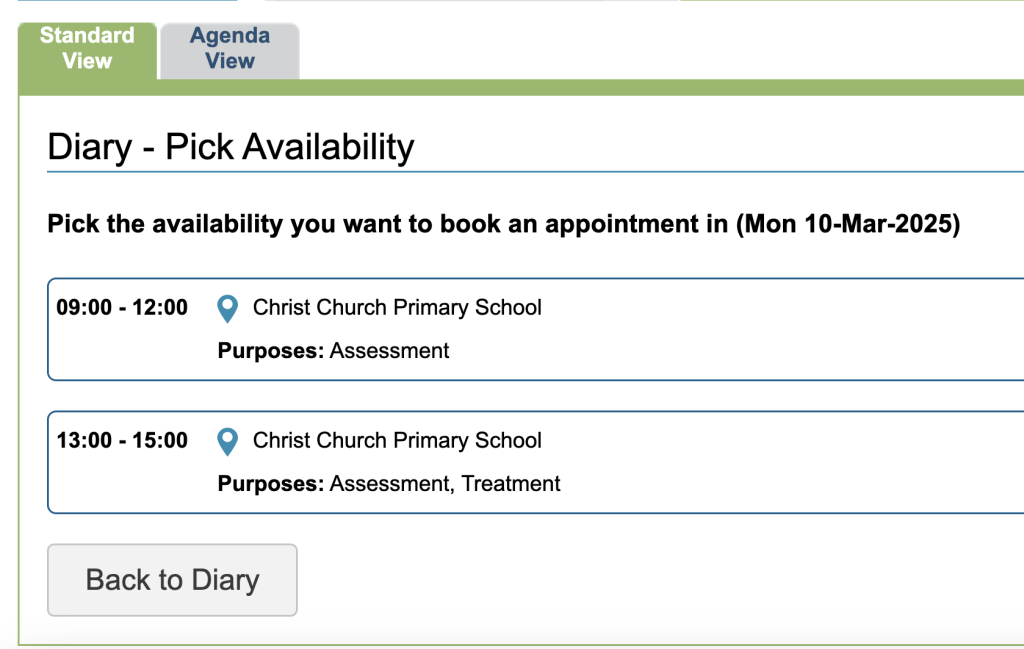
You may see more than one availability slot on that day, simply select the slot you wish to book the patient into
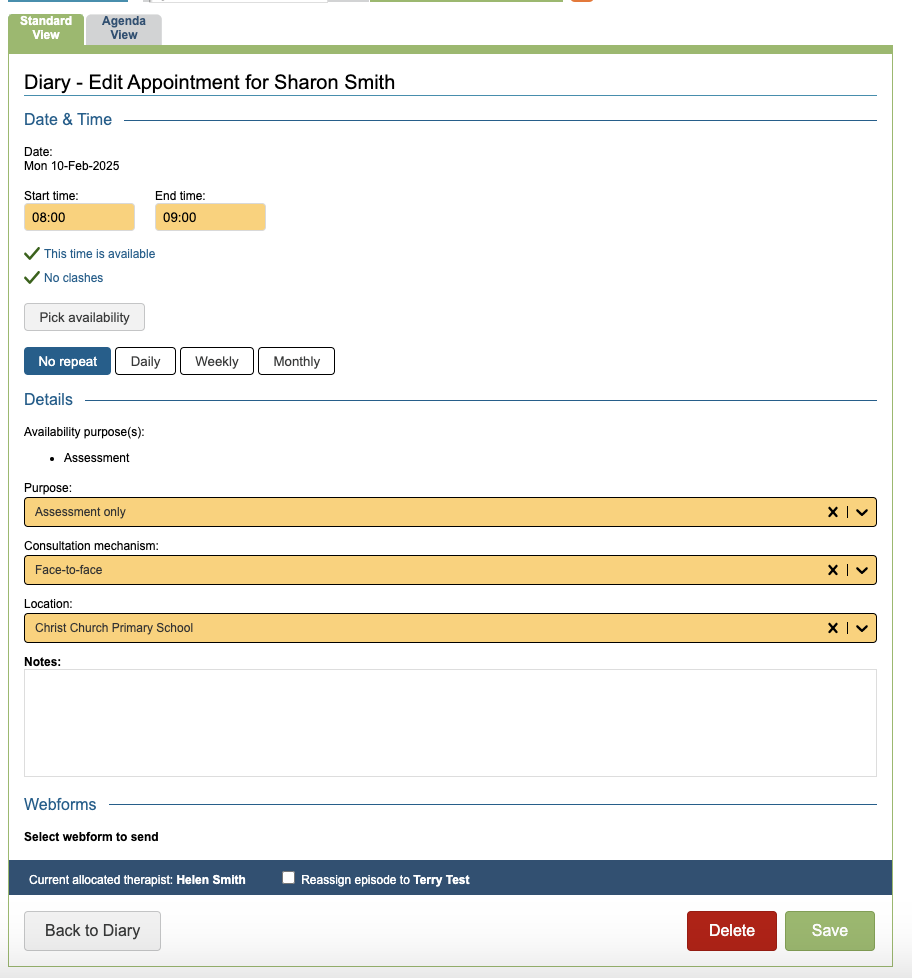
The following dialogue will appear and details can now be entered.
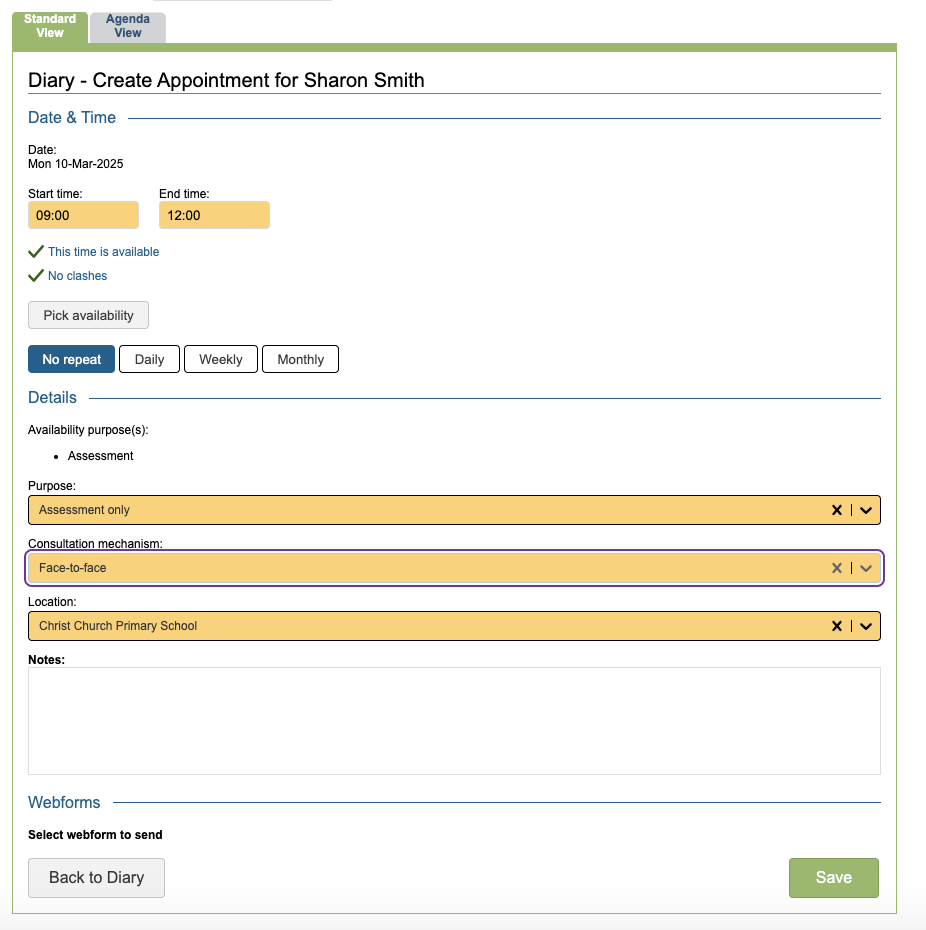
Details, include:
- The start and end times of that the appointment
- The availability in relation to Daily, Weekly and Monthly
- The appointment purpose (i.e. assessment, treatment)
- The Consultation medium and Location
- Any notes. These will appear in the clinical contact for the appointment
- The option to allocate/re-allocate the patient to the therapist whose diary they are being booked in for.
Yellow fields are mandatory. The Daily, Weekly and Monthly options work in the same way as for multiple availability slots (See Adding availability)
If webforms are enabled for your service and your patient, you can select here which combination to send. Any automatic SMS appointment reminders will also be generated when the appointment is saved.
Many of these field values can be customised by superusers in the superuser menu including:
- The appointment start and end time via the control panel diary area
- The purpose via the list management area
Once the appointment details have been saved, a table will show indicating if the appointments can be booked or if they need to be reviewed (shown as an ‘X’)
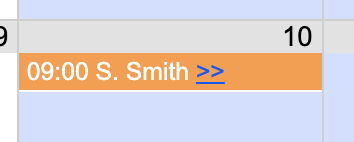
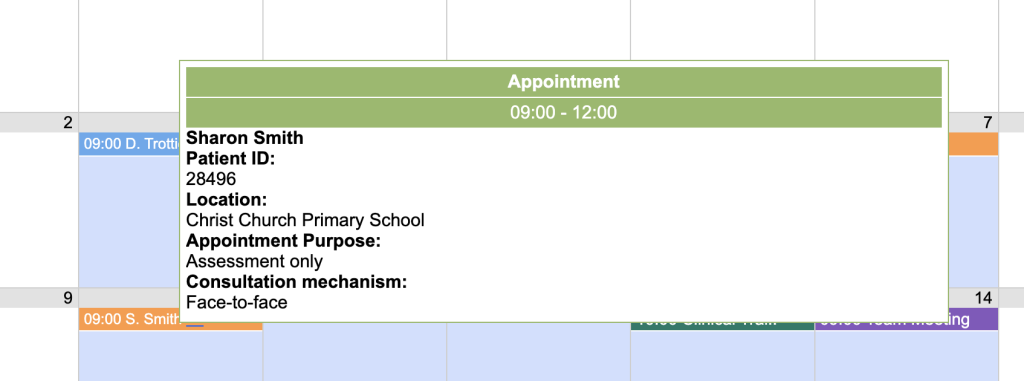
Once the appointment(s) has been saved successfully, the appointment will appear in orange. You can also hover over the appointment to find more information about it.
To edit or delete the patient appointment, simply click on the entry and select to just Edit the current appointment or all appointments in the series. If automatic SMS cancellation messages are set up, deleting the appointment will generate a message.
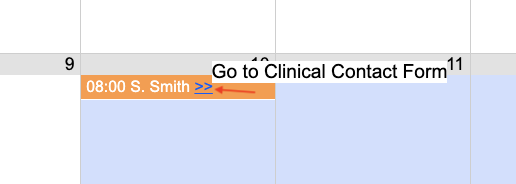
To quickly view the clinical contact for an appointment, click on the >> symbol next to the appointment entry and select Go to Clinical Contact Form
Appointments cannot be booked where there is no availability, where there is a personal event, or where there is an existing appointment or completed clinical contact. Please note however that appointments can be booked over incomplete contacts.