Advanced Search allows users to apply more filters to a search and create and save searches in My Searches.
Within Advanced Search, you will see three columns.
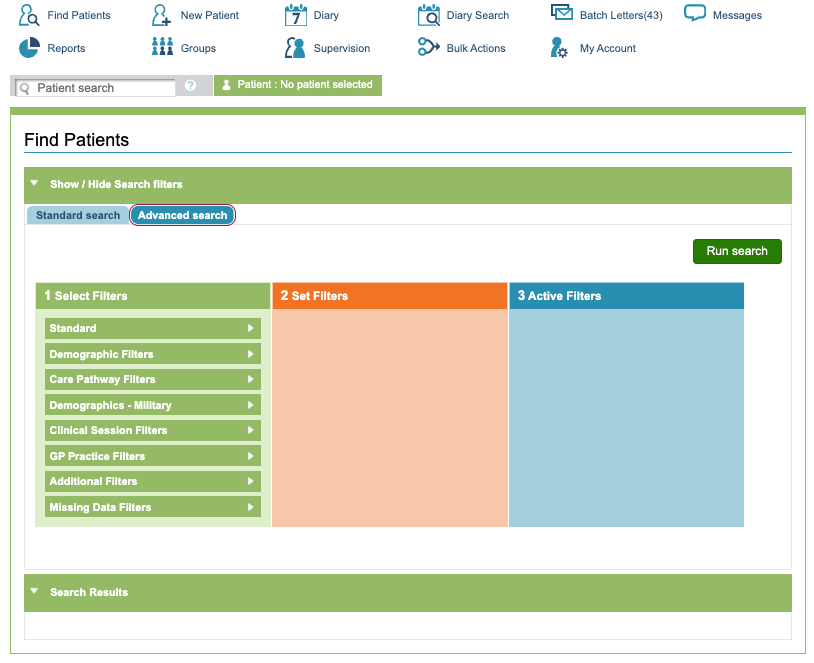
Select Filters
The first (green) column includes all available filters, grouped into sections. To expand a filter section, click on the green bar.
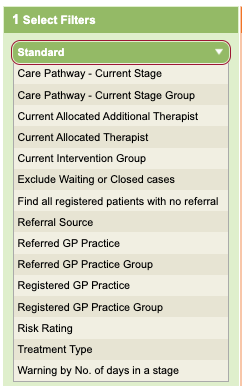
Standard
Contains the fields found in the Standard Search.
Patient Demographic Filters
Contains fields held within the Patient Registration tab (creating/editing patient details).
Care Pathway Filters
Contains fields held within the Referral Data tab and Care Pathway tab
Demographics – Military Filters
Contains military fields held within the Patient Registration tab
Clinical Session Filters
Contains fields held within the Clinical Contacts tab
GP Practice Filters
Contains Registered GP Practice held within the Patient Registration tab and the Referral GP Practice fields from within the Referral Data tab
Additional Filters
Various fields not relating to specific tabs.
Missing Data Filters
These options can be used to identify records missing certain information.
Tip: Search for a field using find on page
If you are struggling to find where a particular field is within the categories, try carrying out the following:
1. Expand all the categories, do this from the bottom up, this will save scrolling.
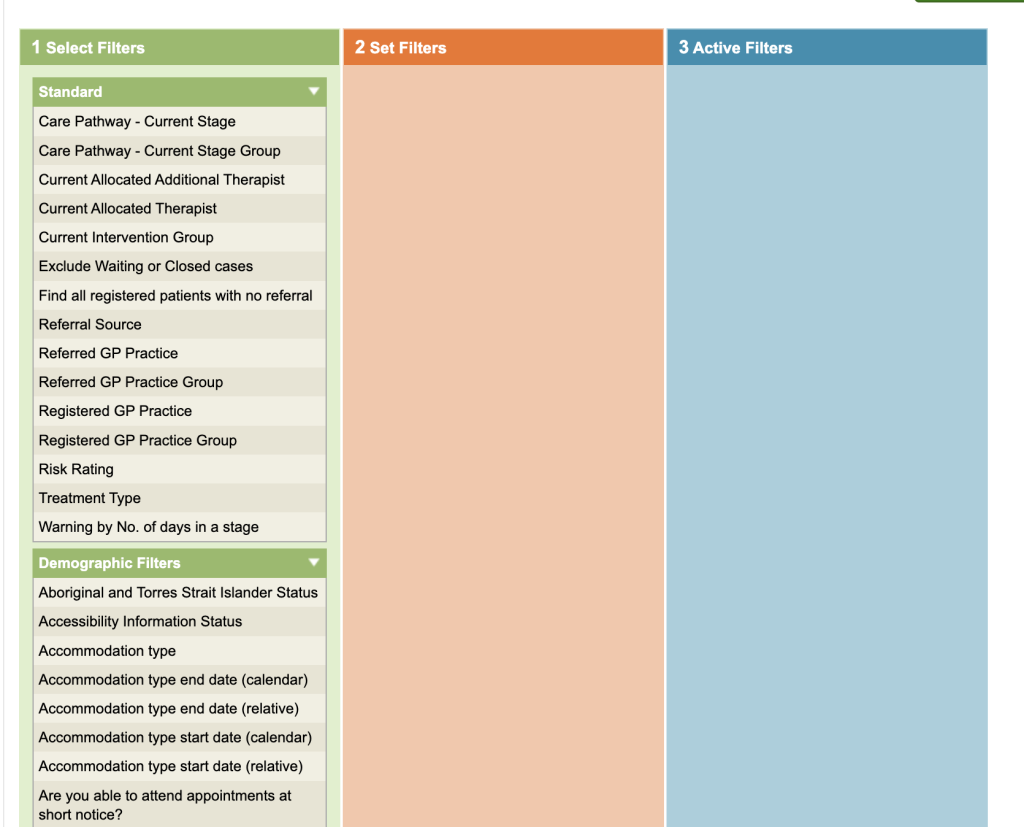
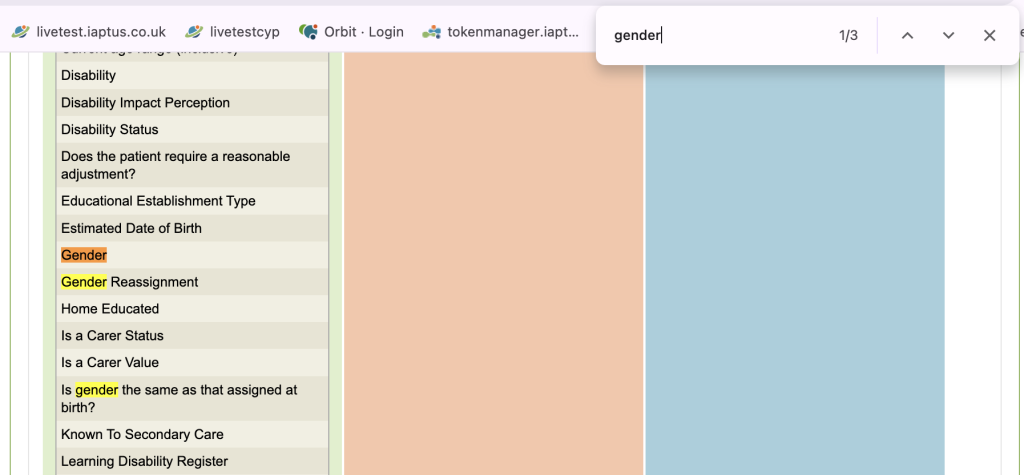
2. Press Ctrl/Cmd & F on the keyboard, to open the Find on Page option. Type the name of the field you are looking for. e.g gender. The search field will indicate how many matches have been found and show which match is the current one. e.g 1/3 = highlighting match 1 of 3. Matches will be highlighted.
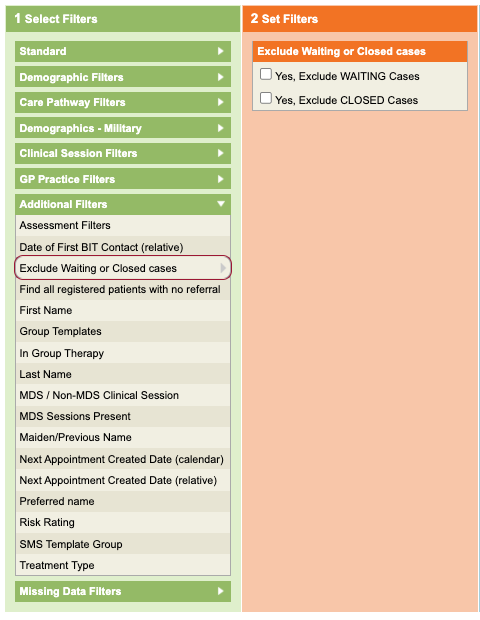
Set Filters
When you click on a filter, the available options are displayed in the orange Set Filters column. Tick all the options you wish to include in the search.
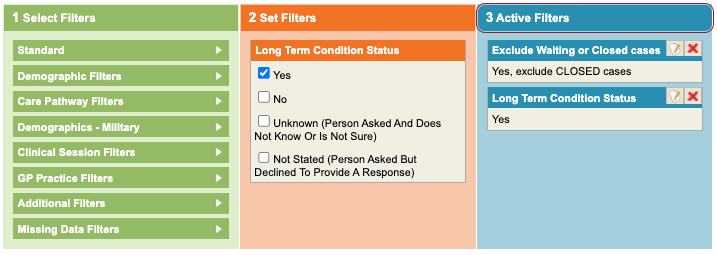
Active Filters
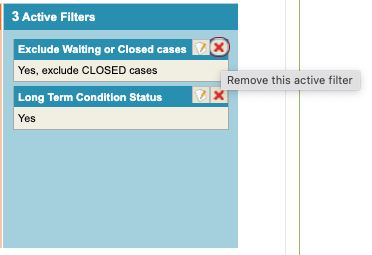
All selected filters will appear in the blue Active Filters column.
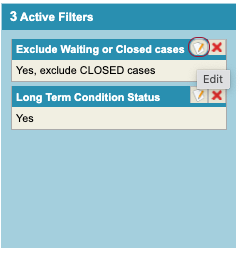
You can edit the filters by clicking the pencil and paper button on the right of the filter, or remove the filter by clicking the cross.
Results
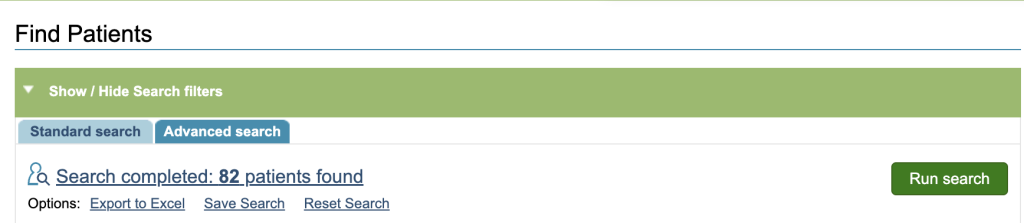
To apply the filters, click Run search. The total number included in the search will be shown. Click on the results to see the full details in a table. You can export these results to Excel, save the search or reset the search.
Saving a search
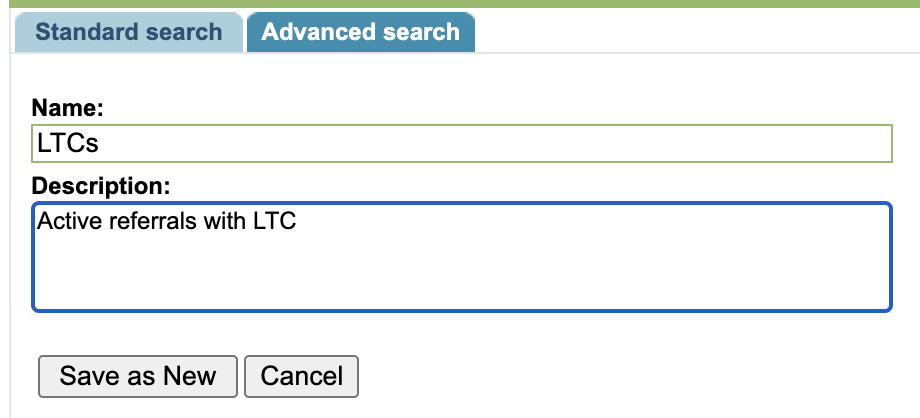
To save this search in My Searches, click Save Search. You will need to name the search and can include a description in needed.

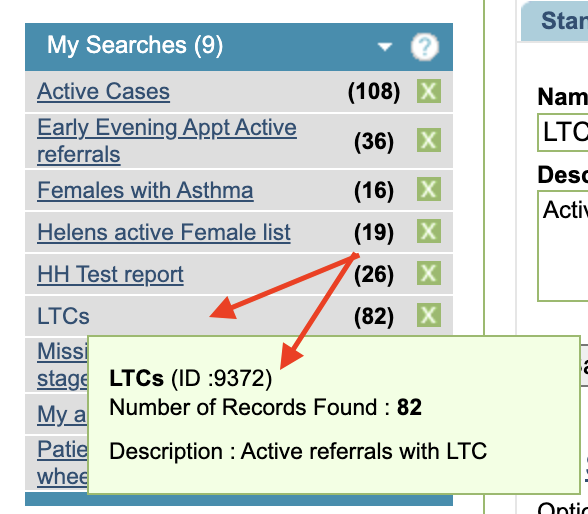
This will appear in My Searches.
The title of the search will be displayed in My Searches with the current result. This figure is updated whenever a change is made to the system. You can view further information about the search by hovering over the search title.