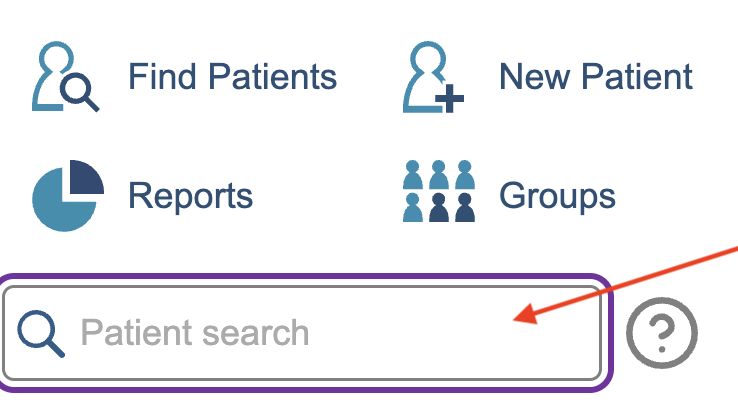
You will be able to see the ‘New Patient’ icon towards the top of iaptus. Before adding a new patient record, please use the Patient search to check that the patient doesn’t already exist.
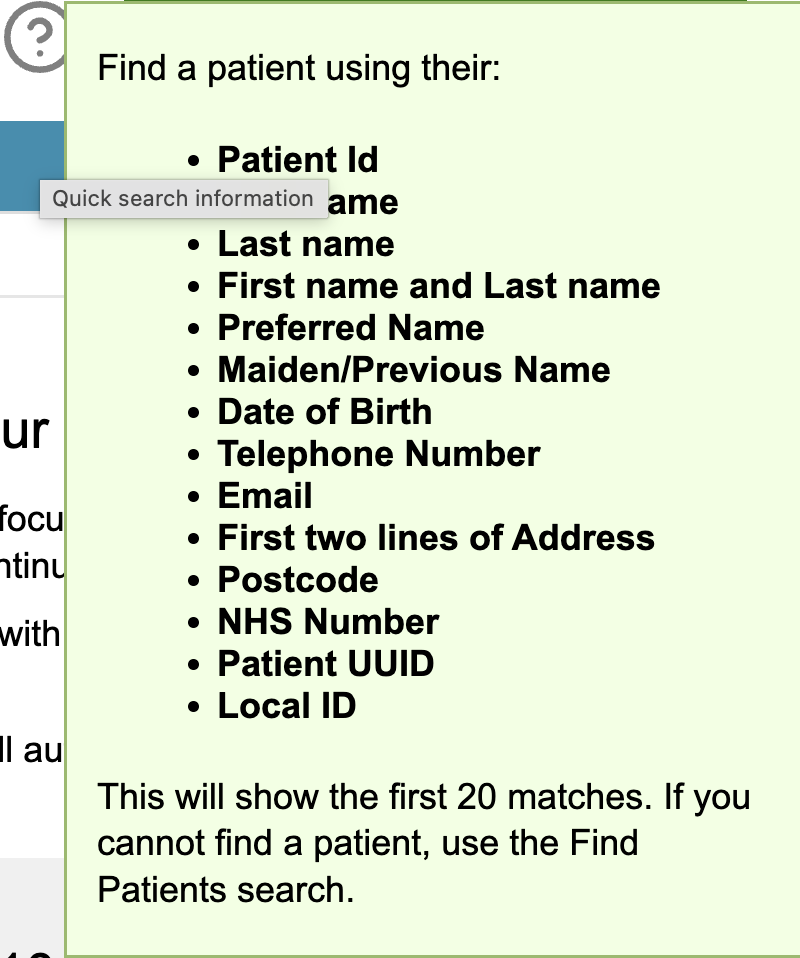
You can a large range of the persons details, as listed in the Tooltip.
It will bring up the first 20 matches in a table, where it will show the Patient ID, Name, Date of birth and Address. To jump into the record, click on the required row.
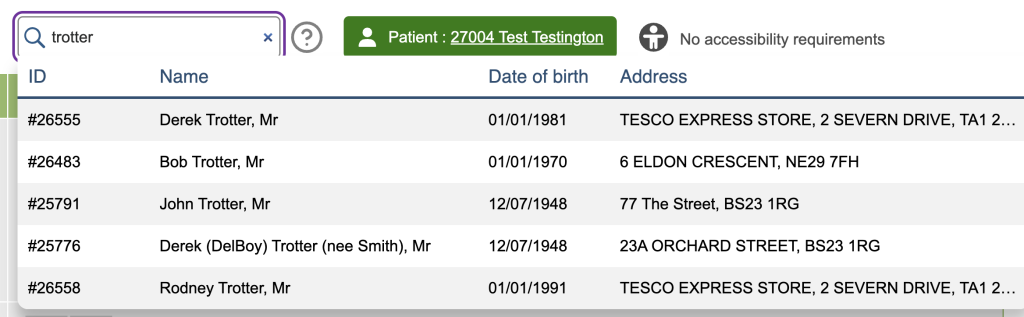
Once you have established that a record does not yet exist for that person, click on the ‘New Patient’ icon.
Patient registration form
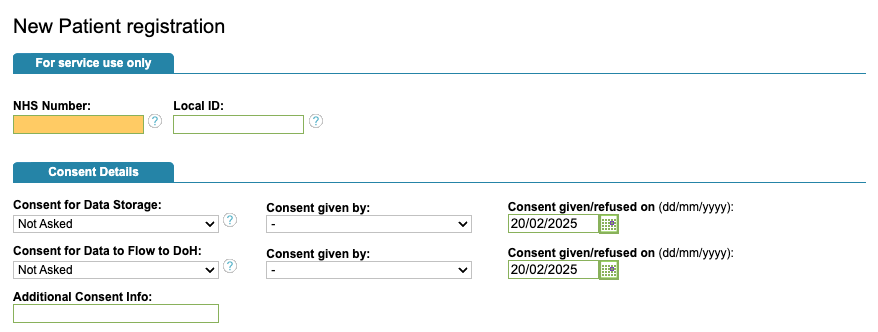
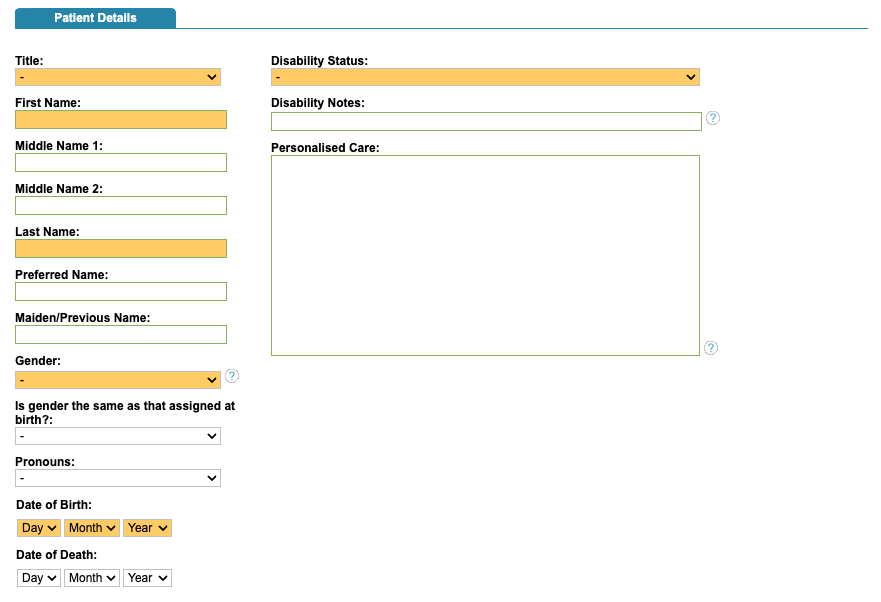
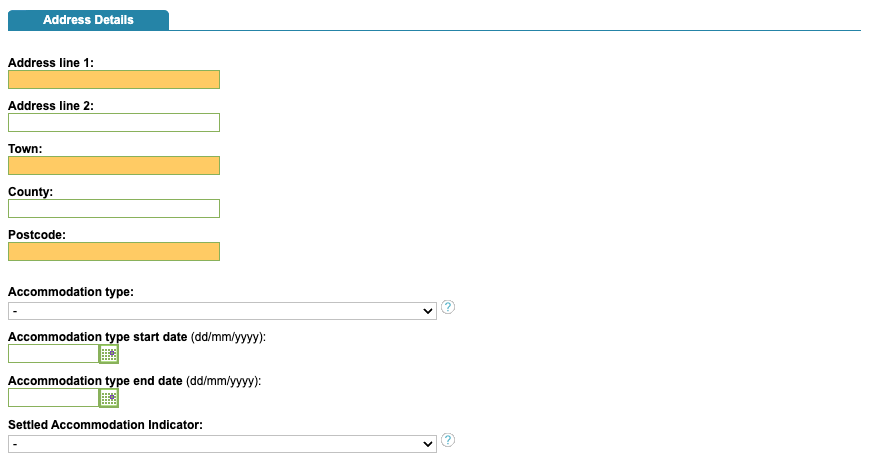
Fields are grouped together in sections. Some fields are text boxes, some have dropdown options and some you can select one or more answers. The answer options for fields can be configured by your system Superusers. For more information on this, please see the Superuser List Management topic.
For Service use only & Consent Details
Patient Details
Address Details
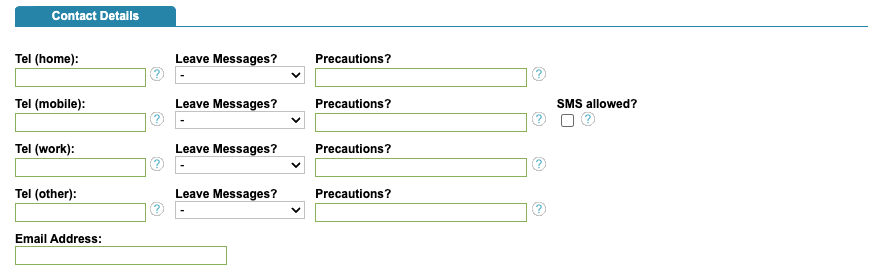
Contact Details
If you are using additional features to send communications via text message and/or emails to a patient, you will need to record the details in the ‘Contact Details’ tab.
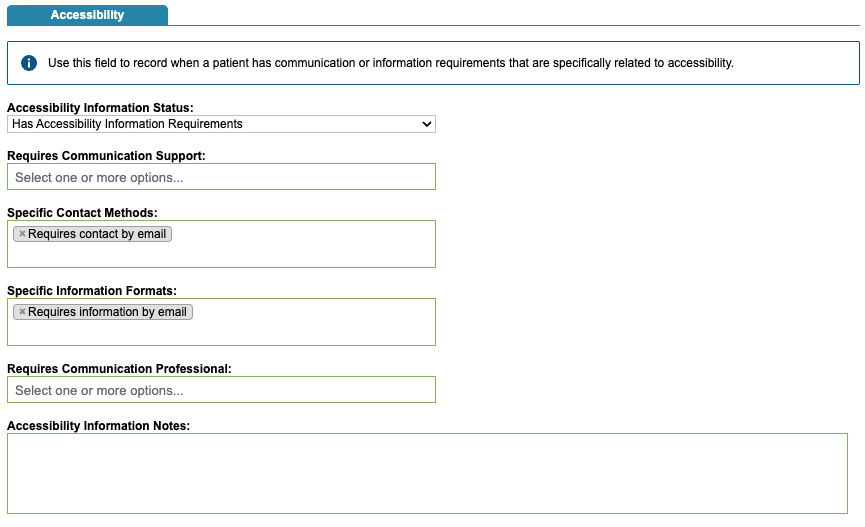
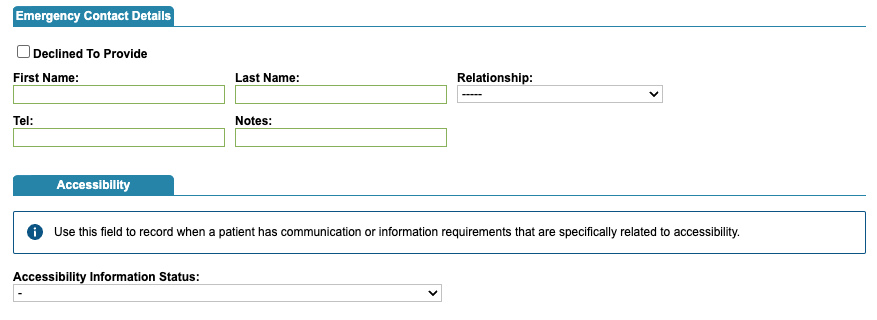
Emergency Contact Details & Accessibility
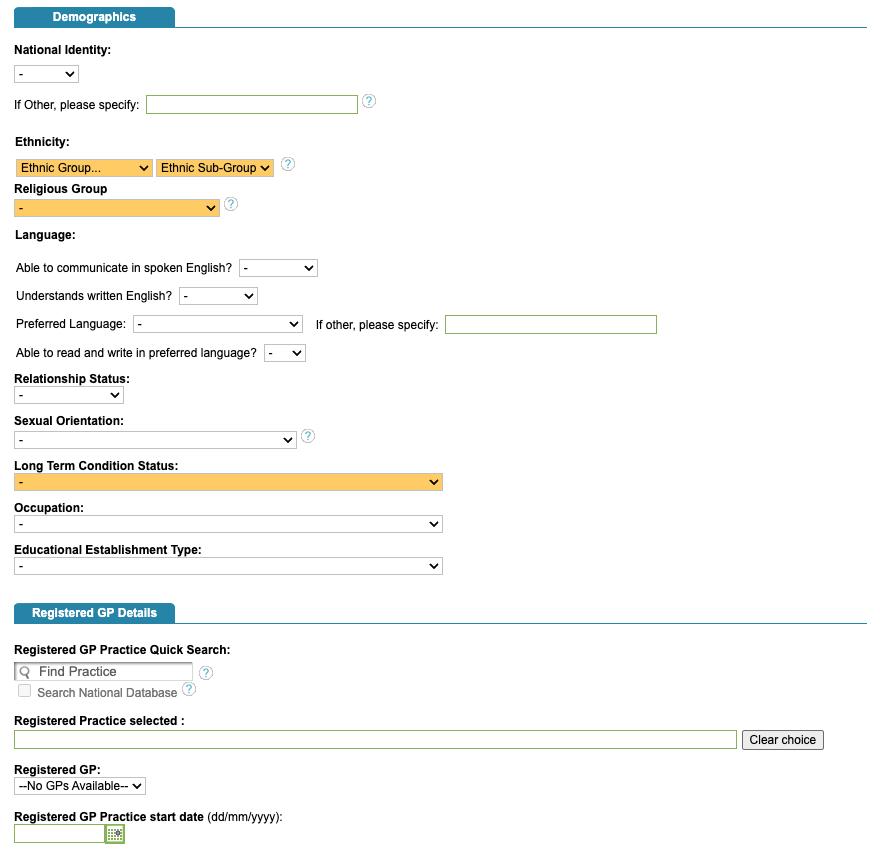
Demographics & Registered GP Practice
Military Details, Labels & Locking
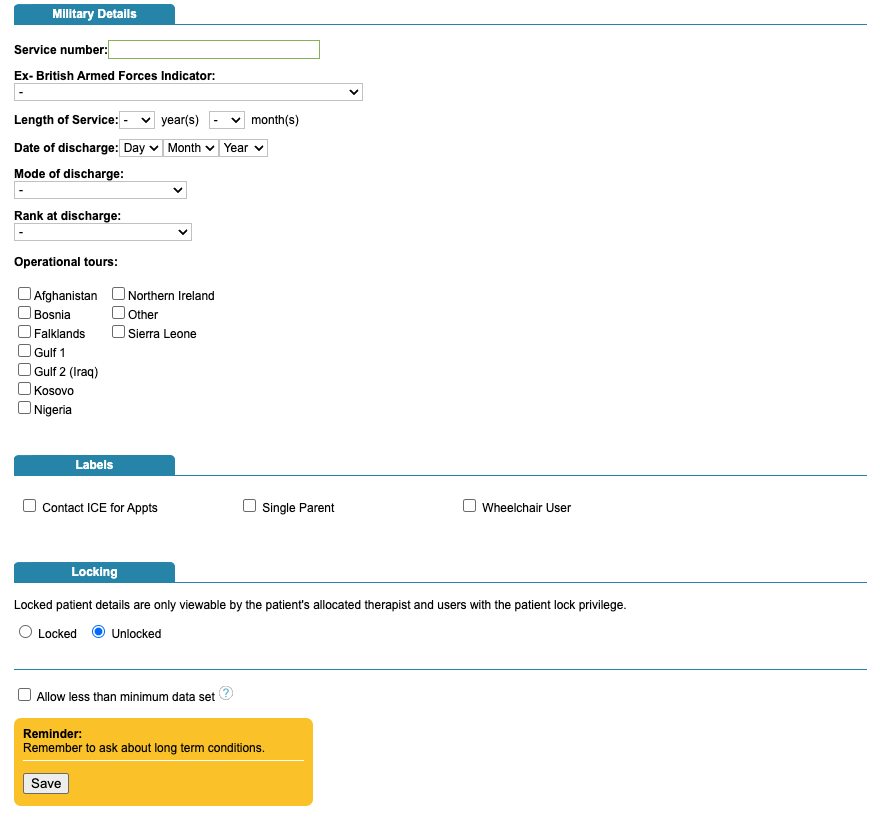
The ‘Allow less than minimum data set’ option will allow you to save the form without completing the mandatory fields. This is so a recorded can be saved quickly without all the information. The idea is that the user comes back to complete the record once they have the missing information. There are searches that you can build in Find Patients and save to support you with this.
Boarding card
Once you have saved the patient record, you will now have a boarding card and the ability to add referrals then session data for this patient.
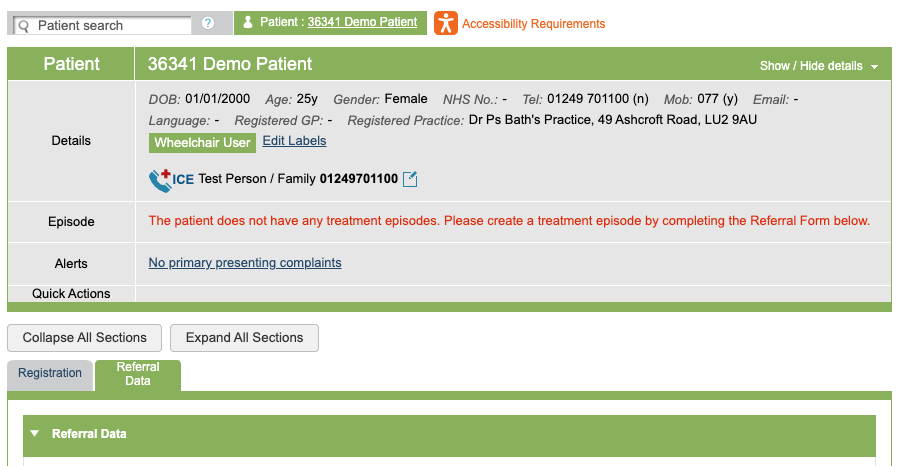
Key information recorded against the patient record will show in the boarding card, as well being able to view and edit patients labels and emergency contact details.
Accessibility
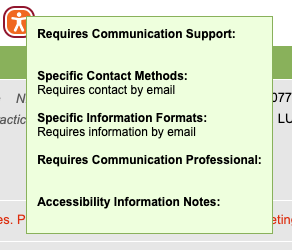
Information recorded in the Accessibility fields will be saved and shown by the orange icon above the boarding card.